Artist 22 Pro – System Keeps Detecting the Esc Key as Pressed (Windows 11)
Solution: Run the Firmware
This issue can be resolved by updating/flashing the firmware. Please follow the steps below:
Step 1: Check the Device PID
Connect the tablet to your computer.
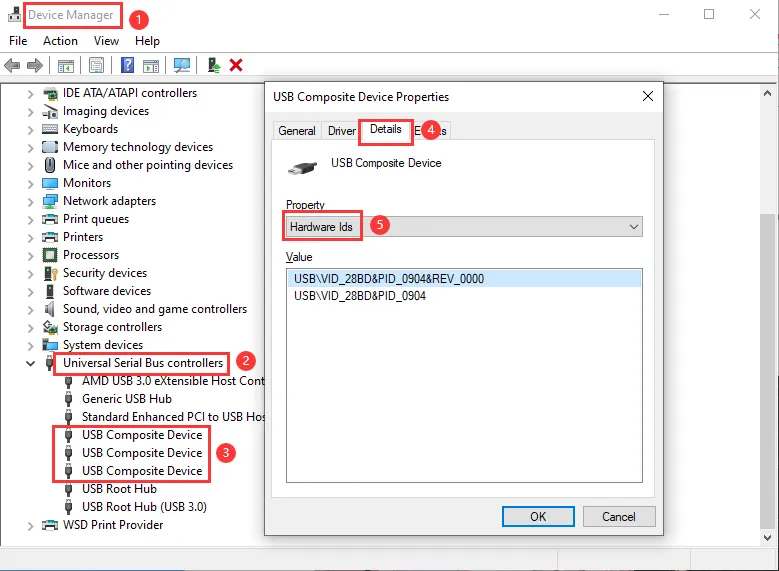
Open Device Manager.
Expand Universal Serial Bus controllers.
Locate USB Composite Device, right-click it, and select Properties.
Go to the Details tab and select Hardware Ids from the property list.
Check each USB Composite Device one by one to see whether a device with PID_091D exists.
Step 2: Confirm the Connection Method
Make sure the tablet's USB cable is connected directly into a USB-A port on your computer (do not use a docking station, USB hub, or adapter).
Step 3: Download and Flash the Firmware
Download the firmware from the link below:
https://drive.google.com/file/d/1EhOug0btVeNDasbKVvp0nRebNcoQcQvB/view?usp=sharing
Extract the downloaded firmware package.
Double-click UgeeBootLoader.exe to run it.
Click OneKeyUpdate to perform the one-key update and wait for the flashing process to complete.
Step 4: Verify
After the firmware flashing is complete, reconnect the tablet and test whether the system still simulates the Esc key being pressed repeatedly. If the issue persists, please send us the screenshots from Step 1 along with a description of the problem, and we will assist you further.
Notes:
Do not disconnect the USB cable or turn off the computer during the firmware flashing process.
It is recommended to close any programs that may be using the tablet (such as drawing software or the driver panel) before flashing.
If you are unsure about any of the steps, please contact our Global Service Center for guidance first: service@xp-pen.com