I don't see the calibration tool in the driver panel
Applicable Model:Artist 13.3,Artist 15.6,Artist 16 Pro,Artist 22 Pro,Artist 22E Pro,Artist 12,Artist 15.6 Pro,Artist 13.3 Pro,Artist 12 Pro,Artist 22R Pro,Artist 24 Pro,Innovator 16,Artist 13.3 Pro Holiday Edition,Artist 22 (2nd Generation),Artist Pro 16TP,Artist 24,Artist Pro 16, Artist 12 (2nd Generation),Artist 13 (2nd Generation),Artist 16 (2nd Generation),Artist 10 (2nd Generation),Artist 24 (FHD),Artist Pro 14 (Gen 2),Artist Pro 16 (Gen 2),Artist 13.3 V2,Artist 22 Plus,Artist 12 Pen Display (2nd Gen) Le Petit Prince Edition,Artist 16 Pen Display (2nd Gen) Le Petit Prince Edition,Artist Pro 24 (Gen 2) 4K,Artist Pro 19 (Gen 2),Artist Pro 24 (Gen 2) 165Hz,Artist 13.3 Pro V2,Artist 15.6 Pro V2,Artist Pro 22 (Gen 2),Artist Ultra 16,Artist 12 3rd,Artist Pro 27 (Gen 2),Artist 16 3rd
No calibration tool in the driver panel
Here are certain situations when we can’t see the calibration tool and how to solve it:
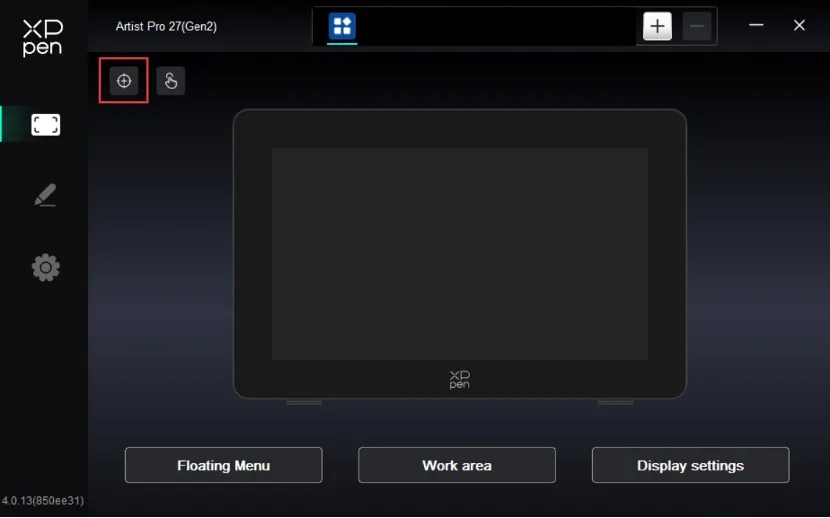
The calibration tool becomes a dot icon on top left side of the ‘device’ tab on the driver.
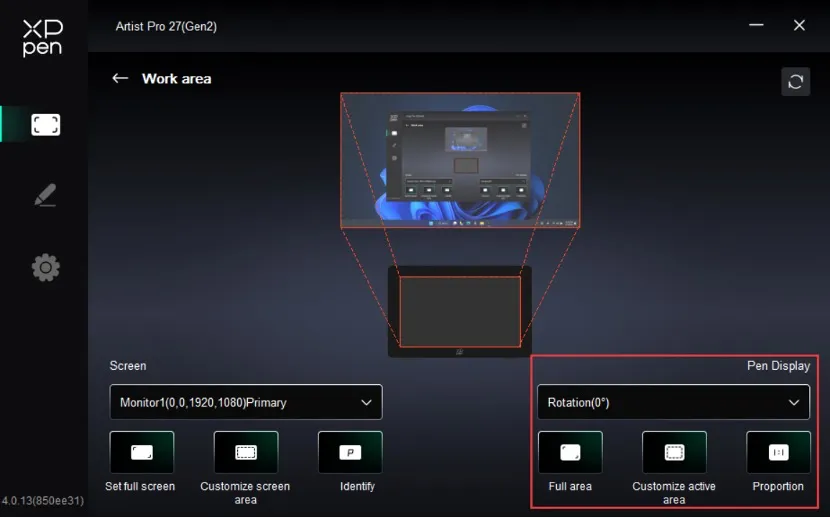
Click the ‘work area’ on the‘device’ tab, change the screen option to the tablet monitor, it could be monitor 1 or monitor 2. Then in the ‘pen display’ part, click on the ‘full area’ . Go back to the device tab and see if the calibration icon shows there.