Configure Canvas Rotation for Artist12 3rd in Krita
Applicable Model:Artist 12 3rd,Artist 16 3rd
Configure Canvas Rotation for Artist12 3rd in Krita
Follow these steps to set up the canvas rotation function for your Artist12 3rd pen display in Krita:
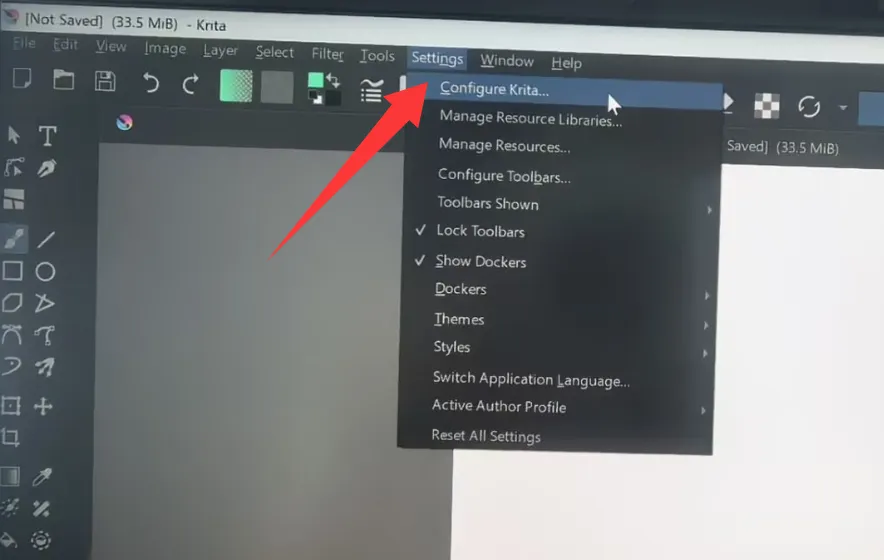
Launch Krita, go to the top menu: Settings > Configure Krita
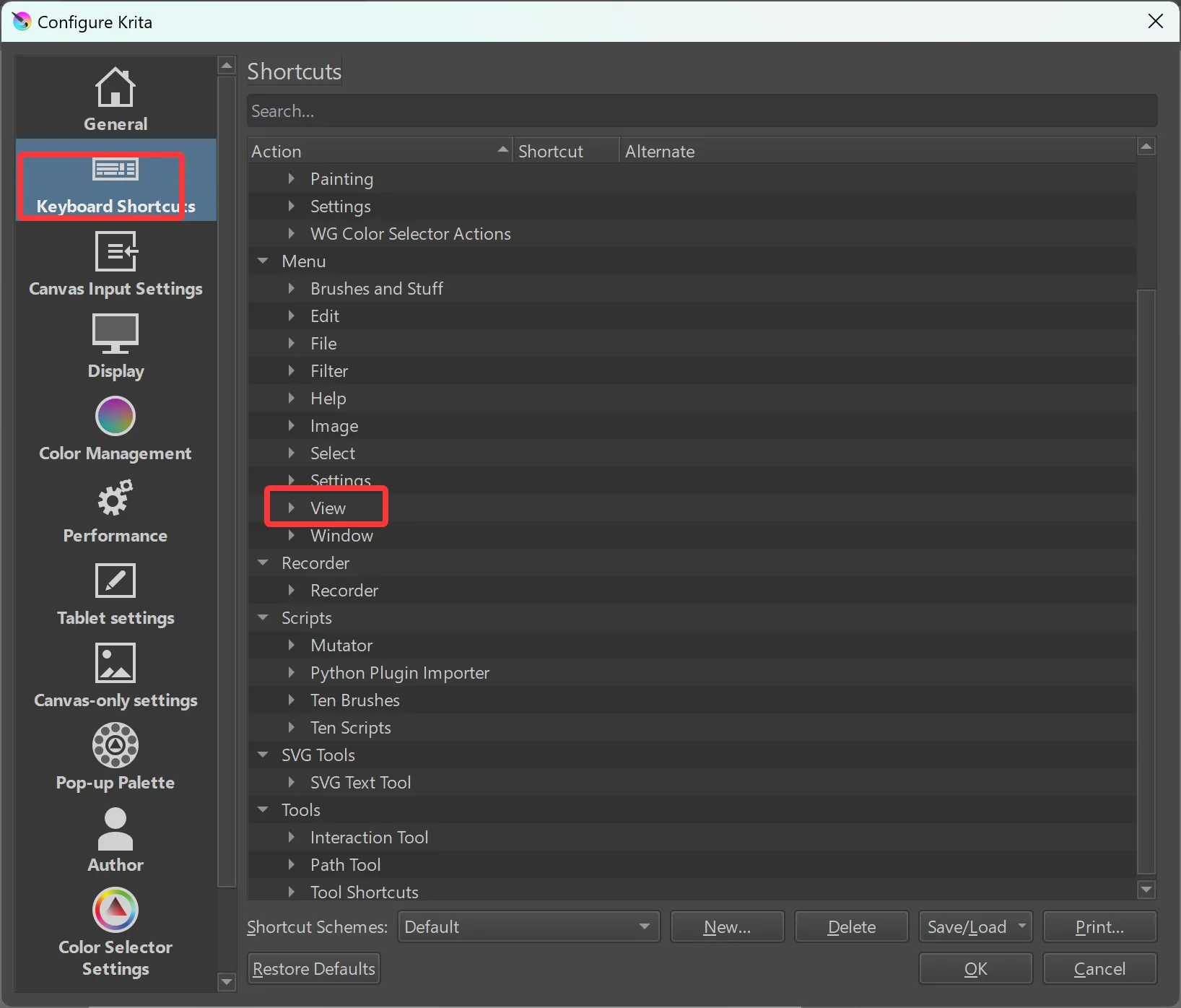
Select the Canvas Shortcuts tab, then locate the Rotate Canvas View option.
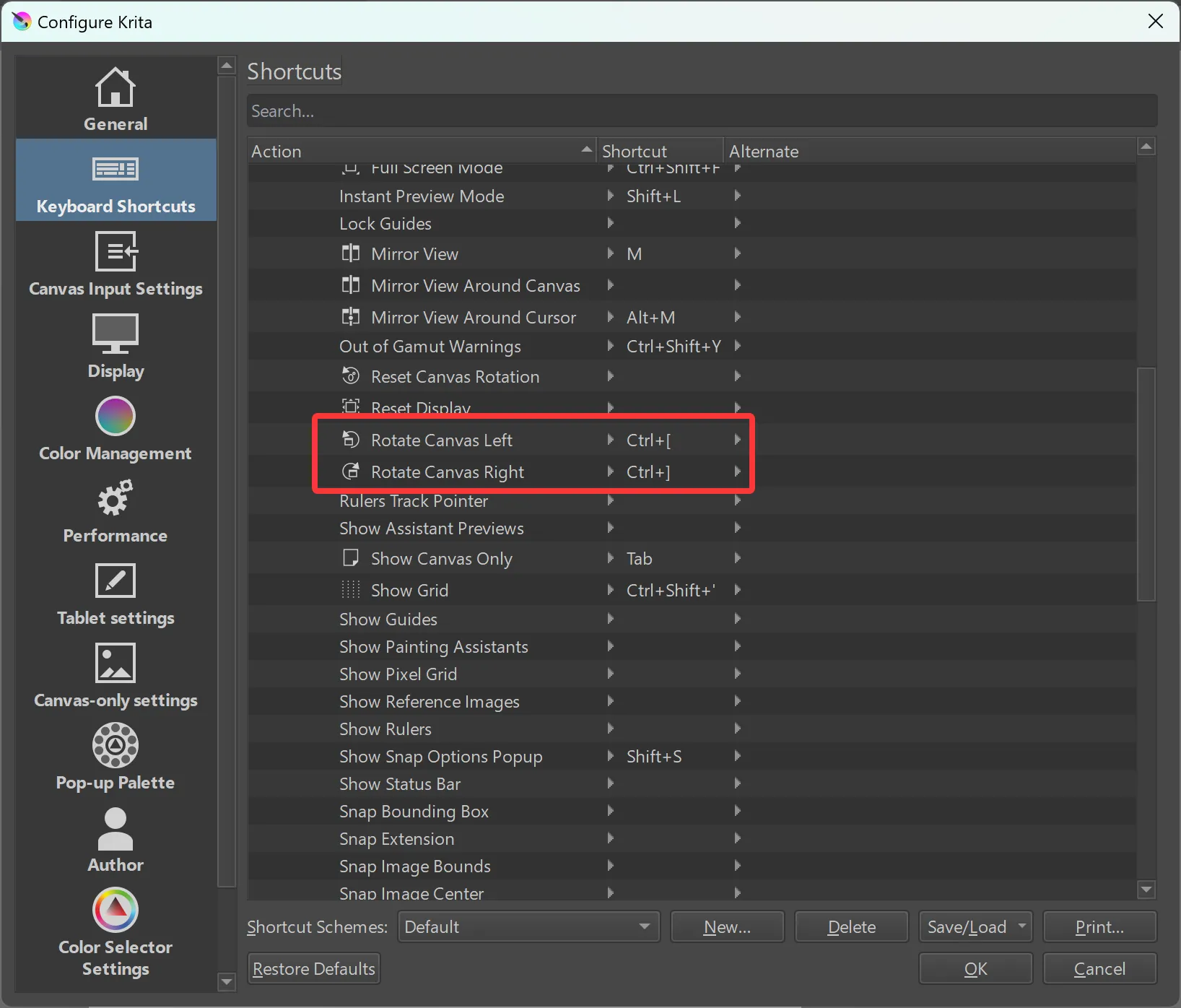
The default shortcuts for this function are keys “Ctrl + [“ and “Ctrl + ]”, you can also reassign it to any custom key combination you prefer.
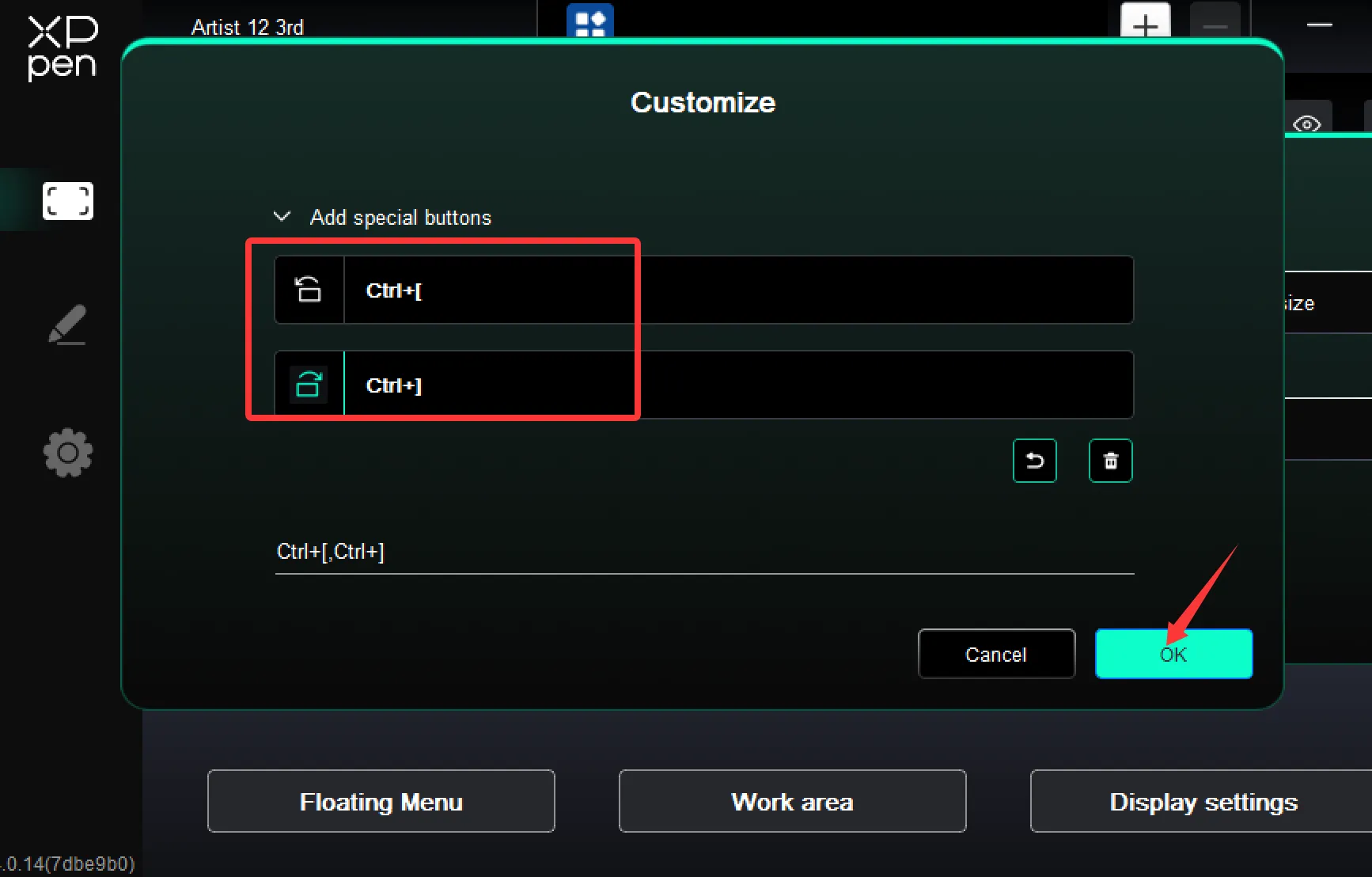
Open the XPPenTablet app, find the roller settings, select “Customize”.
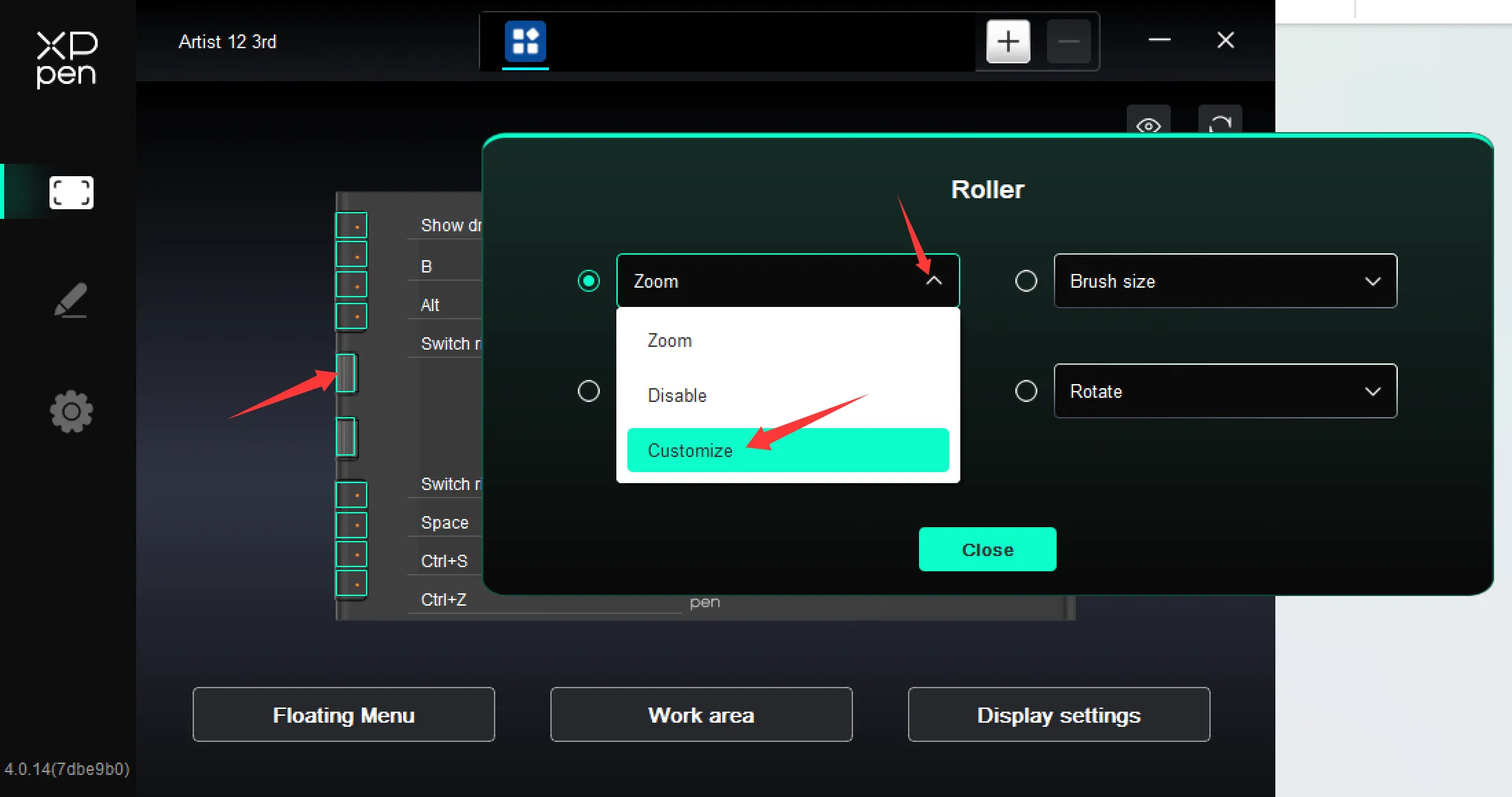
Set the driver's rotation shortcut to exactly match the one you configured in Krita; if you keep Krita's default setup, assign keys “Ctrl + [ ” and “Ctrl + ]” here to complete the setting.