How to Configure Canvas Rotation in SAI2
Applicable Model:Star G640,Artist 12,Artist 15.6 Pro,Deco Pro S/M,Artist 13.3 Pro,Deco 01 V2,Artist 12 Pro,Star G960,Artist 22R Pro,Star G960S,Star G960S Plus,Artist 24 Pro,Deco mini7,Deco mini4,Deco mini7W,Artist 13.3 Pro Holiday Edition,Artist 22 (2nd Generation),Deco Fun,Deco Pro SW/MW,Artist 24, Artist 12 (2nd Generation),Deco LW,Deco L,Artist 13 (2nd Generation),Artist 16 (2nd Generation),Deco M,Deco MW,Artist 10 (2nd Generation),Artist 24 (FHD),Artist Pro 14 (Gen 2),Deco Pro (Gen 2) Series,Artist Pro 16 (Gen 2),Artist 22 Plus,Artist 12 Pen Display (2nd Gen) Le Petit Prince Edition,Artist 16 Pen Display (2nd Gen) Le Petit Prince Edition,Deco 640,Deco 01 V3,Deco mini7 V2,Artist Pro 24 (Gen 2) 4K,Artist Pro 19 (Gen 2),Artist Pro 24 (Gen 2) 165Hz,Artist 13.3 Pro V2,Artist 15.6 Pro V2,Artist Pro 22 (Gen 2),Artist Ultra 16,Artist 12 3rd,Deco mini7W V2,Artist Pro 27 (Gen 2),Artist 16 3rd
How to Configure Canvas Rotation in SAI2
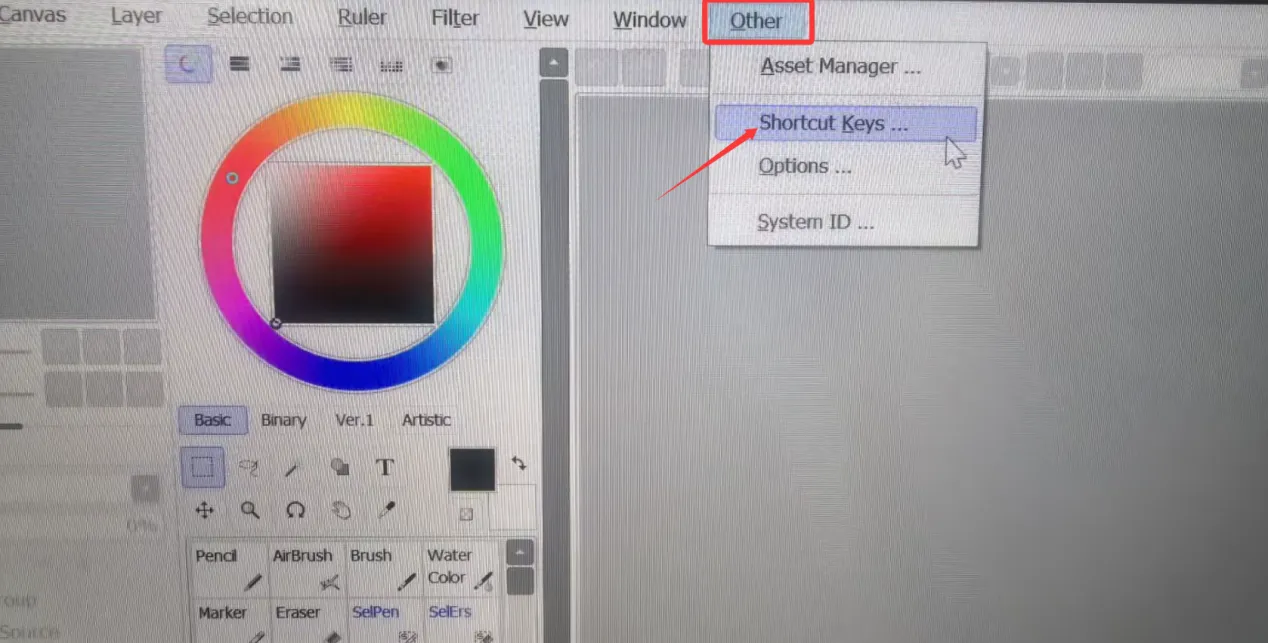
1. Open SAI2 and navigate to the Shortcut Settings.
2.In the left column, navigate to two empty shortcut slots. In the right column, click on View and locate Rotate.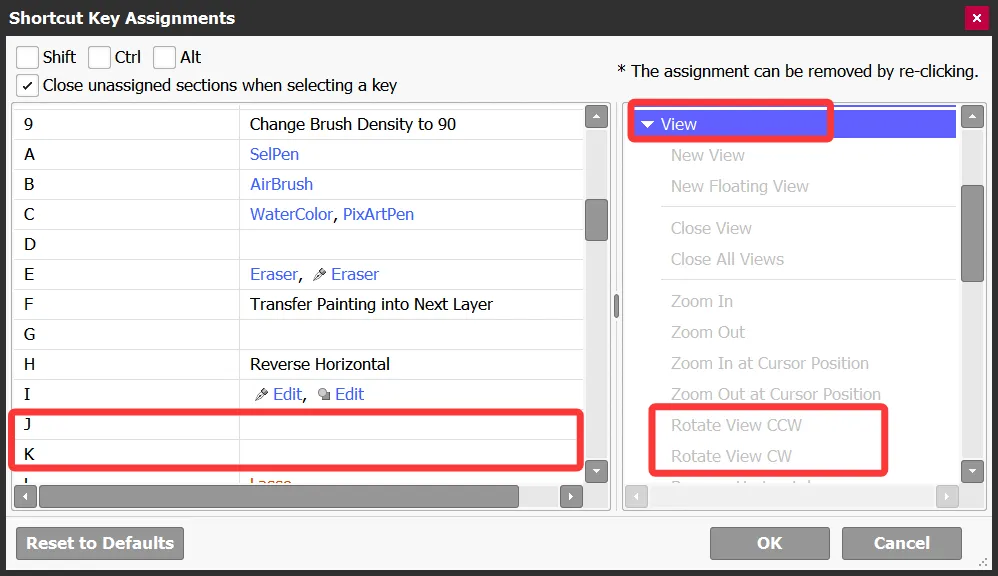
3. Set J to counter-clockwise rotation and K to clockwise rotation, then press OK to save.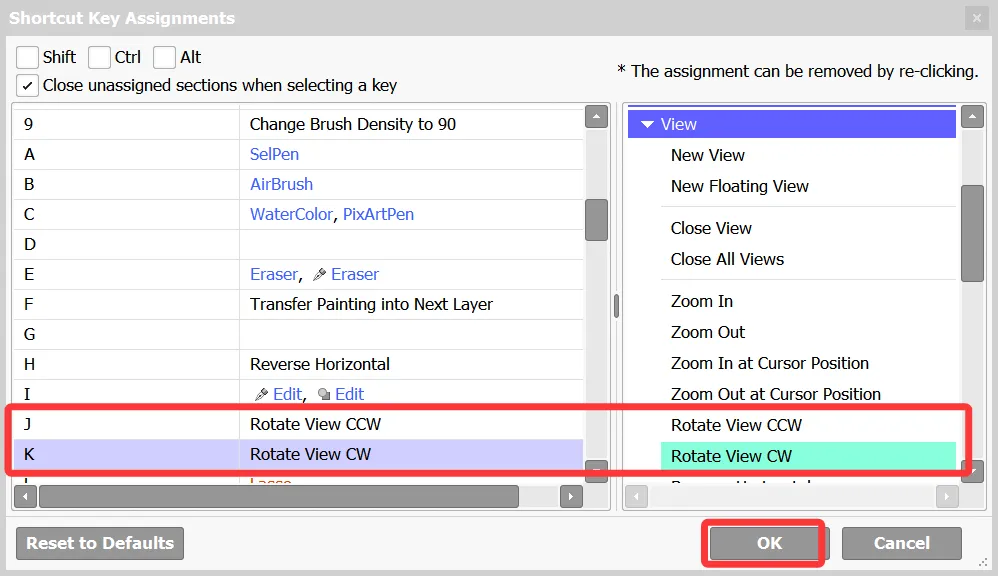
4. Open the driver, locate the scroll wheel settings, click on the rotation function, and select Customize.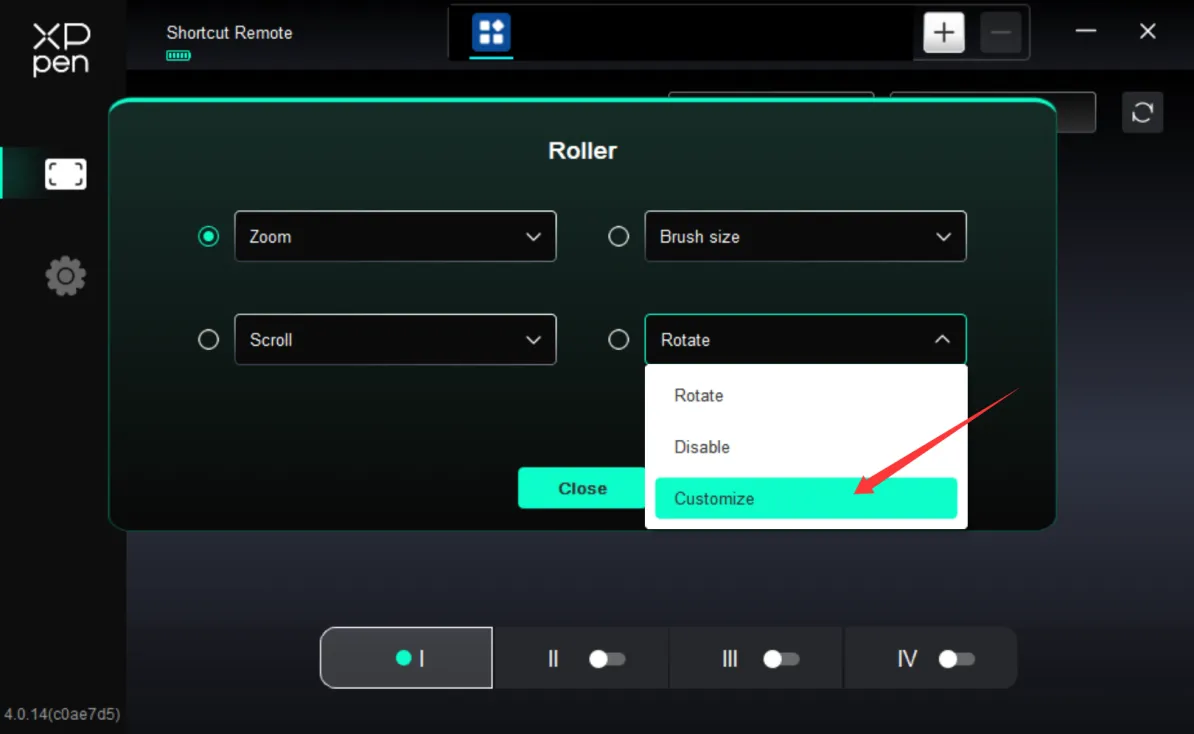
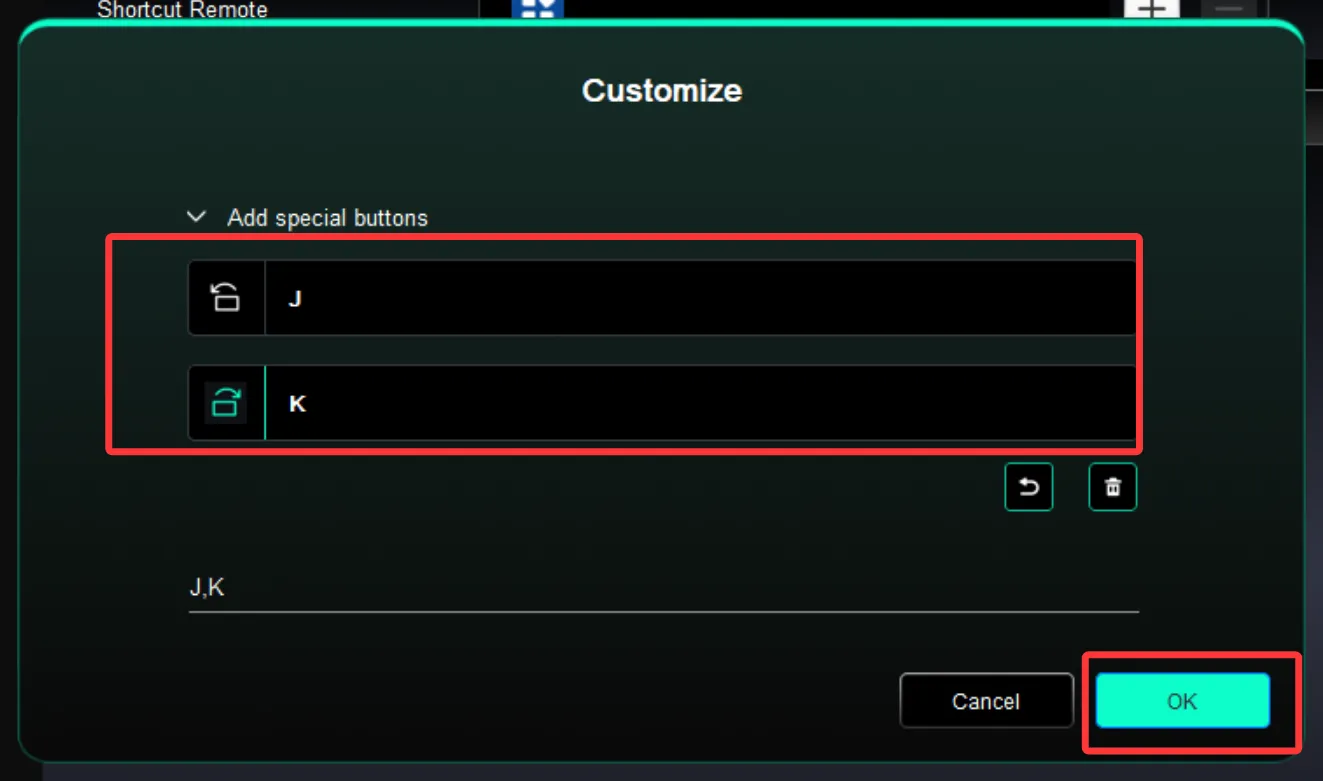
5. Configure the settings to match J and K in SAI2, and press OK to save.