How to Set Up Touch Shortcuts in XPPen Notes App
Applicable Model:Magic Note Pad
How to Set Up Touch Shortcuts in XPPen Notes App
Open the app and locate the Settings icon in the top-left corner.

Scroll down to find the Shortcut Gestures section.

Tap the "Two-finger Tap" option and select "Disable" or other functions.
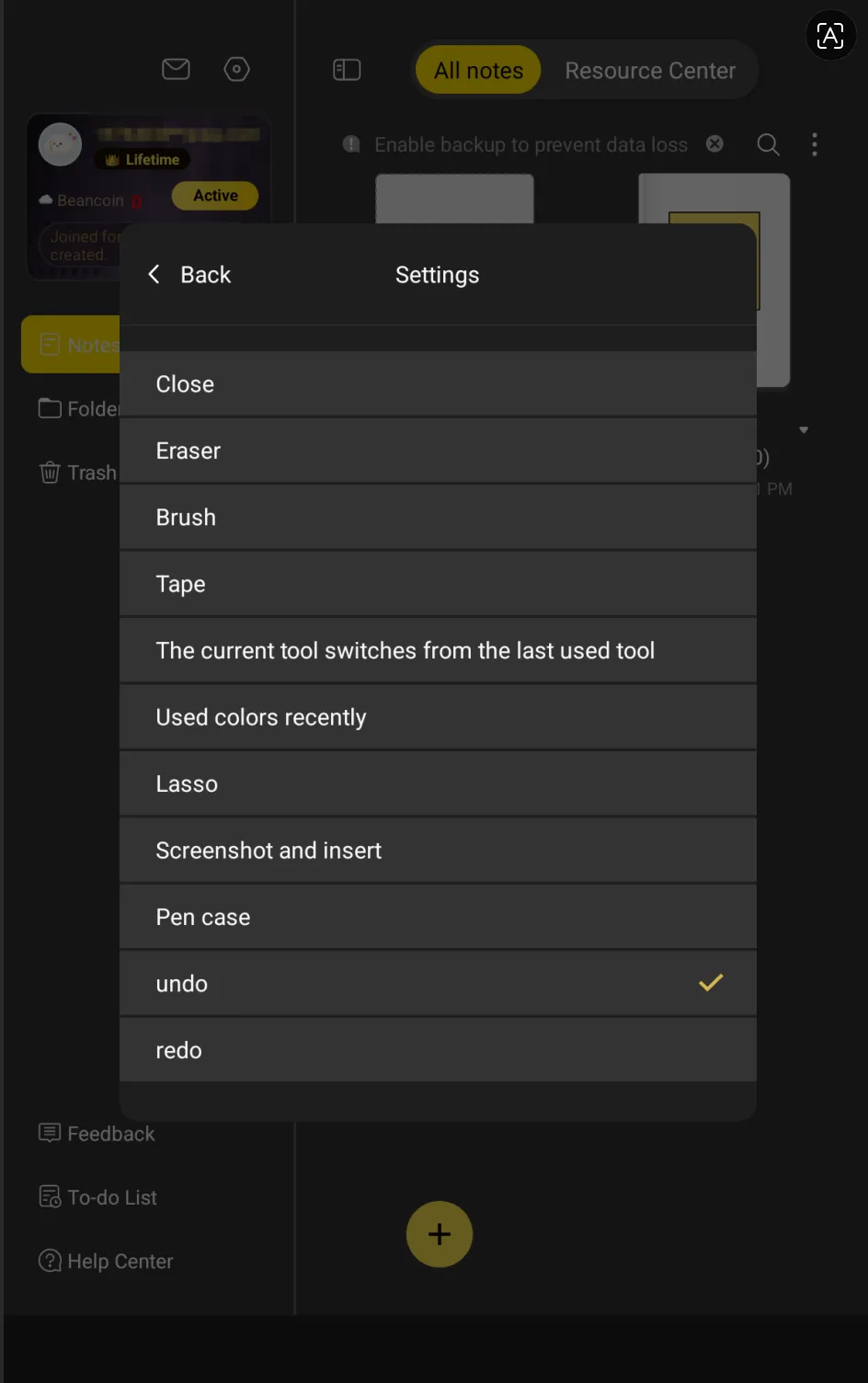
Follow the settings shown in the figure to turn off the two-finger tap shortcut gesture. Similarly, you can assign custom functions or configure the three-finger/four-finger tap features.
