How to set screen resolution and size of text, apps, and other items on a Windows computer
Applicable Model:Artist 10S,Artist 22,Artist 22E,Artist 16,Artist 13.3,Artist 15.6,Artist 16 Pro,Artist 22 Pro,Artist 22E Pro,Artist 12,Artist 15.6 Pro,Artist 13.3 Pro,Artist 12 Pro,Artist 22R Pro,Artist 24 Pro,Innovator 16,Artist 13.3 Pro Holiday Edition,Artist 22 (2nd Generation),Artist Pro 16TP,Artist 24,Artist Pro 16, Artist 12 (2nd Generation),Artist 13 (2nd Generation),Artist 16 (2nd Generation),Artist 10 (2nd Generation),Artist 24 (FHD),Artist Pro 14 (Gen 2),Artist Pro 16 (Gen 2),Artist 13.3 V2,Artist 22 Plus,Artist 12 Pen Display (2nd Gen) Le Petit Prince Edition,Artist 16 Pen Display (2nd Gen) Le Petit Prince Edition,Artist Pro 24 (Gen 2) 4K,Artist Pro 19 (Gen 2),Artist Pro 24 (Gen 2) 165Hz,Artist 13.3 Pro V2,Artist 15.6 Pro V2,Artist Pro 22 (Gen 2),Artist Ultra 16,Artist 12 3rd,Artist Pro 27 (Gen 2),Artist 16 3rd
How to set screen resolution and size of text, apps, and other items on a Windows computer
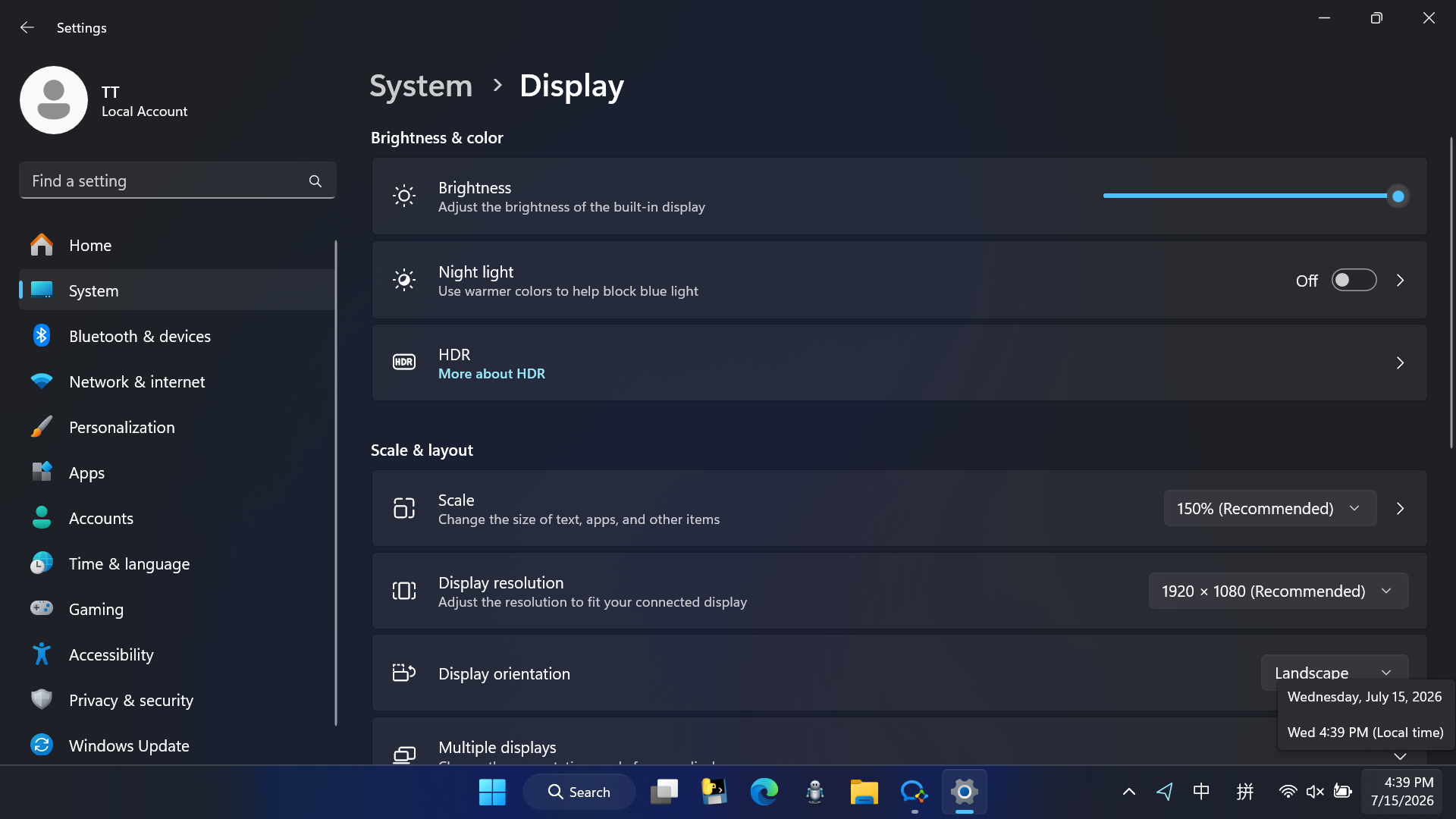
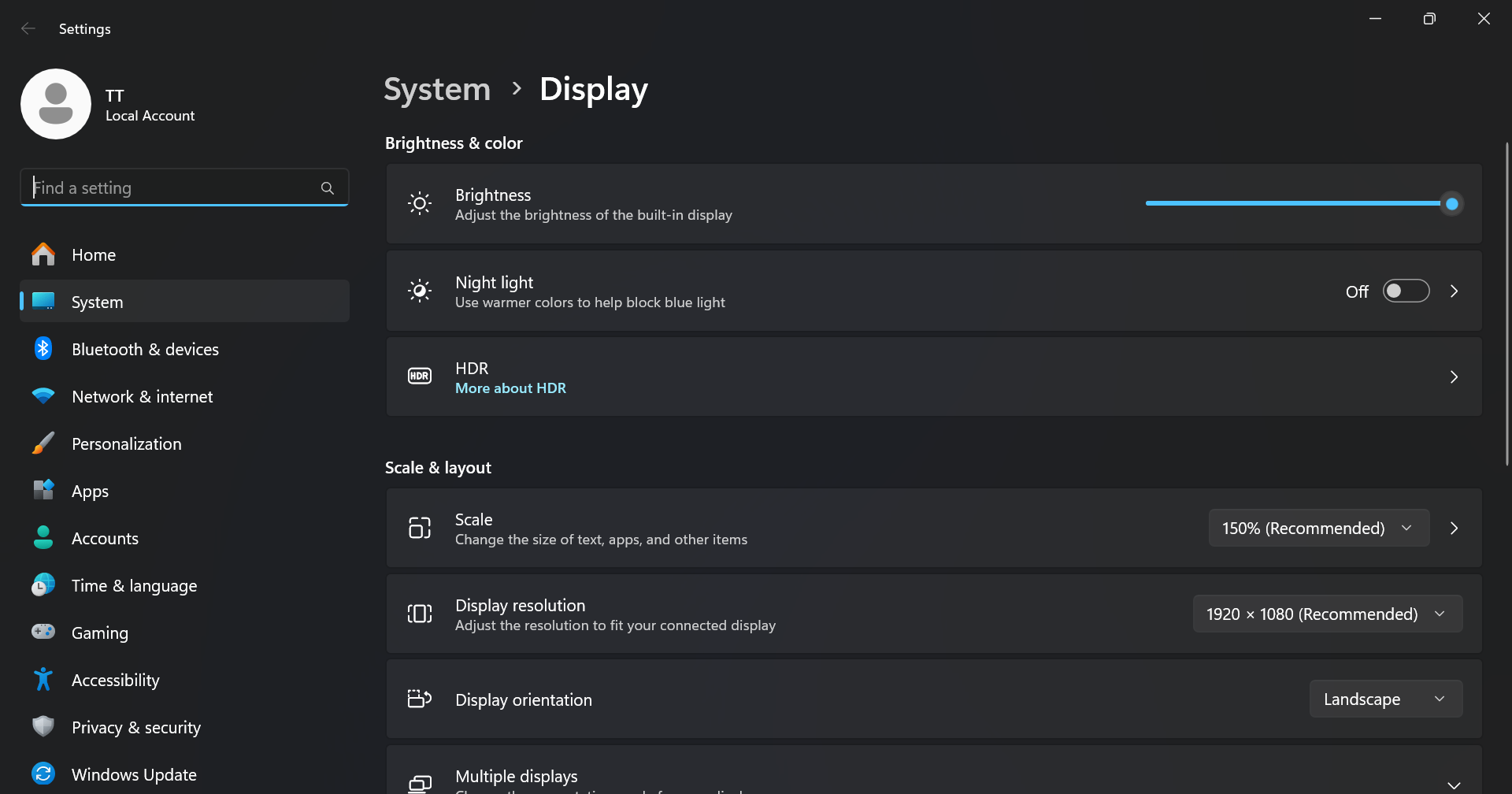
Right-click an empty area of your desktop, click ‘Display settings’ in the pop-up window, then find the display resolution and scale options under ‘scale&layout’.
It can also be accessed in computer ‘settings’ > ‘system’ > ‘display’.