How to solve the pen offset issue?
If you find a gap between the pen tip and the cursor, you can try adjusting it using the following methods.
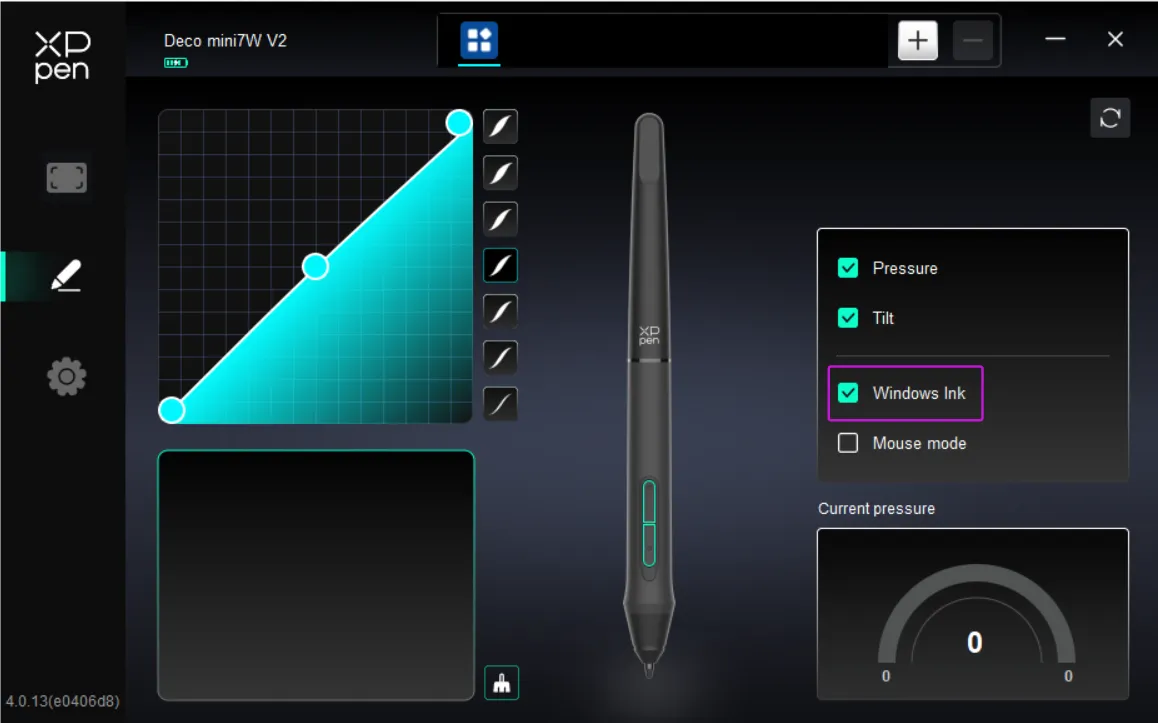
Please open the XPPEN driver> Pen settings. If you checked Mouse mode, please disable it.
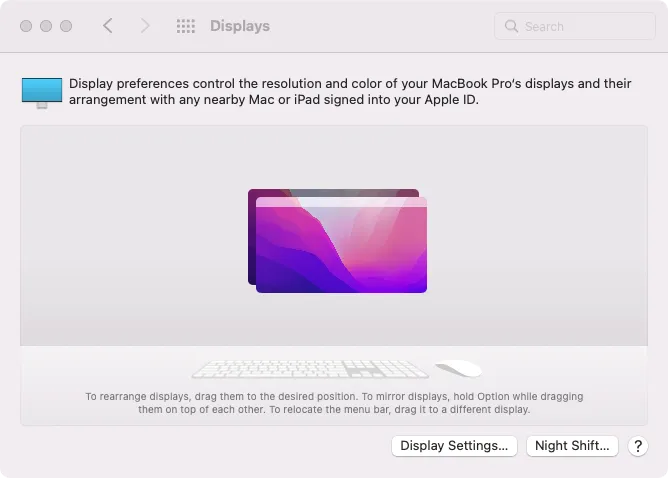
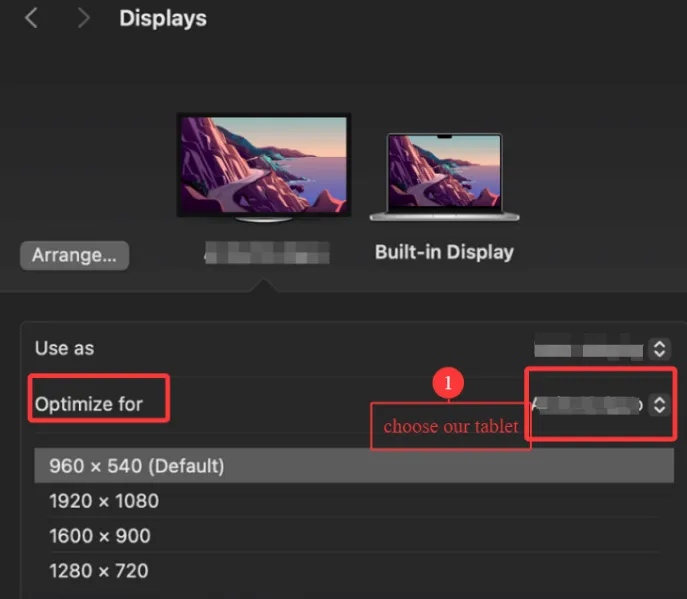
If you use Mac computer: Please go to System Preferences > Displays, click Display Settings, when we mirror XPPEN tablet to Mac computer, please find Optimize for, choose XPPEN tablet in the pop-up window.
If you use Windows computer:
Please press the "Windows" key and "P" key on the keyboard to set your tablet to duplicate your primary monitor. And then go to Settings> System> Display, make sure the size for text and others for display is 100%. If the cursor is accurate, go to step 2.
Please press the "Windows" key and "P" key on the keyboard to set your tablet to extend your primary monitor, make sure the size for text and others for all monitors is 100%, the resolutions are set to the recommended ones. The main monitor should be on the leftmost side, all the monitors are aligned at the top.
Please open XPPEN driver> Work Area> Screen. When we use duplicate mode, please choose Monitor 1.
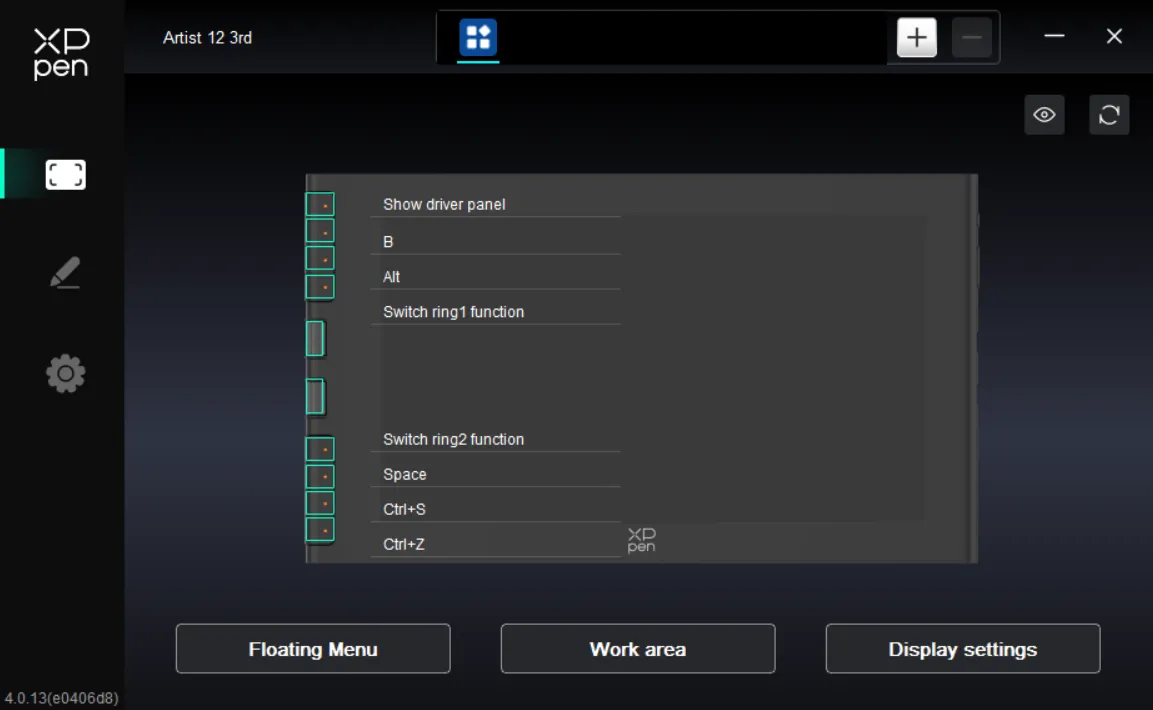
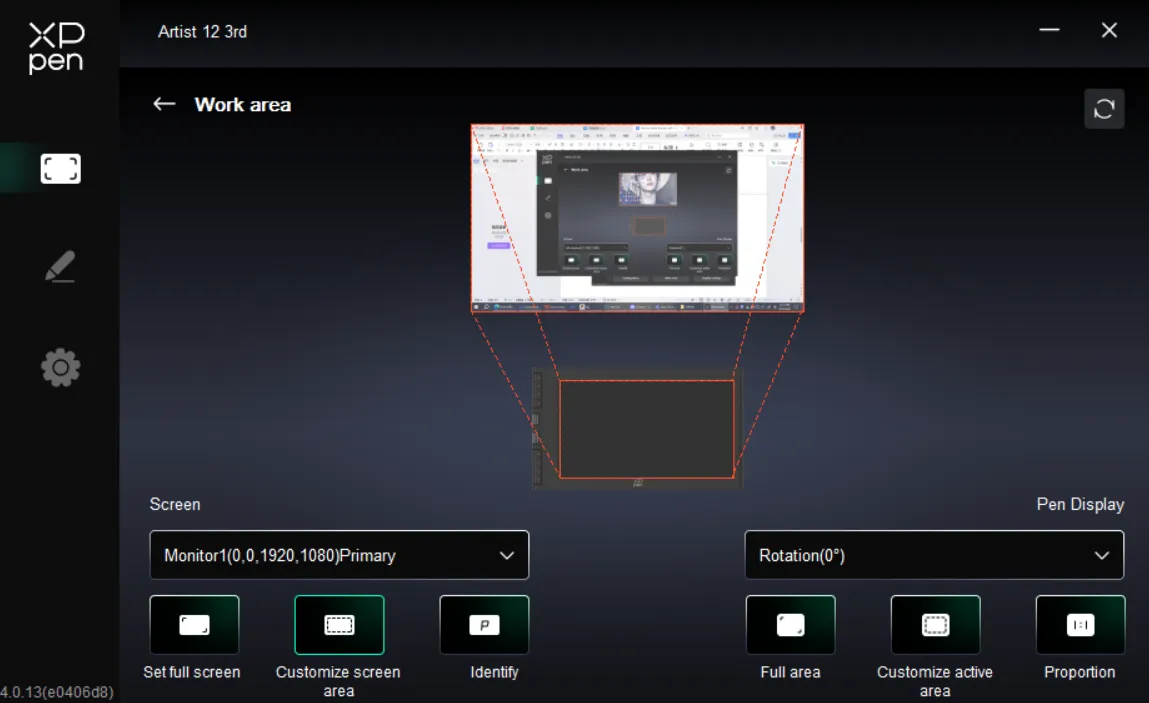
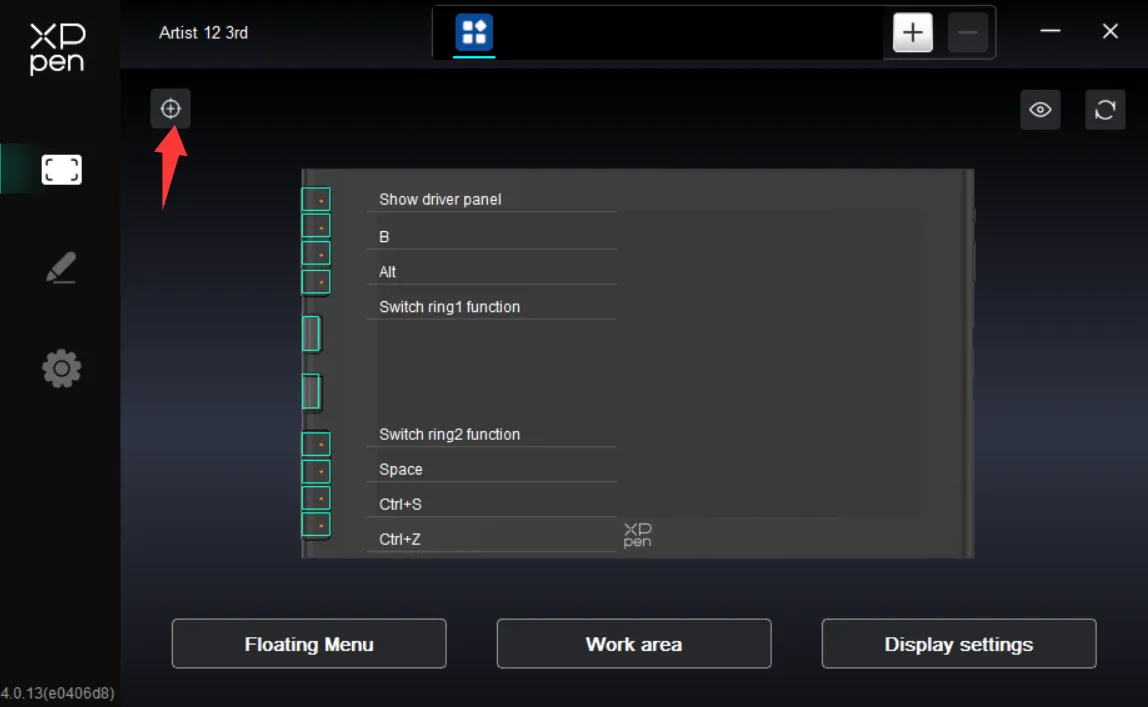
Then click Calibrate, please click the pen nib in the middle of the cross no matter where the cursor is. Just be sure that you are setting and holding the pen at the normal angle that you would normally be when drawing.
Last, actually, it is normal that there will be 1-2mm offset( distance between pen nib and cursor). This is because the cursor you see is refracted by the tablet screen( glass).
If these steps don’t help, please contact our tech support team service@xp-pen.com