Applicable Model:Star 03,Star 05,Star 06,Star 03 Pro,Star G640,Star G430S,Star G640S,Artist 22 Pro,Artist 22E Pro,Artist 12,Artist 15.6 Pro,Deco 01,Deco 03,Deco 02,Deco Pro S/M,Artist 13.3 Pro,Deco 01 V2,Artist 12 Pro,Star G960,Artist 22R Pro,Star G960S,Star G960S Plus,Artist 24 Pro,Innovator 16,Deco mini7,Deco mini4,Deco mini7W,Artist 13.3 Pro Holiday Edition,Deco Fun,Deco Pro SW/MW,Artist Pro 16TP,Artist 24,Artist Pro 16, Artist 12 (2nd Generation),Deco LW,Deco L,Artist 13 (2nd Generation),Artist 16 (2nd Generation),Deco M,Deco MW,Artist 24 (FHD),Artist Pro 14 (Gen 2),Deco Pro (Gen 2) Series,Artist Pro 16 (Gen 2),Artist 22 Plus,Artist 12 Pen Display (2nd Gen) Le Petit Prince Edition,Artist 16 Pen Display (2nd Gen) Le Petit Prince Edition,Deco 640,Deco 01 V3,Deco mini7 V2,Artist Pro 24 (Gen 2) 4K,Artist Pro 19 (Gen 2),Artist Pro 24 (Gen 2) 165Hz,Artist 13.3 Pro V2,Artist 15.6 Pro V2,Artist Pro 22 (Gen 2),Artist Ultra 16,Artist 12 3rd,Deco mini7W V2,Artist Pro 27 (Gen 2),Artist 16 3rd,Artist 12 Pro Lite,Artist Ultra 14
Troubleshooting No Pressure Sensitivity in Krita
If your stylus does not register pressure sensitivity in Krita, follow these step-by-step solutions:
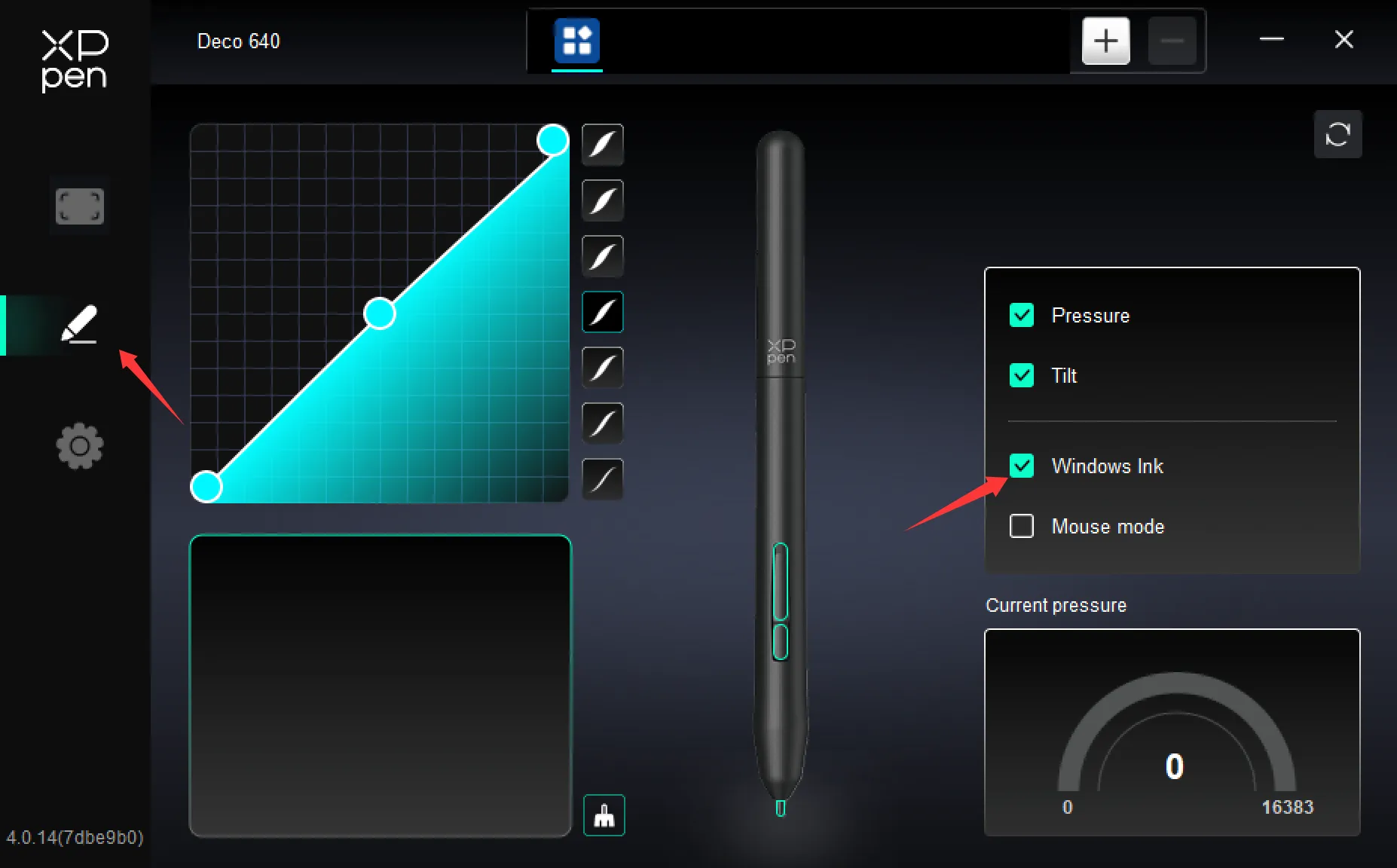
Open XPPenTablet app, go to the “Pen settings” tab, and verify that the Windows Ink option is enabled.
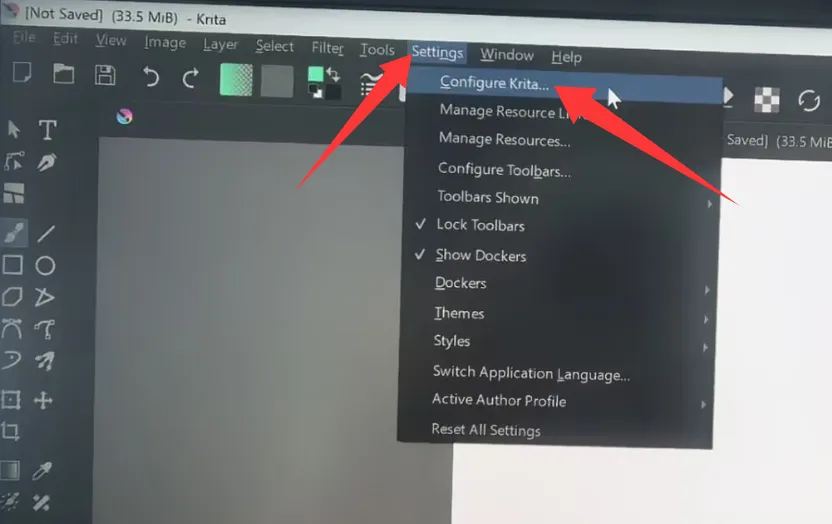
Launch Krita, then navigate to the top menu: Settings > Configure Krita.
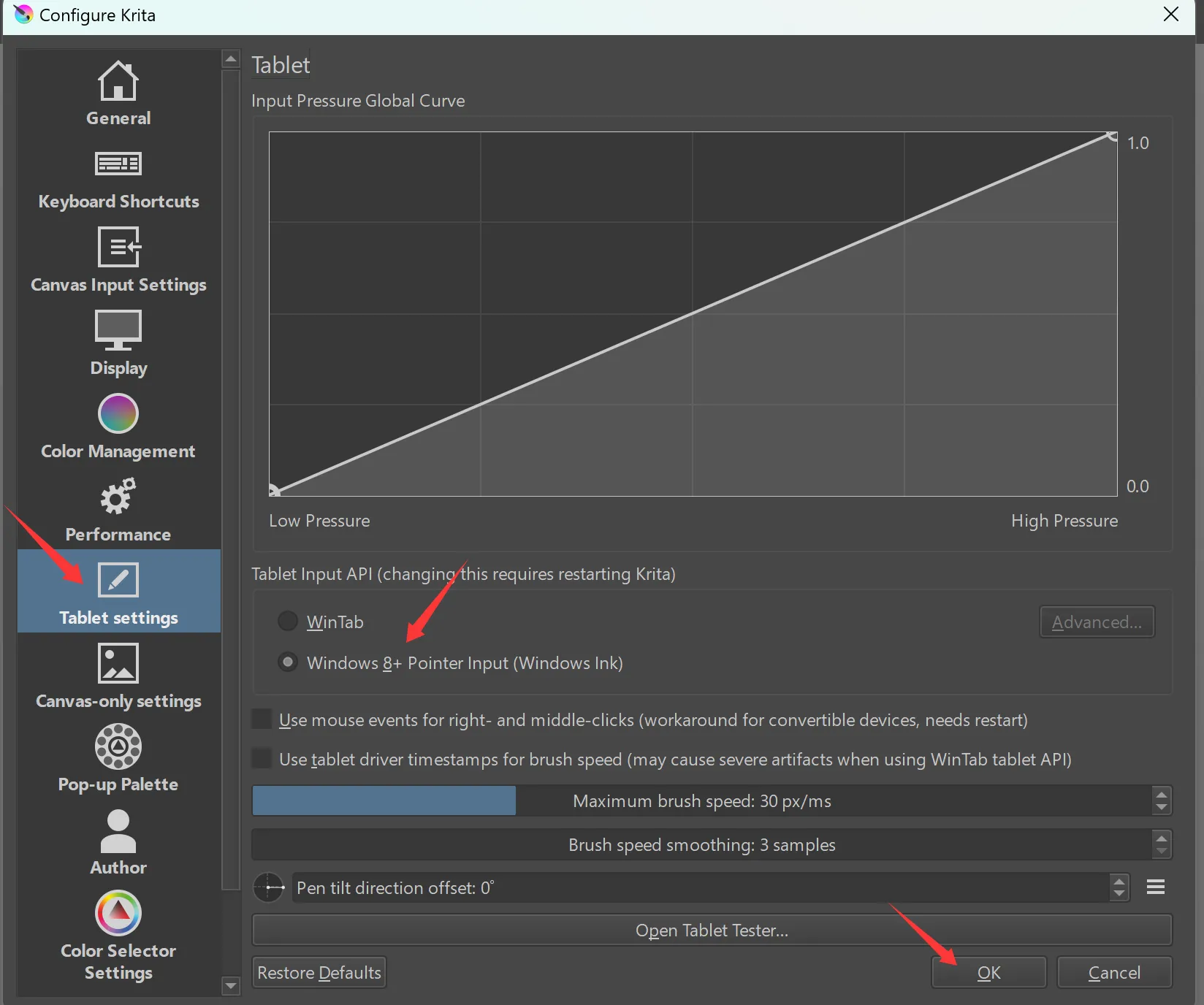
Locate the Tablet Settings panel, select the Windows Ink input mode, save your changes, and restart Krita to apply the configuration.
If pressure sensitivity still does not work after the above steps, disable Windows Ink in XPPenTablet pen settings, switch Krita's tablet input mode to the WinTab tab, save the settings, and restart Krita again to test.
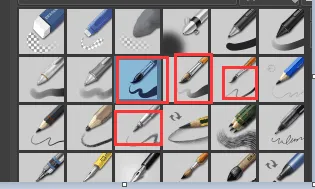
If the pressure sensitivity still not work, please also confirm if you have selected the brush supporting pen pressure in krita.