What Bluetooth version is on a Windows computer?
What Bluetooth version is on a Windows computer?
Bluetooth accessories sometimes require a minimum Bluetooth specification (version) in order to work with full functionality.
1.Right-click on the Start menu and then select Device Manager.
2.In the Device Manager window that opens, select the arrow ChevronRight next to Bluetooth to expand it.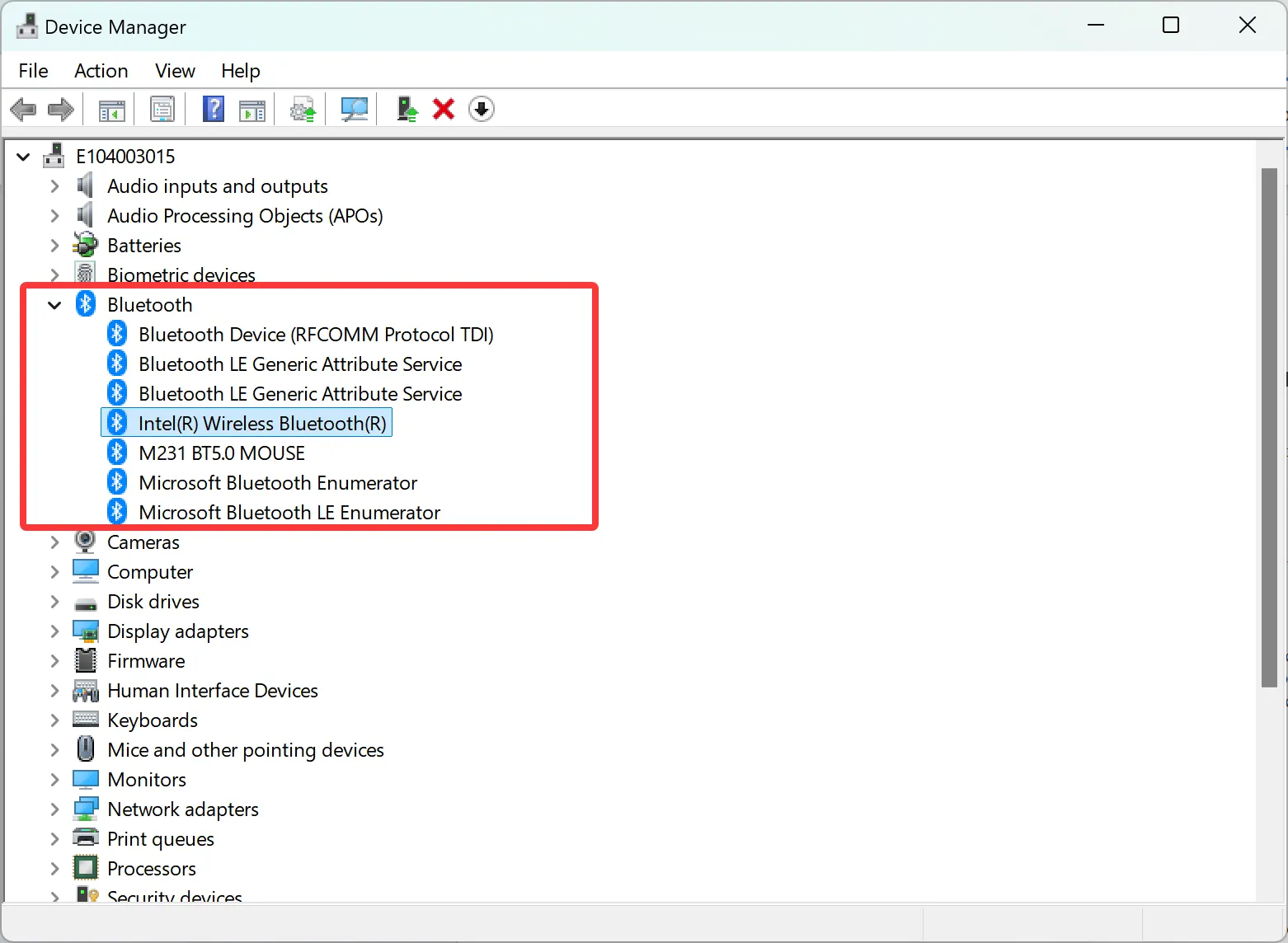
3.Multiple devices are listed under the Bluetooth node. Determine which of the devices is the Bluetooth radio. The Bluetooth radio listing varies depending on the Bluetooth module manufacturer. For example, then name could be Intel(R) Wireless Bluetooth(R) or Realtek Bluetooth Adapter. Look for a similar name that has a manufacturer's name on it.
Note:
The name of the Bluetooth radio listing isn't one of the following device listings:
Bluetooth Device (RFCOMM Protocol TDI).
Microsoft Bluetooth Enumerator.
Microsoft Bluetooth LE Enumerator.
4. Once the name of the Bluetooth radio is determined, right-click on it and then select Properties. In the Bluetooth adapter's Properties window that opens, select the Advanced tab. Next to Firmware Version: in the Bluetooth Radio Information section, locate the LMP (Link Manager Protocol) listing. The number next to LMP designates what version of LMP is on the Windows device.
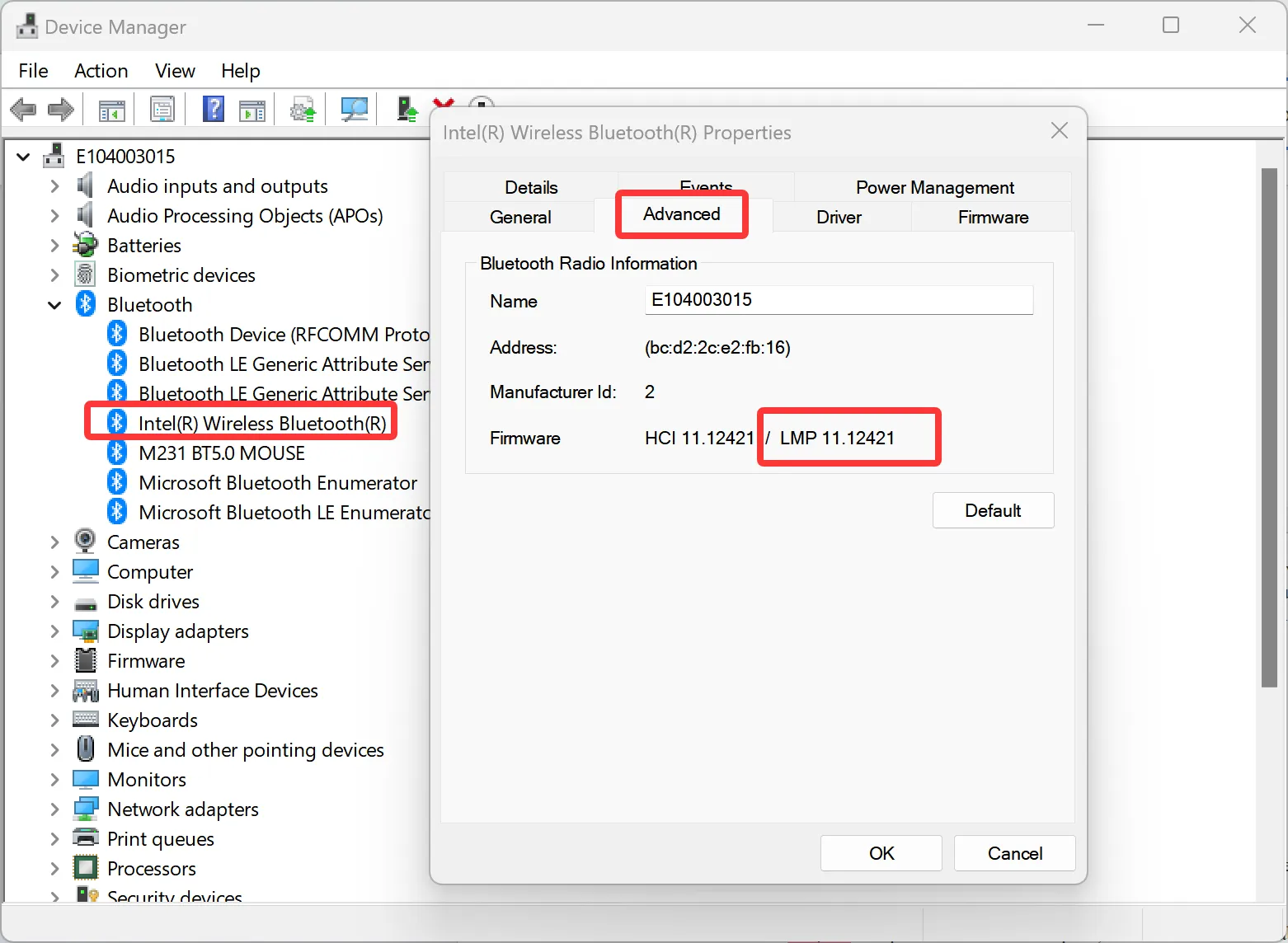
Note: The LMP version is the highest core specification that the Windows device fully supports. Accessories with higher specifications might still work, but with reduced functionality.
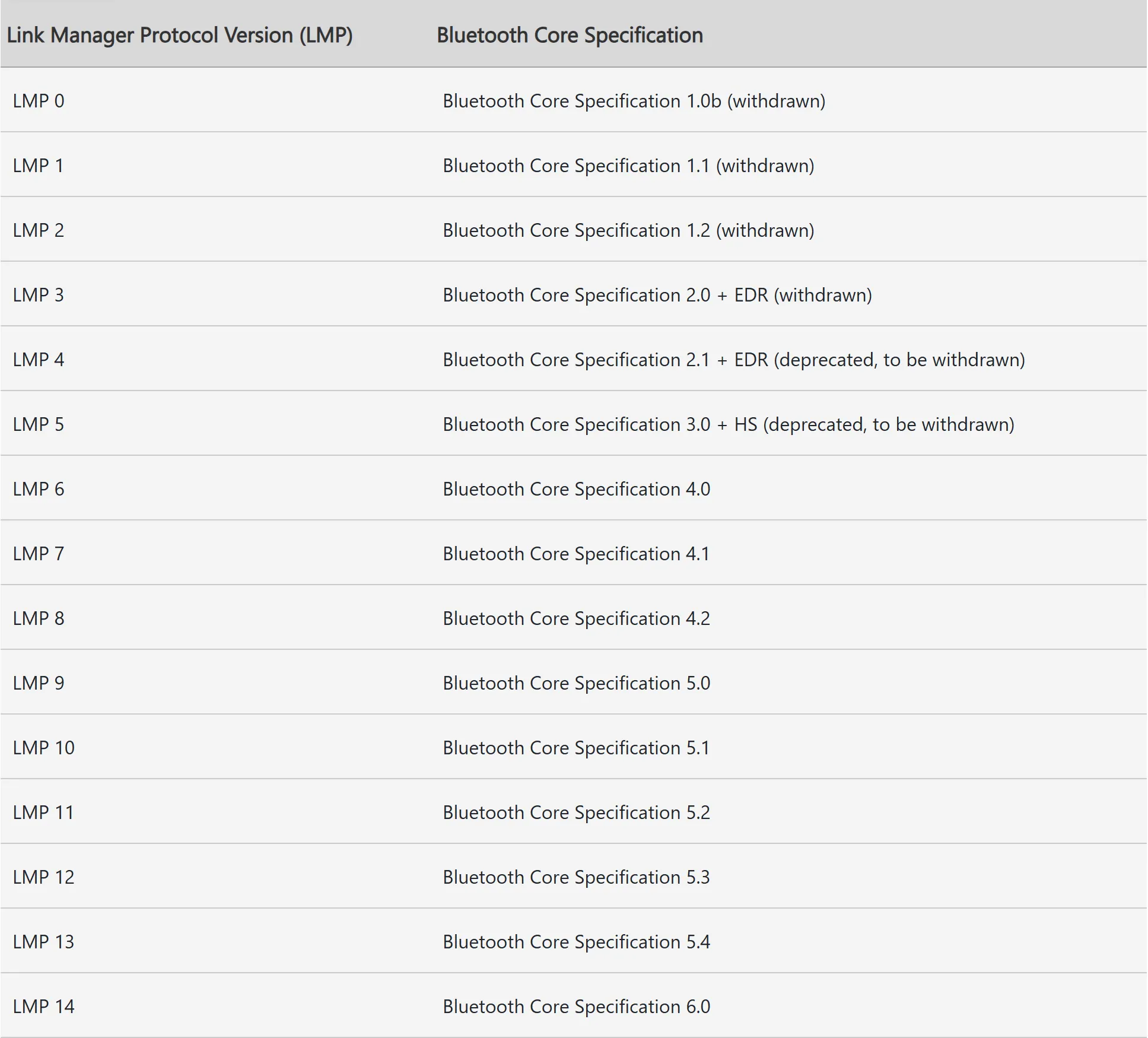
Use the determined LMP version to map the LMP version to its Bluetooth Core Specification number by using the following table: