Pilot Pro Editing Console
Editing with Intuitive Eyes-free Operation
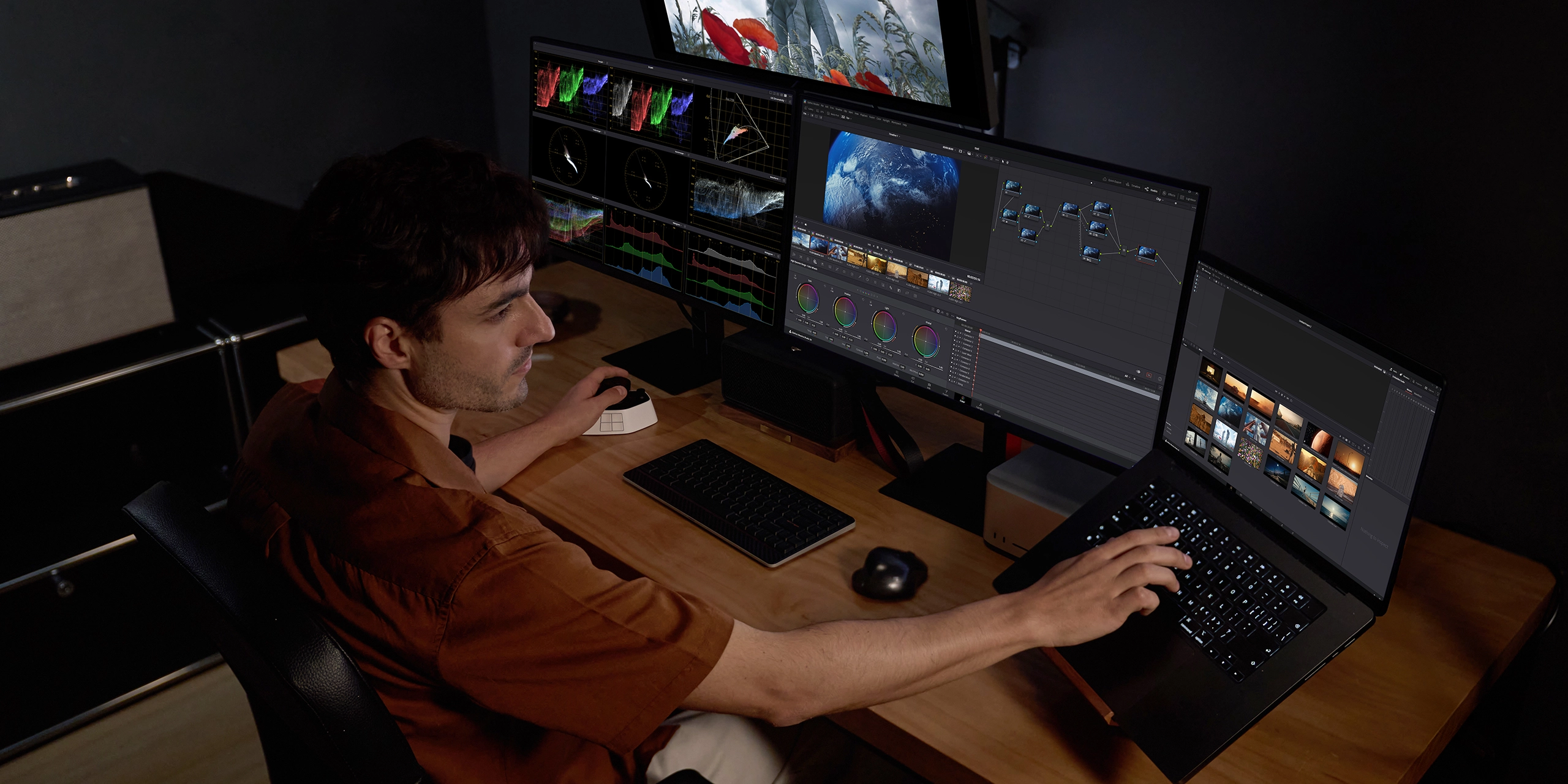
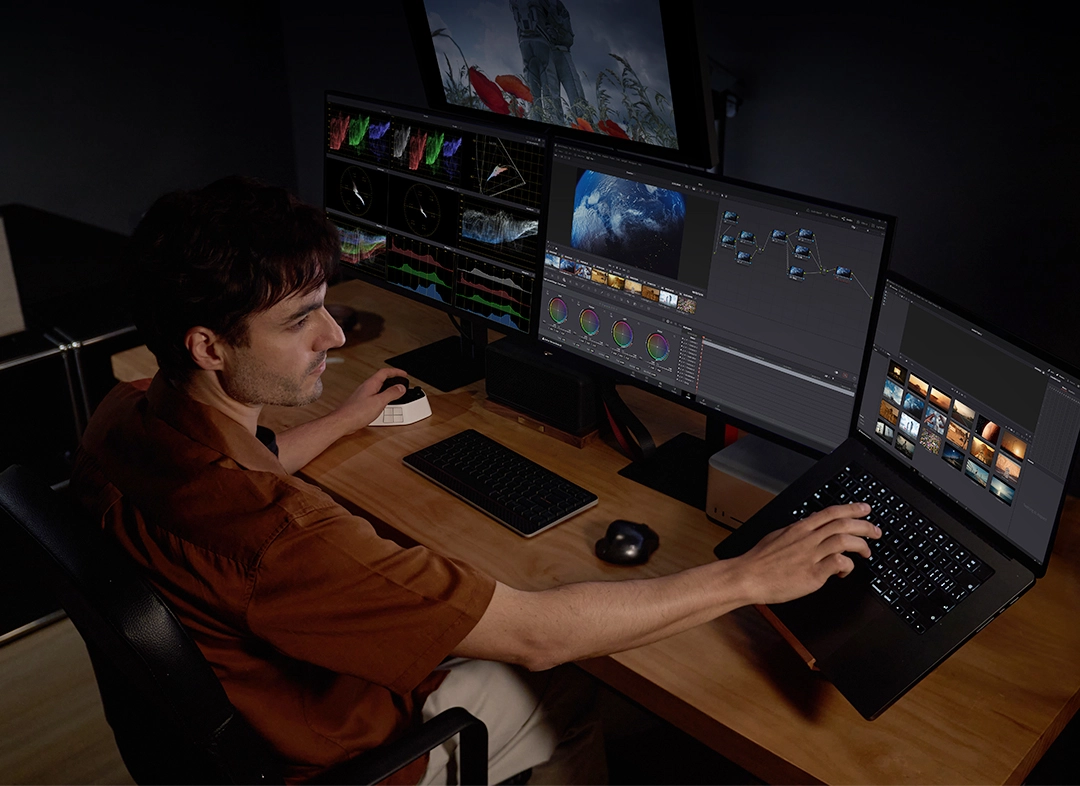
Select Footages
Pilot Pro supports quick selection and labeling of footage for easier clip selection.
Move the joystick to select from multiple clips; rotate the high-speed dial to quickly browse specific clips;
Rotate the precision knob to select the precise position of the in/out point frame by frame in the playback viewer; Set shortcut keys to assign in/out points to clips;
Use the mouse to drag and drop clips onto the timeline; Press the custom button to play the clip and check transitions.
Single-frame Cut
Pilot Pro streamlines the high-frequency task of cutting clips during editing, making it smoother and effortless to check issues like skipped frames or illogical sequences in the footage.
Rotate the high-speed dial to move quickly along the timeline and browse through multiple clips;
Rotate the precision knob to scrub frame by frame on the current timeline for fine-cut editing; Move the joystick to cut a clip;
Press the custom button to perform a ripple delete; Press another custom button to play the current clip and check its smoothness.
Precise Local Color Grading
Pilot Pro allows you to select colors more precisely during secondary color grading, improving efficiency and helping you complete the process quickly.
Lightly press the custom button to create new execution nodes as needed;
By long pressing the OK button on the designated color wheel and moving the all-way joystick, you can perform fine stylistic color grading;
Rotate the precision knob to adjust parameters for stylistic color grading; Rotate the high-speed dial to check the color grading effect.
Quickly Lock and Adjust Track Height
When you need to add transitions or adjust effect lines, you can use Pilot Pro to find the specific clip more quickly and adjust the track height for further editing.
Rotate the rotary dial to quickly adjust the timeline length; Rotate the high-speed dial to move the playback head frame by frame;
Press the up/down buttons to quickly adjust the track height.
Fine-tuning of Effect Controls
When performing operations on effect controls such as scaling, rotating, and adjusting opacity, you can complete them single-handedly with Pilot Pro. It not only offers convenient operation but also delivers higher precision.
Lightly press the custom button to directly bring up the Effect Controls panel; Lightly press the custom button to bring up the command set.
Push or pull the all-way joystick to select an adjustment item; Gently rotate the precision knob to adjust parameters.
Adjust the Volume Effect Line
Pilot Pro enables precise volume control, allowing you to meet your sound expectations with greater accuracy.
Rotate the precision knob to zoom in on the timeline; Rotate the rotary dial to adjust the current timeline height;
Press the custom button to set key frames; Press the up/down buttons to adjust the volume level;
Lightly press the custom button to play back clips and check the adjustment results.