Magic Pro 13
001 Home Screen Overview
The Home screen has a clean, streamlined design that makes operation faster and more personalized.
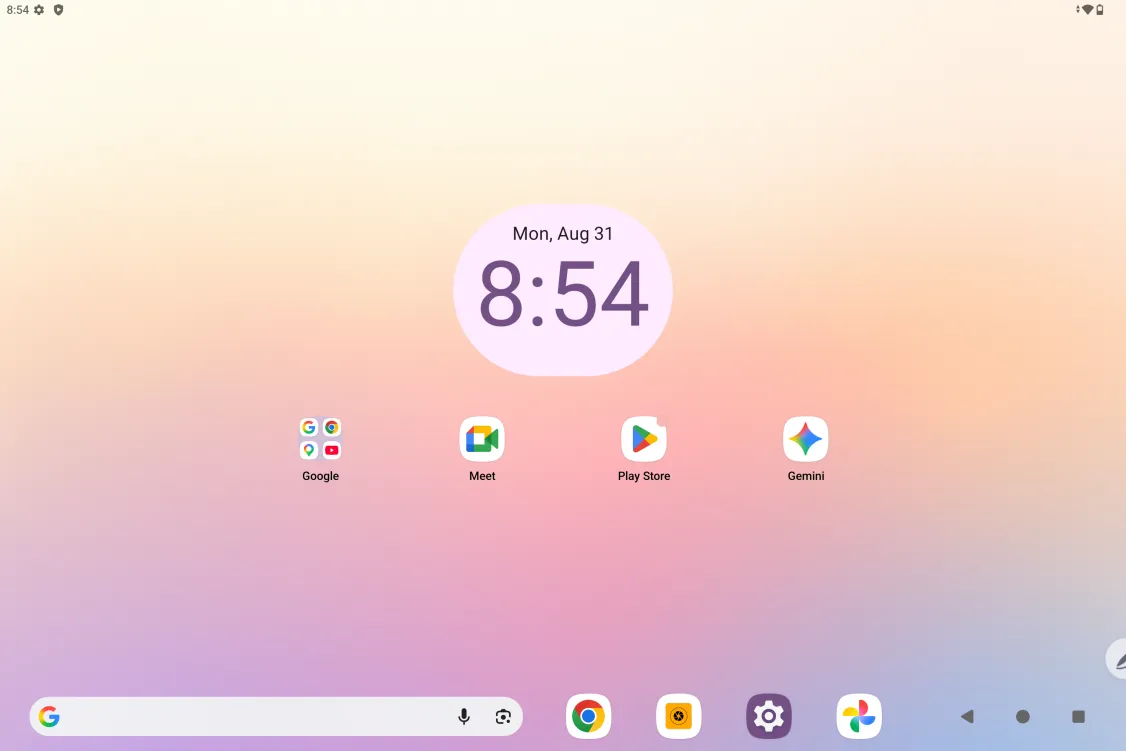
Top status bar: check the drawing tablet’s status and notifications.
Bottom dock: keep your frequently used apps here; you can remove or replace them.
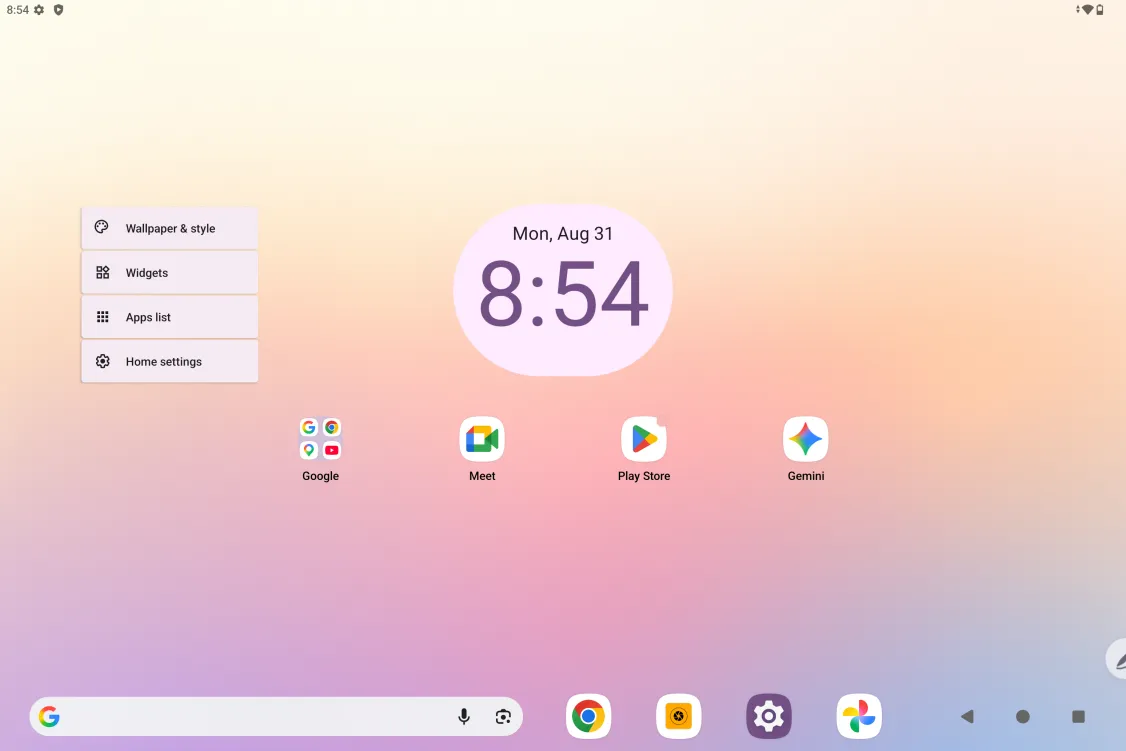
Besides configuring Home screen settings (wallpaper, theme, widgets, and so on) in Settings, you can also press and hold a blank area of the Home screen to enter the Home screen settings screen, as shown below:
002 Power On/Off and Restart
Power on
Press and hold the power button for about 5 seconds, and release it when the XPPen startup screen appears
Power off or restart
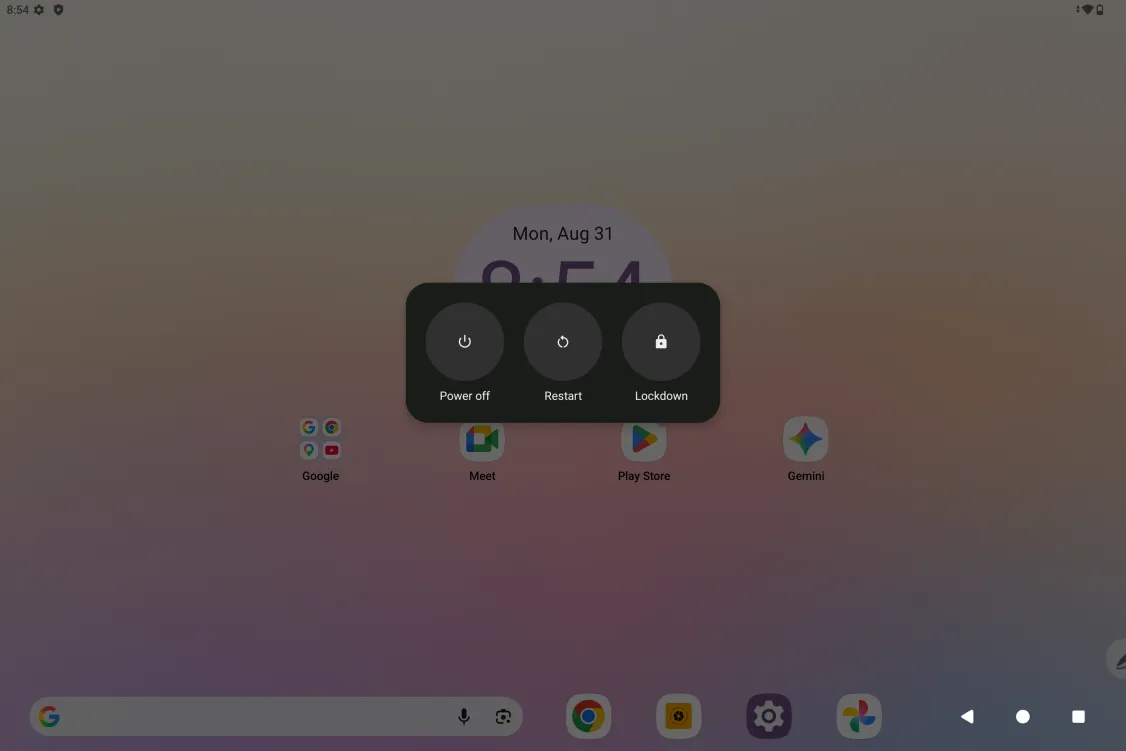
Press and hold the power button for about 2 seconds; when the prompt screen appears (as shown below), choose Power off or Restart.
Note:
Restarting the tablet regularly clears its running cache and keeps it in good condition; if the tablet is not working properly, you can also try restarting it.
Force power off
If the tablet is not working properly and cannot be recovered by restarting, try pressing and holding the power button for more than 10 seconds to force a power off.
003 PC File Transfer
You can transfer or sync files between the tablet and a PC in the following 2 ways.
Wired connection (USB)
Step 1: Connect the tablet and the PC with a USB data cable
Step 2: A notification asking you to choose a connection option appears on the tablet. Tap the notification, go to the USB usage selection screen, and choose File transfer
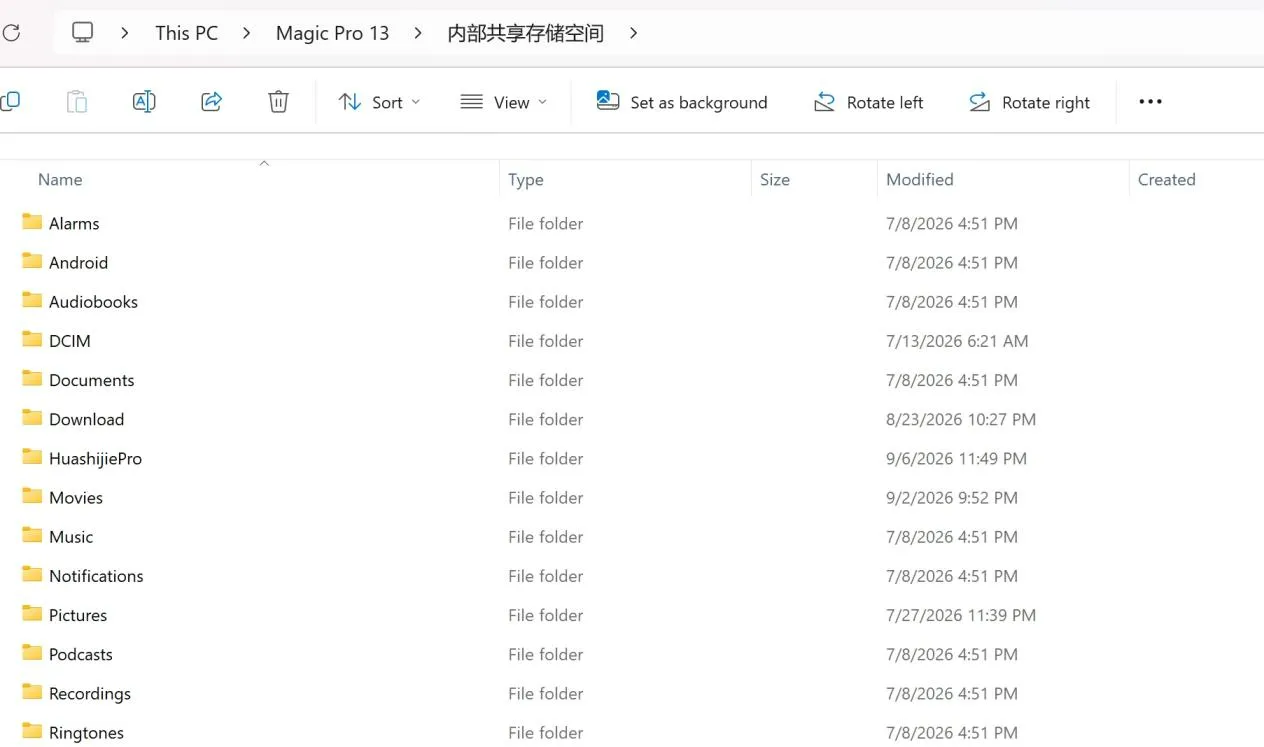
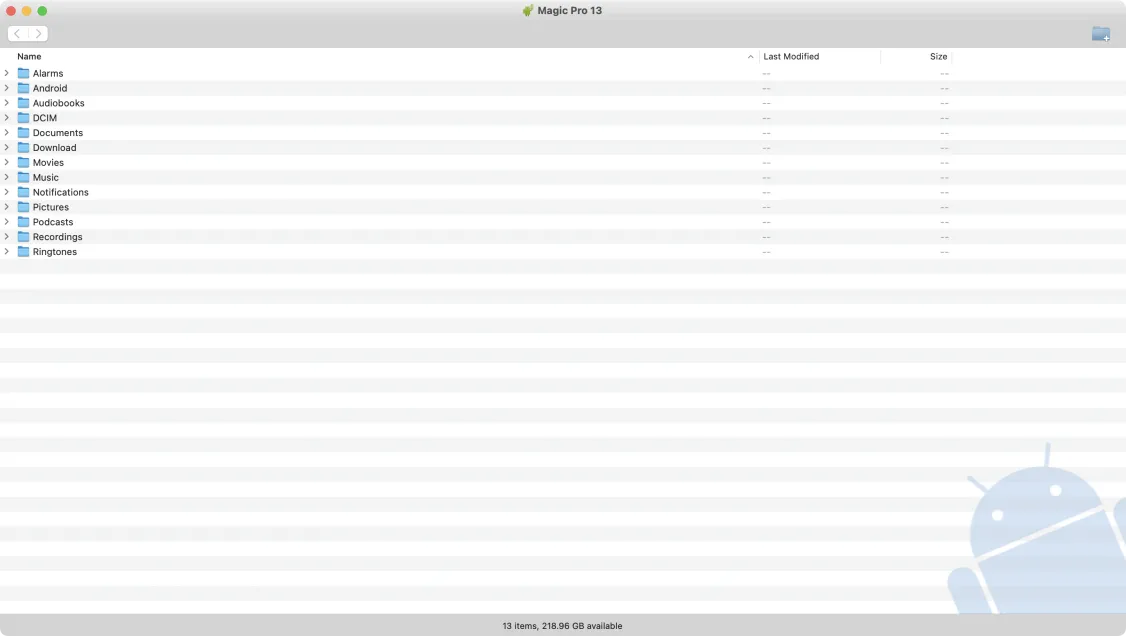
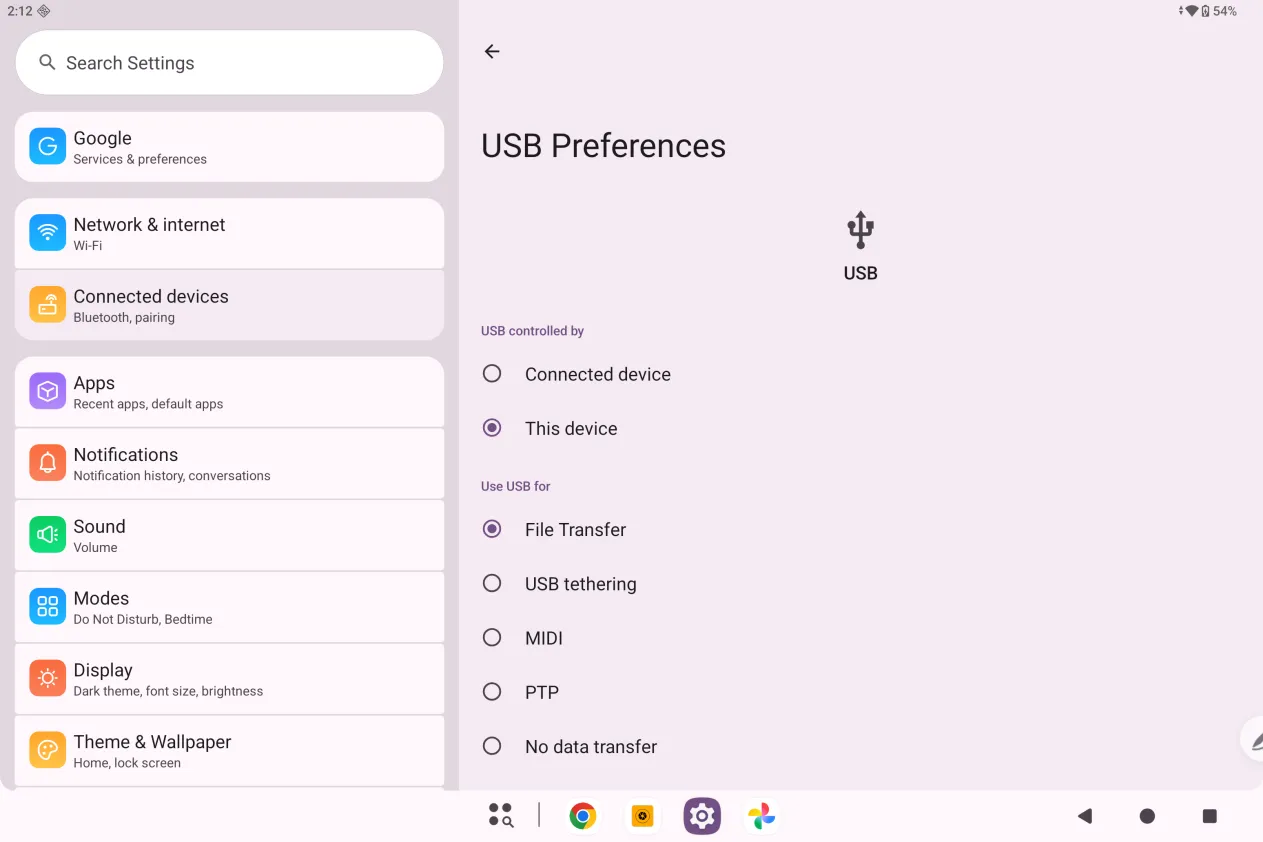 Step 3: On your PC (Windows or Mac), you will see the corresponding disk folder (as shown below).
Note:
- On a Mac, you need to install the Android File Transfer app first.
- A PC running Windows XP may not connect properly. Please download and install Windows Media Player 11 or later.
File directory on Windows:
File directory on Mac OS:
Bluetooth (wireless)
Bluetooth is more convenient than a wired connection for syncing files, but it currently supports transfer only between the tablet and Android devices or Windows PCs; iOS and macOS devices are not supported.
Follow the steps below:
Step 1: Turn on Bluetooth on both the sending and receiving devices (using a Windows PC as an example)
Step 2: On the Windows PC, find “Receive a file” in the Bluetooth options and click it to enter the “Receive a file” state
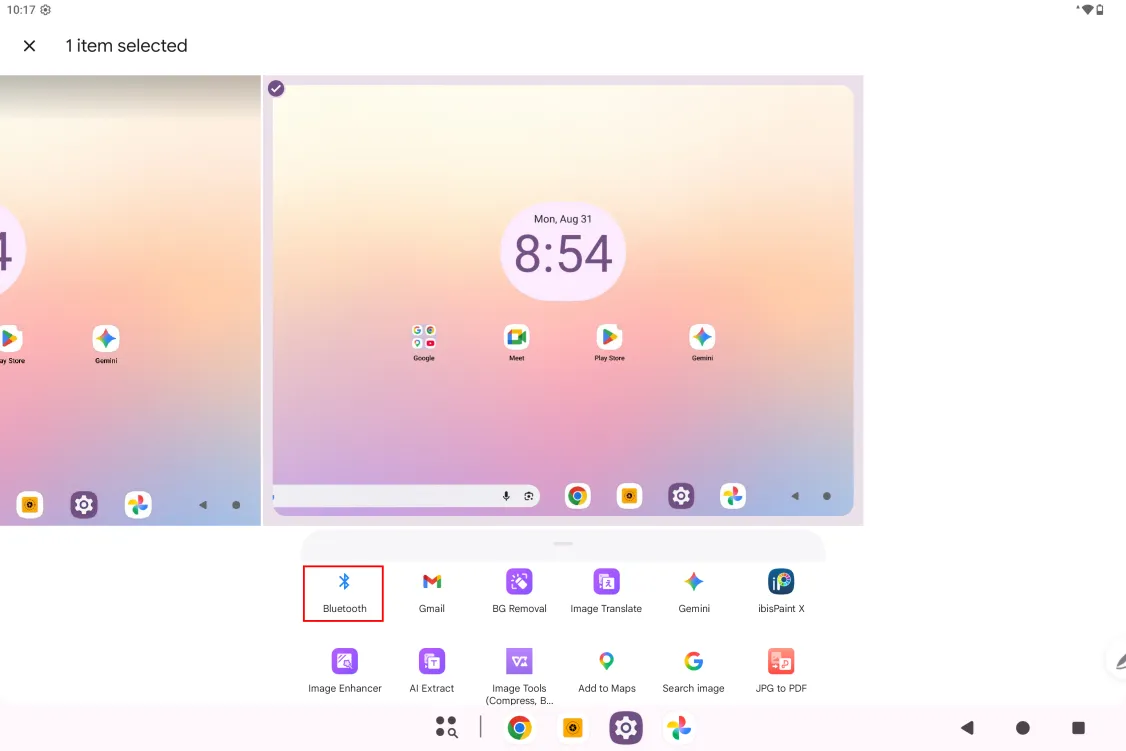
Step 3: On the tablet, select the file to transfer and choose “Bluetooth” to share it, as shown below.
Step 4: Select the receiving device from the Bluetooth device list
Step 5: The PC receives the file; choose a path to save it. File transfer is complete.
004 Charging and Reverse Charging
Charging the tablet
You can charge the drawing tablet in the following ways:
- We recommend charging with the official standard charger and data cable
- You can also use a charger and data cable from another tablet (or phone) brand (a 9V2A or 5V3A charger is preferred)
- You can also charge from a PC as follows:
Connect the tablet to the PC with a Type-C cable (a USB adapter may be needed);
Notes:
- Charging is recommended while the tablet’s screen is off (charging while the tablet is in use will take longer).
- Charging with the official standard adapter and data cable is preferred.
Reverse charging for other phones
The tablet has a 10200mAh battery when fully charged. When you are out and your Android phone is low on battery, you can temporarily charge the phone from the tablet
Step 1: Connect the two ends of a USB-C to USB-C cable to the tablet and the phone respectively;
Step 2: In the pop-up on the tablet, select the 2nd option: Use as power supply.
- Only Android phones can be charged this way; iOS phones are not supported;
Reverse charging has a low power output and is intended for emergencies, not for charging your phone on a daily basis.
005 Using the Stylus
The tablet’s stylus is a battery-free pressure-sensitive pen; it needs no power supply and no Bluetooth pairing — just pick it up and draw.
Stylus button
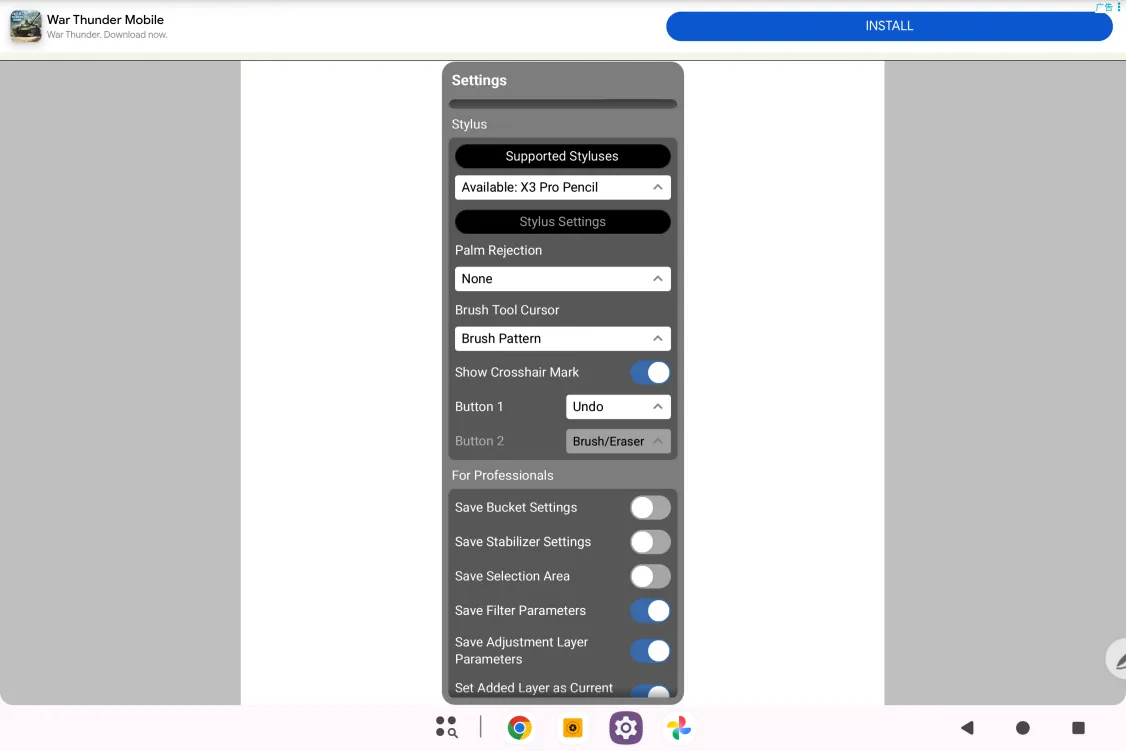
The stylus body has a side button that supports system-level actions such as going back to the Home screen, returning to the previous page, and opening recent apps,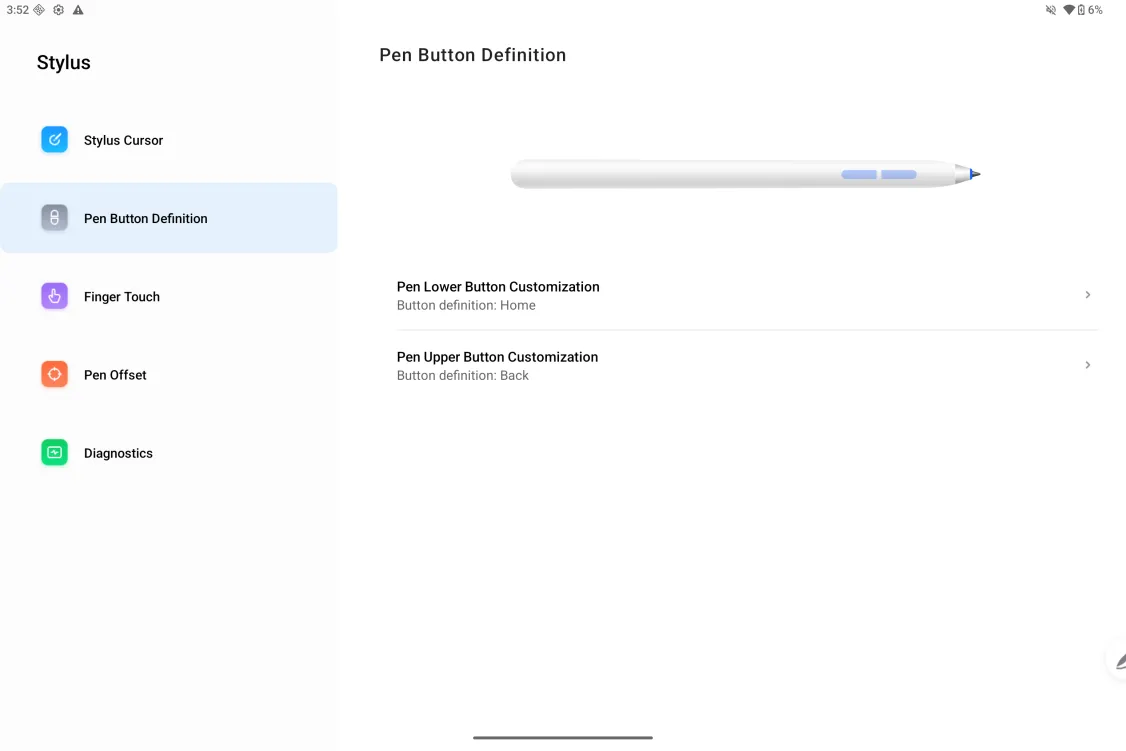
and it can also work with in-app shortcuts for eraser/brush switching and color selection.
006 Finger Touch Rejection
This tablet supports both finger and stylus input, and by default stylus input takes priority: while the system detects the stylus in use, finger input is ignored.
In addition, we have designed 2 ways to prevent accidental finger touches while drawing with the stylus:
- Use the anti-mistouch glove
One glove is included as standard; wear it on your hand while drawing to prevent accidental finger touches from affecting your work.
- Disable finger touch
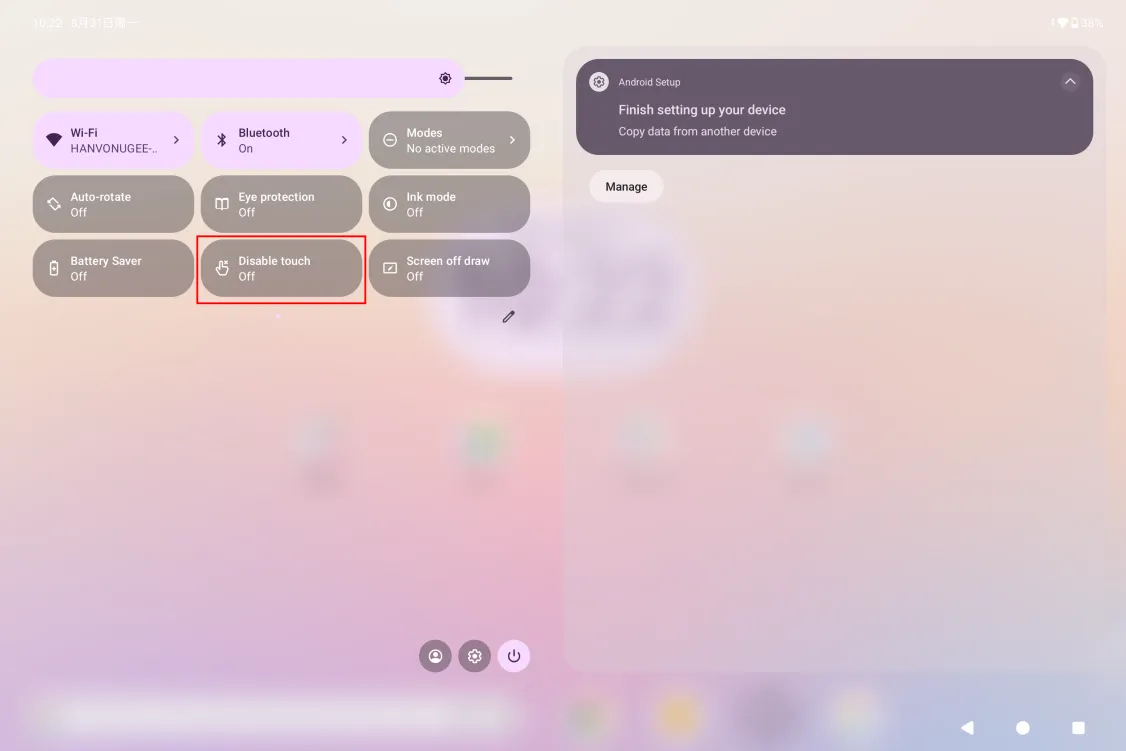
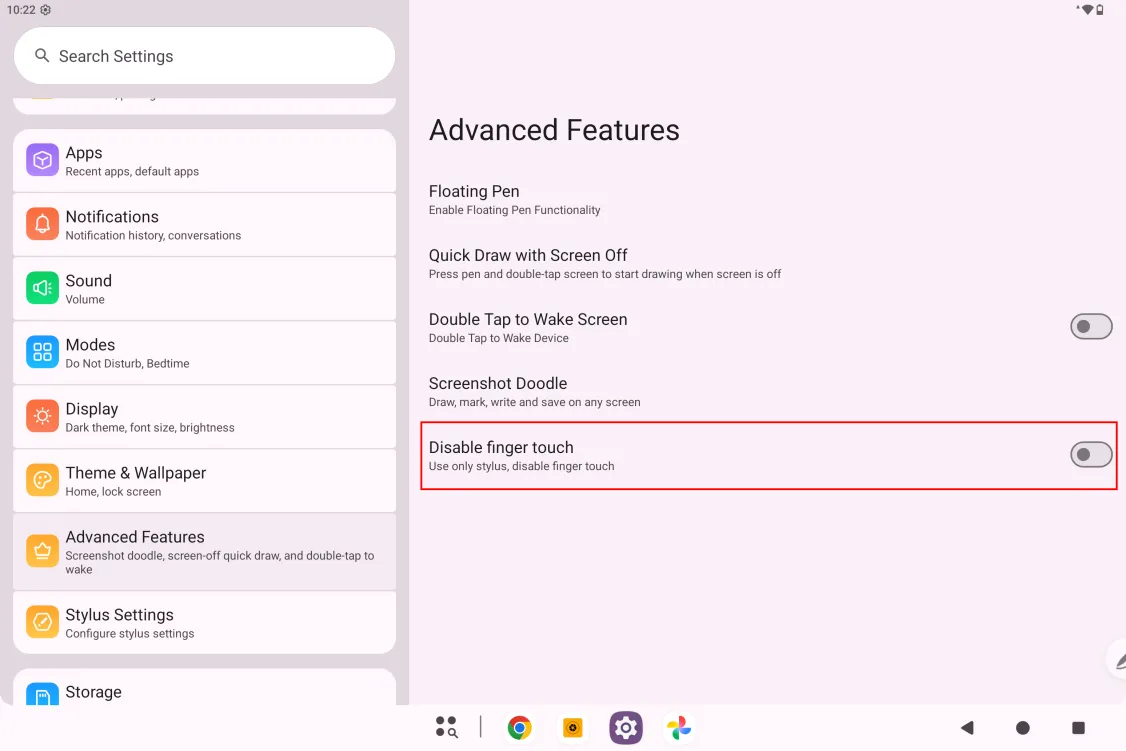
This switch is designed specifically for stylus drawing. Once finger touch is disabled, you can create with complete focus without worrying about any accidental finger touches. There are 3 ways to access it:
- Toggle the physical button on the top to turn the “Disable finger touch” switch on or off;
- Swipe down from the top of the screen to open the quick menu, and turn the “Disable finger touch” switch on or off;
- Or go to Settings - Advanced features - Disable finger touch.
007 Quick Sketch on Screen-Off
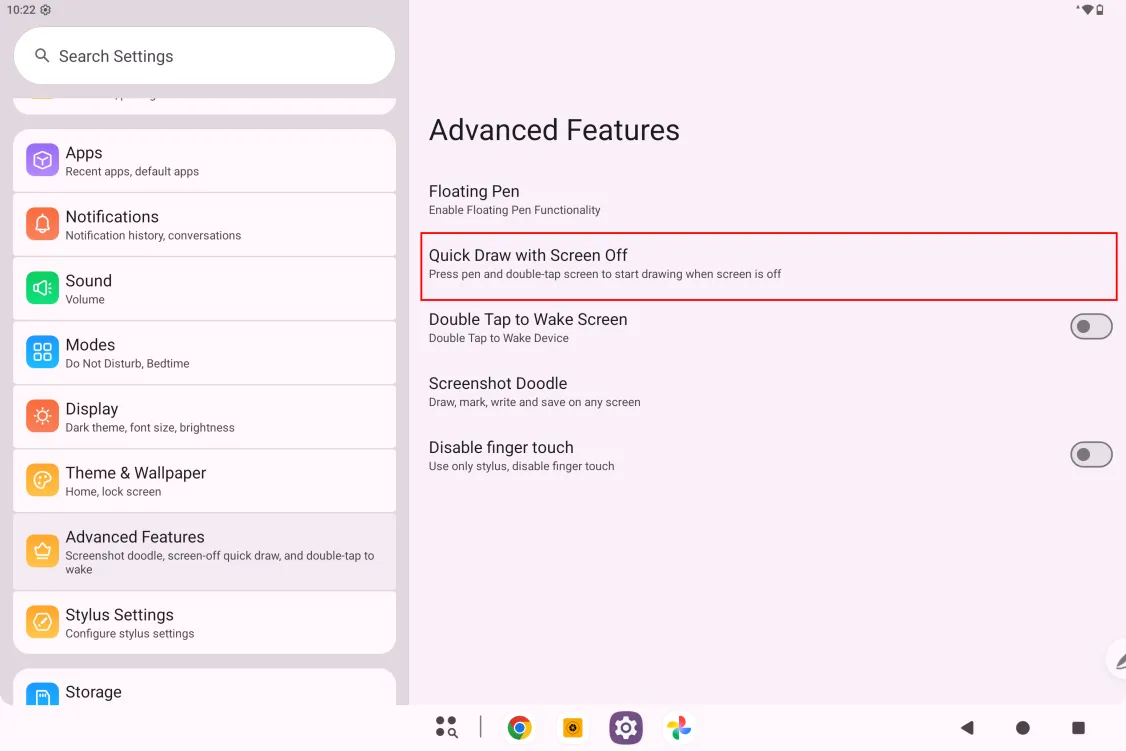
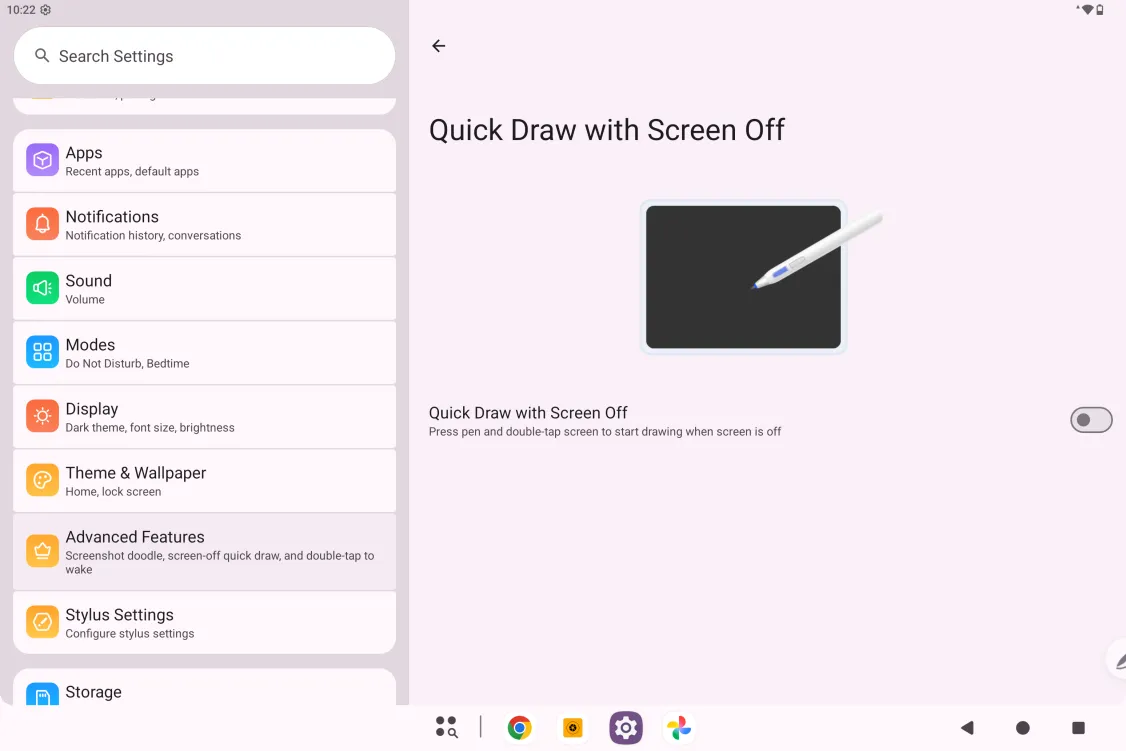
Once this feature is enabled, you can press the stylus side button and double-tap the screen while the device’s screen is off to start drawing.
To enable it: Settings - Advanced features - Quick sketch on screen-off
008 Pen Display Mode & Pen Tablet Mode
- Pen display mode
Use the official full-feature data cable to connect the dedicated DP-IN port on the upper side of the device to a PC; once connected, the device enters pen display mode.
Note: DP-IN requires the dedicated DP-IN port on the upper side of the device.
- Pen tablet mode
After entering pen display mode, press the power button to enter pen tablet mode.
009 DP-OUT
Step 1: Use the official full-feature data cable to connect the USB data port in the middle of the device’s side to a monitor;
Step 2: After the monitor is connected, choose “Mirror display” in the pop-up to start DP-OUT screen mirroring
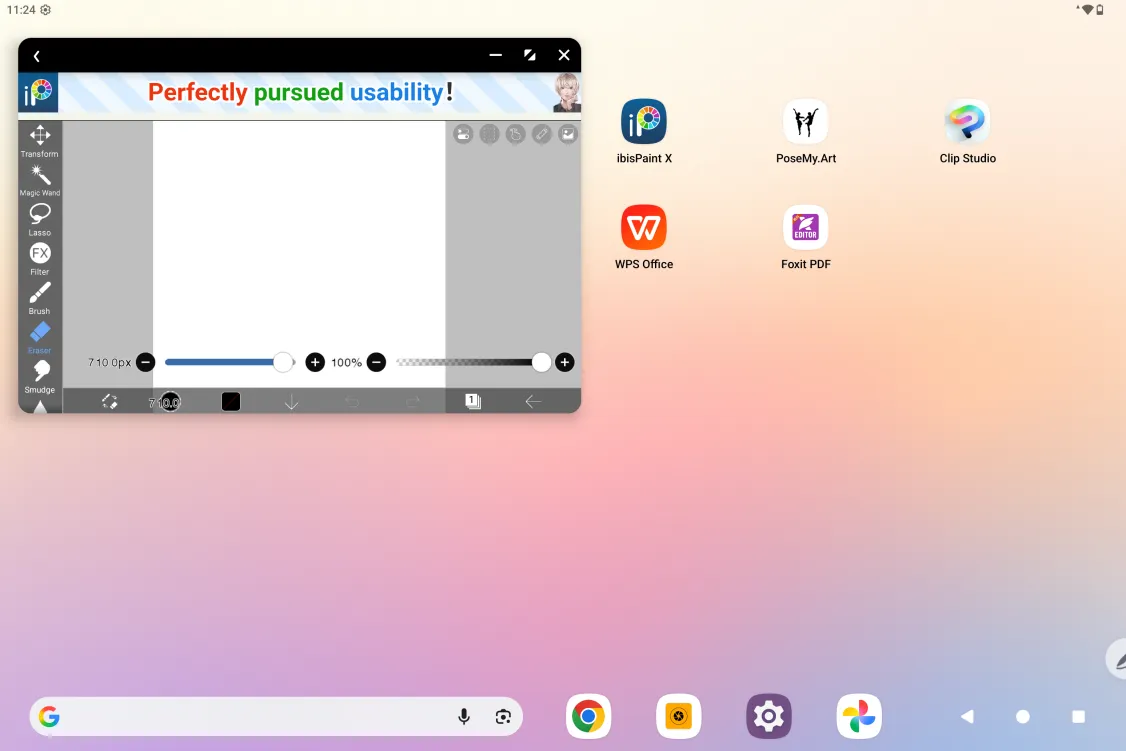
0010 Freeform Window
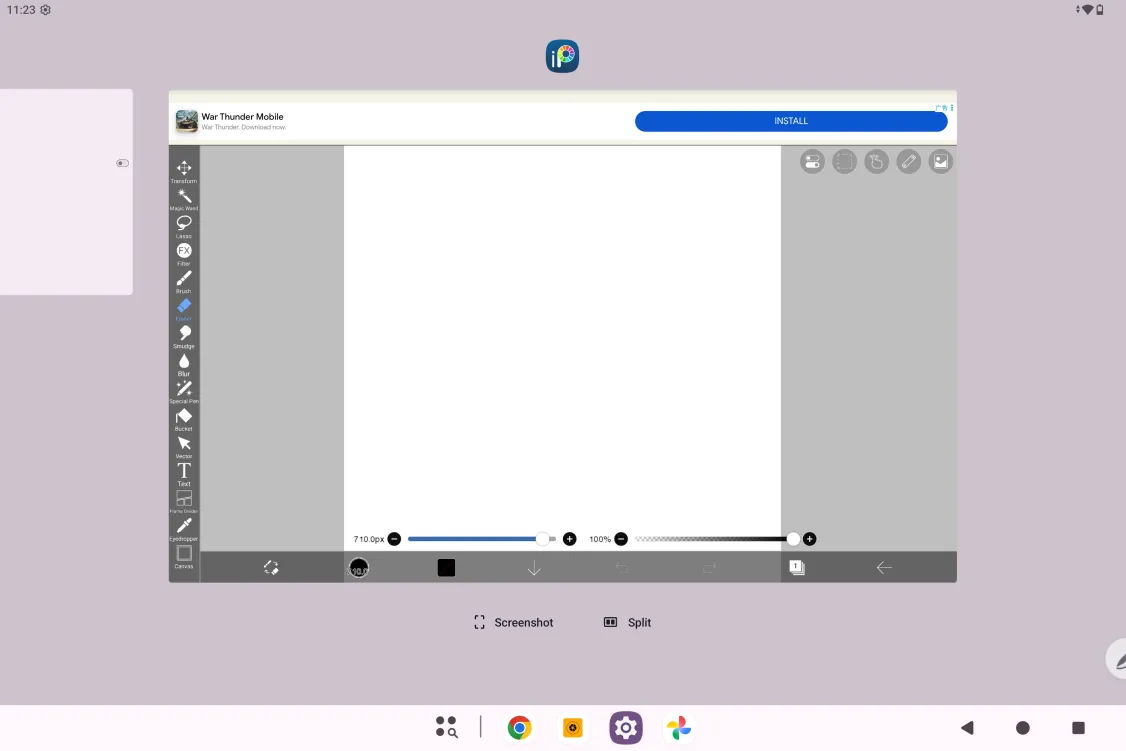
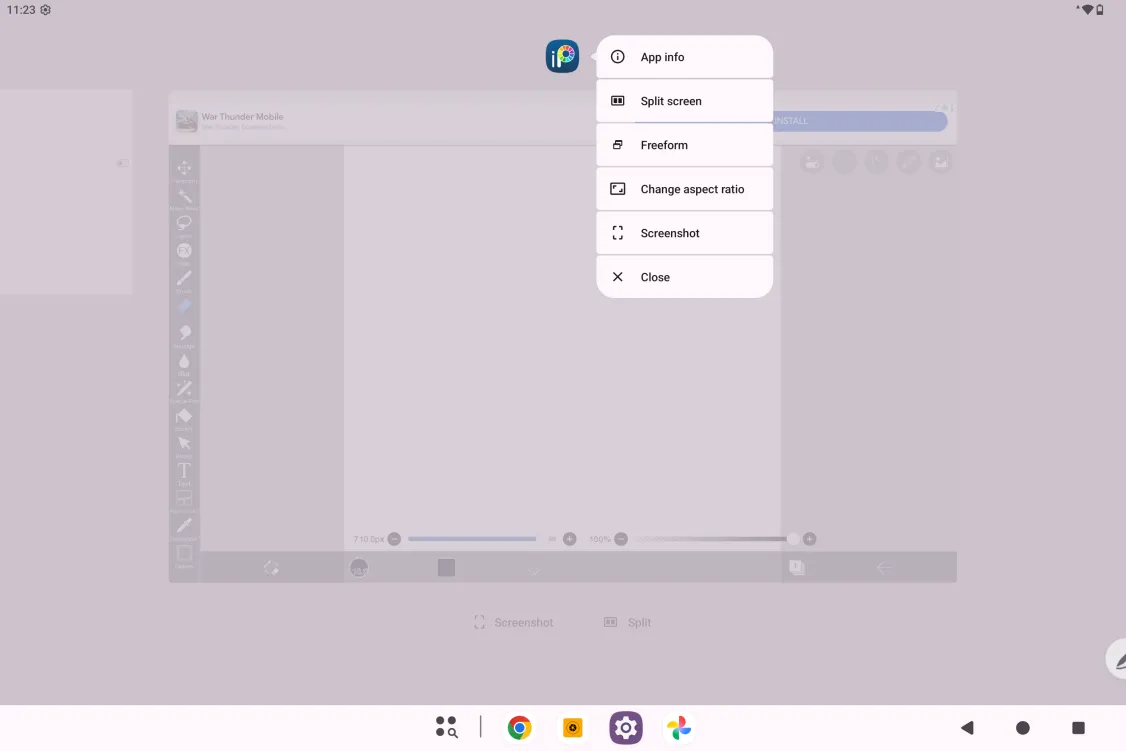
This device supports freeform windows. Open an app, switch to the recent apps view, tap the app icon, open the app’s menu, and tap Freeform window to put the app in freeform window mode.
Drag the lower-left or lower-right corner of the freeform window to enlarge or shrink it.
Note: Some apps do not support freeform windows due to their own limitations.
0011 Color Gamut Switching
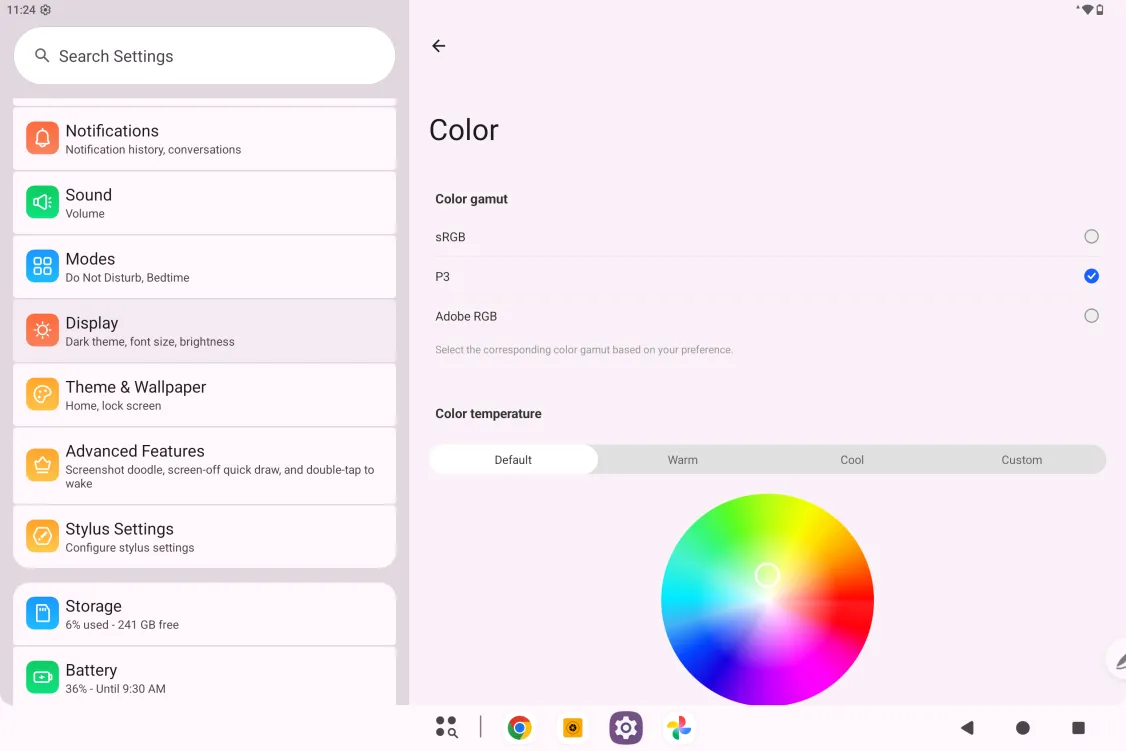
- To switch the color gamut: Settings - Display - Color - Color gamut
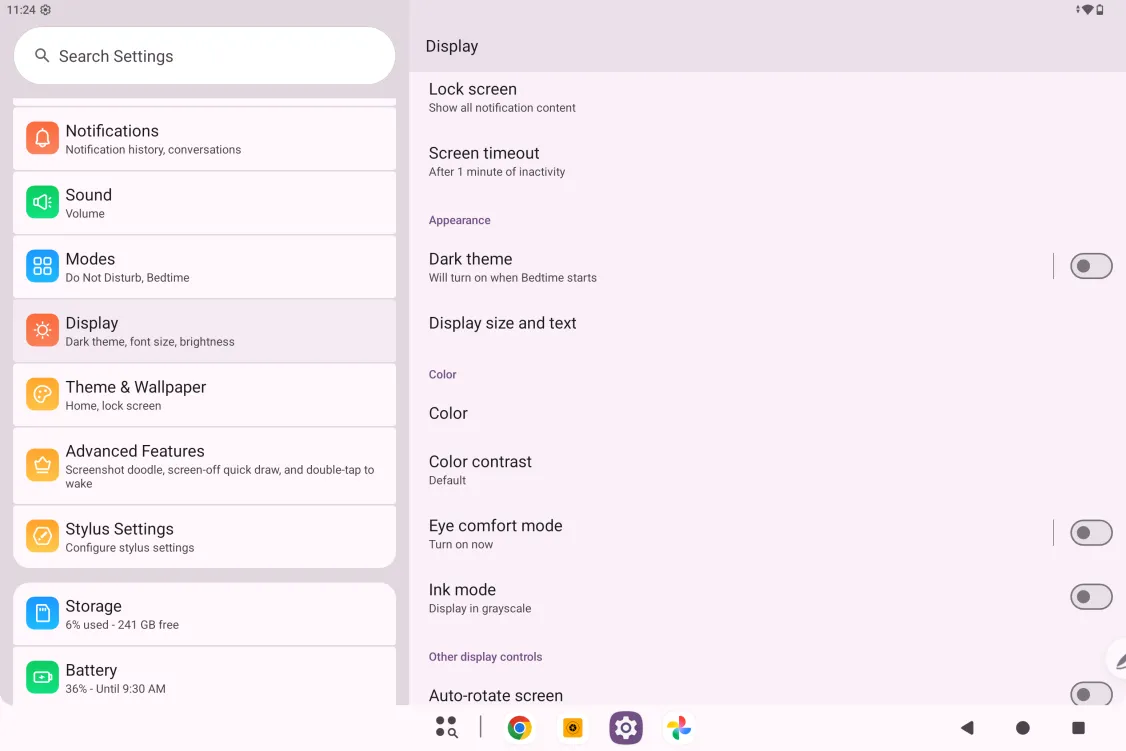
- Color gamut switching
Open the color gamut settings screen and tap the desired color gamut option to switch.
0012 Thermal Control Switching
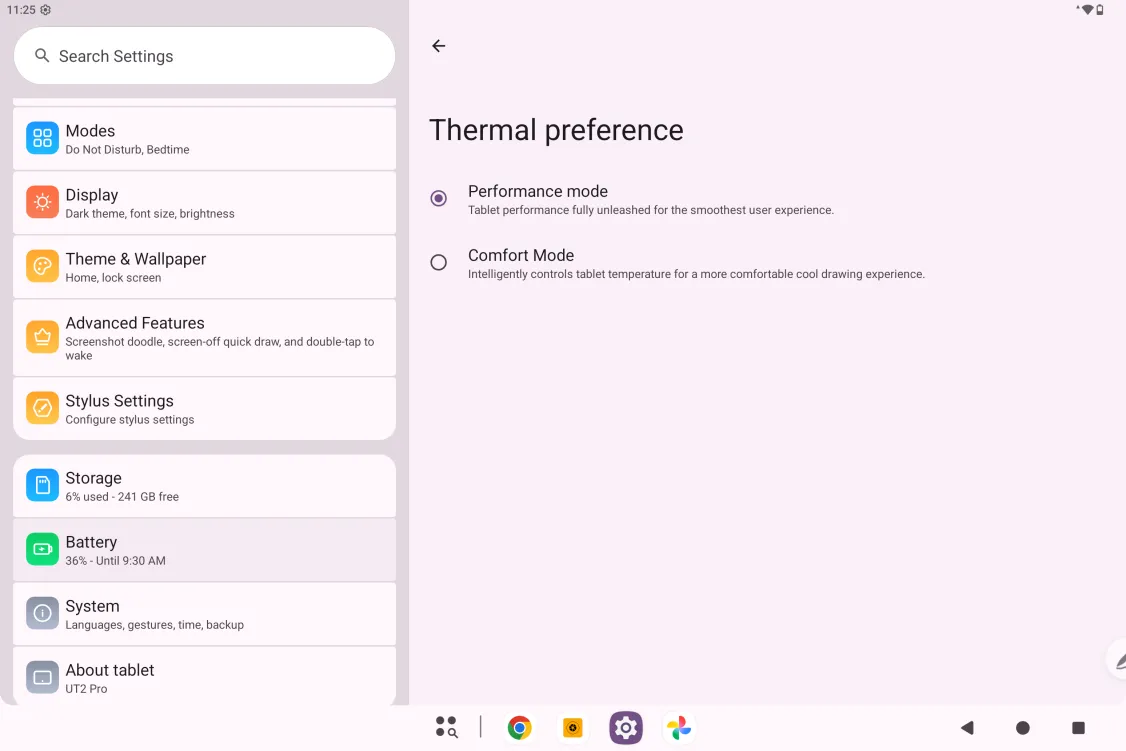
- To switch the thermal profile: Settings - Battery - Thermal preference
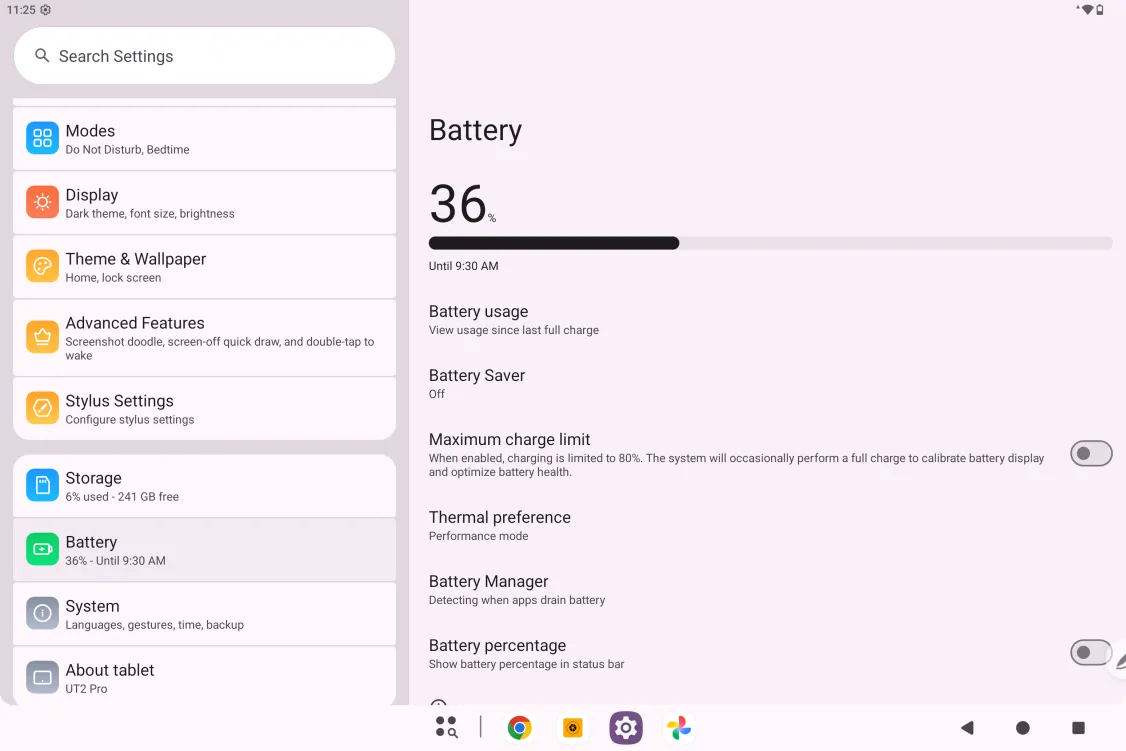
- Thermal profile switching
Open the thermal preference settings and tap Performance mode / Comfort mode to switch.
0013 ibis Paint X Membership Code: Claim and Redeem
Before you start:
Make sure ibis Paint X is V14.07.44 or later; if not, download the update from Google Play
Steps to claim and redeem the membership code:
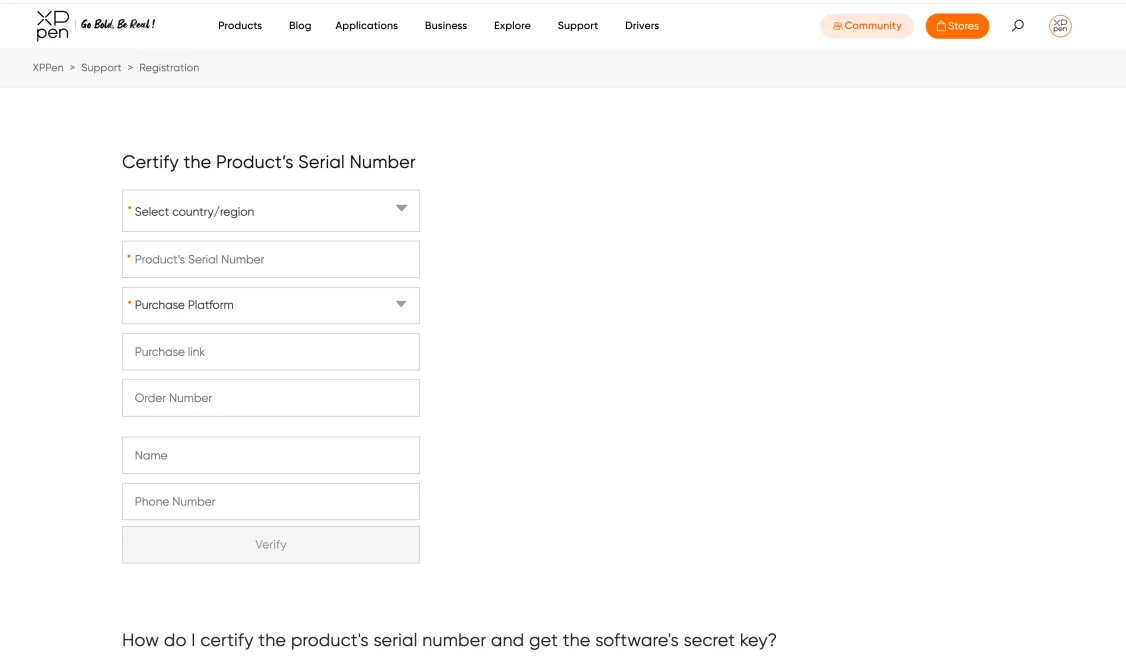
Step 1: Open https://www.xp-pen.com/free-drawing-software.html, then select ibis Paint X and open its details page
Step 2: Follow the prompts to register an XPPen account and enter your device serial number to claim the membership code
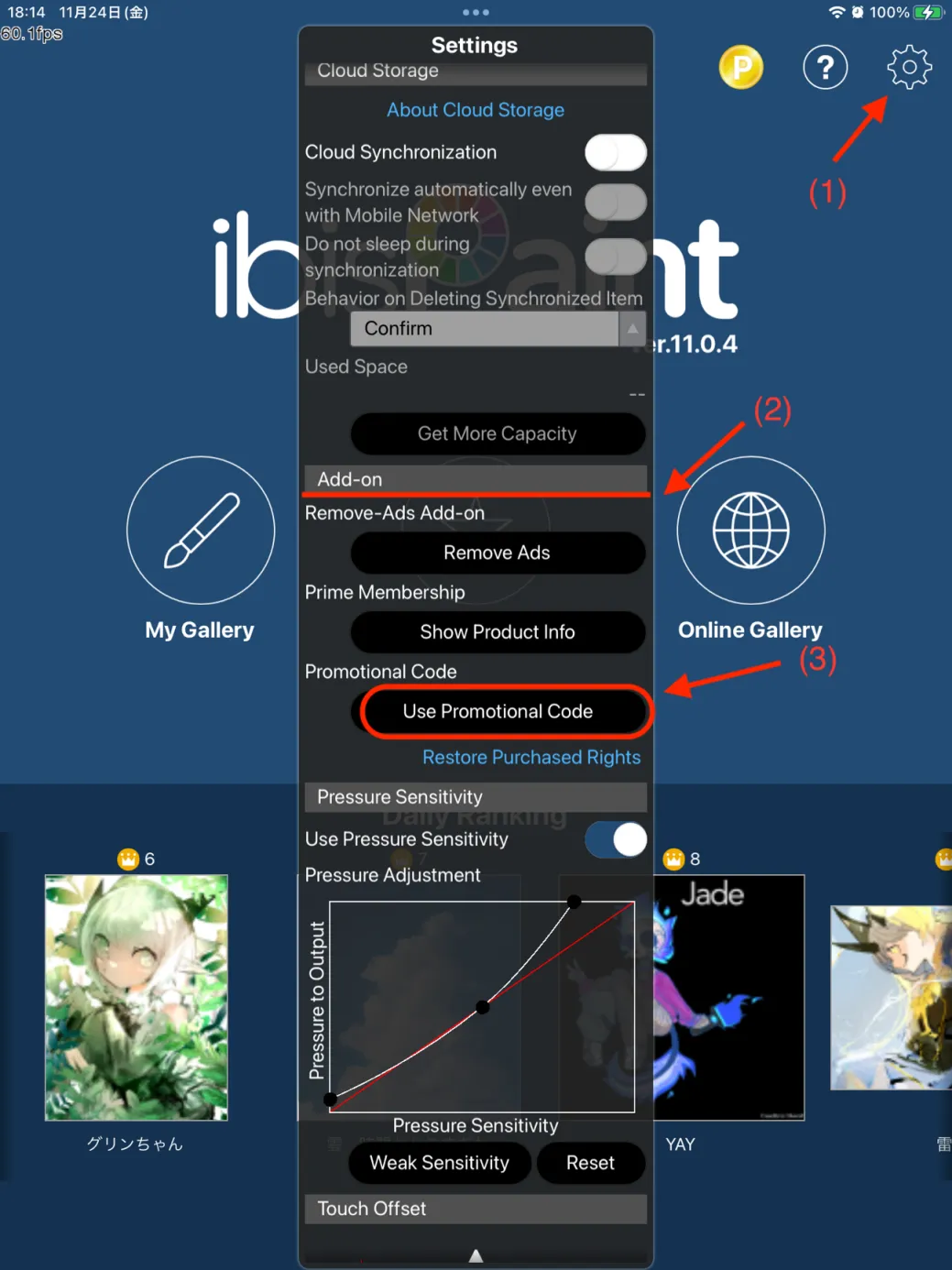
Step 3: Open the ibis Paint X app on the tablet, tap “Settings” in the top-right corner, scroll down to “Add-ons”, and tap “Use membership code”
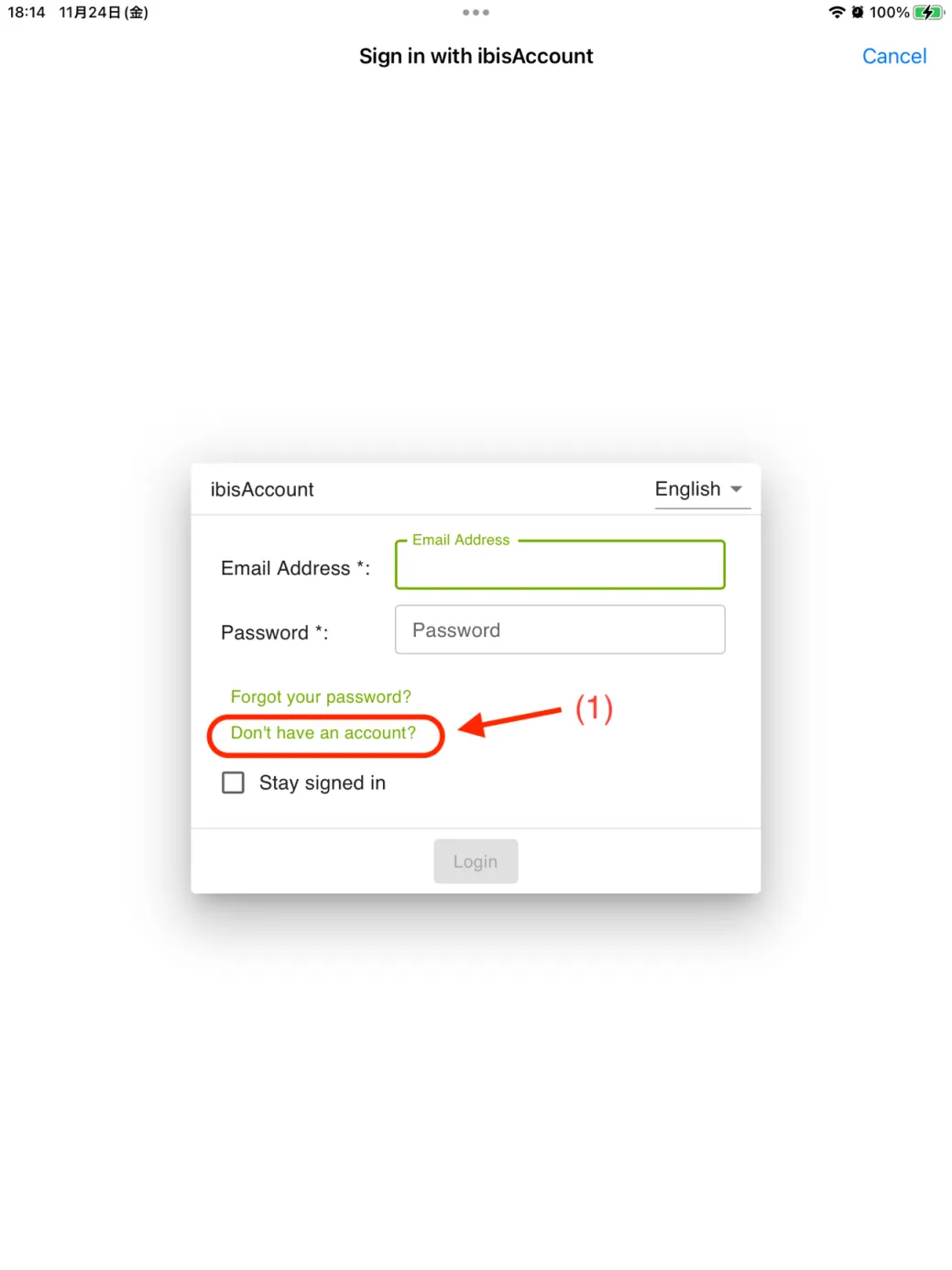
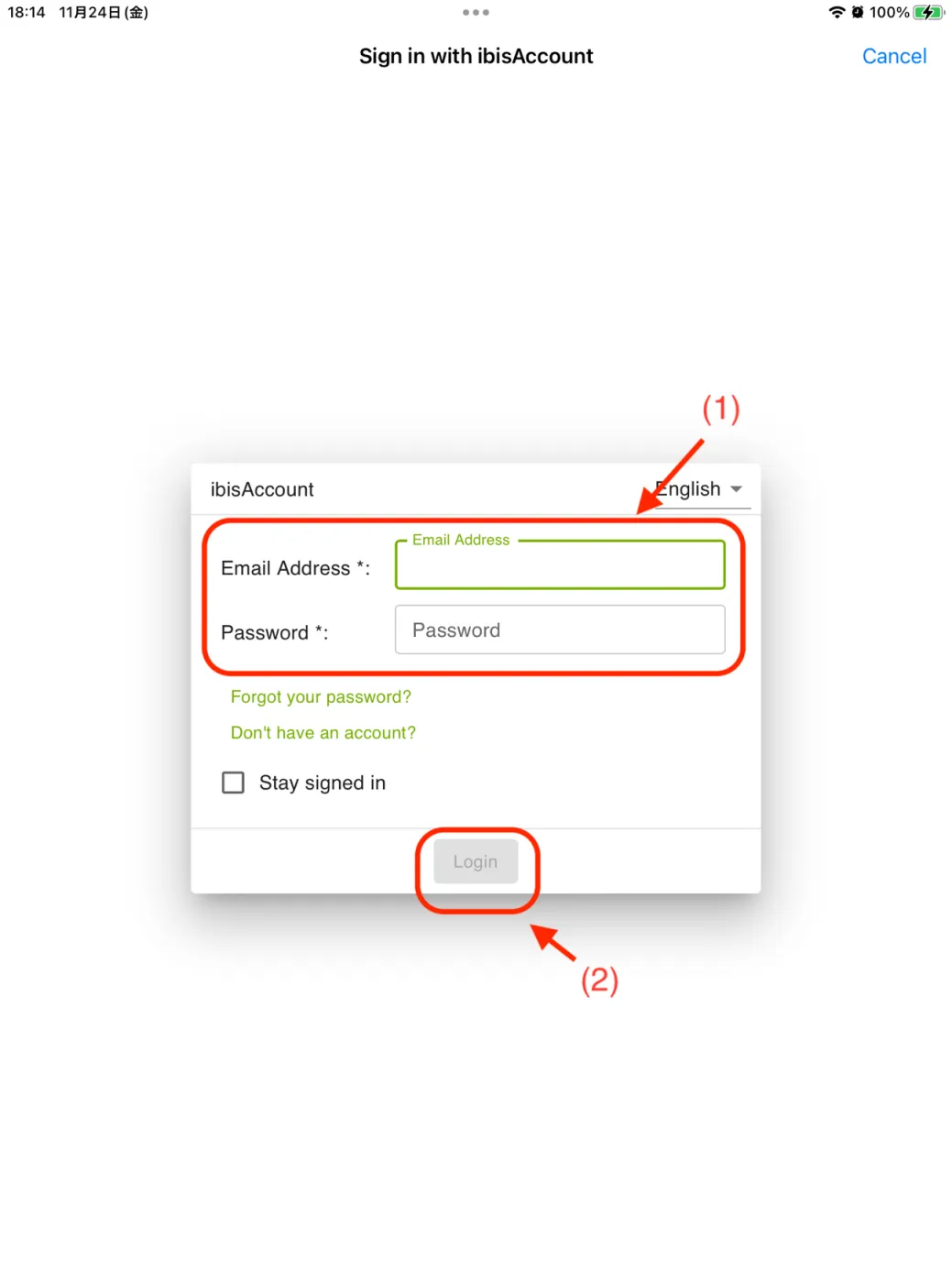
Step 4: If you don’t have an ibis account, tap “Don’t have an account?” to create one; if you already have an ibis account, simply sign in and skip to Step 7
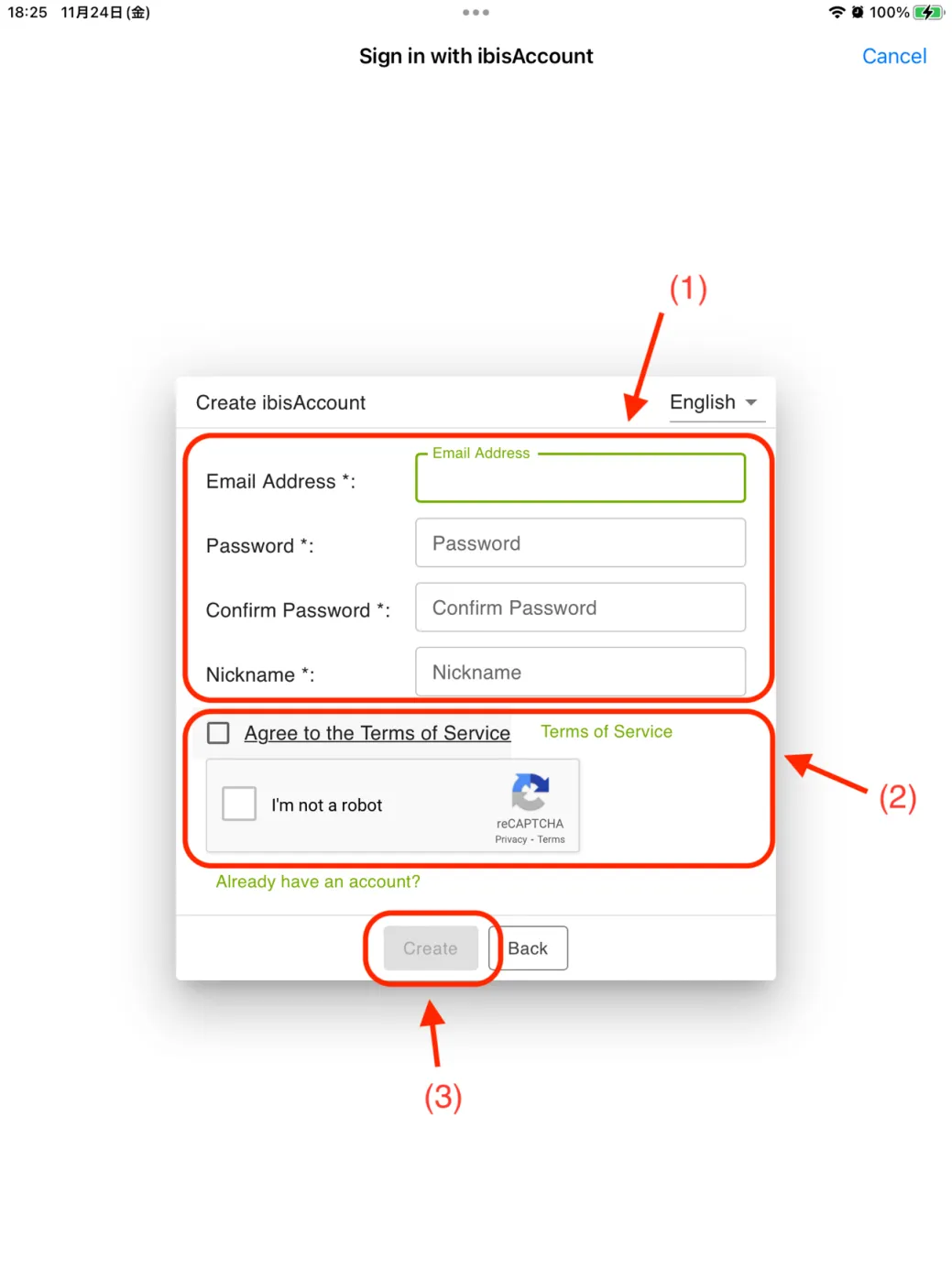
Step 5: Follow the prompts to enter your email, password, nickname and other details, tick the box to agree to the Terms of Service, complete verification if required, and tap “Create” to create a new ibis account
Step 6: Sign in with the ibis account you just created
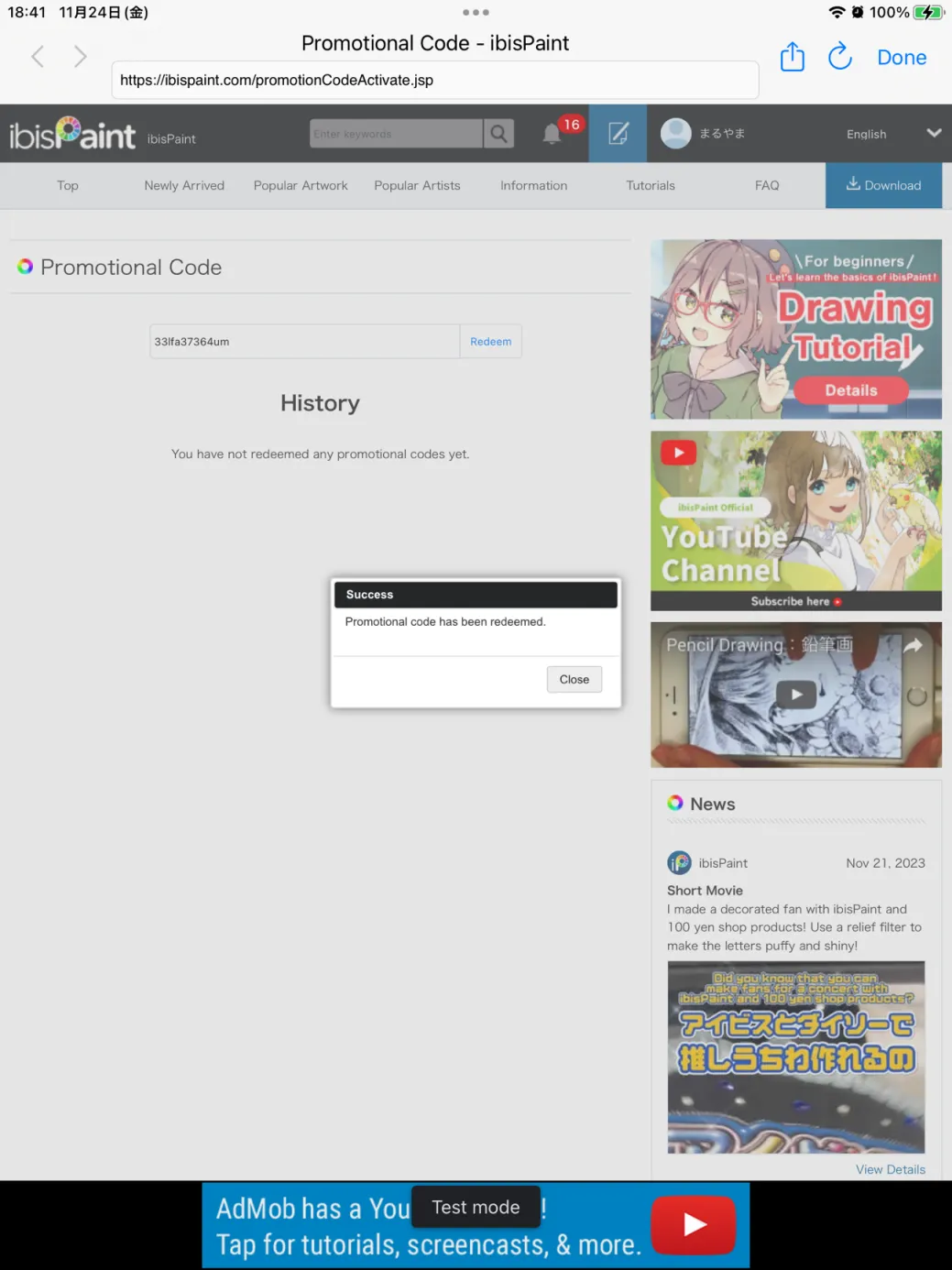
Step 7: Enter the membership code you obtained in Step 2 and tap “Redeem”. A pop-up will confirm the redemption.
0014 Clip Studio Paint Membership Code: Claim and Redeem
Before you start:
Make sure Clip Studio Paint is V5.1.1 or later; if not, download the update from Google Play
Steps to claim and redeem the membership code:
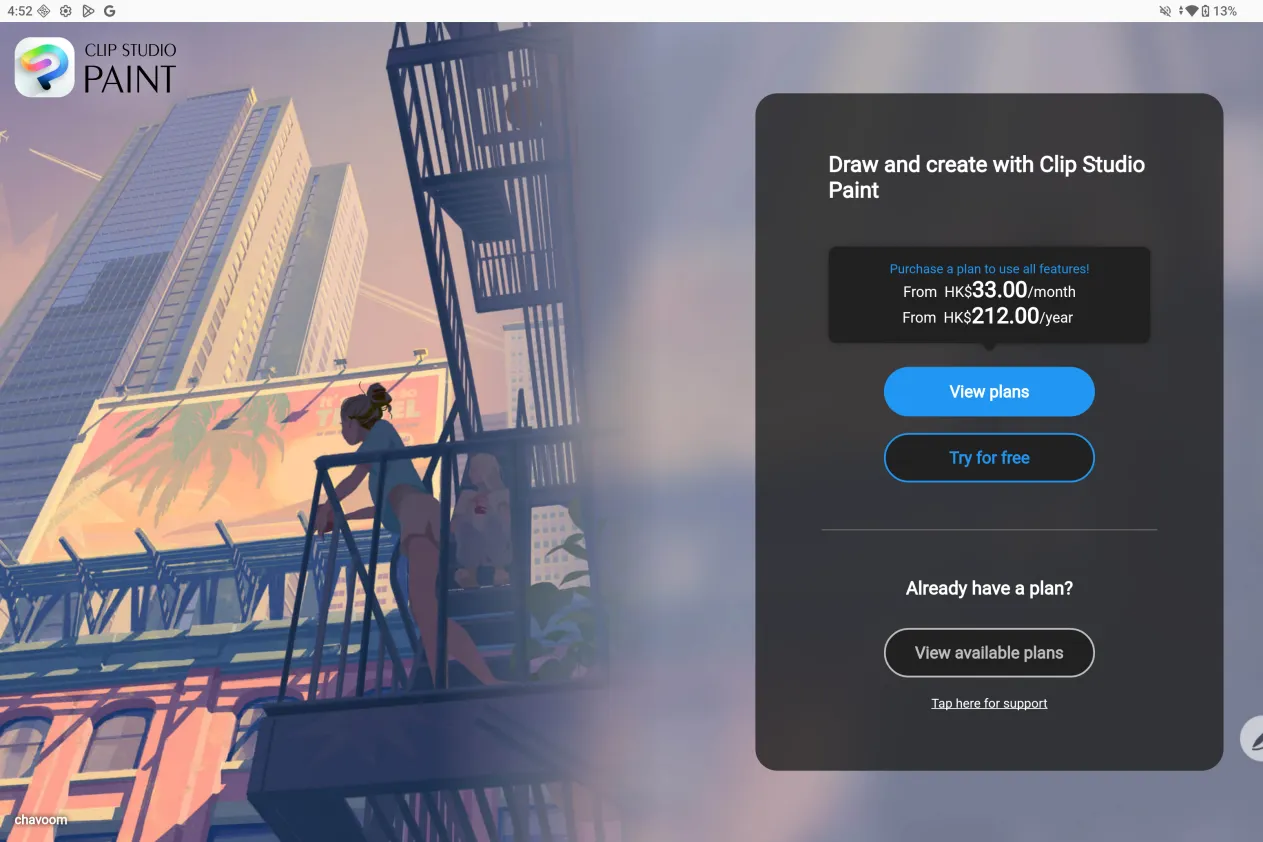
Step 1: Sign in to your Clip Studio Paint account, or register a new account if you don’t have one, then select “Try for free”
Step 2: Select “3 months free” and go to view the details
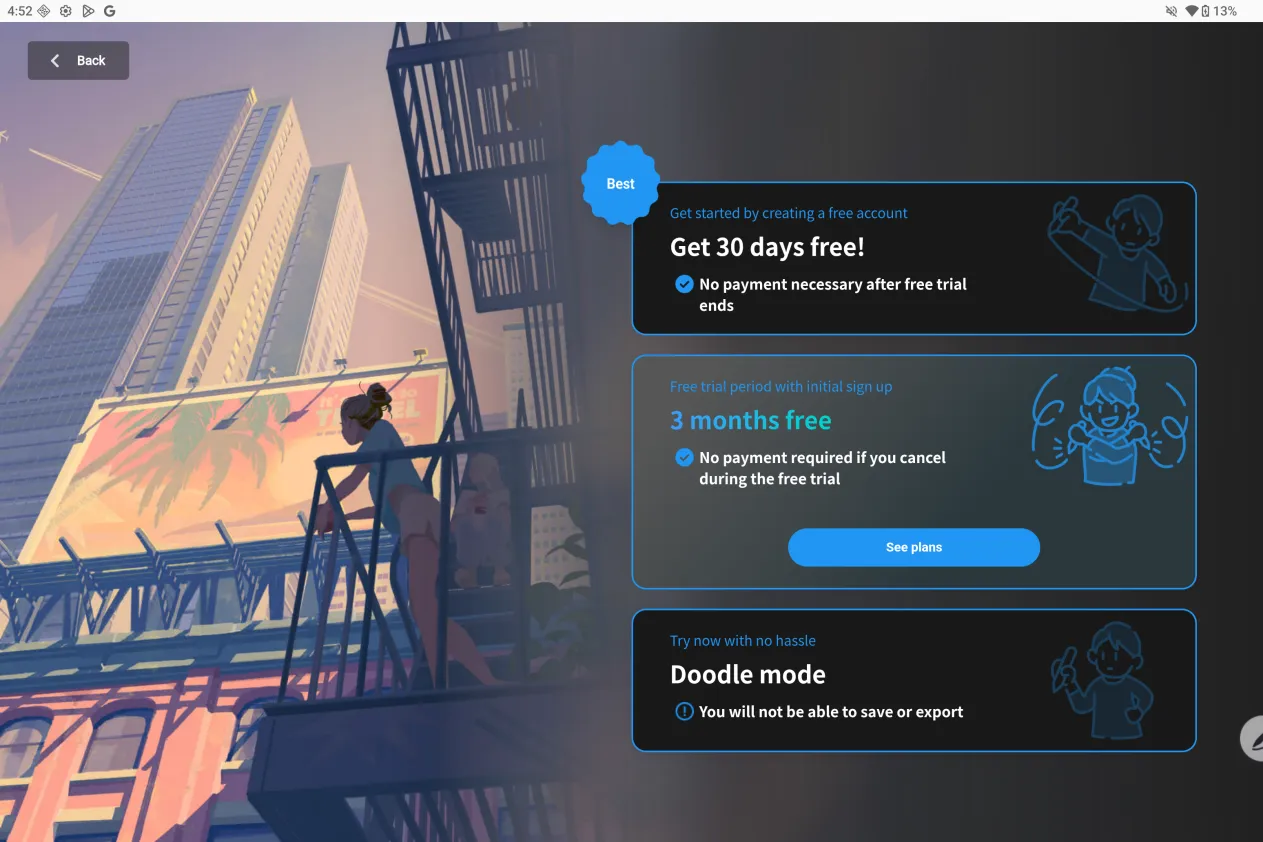
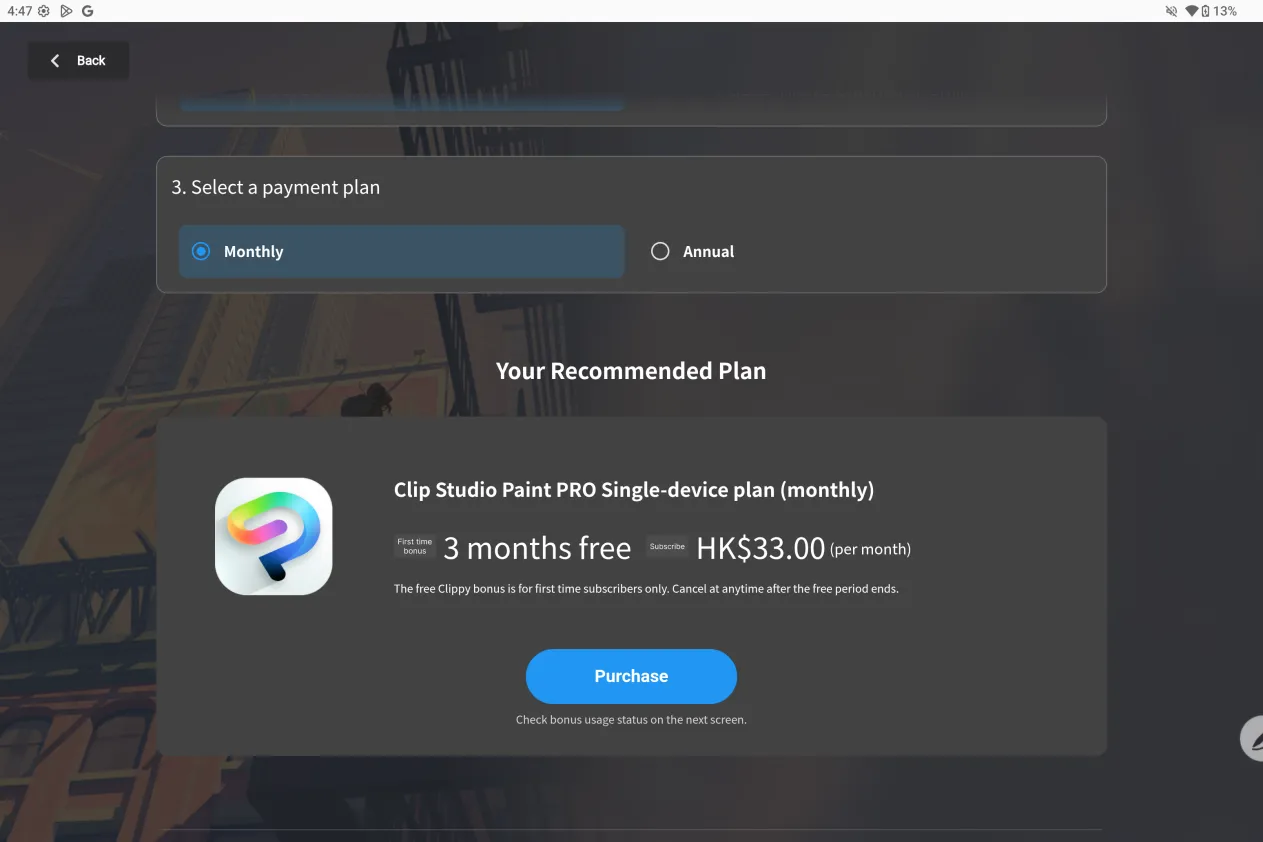
Step 3: On the details page, choose a follow-up subscription plan that suits you and complete the purchase to get 3 months of free benefits. If you no longer need the subscription, you can cancel it under “Google account - Wallet & subscriptions”.
0015 MediBang Paint Membership Code: Claim and Redeem
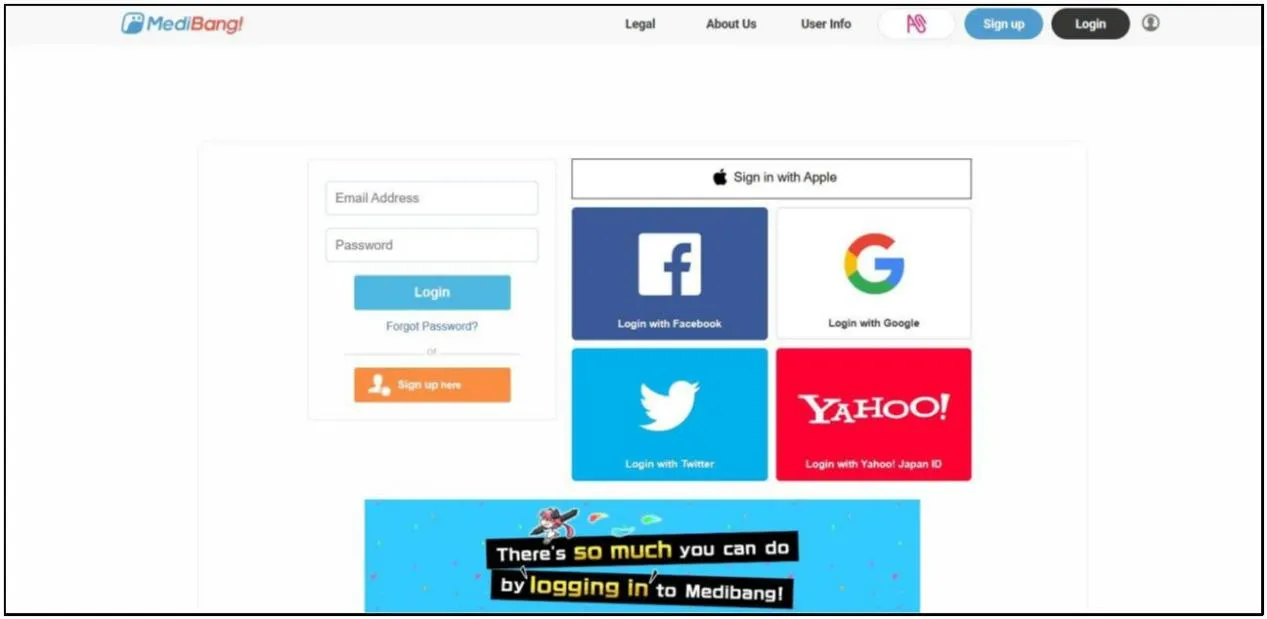
Step 1: Go to https://medibang.com/auth/login/ and sign in to your MediBang account; if you don’t have one, please register first
Step 2: Go to https://medibang.com/medibangPremium/campaigns/premium_xppen/ and click the red “Try it out” button on the page

Step 3: Click the button in the red box in the top-right corner to receive it.
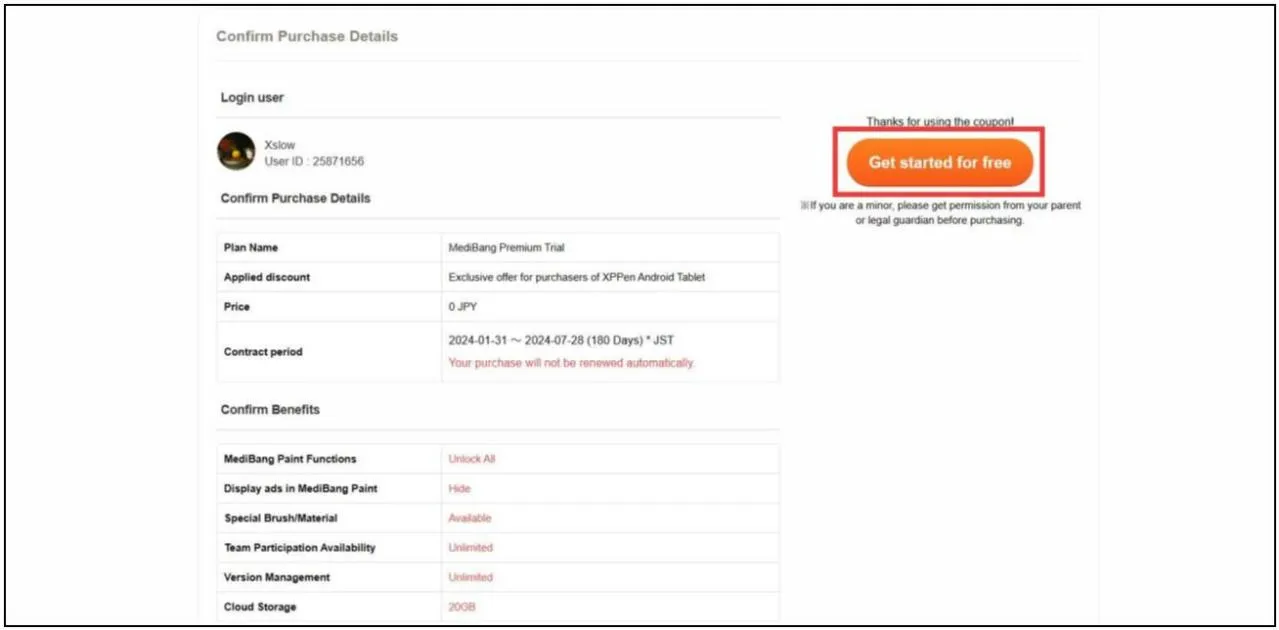
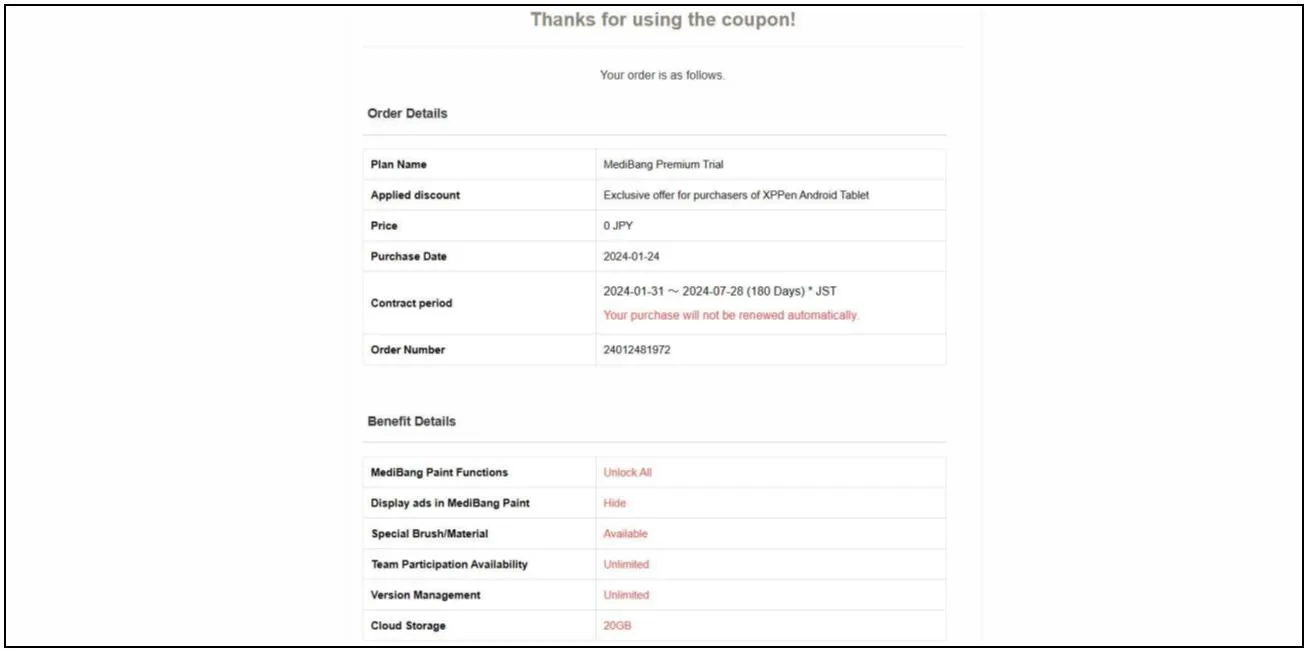
Step 4: You will be redirected to a success page, which means the item was saved successfully. Then sign in with the same MediBang account and start using your membership benefits.
0016 PoseMy Art Membership Code: Claim and Redeem
Step 1: After you open the app, a free-benefit pop-up appears. Sign in with your email, then tap “Claim 6-month benefit” to receive it.