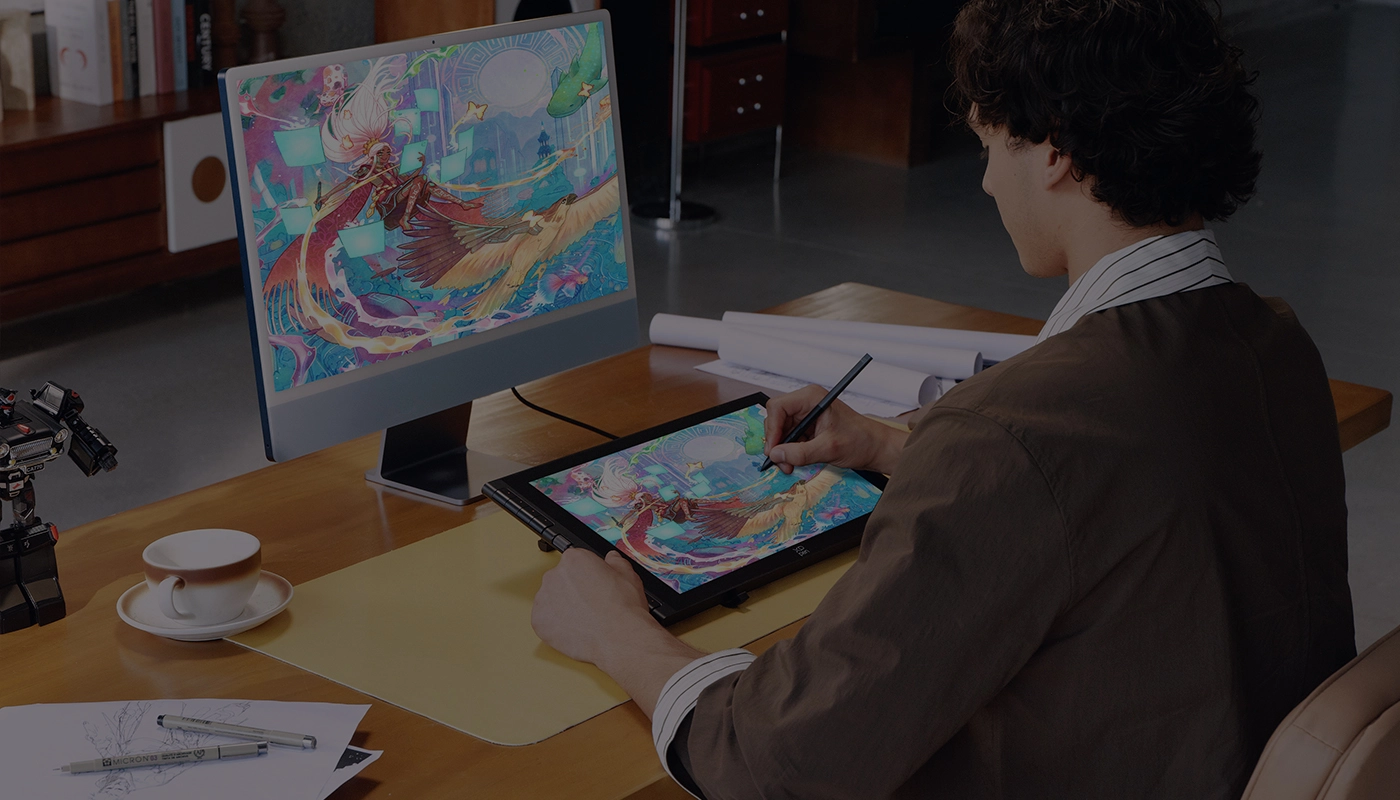
Getting started with your
XPPen Artist 16 3rd (2.5K)
Follow these steps to start creating on your
XPPen Artist 16 3rd (2.5K).
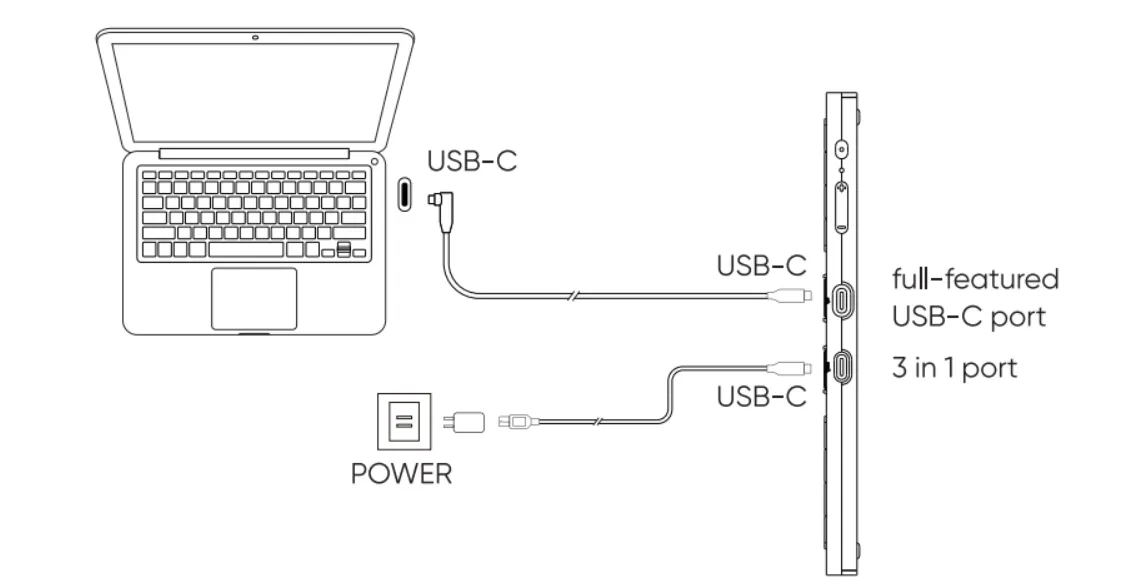
1. Ensure your computer has a USB-C port supporting video output;
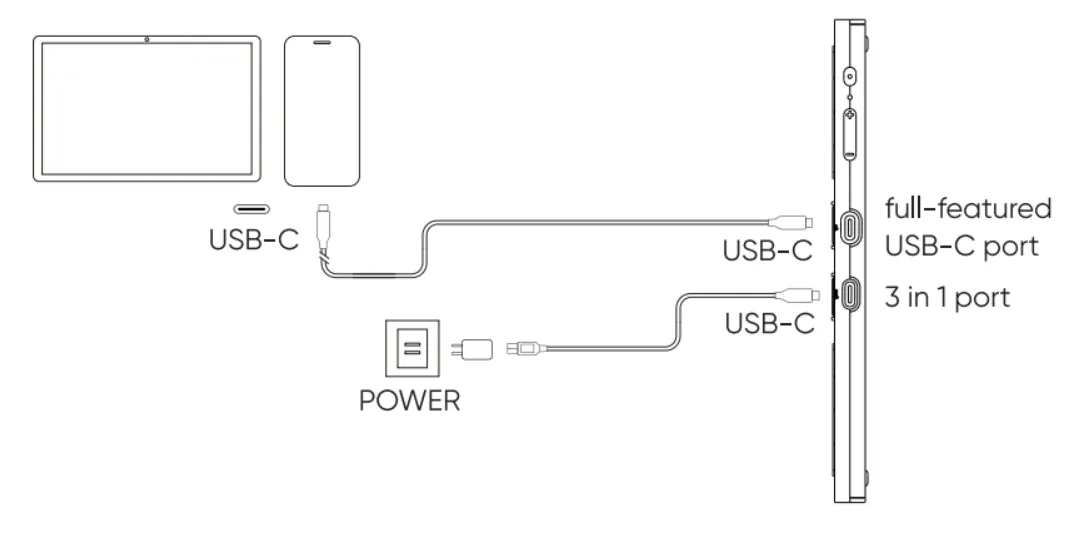
2. Insert one end of the USB-C to USB-C cable into the full-featured USB-C port 
3. Insert the other end of the USB-C cable into a USB-C port that supports DisplayPort output on your computer.
4. If the screen flickers or does not power on, an additional USB-C to USB-A cable is required to connect the power adapter to the 3 in 1 port 
1. Please ensure your Android device supports USB-C DisplayPort Alt Mode. Devices that support desktop mode are recommended for a better user experience.
2. Insert one end of the USB-C to USB-C cable into the full-featured USB-C port
3. Insert the other end into a USB-C port that supports DisplayPort output on your Android device.
4. Use the USB-A to USB-C cable to connect the power adapter to the 3-in-1 port