
Getting started with your
XPPen Deco mini7W V2
Follow these steps to start creating on your
XPPen Deco mini7W V2.
Follow these steps to set up your XPPen Deco mini7W V2.


1. Wired Connection
1) Computer Connection
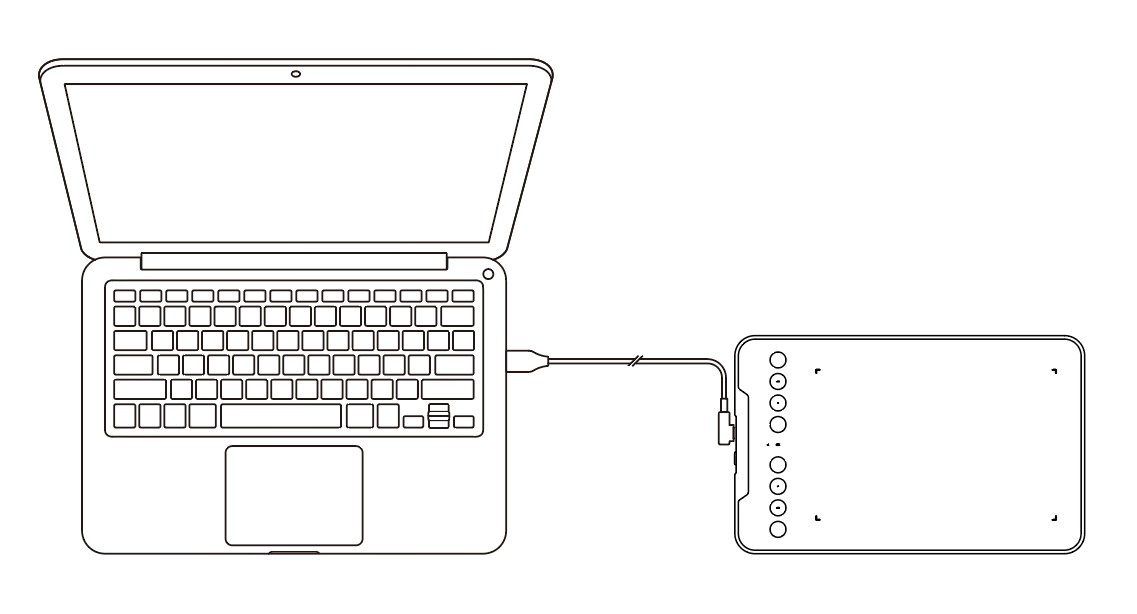
Connect the USB‑A to USB‑C cable to the computer's USB port and to the drawing tablet's USB‑C port respectively.
Connect the USB‑A to USB‑C cable to the computer's USB port and to the drawing tablet's USB‑C port respectively.
2) Android Phone or Tablet Connection
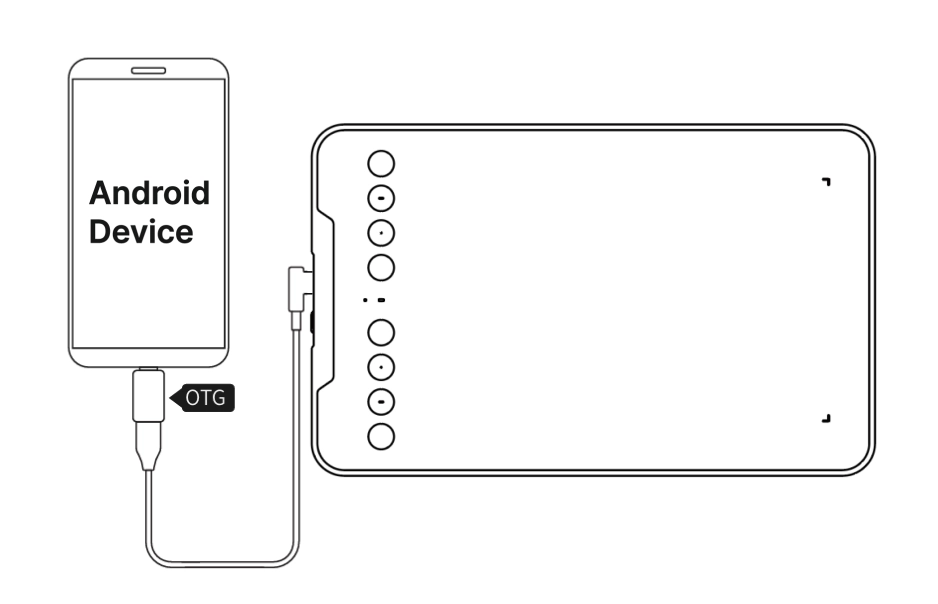
Connect the drawing tablet to the OTG adapter by using the USB‑A to USB‑C cable, and then connect the OTG adapter to your Android phone or tablet.
Connect the drawing tablet to the OTG adapter by using the USB‑A to USB‑C cable, and then connect the OTG adapter to your Android phone or tablet.
2. Bluetooth Wireless Connection
1) Computer Connection
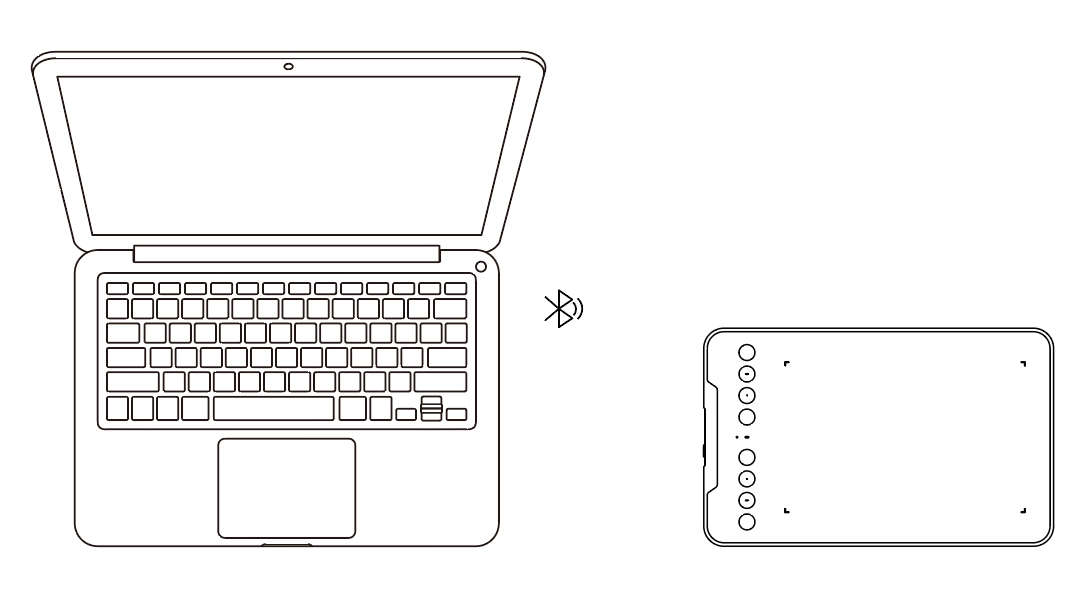
Press and hold the power button for 3 seconds to turn the drawing tablet on. Then, press and hold the shortcut key on the left top of the device for 3 seconds to enter the pairing mode. At this time, LED 2 is flashing blue fast. On your computer, enable Bluetooth, add a device, and select "Deco mini7W V2" when it appears. After successful pairing, LED 2 is solid blue.
Press and hold the power button for 3 seconds to turn the drawing tablet on. Then, press and hold the shortcut key on the left top of the device for 3 seconds to enter the pairing mode. At this time, LED 2 is flashing blue fast. On your computer, enable Bluetooth, add a device, and select "Deco mini7W V2" when it appears. After successful pairing, LED 2 is solid blue.
2) Phone or Tablet Connection
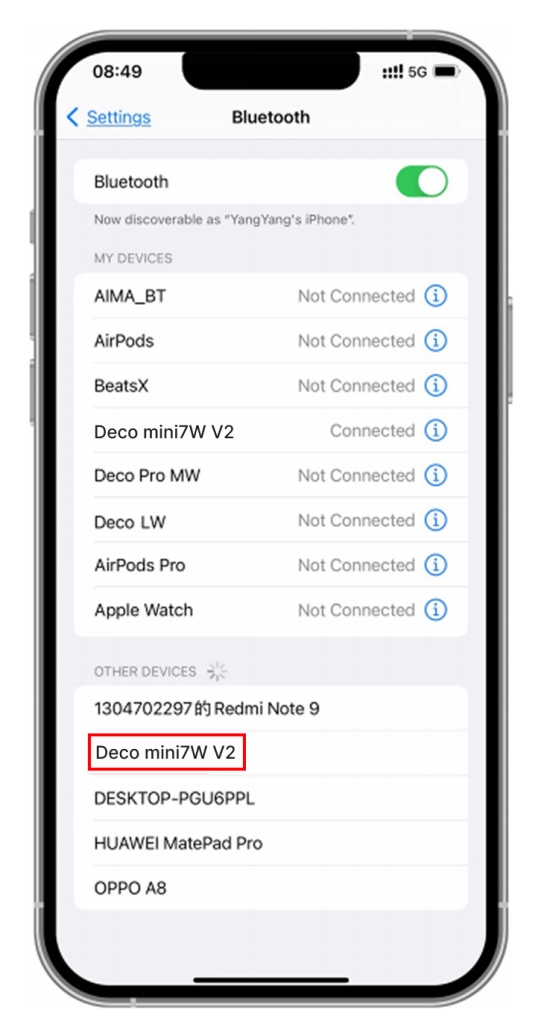
Set the drawing tablet to the pairing mode. Enable Bluetooth on your phone or tablet, add a device, and select "Deco mini7W V2" when it appears.
Set the drawing tablet to the pairing mode. Enable Bluetooth on your phone or tablet, add a device, and select "Deco mini7W V2" when it appears.
3. iOS Connection
Step 1: Download APP
Search "ibis Paint X" or "ibis Paint" in the app store, and download and install it. It is recommended to update it to the latest version to be compatible with XPPen.
* Please visit use of the APP.
Step 2: Connect Drawing Tablet via iOS device
Step 3: Turn on the drawing tablet
Step 4: Bluetooth connection
1. Press and hold the shortcut key on the left top of the device for 3 seconds to enter pairing state (blue light on and flashing fast).
Search "ibis Paint X" or "ibis Paint" in the app store, and download and install it. It is recommended to update it to the latest version to be compatible with XPPen.
* Please visit use of the APP.
Step 2: Connect Drawing Tablet via iOS device
Step 3: Turn on the drawing tablet
Step 4: Bluetooth connection
1. Press and hold the shortcut key on the left top of the device for 3 seconds to enter pairing state (blue light on and flashing fast).
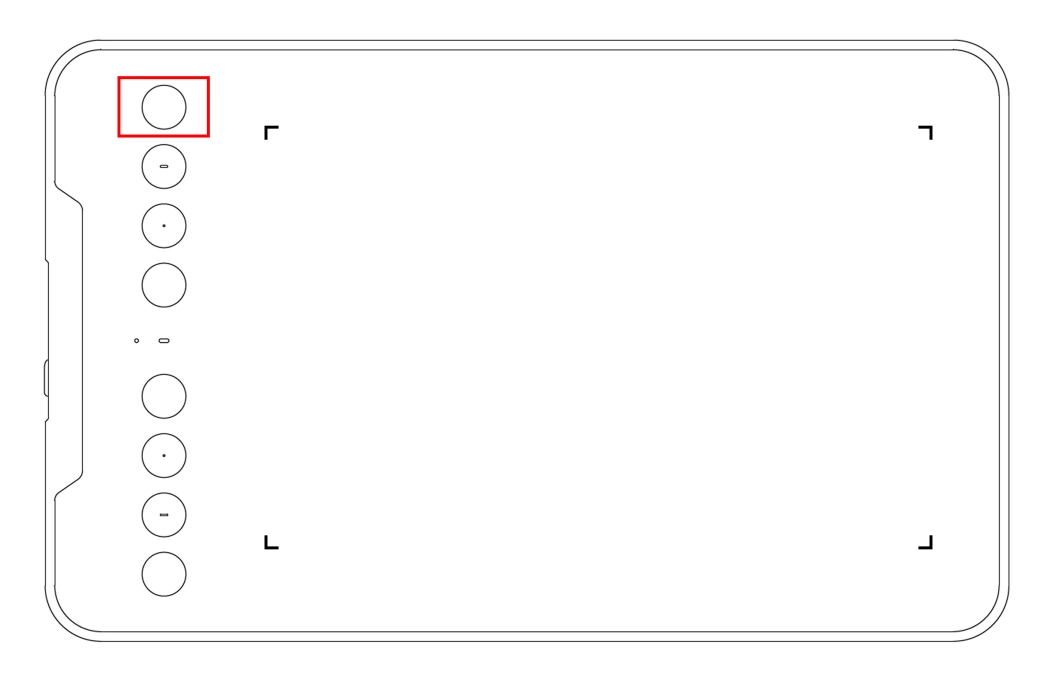
2. Turn on iOS device Bluetooth, and select the drawing tablet to complete pairing (blue light on upon successful pairing).
Step 5: Set APP
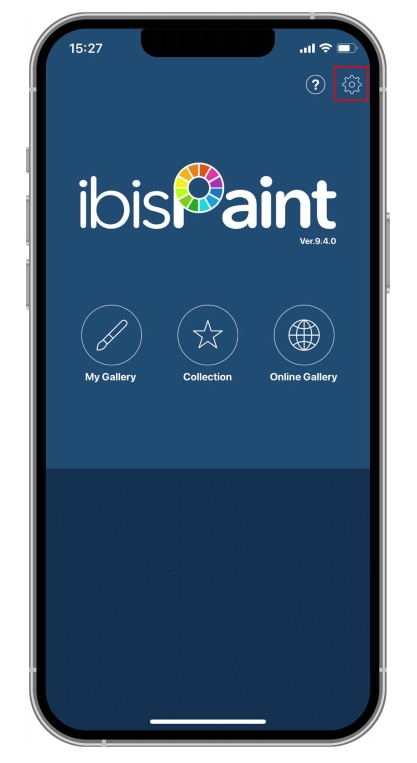
1. Connect XPPen Drawing Tablet. Open ibis Paint, and click "Settings".
1. Connect XPPen Drawing Tablet. Open ibis Paint, and click "Settings".
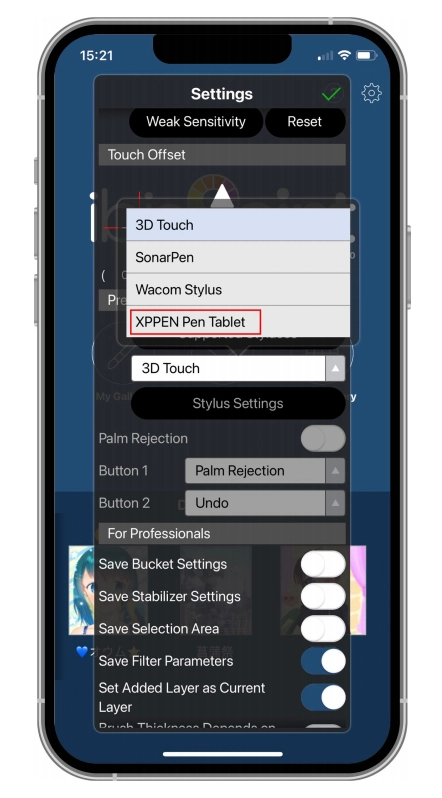
2. Find "Supported Handwrite Stylus" in Settings, and select XPPen Pen Tablet.
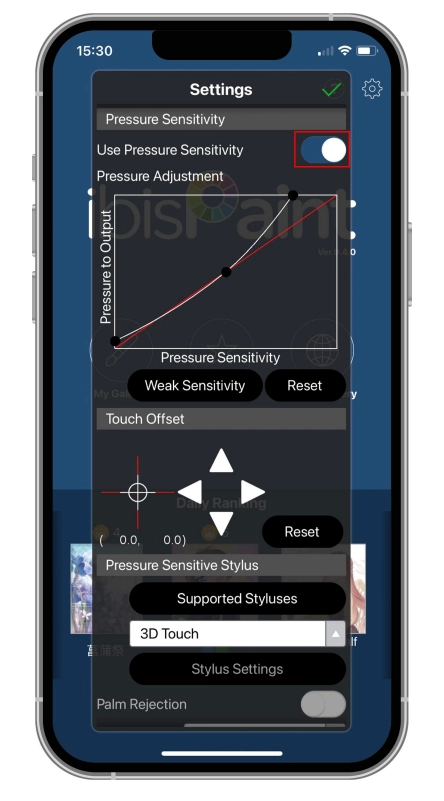
Step 6: Set pen pressure
1. Turn on the pen pressure function.
1. Turn on the pen pressure function.
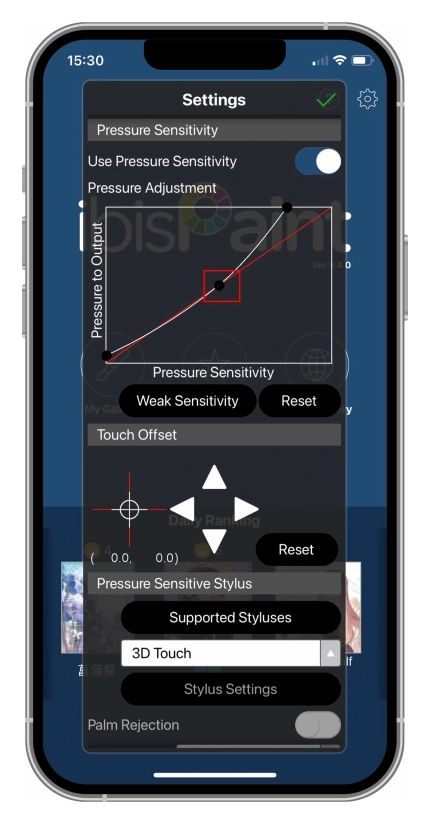
2. Drag the dot on the pressure sensitivity line to adjust pen pressure sensitivity.
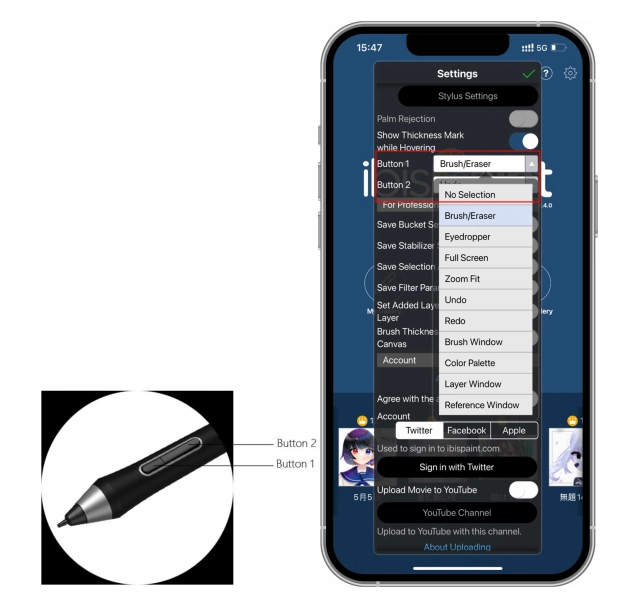
Step 7: Set pen key functions
1. Set functions corresponding to the pen key.
1. Set functions corresponding to the pen key.
2. Create a canvas and start your creation.