Top 5 Adobe Illustrator Alternatives in 2026 (Free & Paid)
TIPSFor many designers, Adobe Illustrator is almost synonymous with professional vector design. Its powerful features and mature ecosystem make it the default choice in countless tutorials and workflows.
However, the rising costs of subscription plans and the long-term financial commitment have led many designers, students, and freelancers to ask: Is there a software alternative that doesn't require an annual subscription but still meets professional creative needs?
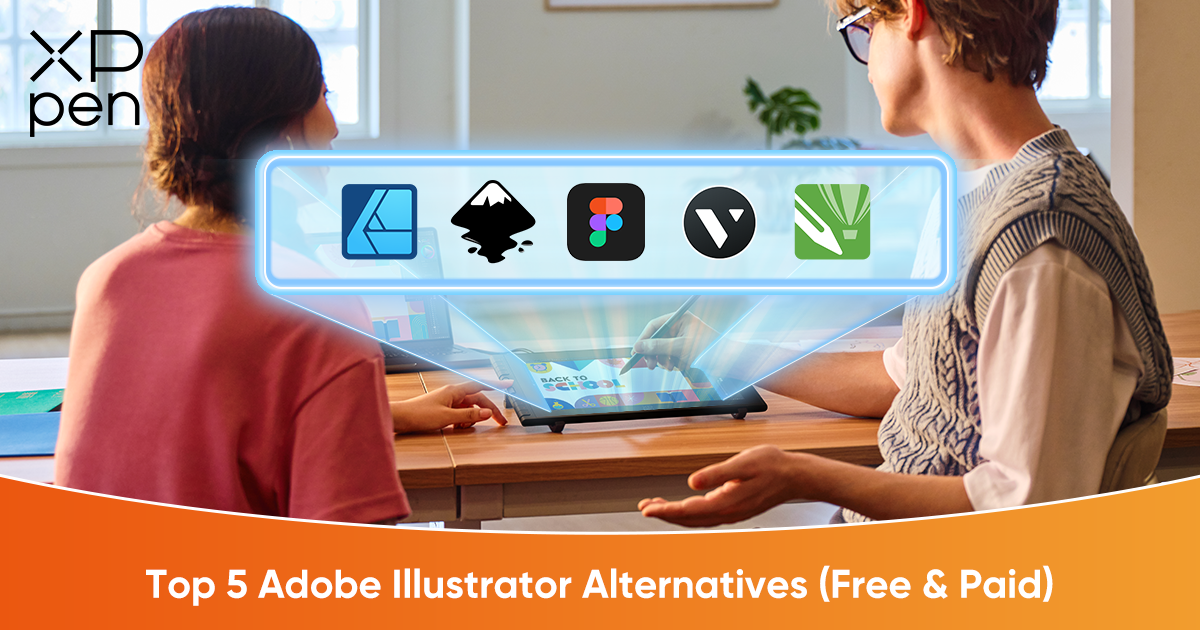
The answer is yes. Today' design software market is no longer dominated by Illustrator alone. Whether you're looking for budget-friendly options, a one-time purchase solution, or a fully open-source platform, there are mature alternatives that can take on Illustrator's role. Below, we've curated a list of tested alternatives, ranging from free open-source tools to professional-grade commercial software, suitable for different budgets and creative needs. Before we dive into the detailed tested tools, let's take a quick look at these five Adobe Illustrator alternatives.
Quick Overview
| Software | Product Type | Key Use Cases | Target Audience | Pricing Model |
|---|---|---|---|---|
| Affinity Designer | Professional Desktop App | Mixed Vector/Raster Design | Freelancers, Illustrators | One-Time Purchase |
| Inkscape | Open-Source Software | Technical Drawing, SVG Editing | Students, Open-Source Fans | Completely Free |
| CorelDRAW | Comprehensive Suite | Print, Signage, Manufacturing | Print Shops, Old-school Designers | Subscription or One-Time |
| Vectr | Online Lightweight Tool | Simple Graphics, Quick Edits | Beginners, Non-designers | Free (Basic) |
| Figma | Cloud Collaboration Tool | UI/UX Interface Design | Product Teams, UI Designers | Free + Subscription |
5 Best Adobe Illustrator Alternatives
1. Affinity Designer (Paid)
Affinity Designer is one of the most notable professional vector design tools in recent years. It is praised for its smooth performance and low latency, remaining stable even under heavy workloads. Its standout feature is the seamless switch between "Designer Persona" (vector workspace) and "Pixel Persona" (raster workspace). You can work on vector drawing and pixel-level detailing in the same project without switching software, dramatically improving workflow efficiency.
Best For:
Complex illustrations, brand identity projects, logos and icon systems, and projects that require a combination of vector and raster effects.
Target Audience:
Designers who dislike subscriptions, freelance illustrators, and small studios with limited budgets but professional requirements.
Pricing Model:
One-time purchase with perpetual license. No hidden renewal fees.
Desktop version (Windows/macOS) and iPad version sold separately
Universal License available, covering all platforms with a single purchase—ideal for cross-device workflows
2. Inkscape (Free)
Inkscape is the most mature open-source vector software available. Its native format is SVG, the W3C standard, making it especially suitable for technical and academic applications. Backed by a large plugin ecosystem and a global developer community, it continues to evolve and improve.
Best For:
Technical illustrations, academic charts, process diagrams, laser cutting or plotter file preparation, and Linux-based design workflows.
Target Audience:
Students, researchers, open-source advocates, and anyone who wants to avoid software costs entirely.
Pricing Model:
Completely free and open-source. No ads, no feature restrictions, continuously updated by the community.
3. CorelDRAW (Paid)
CorelDRAW is an “industry veteran” in graphic design, and it is more than just vector software—it is a full graphics suite. Its stability and mature industrial applications make it a long-standing choice in advertising, print, and manufacturing.
Best For:
Large-format advertising (banners, billboards), print publishing, signage, apparel/fashion pattern design, and industrial vector output.
Target Audience:
Print shops, sign-making companies, industrial designers, and professionals accustomed to traditional Corel workflows.
Pricing Model:
Hybrid: subscription or one-time purchase.
Subscription provides frequent updates, similar to Adobe Creative Cloud
One-time purchase is available but usually costs more and receives fewer feature updates
4. Vectr (Free Plan Available)
Vectr is an extremely lightweight and user-friendly vector tool. No heavy installation is required. It runs directly in the browser, with an optional desktop client.
Best For:
Simple logo creation, social media graphics, blog covers, or quick edits on secondary computers.
Target Audience:
Design beginners, social media managers, content creators, or anyone who occasionally needs quick graphic assets.
Pricing Model:
Basic version is free; advanced features may require payment. The free version may include ads or cloud storage limits. See their Pricing Details.
5. Figma (Free Plan Available)
Primarily a browser-based UI/UX design tool, Figma’s “Vector Networks” make path drawing incredibly intuitive. Its greatest strength lies in cloud collaboration, allowing multiple team members to edit simultaneously, reducing communication friction.
Best For:
Web design, app interface design, prototyping, and design system management.
Target Audience:
UI/UX designers, product managers, front-end developers, and remote design teams require collaboration.
Pricing Model (Freemium):
Starter (Free): Suitable for individuals or small teams, with limits on file count and version history
Professional/Organization (Subscription): Monthly or annual payment to unlock unlimited files, shared libraries, and advanced administrative controls
Elevating Your Vector Workflow: Pairing Software with a Drawing Display
Why Use a Drawing Display for Vectors?
Many believe vector design “only needs a mouse.” However, in reality, using a decent drawing display with a stylus provides far superior control, especially when working with the Pen Tool, sculpting vector shapes, or using pressure-sensitive brushes in software like Affinity Designer or Inkscape. It reduces wrist strain and makes the workflow feel much more natural and organic. Below are some tablets with a pen that can help you elevate your workflow.
Best Drawing Displays with a Stylus to Make Vector Design More Efficient
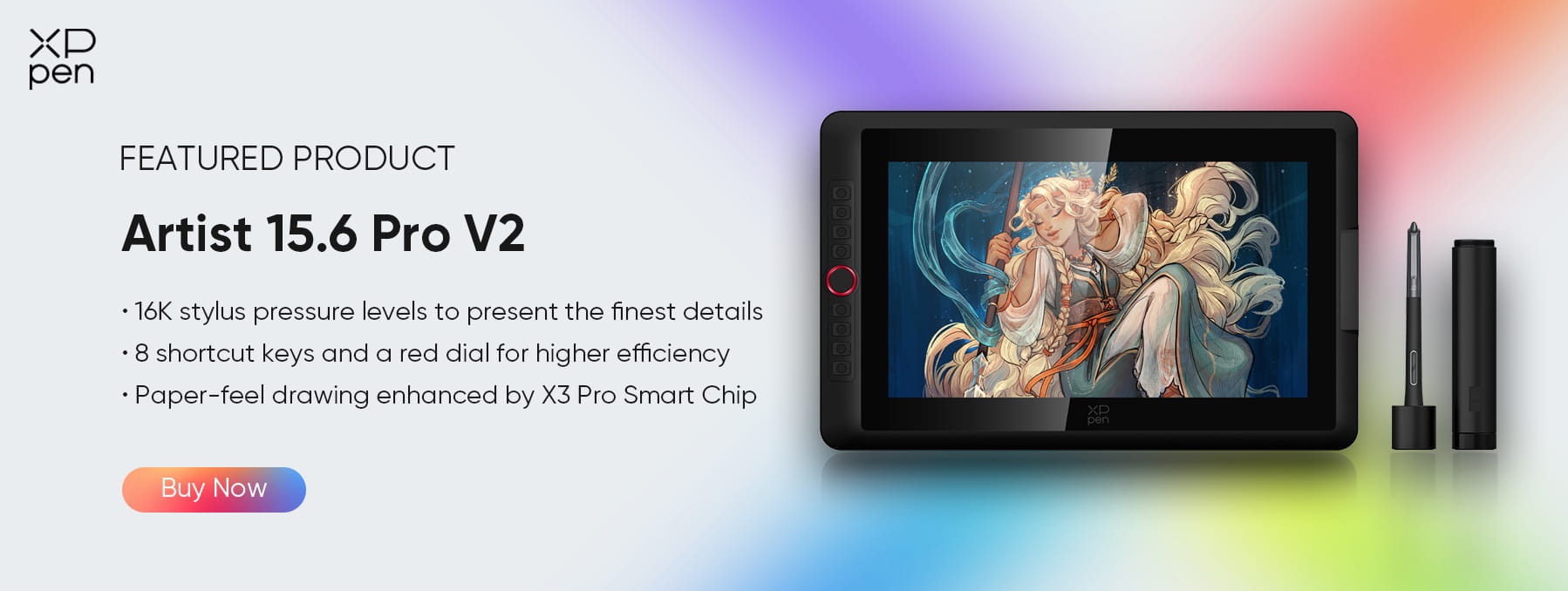
Option A: XPPen Artist 15.6 Pro V2
Target User: Beginners and students looking for reliable performance on a budget
Key Specs:
1080p Full HD display resolution, clear rendering of vector lines
Fully laminated screen, reducing parallax
8 customizable shortcut keys on the side, allowing instant access to Undo, Pen Tool, Node Tool, and other commonly used functions
Special Design: Boasting the Red Dial Quick Key—a classic rotating dial that allows instant access to tools such as Undo, Pen Tool, Node Tool, and other commands, streamlines workflows and enhances creative efficiency.
Option B: XPPen Artist Pro 16 (Gen 2)
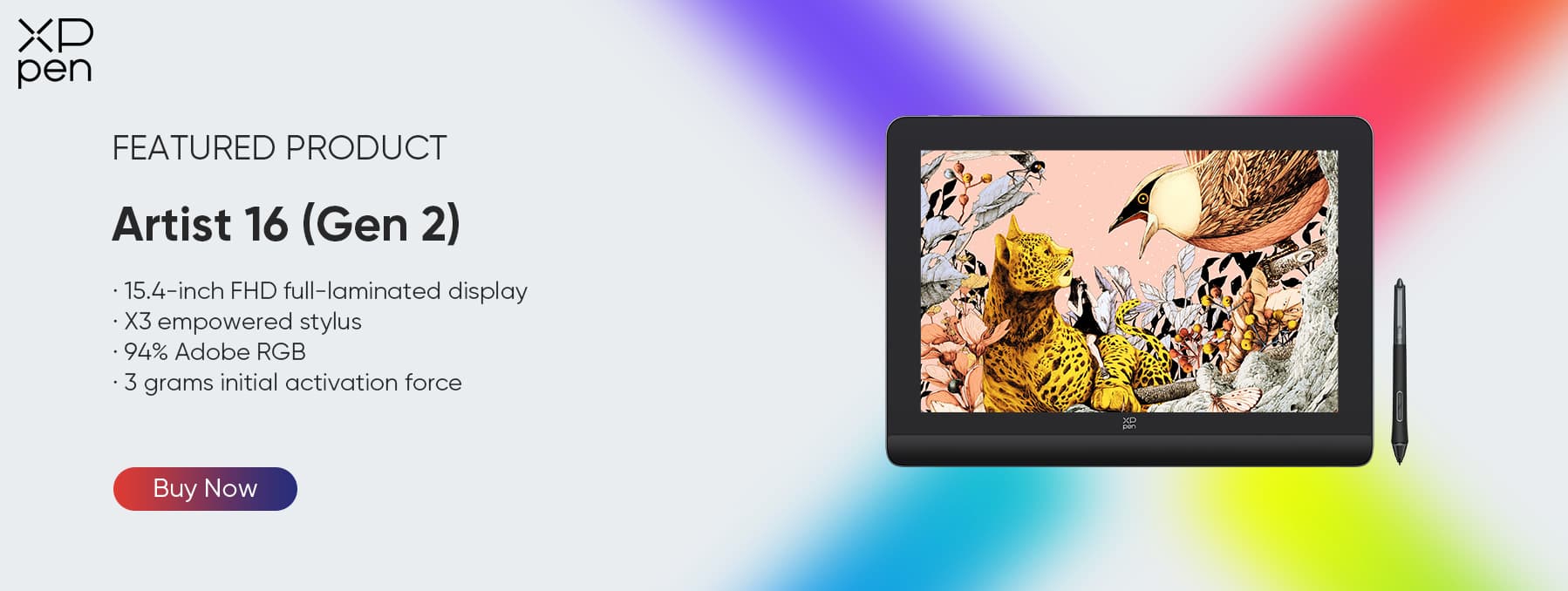
Target User: Professionals requiring sharper details and extreme precision
Key Specs:
2.5K High-Resolution Display (2560×1600): Crisp, detailed rendering for precise vector lines and expanded workspace for complex designs
X3 Pro Smart Chip Stylus: Industry-first 16K pressure levels, 60° tilt support, and ±0.4 mm accuracy for highly responsive, natural, and fine strokes
Built-in Foldable Stand: Adjustable and integrated stand allows comfortable working posture at any desk setup, reducing wrist strain and enabling hours of ergonomic drawing
Wide Color Gamut & High Accuracy: 99% sRGB, 97% Adobe RGB, 99% DCI-P3, delivering true-to-life colors for professional design, illustration, and photo retouching
Paper-Like Anti-Glare Screen: Fully laminated X-Nature Display with etched glass simulates real paper texture while eliminating parallax
Futuristic, Compact Design: Sleek space gray metal body, lightweight yet durable, combining professional aesthetics with portability
How to Choose Between XPPen Artist 15.6 Pro V2 and Artist Pro 16 (Gen 2)?
Choosing the right size and resolution is critical for your workspace. If you are struggling to decide whether the portability of the 15.6-inch model or the higher resolution of the 16-inch model is right for you, you should read this comprehensive comparison of 15.6 vs 16-inch drawing tablets to help make your decision.
IV. FAQ
Q1: Do I really need a drawing tablet for vector art?
A: While you can use a mouse, a drawing tablet like the XPPen Artist Pro 16 (Gen 2) significantly speeds up the workflow, especially when drawing freehand vector shapes or using the eraser tool naturally.
Q2: Do these Illustrator alternatives support XPPen tablets?
A: Yes. Major alternatives like Affinity Designer, Inkscape, and CorelDRAW have native support for tablet pressure sensitivity and tilt, ensuring your XPPen tablet works seamlessly.
Q3: Can I open .AI files in these alternative programs?
A: Most alternatives (especially Affinity Designer and Inkscape) can import .AI files, though some complex effects might need adjustment. It is often safer to save as .PDF or .EPS for cross-compatibility.
V. Conclusion
Switching from Illustrator does not mean sacrificing quality. Whether you choose the free power of Inkscape or the professional polish of Affinity Designer, pairing it with an XPPen drawing display ensures a workflow that is both efficient and ergonomically comfortable. What matters most is not whether you continue using Illustrator, but whether you have the tools best suited to your creative style.
About Us
Founded in 2005, XPPen is a leading global brand in digital art innovation under Hanvon UGEE. XPPen focuses on the needs of consumers by integrating digital art products, content, and services, specifically targeting Gen-Z digital artists. XPPen currently operates in 163 countries and regions worldwide, boasting a fan base of over 1.5 million and serving more than ten million digital art creators.
Learn more


-
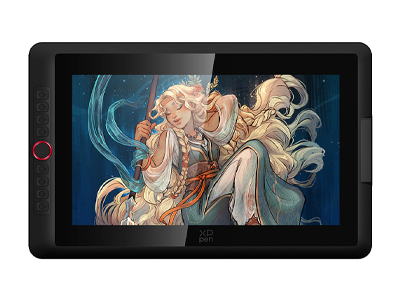 Artist 15.6 Pro V2
16K pressure levels to illustrate the finest details
8 shortcut keys plus a red dial for a seamless workflow
3 color spaces available: sRGB, Adobe RGB & Display P3
It features:
Unlock paper-like drawing experience
-
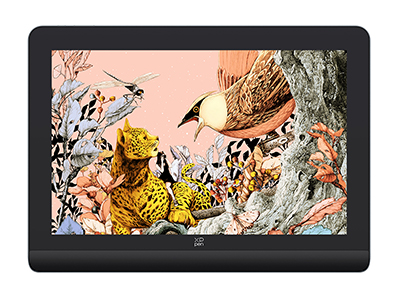 Artist Pro 16 (Gen 2)
World first 16K pressure levels
X3 Pro smart chip stylus
2.5K resolution. Works like magic over the X-nature display
It features:
Looking for the Best Drawing & Design Apps?
Discover essential drawing techniques, expert tips, and the best app recommendations to boost your creativity and master digital art.
