4 Best iPad for Procreate: Top Picks for Artists
ROUNDUPSNavigating Apple's iPad lineup can feel like solving a puzzle. With four models, multiple generations, and overlapping price points, finding the best iPad for Procreate takes some research. However, the good news for digital artists is that you don't necessarily need the top-end "PRO" to get a smooth, responsive drawing experience.
Although Apple is famous for charging a premium for its devices, if you're willing to do a bit of research and focus on value, RAM, and screen lamination, you can find great-value iPads for drawing. For all the artists looking for the cheapest iPad for Procreate, we have done all the heavy work covering four of the best iPad models (and a standout Android alternative) to help them make an informed decision before the purchase.
Quick Summary
The iPad (11th Gen) is best for budget-conscious beginners, the iPad mini for portability, the iPad Air for balanced performance, and the iPad Pro for professionals.
Looking beyond Apple? The XPPen Magic Pro 13 offers a 3K 120Hz display, standalone drawing, and PC/Mac connectivity as a versatile Android alternative. Note that it doesn't support Procreate.
Part 1. Best iPads for Procreate
1. Apple iPad (11th Gen, 2025) — Best Entry-Level iPad for Procreate
If you want the best budget iPad for Procreate without sacrificing performance, the iPad 11th generation is your best option. It's powered by the modern A16 chip and runs Procreate and other creative drawing apps smoothly. The drawing is very accurate, with good tilt, good pressure, and Apple's low latency.
With a bright, well-sized screen, it's ideal for artists happy to stick with older Apple Pencil generations. The 500-nit panel is a bit dimmer than the Pro models but still a very usable canvas in normal room light, and the 60Hz refresh rate is more than adequate for responsive strokes. At $449, it's a fantastic value for any aspiring artist and the cheapest iPad for what it delivers in Procreate.
-
The good: Excellent value, very smooth A16, comfortable drawing space.
-
The catch: Not compatible with the newer styluses (Apple Pencil 2 and Pencil Pro), so you're stuck with the first-gen pencil or the cheaper USB-C model (which, again, has no pressure sensitivity). The USB 2.0 port is also quite slow, so local file transfers can be a pain if you don't use iCloud much.
2. Apple iPad Mini (2024, 7th Gen) — Best Ultra-Portable Sketchbook
Traditional pro tablets can be a bit of a pain to carry around when you're on the move (sketching on a train full of people, for example, or taking notes at a local coffee shop). The 7th gen iPad mini solves this with desktop-level drawing power in a compact form factor that's perfect for a small bag or jacket pocket.
Powered by the zippy A17 Pro chip, it's just as capable with massive, multi-layered Procreate projects as the larger mid-range iPad Airs. The key thing here is that it now has full Apple Pencil Pro support (the haptics and barrel roll control) on an 8.3" Liquid Retina display.
-
The good: Absolutely superb portability, the full suite of flagship-class stylus features, and extremelyfast app performance.
-
The catch: The compact screen real estate can get quite cramped when you've got a full suite of toolbars and a lot of images on screen. The display is also still limited to 60Hz with no real panel improvements over the previous model.
3. Apple iPad Air (M4, 2026) — Best Mid-Range Creative Sweet Spot
For this one, we have to say the iPad Air 2026 is made for Procreate, and we have plenty of reasons to back up that claim. The M4 chip is powerful enough to handle high-resolution canvases, build large layer stacks, and run demanding companion apps (Procreate Dreams, for instance) without any stuttering.
Starting at $749, the iPad Air M4 is all-screen and offers an artist experience nearly identical to the Pro models, but at a much more accessible price. The 11-inch Liquid Retina display (there's also a 13-inch version) has full P3 wide colour and 600 nits of brightness, so the colour is very rich and accurate. Complex brushes work as expected, and you can run adjustments or a time-lapse render in the background without any issues.
-
The good: Absolutely phenomenal processing power, full Apple Pencil Pro support, and a price point that just about feels right for pro illustrators and for the growing artist. You can call it a PRO iPad that’s just missing the 120Hz OLED panel and nano-texture glass.
-
The catch: It's still an LCD panel (capped at 60Hz), so rapid strokes don't feel quite as fluid side by side with the iPad Pro's 120Hz ProMotion displays. Storage and accessory upgrades can also quickly drive up the total cost.
4. Apple iPad Pro 13-inch (M5, 2025) — Best Pro Canvas & Maximum Layers
For the professional artist who won't settle for anything less than the best, the M5 iPad Pro 13-inch is the most powerful iPad for Procreate. It delivers lightning-fast processing and can easily handle the heaviest layer counts in Procreate on very large, high-resolution print files. It's also easily a full-blown video-editing workstation.
The revolutionary Tandem OLED display is the standout highlight of PRO variants, stacking two OLED panels to deliver outstanding contrast between true blacks and vivid highlights. Up to 1,000 nits of standard brightness and 1,600 nits of peak HDR output ensure a brighter display and drawing experience no matter the surrounding environment.
Paired with a smooth 120Hz refresh rate, it virtually eliminates pen latency. For the professional tattoo artist working with complex stencil layouts or the commercial illustrator working at scale, the optional nano-etched glass (at an extra cost) provides a tactile, paper-like matte friction which greatly reduces slip.
-
The good: Absolutely the best display on the market, zero lag, huge workspace, and phenomenal pro performance.
-
The catch: The 11-inch base modelstarts at $1,199 and is an absolute luxury investment. You're very likely to be looking at overkill if you're a beginner.
Part 2. How to Choose the Best iPad for Procreate
Picking the right iPad comes down to four fundamental factors before you buy:
-
Confirm Procreate Compatibility: Make sure the particular iPad model you're planning to buy actually supports the latest version of Procreate.
-
Get the Right Apple Pencil: The Apple Pencil is absolutely essential for a smooth, accurate drawing experience. Both the 1st and 2nd gen (or Pencil Pro) are compatible with Procreate, but it depends on your iPad. The 2nd gen and the Pro Pencil both offer magnetic charging (they snap onto the side of the iPad to charge instead of plugging in). (Note: The cheaper Apple Pencil USB-C version has no pressure sensitivity and is therefore a very poor choice for art).
-
Find Your Ideal Screen Size: A larger, high-resolution screen gives your brushes plenty of room to work and makes the colours pop with much greater detail. The downside, of course, is that a larger screen makes the iPad much heavier and less portable. Find the right size for your own situation in terms of your workspace and how often you're going to be drawing on the move.
-
Check RAM and Processor Speed: Procreate is a very feature-rich app and needs considerable processing power. A faster processor and more RAM will keep the app running smoothly and let you work with large files (with lots of layers) without lag. For the best value, choose the iPad with the most RAM your budget allows.
Part 3. Standout Alternative: XPPen Magic Pro 13
Apple has a near monopoly on the iOS ecosystem, and if you're buying an iPad as a drawing tablet, you're going to be hit with a few frustrations:
-
The expensive 'Pencil tax' add-ons
-
The slick glossy glass which causes hand fatigue
-
Lack of connectivity to full desktop workstations.
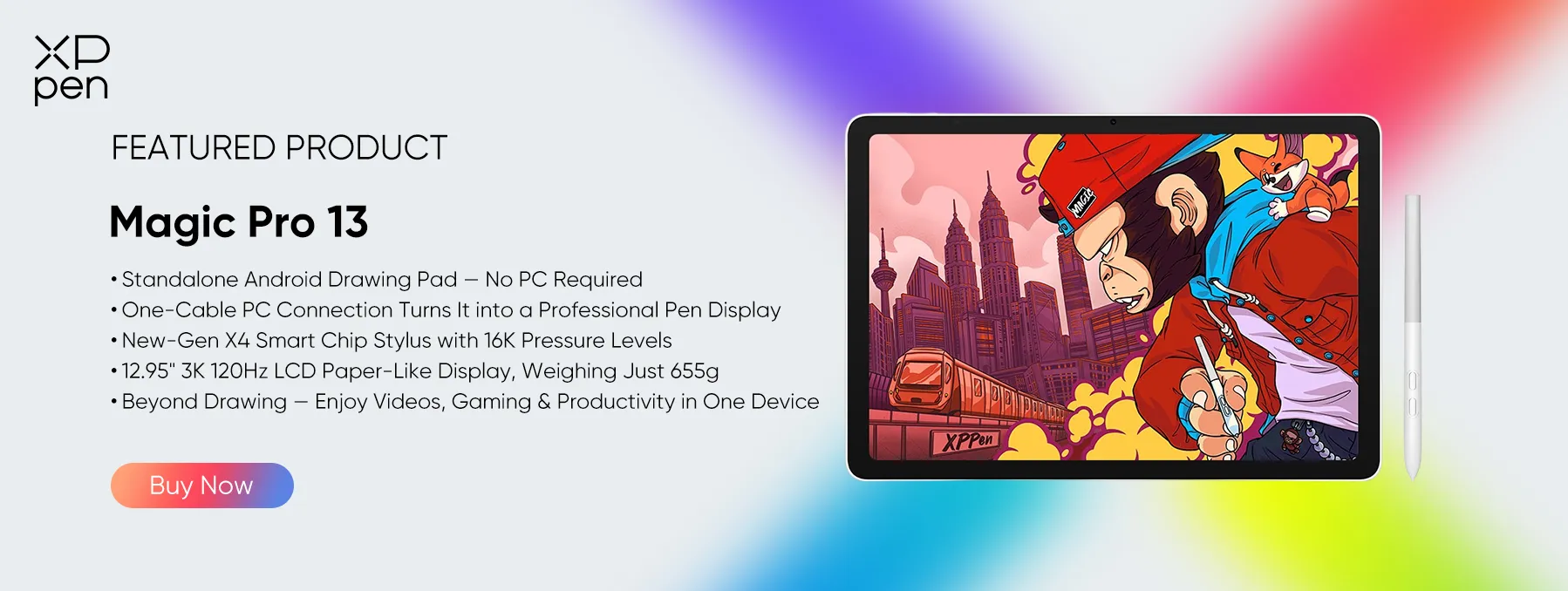
That's where the XPPen Magic Pro 13 Standalone Drawing Pad comes in, offering a more complete, artist-focused package right out of the box.
Instead of forcing you to pay an additional $129+ for a stylus, XPPen includes its X4 Smart Chip Stylus with the package. Powered by EMR technology and an ultra-precise internal chip, it delivers an industry-leading 16,384 levels of pressure sensitivity (twice the sensitivity of a conventional stylus) and a very low 2g initial activation force to capture the lightest pencil feathering.
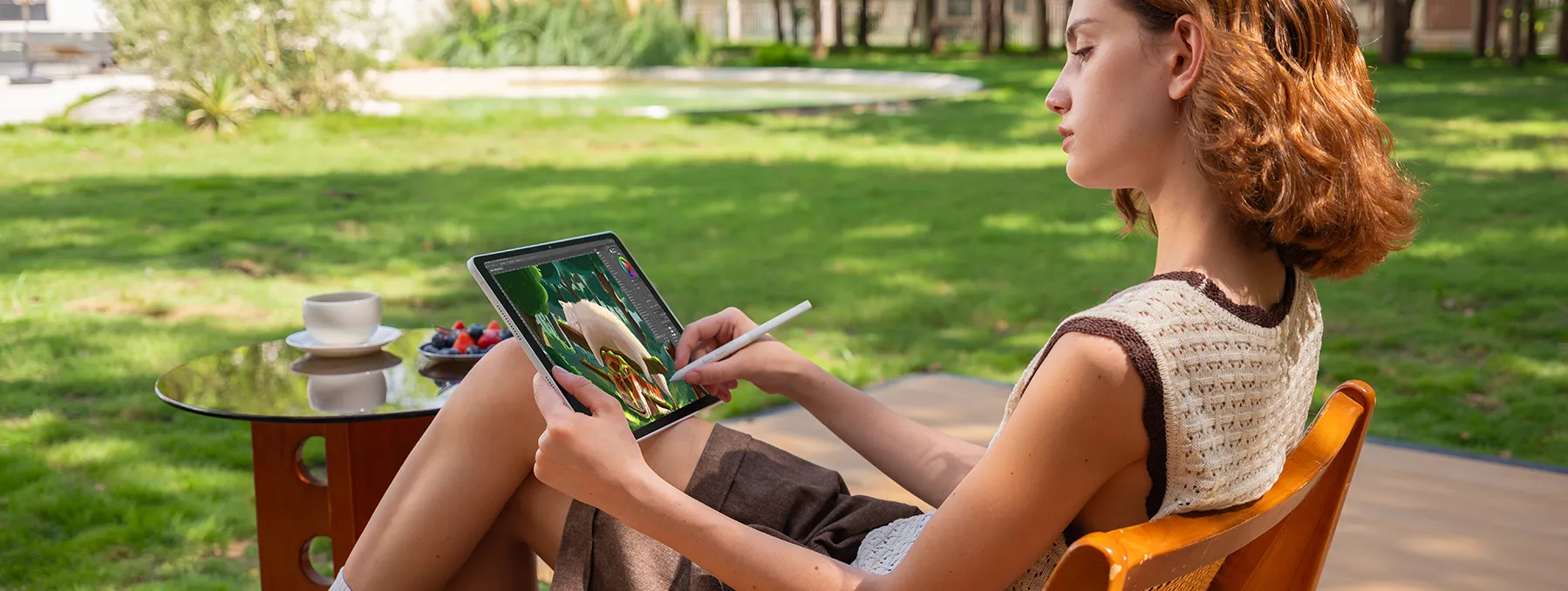
Key Advantages of Magic Pro 13 over iPad
-
Paper-like anti-glare surface: Unlike base iPads, which require an expensive matte screen protector to cut down on the glare of slick glass, the Magic Pro 13 has a native X-Paper display with a nano-etched surface. This eliminates glare, resists fingerprints, and gives your stylus nib genuine tactile paper resistance.
-
13-inch Pro Canvas at half the price: To get an actual 13-inch drawing canvas from Apple, you have to go to the $1299+ iPad Pro. The Magic Pro 13 gives you a huge 12.95-inch 3K 120Hz display with a very artist-friendly 3:2 aspect ratio for just $899.
-
Dual-mode versatility (standalone tablet + PC pen display): iPads are strictly standalone mobile devices. The Magic Pro 13 runs Android 16 as a standalone tablet for sketching on the go, but you can also plug it into your PC or Mac via a single USB-C cable to use it as a hardware drawing display for desktop apps like Photoshop and Blender.
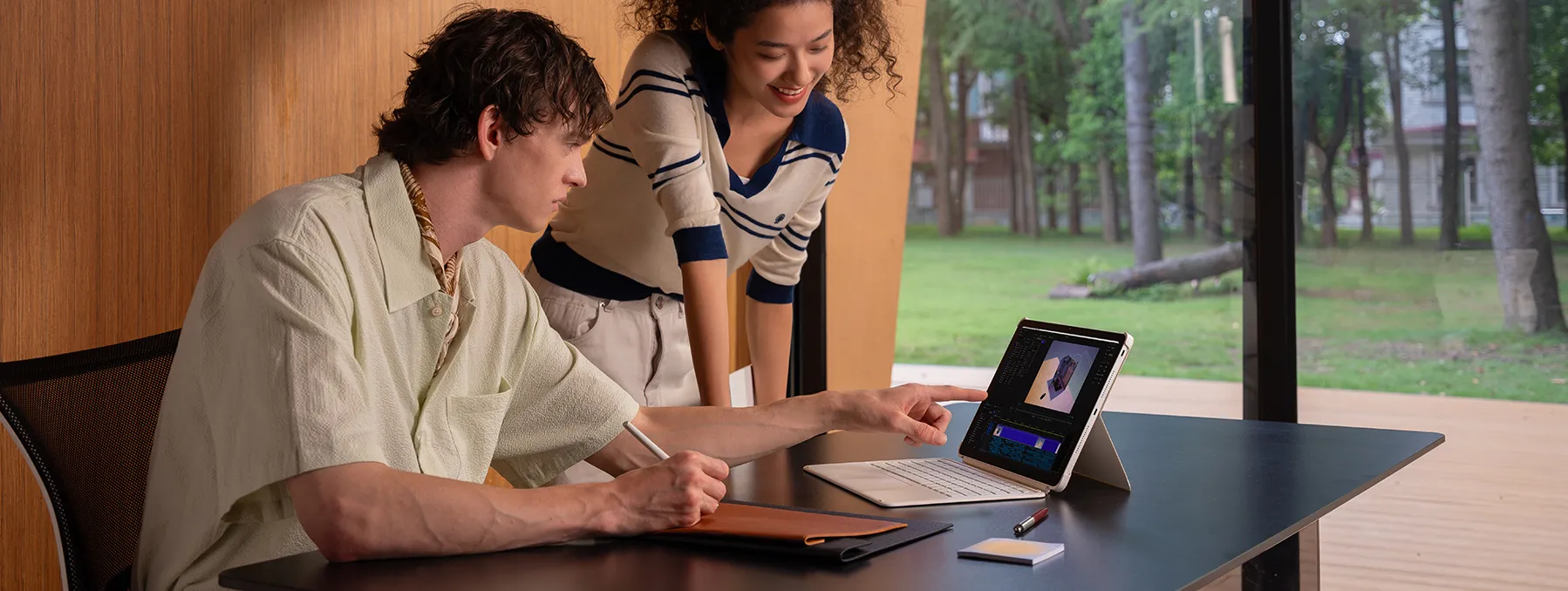
Important note on software: As it runs Android, it doesn't run Procreate. It's absolutely superb with the pro art apps (Clip Studio Paint, Krita, ibis Paint X) and a great value proposition for artists who want drawing feel, screen size, and value over Apple branding.
A More Budget-Friendly Alternative: XPPen Magic Drawing Pad
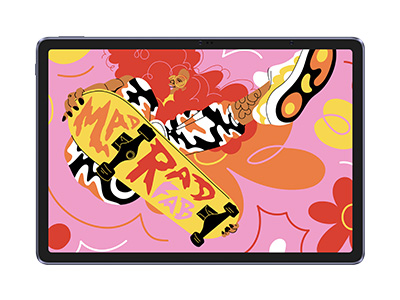
If you're looking for a more affordable alternative, the XPPen Magic Drawing Pad ($469) is another great option. It offers a standalone Android drawing experience with a paper-like X-Paper display and pressure-sensitive stylus, making it ideal for beginners, hobbyists, and artists on a budget.
You can also connect compatible models to a PC or Mac for desktop drawing workflows, giving you flexibility without the higher price tag of the Magic Pro 13.
Part 4. Quick Comparison Table
| Model | Best For | Screen Size & Tech | Pencil Support | Starting Price |
|---|---|---|---|---|
| Apple iPad (11th Gen, 2025) | Best Entry-Level & Value Choice | 11" Liquid Retina LCD | Apple Pencil (USB-C) / 1st Gen | From $449 |
| Apple iPad mini (2024, 7th Gen) | Best Ultra-Portable Sketchbook | 8.3" Liquid Retina LCD | Apple Pencil Pro | From $599 |
| Apple iPad Air (M4, 2026) | Best Mid-Range Creative Sweet Spot | 11" & 13" Liquid Retina | Apple Pencil Pro | From $749 |
| Apple iPad Pro 13-inch (M5, 2025) | Best Pro Canvas & Maximum Layers | 13" Ultra Retina XDR OLED | Apple Pencil Pro | From $1,199 |
| XPPen Magic Pro 13 | Standout Alternative (Android OS) | 13" Anti-Glare X-Paper | X4 Smart Chip Stylus(Included) | $899 |
Part 5. Frequently Asked Questions (FAQs)
Q1: What iPad is best for a beginner digital artist using Procreate?
The Apple iPad (11th Gen) is the most accessible entry-level iPad for beginner artists, offering a reasonable price point with reliable, pro-level performance for the basics of digital art.
Q2: How much RAM do I need in an iPad to avoid layer limits in Procreate?
Procreate automatically works out the maximum number of layers you can have based on your device's available RAM and your canvas resolution. If you're using a model with 8GB of RAM or more (i.e., the iPad mini, iPad Air, or iPad Pro), you'll be less likely to hit an artificial layer limit when working on a complex, high-resolution digital painting.
Q3: Does Procreate require the Apple Pencil Pro, or can you use a cheaper stylus?
Budget styluses will get you through the motions of navigation, but the Apple Pencil Pro is the only one that delivers the full suite of features (pressure sensitivity, tilt detection, and barrel roll) that are absolutely vital if you're going to do anything truly expressive with your Procreate brushwork.
Q4: Can I use Procreate on an Android tablet (e.g., the XPPen Magic Pro 13)?
No. Procreate is purely an iPadOS app. On the XPPen Magic Pro 13 (Android device), you can run professional drawing apps such as Clip Studio Paint and ibis Paint X.
Q5: Which iPad supports Procreate?
Every modern iPad released since 2015 (running current versions of iPadOS) will support Procreate, as long as it has the requisite processing power and the appropriate Apple Pencil hardware.
Q6: What is the cheapest iPad that will run Procreate?
The base-model Apple iPad (such as the 9th- and 10th-generation) is the most affordable entry point into the Procreate ecosystem.
Conclusion
When you're setting up your digital art rig, it's easy to get caught up in the latest hardware and spec sheets. The reality, though, is that benchmark figures don't tell the full story when you're using it for creative work. If your intention is as straightforward as "I want the best iPad for Procreate," then your artistic requirements will dictate your criteria. If you're constantly hitting layer limits on your detailed work, then RAM is your priority. If your wrist or eyes fatigue after a long drawing session, then screen size and screen comfort are your priorities.
However, if you want an all-in-one school tablet that checks all the boxes- a big, nice screen, a mind-blowing 3K display, and pro-level pen pressure- without the Apple price tag, you may want to look beyond iPadOS. The XPPen Magic Pro 13 Standalone Drawing Pad is a standalone 13-inch, paper-like canvas with the X4 Smart Chip Stylus (included) that offers 16K levels of pressure and a professional-level drawing experience on an iPad Pro-equivalent canvas for much less. With the right device for your needs, drawing will be a breeze.
About Us
Founded in 2005, XPPen is a leading global brand in digital art innovation under Hanvon UGEE. XPPen focuses on the needs of consumers by integrating digital art products, content, and services, specifically targeting Gen-Z digital artists. XPPen currently operates in 163 countries and regions worldwide, boasting a fan base of over 1.5 million and serving more than ten million digital art creators.
Learn moreRecommended Articles
ROUNDUPS XPPen Magic Pro 13 vs Magic Drawing Pad: Which to Buy? FOCUSED Magic Pro 13 vs iPad Pro: The Best Standalone Drawing Pad? FOCUSED XPPen Magic Pro 13 Review: Is It Worth Buying? ROUNDUPS 2 Best XPPen Standalone Drawing Tablets for Beginners and Pros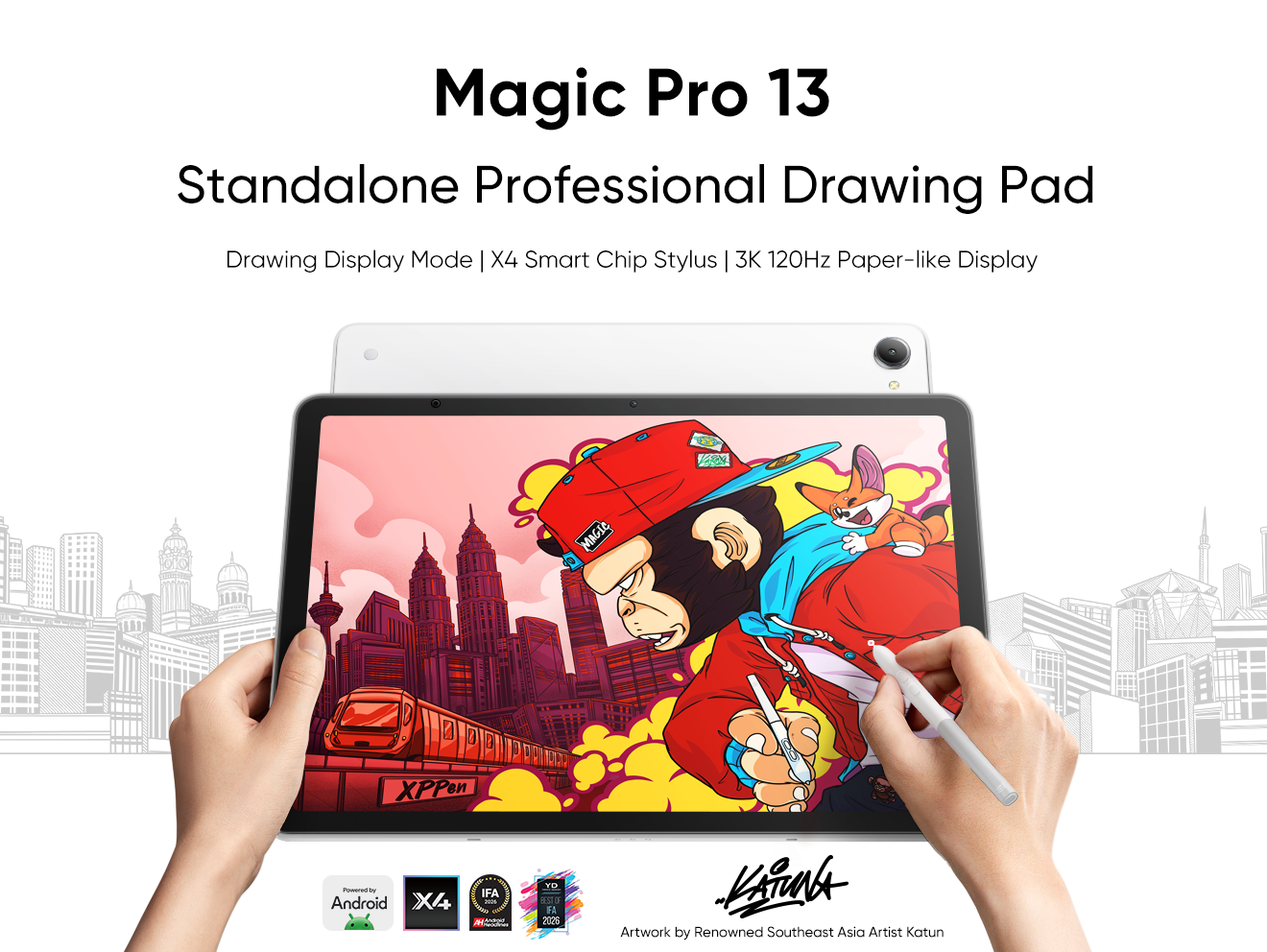


-
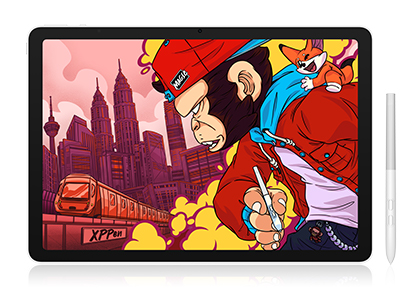 Magic Pro 13
Standalone Android 16 Drawing Pad, No Computer Required
3K 120Hz Display with 100% sRGB Color
X4 Smart Chip Stylus with 16K Pressure Levels
One-Cable PC Drawing Display Mode
It features:
Best standalone drawing pad for professional creativity anywhere
-
 Magic Drawing Pad
X3 Pro Slim Stylus with 16,384 pressure levels and tilt support
X-Paper display featuring anti-glare and fingerprint resistance
Clip Studio Paint and ibis Paint X 3-month free membership
Super portable- just 6.9mm thin and weighs only 590g
Supports dual Windows and DP-IN functions
It features:
Powered by Android 15, no need to connect to a computer to use.
-
Magic Pro 13
Standalone Android 16 Drawing Pad, No Computer Required
3K 120Hz Display with 100% sRGB Color
X4 Smart Chip Stylus with 16K Pressure Levels
One-Cable PC Drawing Display Mode
It features:
Best standalone drawing pad for professional creativity anywhere
-
Magic Drawing Pad
X3 Pro Slim Stylus with 16,384 pressure levels and tilt support
X-Paper display featuring anti-glare and fingerprint resistance
Clip Studio Paint and ibis Paint X 3-month free membership
Super portable- just 6.9mm thin and weighs only 590g
Supports dual Windows and DP-IN functions
It features:
Powered by Android 15, no need to connect to a computer to use.
Ready to invest in the right tools?
Get expert buying advice, unbiased reviews, and exclusive deals on drawing tablets, and accessories.
