The 5 Best Tablets for Illustrators: Budget-Friendly and Professional Choices
ROUNDUPSDigital drawing tools have never been better, but the options have never been more overwhelming either. Drawing tablets, pen displays, and regular tablets are all fundamentally different tools, and what makes one great for a comic book artist is completely different from what makes it great for a children's book illustrator.
This is a comprehensive look at the top five drawing tablets available across every price range, what actually matters when choosing one, and how to use that to find the right tool for your style of work.
What Makes a Great Tablet for Illustrators?
Pressure Sensitivity
A good stylus translates pressure into stroke weight the way a real brush would, and that's something you feel after an hour of drawing, not something you read off a spec sheet. Look for pens with 2 to 3 grams of activation force and 60-degree tilt recognition. Those two details are what make delicate lines feel natural rather than forced.
Active Drawing Area
Think of it like paper size. Small tablets work well for portable setups, medium at 10 to 16 inches is where most professionals are comfortable, and large at 19 inches and above is where comic artists and concept artists feel genuinely at home, working close enough to actual size that zooming becomes optional rather than mandatory.
Display Quality
Color accuracy matters if you're doing any print work, because what looks right on your desk doesn't always survive the trip to the printer. Calman Verified means someone outside the manufacturer has independently tested the claims. Monitor calibration can drift over time, so verification at the point of manufacture matters. Lamination means the pen tip and the on-screen cursor stay aligned with no gap between them.
Software Compatibility
Every tablet on this list works with Photoshop, Clip Studio Paint, Illustrator, Krita, and MediBang. The one notable exception is Procreate, which is iPad only. If it's central to your workflow, that decision has already been made for you.
The 5 Best Tablets for Illustrators
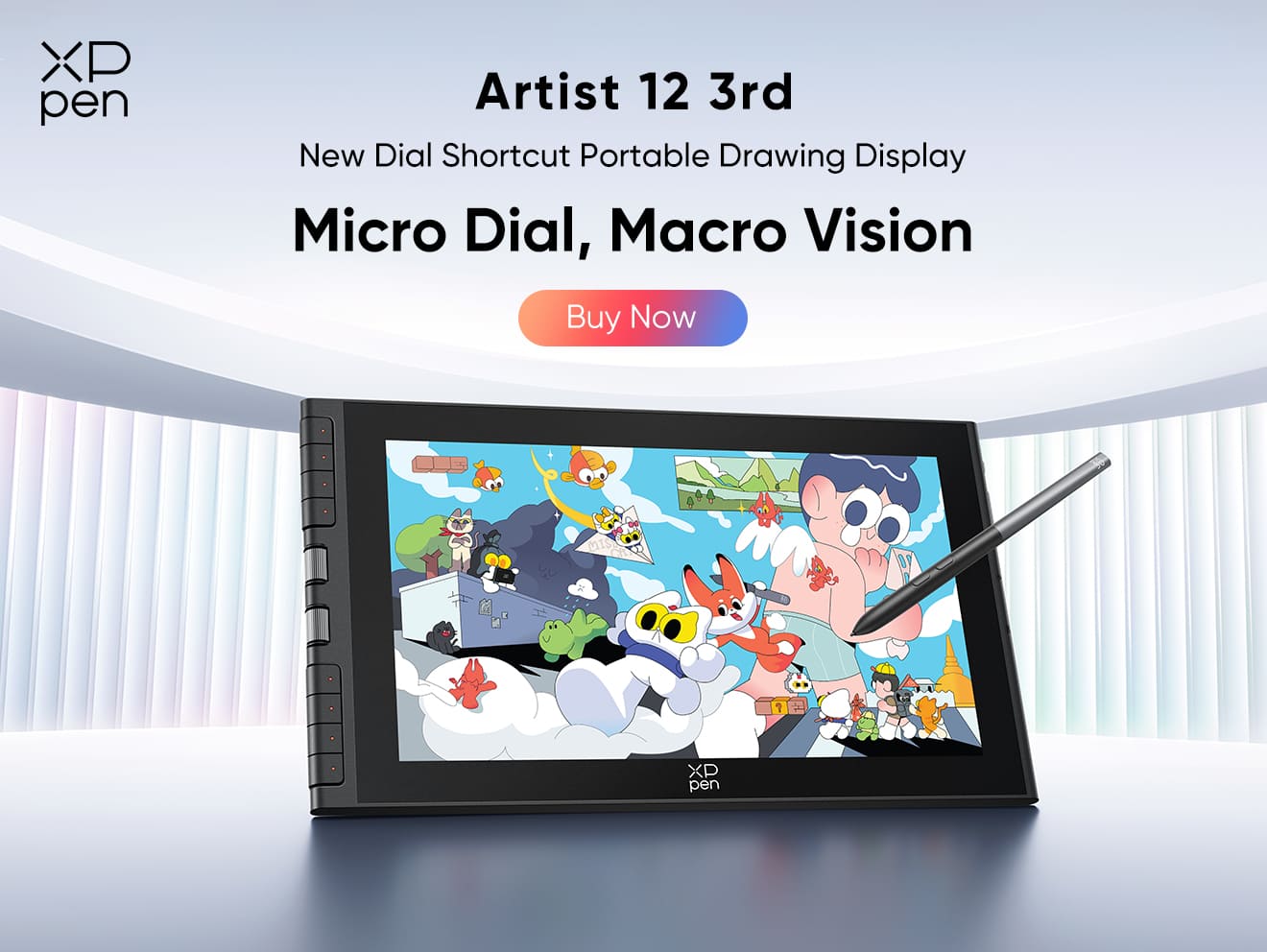
1. XPPen Deco Pro (Gen 2) and XPPen Artist 12 3rd - Best on a Budget
~$140 (Deco Pro MW) / $239.99 (Artist 12 3rd)
These are two solid ways to get started without going over budget.
The Deco Pro (Gen 2) is screenless, meaning you draw on the pad while looking at your monitor. It's wireless, gets over 10 hours of battery life, and comes in three sizes: A5, A4, and A3. Professional quality at $140 is genuinely hard to find.
The Artist 12 3rd gives you a screen to draw directly on. The X4 stylus is impressively responsive for the price, with 2g activation that catches the very beginning of a stroke, and the dual shortcut wheels handle brush size and zoom without ever touching the keyboard. Color accuracy is strong at 97% Adobe RGB. The 1080p screen is the tradeoff you're making at this price.
Best for: Anyone starting out in digital illustration, or established artists who want a clean wireless screenless setup.
Pros:
-
Professional-grade pen at entry price
-
Excellent stroke responsiveness on the Artist 12 3rd
-
All-day wireless on the Deco Pro
Cons:
-
1080p screen on the Artist 12 3rd
-
No touch on the Deco Pro
-
No independently certified color accuracy on either.
2. XPPen Artist 15.6 Pro V2 - Best Mid-Range
~$304
This is where most working illustrators stop feeling like they're making compromises. The 15.4-inch screen gives you significantly more room to work, the Red Dial shortcut wheel combined with 8 programmable buttons makes tool switching genuinely one-handed, and the fully laminated display with 96% Adobe RGB coverage is more than enough for professional print work.
One heads up for Mac users: screen brightness doesn't always output at full rated capability depending on which driver version you're running.
Best for: Illustrators making their first serious pen display investment, or professionals who want a capable display they can travel with.
Pros:
-
Proper Adobe RGB coverage
-
Red Dial workflow
-
Full lamination
-
Professional pen quality
-
Portable enough to pack.
Cons:
-
1080p resolution
-
Fixed-angle stand
-
No independent color certification.
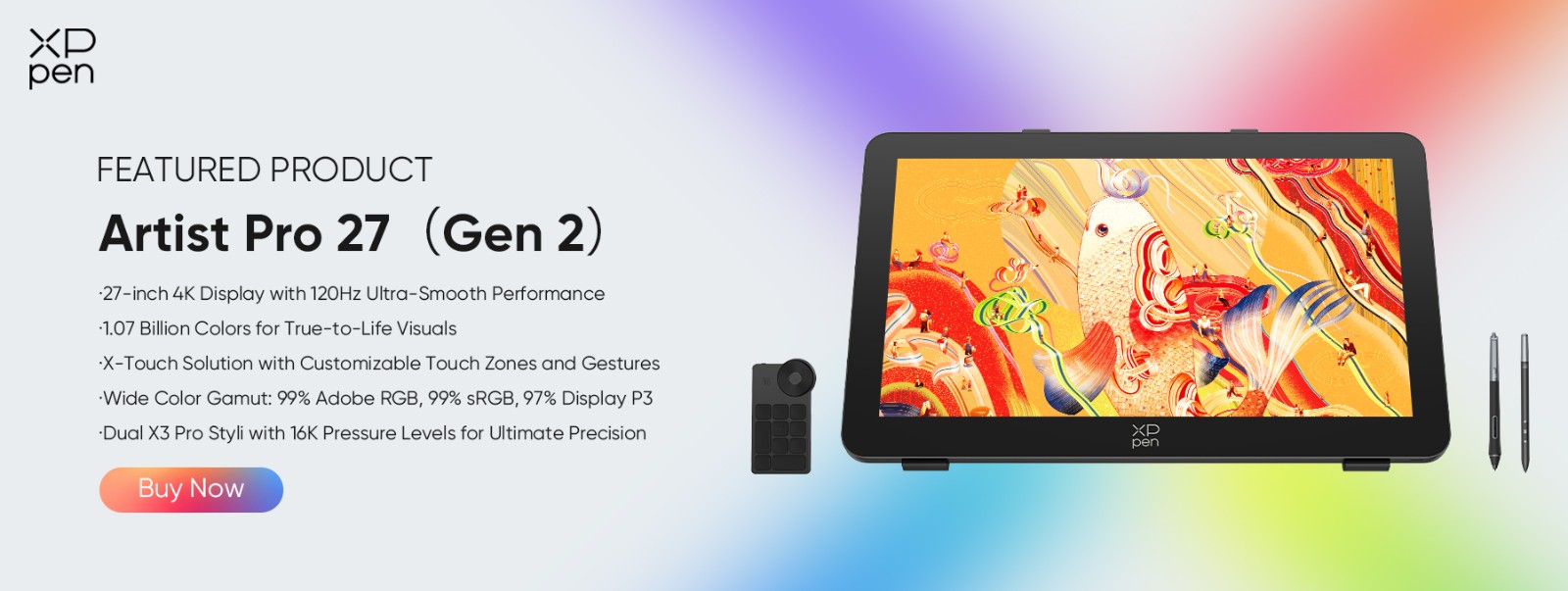
3. XPPen Artist Pro 27 (Gen 2) - Best Professional Large-Format
$1,500–$2,500
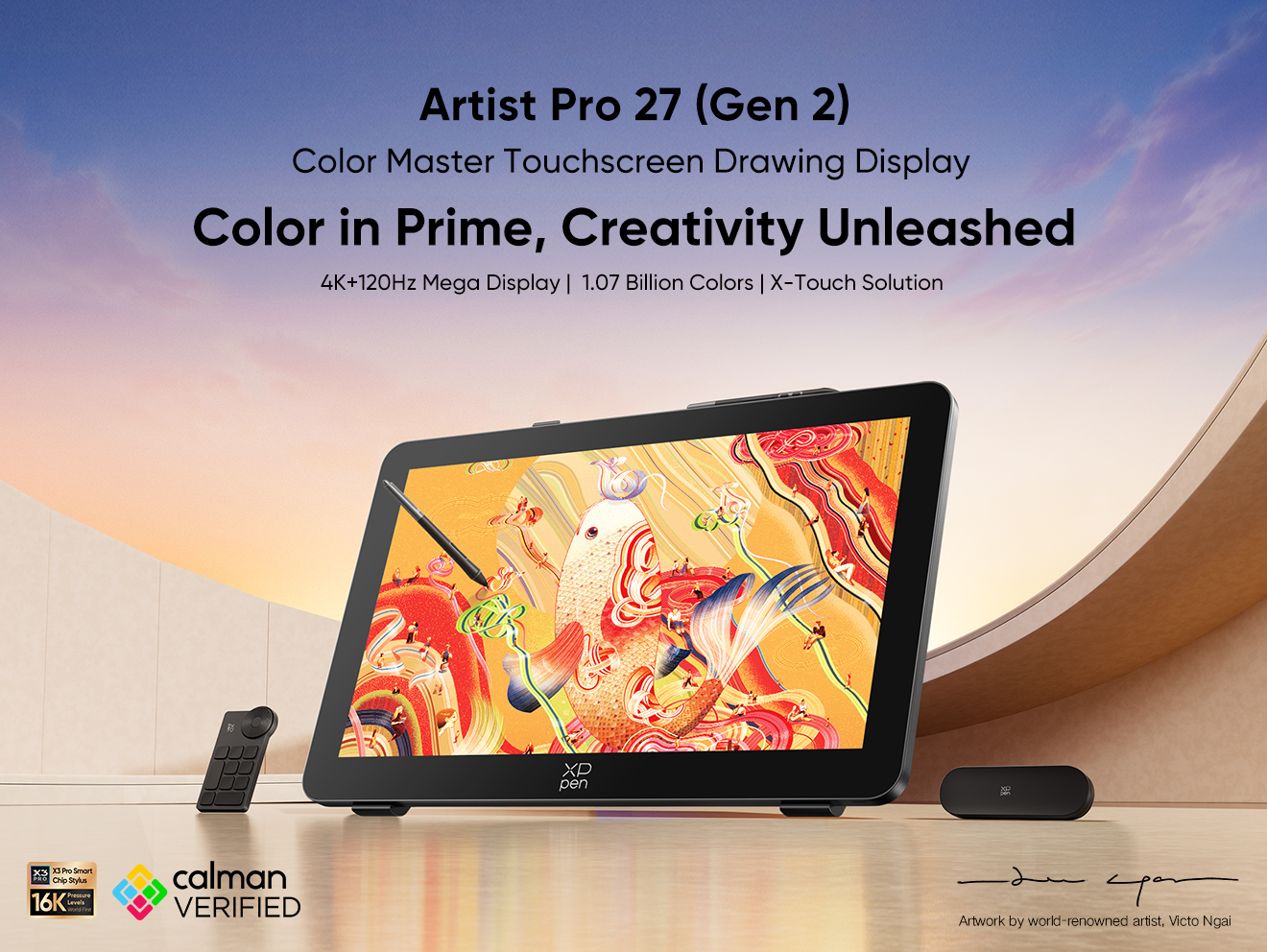
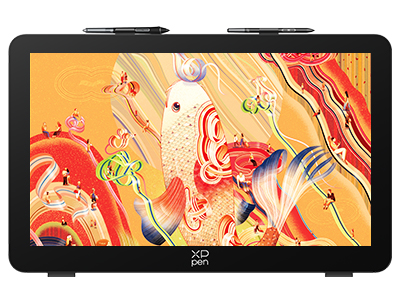
This is where digital illustration stops feeling like accommodating a screen and starts feeling like working at a real drawing table. The 26.9-inch surface gives you enough room for a full page of comics, a character sheet, or an environment concept with reference images and tool palettes alongside, and nothing feels cramped.
4K at 120Hz means detail stays sharp across the entire surface and lines render fast enough that the gap between moving your hand and seeing it register is completely unnoticeable. Color accuracy is independently tested to ΔE below 1, which puts it below the threshold of human perception. What you see on screen is what comes out of the printer.
Two styluses, an adjustable stand, and a shortcut remote are all included.
Best for: Professional illustrators, concept artists, and character designers who work large-format daily and need color they can trust without recalibrating before every deliverable.
Pros:
-
Most canvas on this list
-
Independently verified color accuracy
-
120Hz for fluid fast work
-
Both styli and stand included
Cons:
-
Needs a deep desk
-
Requires a capable computer to drive 4K output
-
Premium price that takes serious daily use to justify
4. XPPen Magic Drawing Pad - Best Standalone
~$499
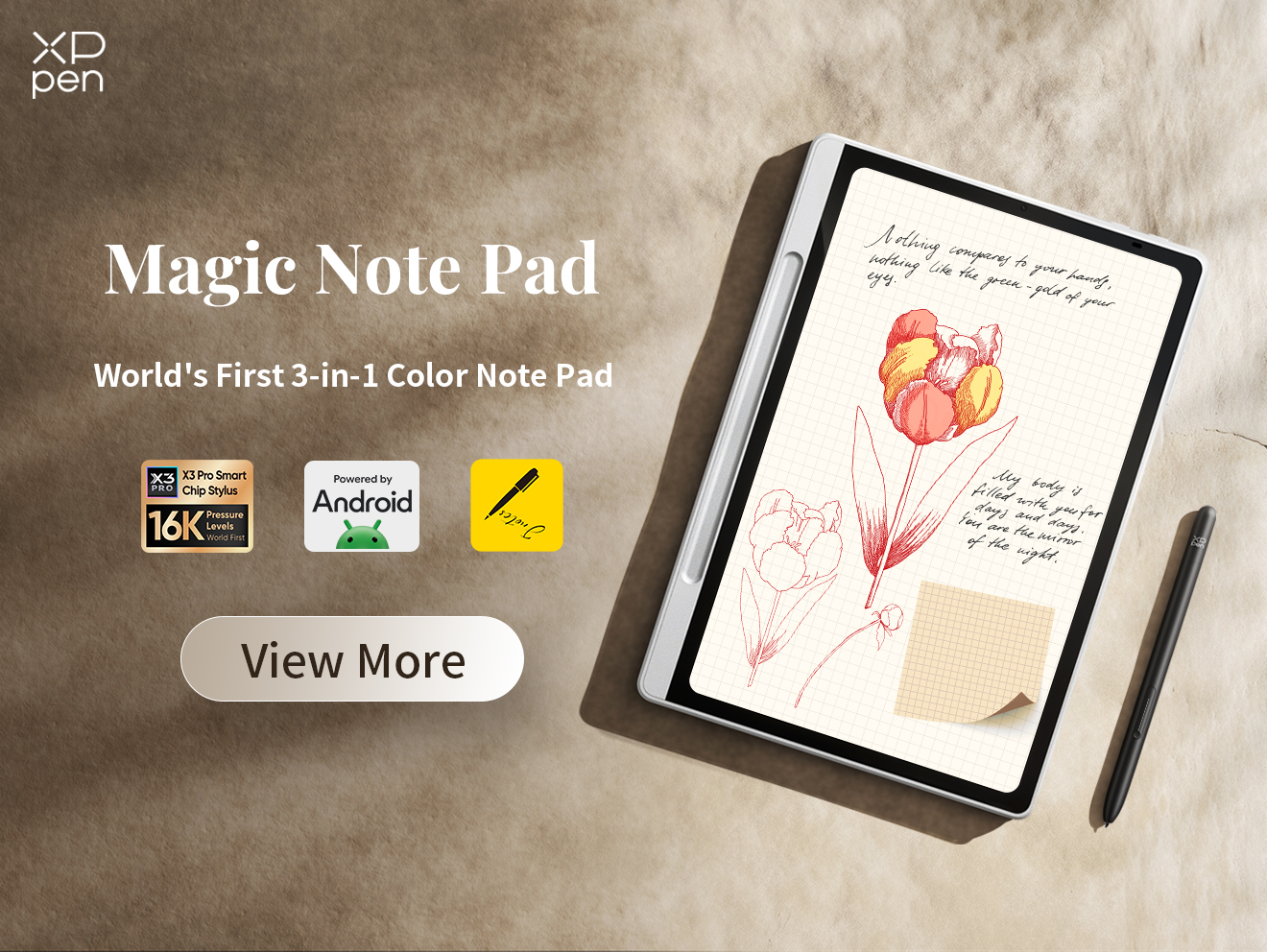
Every other tablet on this list needs a computer to function. The Magic Drawing Pad doesn't. It runs Android 14 independently, opens straight into your drawing app, and gets to work. At 12.2 inches and 599g with around 13 hours of battery life, it's small enough to hold for extended periods without fatigue.
The tradeoff is software. There's no Procreate and no Adobe suite. However, Clip Studio Paint, ibisPaint X, and MediBang are all available and capable, which is a non-issue for Clip Studio fans but a genuine deal-breaker for anyone whose workflow depends on Photoshop. The screen also doesn't guarantee Adobe RGB coverage, which is worth knowing if print work is part of what you do.
Best for: Illustrators who sketch on location, travel frequently, or want a capable drawing device that works without a laptop.
Pros:
-
Fully standalone
-
13-hour battery
-
Lightweight
-
No setup required wherever you go
Cons:
-
Android only and has no Procreate or Adobe apps
-
Not suited for print-critical color work
5. XPPen Artist Pro 19 (Gen 2) and Artist Pro 22 (Gen 2) - Best Value For Professionals
$699 (Artist Pro 22 (Gen 2)) / ~$899 (Artist Pro 19 (Gen 2))
If the Artist Pro 27 (Gen 2) is the right monitor at the wrong price, these two are the next best options. Both carry independently verified Calman color certification and come with the ACK05 shortcut remote at more accessible price points.
The Artist Pro 22 (Gen 2) at $699 is the stronger buy for most people, offering a 21.5-inch canvas with ΔE below 1 accuracy, an adjustable stand, and VESA mounting. The Artist Pro 19 (Gen 2) brings 4K resolution to an 18.4-inch surface with two styluses included, though with slightly less color certification. If resolution is the priority, the 19 is the better fit. If color accuracy matters more, the 22 delivers the same certification level as the 27 at a lower price.
Best for: Professional illustrators who need a large, color-verified workspace without the Artist Pro 27's price or desk footprint.
Pros:
-
Calman Verified color on both
-
Large canvas
-
Shortcut remote included
-
Dual styli on the Artist Pro 19 (Gen 2)
Cons:
-
Artist Pro 22 (Gen 2) is 2.5K not 4K
-
Artist Pro 19 (Gen 2) color certification is slightly looser
-
Both require a connected computer.
Quick Comparison
| Tablet | Type | Screen Size | Pressure | Price | Best For |
|---|---|---|---|---|---|
| Deco Pro (Gen 2) | Screenless | 9–15" (no display) | 16K | ~$140+ | Budget/portable |
| Artist 12 3rd | Pen Display | 11.9" FHD | 16K | ~$240 | Budget entry pen display |
| Artist 15.6 Pro V2 | Pen Display | 15.4" FHD | 16K | ~$304 | Mid-range |
| Magic Drawing Pad | Standalone | 12.2" 2K | 16K | ~$499 | Portable/travel |
| Artist Pro 22 (Gen 2) | Pen Display | 21.5" 2.5K | 16K | $699 | Value pro |
| Artist Pro 19 (Gen 2) | Pen Display | 18.4" 4K | 16K | ~$899 | Value pro 4K |
| Artist Pro 27 (Gen 2) | Pen Display | 26.9" 4K | 16K | $1,500–2,500 | Studio pro |
Choosing the Right Tablet for Your Illustration Style
Manga and Comics
Larger screens at 19 inches and above are what you want for working with a full page of panels. The Artist Pro 22 (Gen 2) and Artist Pro 19 (Gen 2) both land close to standard comic page dimensions, making either a natural fit.
Character Design
High pressure sensitivity with accurate tilt for volumetric shading is the requirement here. Any of the 16K models on this list will serve you well, but the Artist Pro 27 (Gen 2) is the recommendation for finalizing character sheets since the extra space lets you work out details and keep references visible at the same time.
Children's Books
Color accuracy is non-negotiable for print work. Adobe RGB coverage and Calman Verification are the things to look for, and both the Artist Pro 27 (Gen 2) and the Artist Pro 22/19 (Gen 2) meet that bar. The Magic Drawing Pad is not recommended here since Adobe RGB coverage isn't confirmed.
Editorial Art
Shortcut keys, touch functionality, and fast color switching matter most. The Artist Pro 27 (Gen 2) with multi-touch and the ACK05 remote included, and the Artist Pro 22 (Gen 2) with the ACK05 remote, are both solid choices for this kind of work.
Concept Art
High resolution for working out fine details without constantly zooming is the priority. The Artist Pro 27 (Gen 2)'s 4K screen makes it the recommendation here.
Line Art and Inking
Initial Activation Force is what matters most for catching the very beginning of a line. The Artist 12 3rd with its 2g IAF is the most sensitive option on this list for that specific purpose.
FAQs
What is the best tablet for new illustrators?
The Deco Pro (Gen 2) is the most affordable way in, but the Artist 12 3rd is worth the extra investment if drawing directly on screen feels more natural to you.
Do professional illustrators use iPads or drawing tablets?
Both, actually. iPads are great for mobile work and Procreate, but drawing tablets have the edge for desktop use with more processing power, larger drawing surfaces, and full software access.
Is a 27-inch tablet too large for illustrations?
For comic artists, concept artists, and character designers it's an advantage, not a drawback. For spot illustrations, 19 to 22 inches is usually the more practical sweet spot.
What level of pressure sensitivity do professional illustrators need?
16K is the current standard and handles everything from rough sketching to fine detail work comfortably.
Should I get a drawing tablet or a pen display?
If you're new to digital drawing, start with a tablet. If you already know you prefer drawing directly on screen, the pen display is worth the extra cost.
Can I use drawing tablets for vector illustrations in Adobe Illustrator?
Yes, and all of the tablets on this list are compatible with Illustrator. For vector work specifically, even the more affordable options here are genuinely professional-grade tools.
What's the difference between tablets for illustrators and graphic designers?
Graphic designers tend to prioritize color accuracy and display quality above everything else. For illustrators, pen feel, tilt recognition, and drawing space matter more, though the Artist Pro 27 (Gen 2) covers both without compromise.
Conclusion
For most people just getting started, the Artist 12 3rd is the most complete first pen display experience available, while the Deco Pro (Gen 2) is the better value if mobility matters more to you than drawing directly on screen. For professionals ready to step into serious work, the Artist 15.6 Pro V2 is where that transition begins. For illustrators who need to work without a computer nearby, the Magic Drawing Pad sits in a category of its own. And for those ready to commit to a proper studio setup, the Artist Pro 22 (Gen 2) at $699 is where the value proposition lands, with the Artist Pro 27 (Gen 2) representing the highest level of what a pen display can actually do.
The right drawing tablet is the one that fits how you already work and disappears the moment you start drawing.
About Us
Founded in 2005, XPPen is a leading global brand in digital art innovation under Hanvon UGEE. XPPen focuses on the needs of consumers by integrating digital art products, content, and services, specifically targeting Gen-Z digital artists. XPPen currently operates in 163 countries and regions worldwide, boasting a fan base of over 1.5 million and serving more than ten million digital art creators.
Learn more


Ready to invest in the right tools?
Get expert buying advice, unbiased reviews, and exclusive deals on drawing tablets, and accessories.
