10 Best Free Drawing Software Tools for Digital Art
TIPSLooking for the best free drawing software for digital art? For most PC users, Krita is the best overall free drawing program , thanks to its powerful brushes, layers, stabilization, animation tools, and graphics tablet support.
However, the best drawing software depends on what you want to create. Beginners may prefer a simpler interface, manga artists may want specialized comic tools, and artists using a drawing tablet should prioritize pressure sensitivity and pen compatibility.
In this guide, we'll compare the best free drawing software for digital painting, sketching, anime, manga, animation, drawing tablets, low-end PCs, and beginners .
Part 1. Best Free Drawing Software at a Glance
| Software | Best For | Beginner-Friendly | Tablet Support | Animation | Platform |
|---|---|---|---|---|---|
| Krita | Digital painting & illustration | 4/5 | Yes | Yes | Windows, macOS, Linux |
| FireAlpaca | Beginners & anime art | 5/5 | Yes | Yes | Windows, macOS |
| MediBang Paint | Manga & comics | 4/5 | Yes | Limited | Windows, macOS, iOS, Android |
| Sketchbook | Sketching & beginners | 5/5 | Yes | Limited | Windows, macOS, iOS, Android |
| ibisPaint | Mobile & anime drawing | 4/5 | Yes | Yes | Windows, iOS, Android |
| GIMP | Image editing & drawing | 3/5 | Yes | Limited | Windows, macOS, Linux |
| Inkscape | Vector illustration | 3/5 | Yes | No | Windows, macOS, Linux |
| MyPaint | Simple digital painting | 4/5 | Yes | No | Windows, macOS, Linux |
| Paint.NET | Basic drawing & editing | 5/5 | Yes | No | Windows |
| Adobe Fresco | Raster & vector drawing | 4/5 | Yes | Yes | Windows, iOS |
Quick Recommendations
-
Best overall: Krita
-
Best for beginners: Sketchbook
-
Best lightweight option: FireAlpaca
-
Best for anime and manga: MediBang Paint
-
Best for digital painting: Krita
-
Best for animation: Krita
-
Best for mobile drawing: ibisPaint
-
Best Photoshop alternative: GIMP
-
Best for vector art: Inkscape
-
Best for drawing tablets: Krita
Part 2. 10 Best Free Drawing Software Tools
1. Krita — Best Free Drawing Software Overall
Best for: Digital painting, illustration, concept art, comics, animation, and drawing tablets
Krita is a free, open-source digital painting program designed primarily for artists. Unlike general image editors such as GIMP, Krita is built around the process of drawing and painting, so its tools are organized around brushes, layers, canvas control, and stylus input.
For artists who want a free alternative to expensive professional drawing software, Krita is one of the strongest choices available.
What Makes Krita Stand Out?
The biggest advantage of Krita is that it doesn't feel like a limited "free version" of a professional application. Its brush engine gives artists extensive control over how strokes behave. You can adjust brush size, opacity, flow, texture, spacing, pressure response, and other parameters.
Artists can also create, modify, and import custom brushes. This is particularly important for digital painting because the brush itself becomes part of the artist's workflow.
Krita also provides:
-
Multiple brush engines
-
Custom brush creation and importing
-
Brush stabilization
-
Pressure-sensitive stylus input
-
Tilt support on compatible hardware
-
Layers and layer groups
-
Blending modes
-
Masks and selection tools
-
Transform and perspective tools
-
Color management
-
Animation timeline
-
Frame-by-frame animation
-
PSD support
Drawing Experience
Krita is strongest when used with a pressure-sensitive drawing tablet or pen display. You can configure pen pressure to control brush size, opacity, flow, or other brush properties. Stabilization tools can also help artists create cleaner lines when doing line art or inking.
For painters, the combination of customizable brushes, blending modes, layers, and color tools makes Krita suitable for both rough sketches and finished illustrations.
Krita for XPPen Tablets
Krita can be used with major drawing tablet brands, including XPPen and more. If you're using a pen display, the overall experience depends on both the application and your tablet driver. After installing the correct driver, check pressure sensitivity and configure your preferred shortcuts or tablet buttons inside your workflow.
For an XPPen user, Krita is a particularly useful starting point because you don't need to purchase additional drawing software just to make use of a pressure-sensitive stylus.
Choose Krita if you want a free drawing application that you can continue using as your skills develop . It's particularly suitable for artists who use a drawing tablet and want more control over brushes, layers, painting, and animation.
Also Read: Krita vs Photoshop: Is Free Software Good Enough?
2. FireAlpaca — Best Lightweight Drawing Software
Best for: Beginners, anime-style art, sketching, comics, and older PCs
FireAlpaca takes almost the opposite approach to Krita. Instead of giving you a huge professional toolset, it focuses on keeping digital drawing relatively simple and lightweight. This makes it attractive to beginners and artists who don't need an extensive image-editing environment.
What Makes FireAlpaca Different?
The main selling point is simplicity. When you open FireAlpaca, you can quickly create a canvas, choose a brush, add layers, and start drawing. The interface is less intimidating than many professional graphics applications.
Drawing Experience
FireAlpaca is particularly comfortable for line-based artwork. Artists creating anime characters, manga sketches, illustrations, or simple comics can get started without spending a long time configuring the application. Its stabilization tools are useful for creating cleaner lines, while pressure sensitivity allows a compatible stylus to produce more natural strokes.
FireAlpaca for Drawing Tablets
FireAlpaca supports pressure-sensitive drawing tablets, making it compatible with the type of pen tablet or pen display commonly used by digital artists. This makes it a good match for users who have purchased an affordable drawing tablet and don't want to immediately invest in professional software.
Performance
One reason artists consider FireAlpaca is its relatively lightweight approach. If you have an older laptop or a computer that struggles with heavier creative applications, a lightweight drawing program can be worth trying. Of course, performance still depends on canvas resolution, layers, brush complexity, and your computer hardware.
Choose FireAlpaca if you want a simple, lightweight drawing application and don't need hundreds of advanced tools.
3. MediBang Paint — Best Free Software for Manga and Comics
Best for: Manga, comics, anime illustrations, and comic-focused workflows
MediBang Paint is one of the most specialized options on this list. While Krita and GIMP are general-purpose creative applications, MediBang Paint puts much more emphasis on comic and manga creation.
What Makes MediBang Paint Different?
The software includes tools designed around comic production rather than simply drawing on a blank canvas. Depending on the version and platform, artists can work with features such as: comic panels, screen tones, brushes, layers, text, perspective tools, selection tools, comic templates, and cloud-based workflows.
This makes MediBang especially useful when your artwork involves multiple panels, speech bubbles, tones, and structured comic layouts.
Drawing Experience
For anime and manga artists, the most important part of drawing software isn't necessarily photorealistic painting. MediBang's interface and toolset are designed around this kind of workflow. The software also offers a range of brushes suitable for sketching, inking, coloring, and illustration.
Tablet Support
MediBang Paint can be used with pressure-sensitive drawing tablets, allowing artists to take advantage of stylus pressure when sketching and inking. For users with an XPPen tablet, the main consideration is making sure the correct tablet driver and pressure settings are configured.
Choose MediBang Paint if your main goal is creating manga, comics, or anime-style artwork rather than realistic digital painting.
4. Sketchbook — Best Free Drawing Software for Beginners
Best for: Beginners, sketching, ideation, and artists who want a clean interface
Sketchbook is designed around a simple idea: "Open the canvas and draw". Compared with feature-heavy applications, its interface is intentionally less intimidating.
Why Is Sketchbook Good for Beginners?
When you're learning digital art, you don't necessarily need:
-
Dozens of blending modes
-
Complex masks
-
Advanced color-management settings
-
Hundreds of technical brush parameters
You need to learn how to draw with a stylus. Sketchbook puts more emphasis on that basic interaction. It provides: pencils, pens, markers, brushes, erasers, layers, symmetry tools, selection tools, transform tools, and stylus support.
Drawing Experience
Sketchbook is particularly comfortable for sketching and visual development. You can quickly block out ideas, refine a character, test compositions, or create rough concepts without navigating a complicated production workflow. Its clean interface can also make it easier for traditional artists transitioning to digital drawing.
Tablet Support
Sketchbook works well with pressure-sensitive styluses and drawing tablets. This makes it a reasonable first application for someone who has just purchased an XPPen tablet and mainly wants to learn digital sketching.
Choose Sketchbook if you're new to digital art and want to focus on drawing rather than learning complicated software.
5. ibisPaint — Best for Mobile and Anime Drawing
Best for: Mobile artists, anime illustrations, character art, and beginners
ibisPaint is different from most desktop-first applications on this list because it was designed with mobile drawing in mind. For artists who create on phones and tablets, this can make a major difference.
What Makes ibisPaint Popular?
ibisPaint offers a large collection of brushes and digital-art tools while keeping the interface suitable for touchscreens. Its feature set includes tools for sketching, line art, coloring, layers, clipping, stabilization, filters, text, rulers, perspective, and animation. The large brush selection is particularly useful for anime-style illustration and character art.
Drawing Experience
Drawing on a touchscreen is fundamentally different from drawing with a traditional mouse. ibisPaint is designed around that interaction. If you're using a compatible stylus on an iPad or Android tablet, you can take advantage of pressure-sensitive input and work directly on the screen.
ibisPaint vs Desktop Drawing Software
If you already use a PC drawing tablet, Krita may offer a deeper desktop painting workflow. But if your primary device is an iPad, Android tablet, or smartphone, ibisPaint becomes much more convenient.
The Free Model
ibisPaint offers a free version, but users should check the current advertising, feature, and premium-option structure because the exact offering can change. This is an important distinction when comparing "free" applications.
Choose ibisPaint if you want to draw primarily on a phone or tablet , especially for anime and illustration.
6. GIMP — Best Free Photoshop Alternative for Image Editing
Best for: Photo editing, image manipulation, compositing, and occasional drawing
GIMP is often mentioned whenever people search for free alternatives to Photoshop. However, it's important not to confuse free image editing software with free drawing software . GIMP can draw, but its core workflow is more focused on manipulating existing images.
What Can You Do With GIMP?
GIMP gives you a full suite of professional image-editing tools, including layers, masks, selections, paths, brushes, filters, color adjustments, retouching and transform tools, plus advanced image manipulation capabilities for more complex creative work. This makes it useful when your workflow includes both artwork and image editing. For example, you might use GIMP to:
-
Clean up a scanned drawing
-
Remove a background
-
Adjust colors
-
Composite multiple images
-
Prepare artwork for publishing
-
Create graphics for websites
GIMP vs Krita: If your primary activity is: Painting → Krita. If your primary activity is: Image editing → GIMP. That distinction makes the choice much easier.
Choose GIMP if you want one free tool for image editing, compositing, and occasional digital drawing.
7. Inkscape — Best Free Software for Vector Drawing
Best for: Logos, icons, illustrations, diagrams, and SVG graphics
Inkscape belongs in this list for a different reason: not every artist wants to paint pixels. Inkscape is a vector graphics editor. Instead of drawing artwork as a grid of pixels, you create paths and shapes that can be scaled without losing their sharpness.
What Is Vector Drawing Good For?
Vector workflows are particularly useful for logos, icons, infographics, typography, stickers, diagrams, UI graphics, and SVG illustrations. For example, if you design a logo that needs to appear on both a business card and a large billboard, vector artwork can be scaled to different sizes without becoming pixelated.
Drawing Tablet Support
A drawing tablet can still be useful in Inkscape, particularly for freehand paths and illustration. However, the drawing experience is fundamentally different from painting in Krita.
Choose Inkscape if your artwork needs to be clean, scalable, and vector-based .
8. MyPaint — Best Minimalist Digital Painting Software
Best for: Artists who want a focused painting environment
MyPaint takes a minimalist approach to digital painting. Instead of trying to become an all-in-one graphics suite, it focuses on the interaction between the artist, brush, canvas, and stylus.
Why Use MyPaint?
Its simpler environment can be attractive if you want to concentrate on painting rather than editing. It provides custom brushes, pressure-sensitive drawing, brush dynamics, layers, basic color controls, and tablet support. The software can be particularly appealing to artists who find large graphics applications distracting.
Choose MyPaint if you want a minimalist free painting program and don't need a full digital-art production suite.
9. Paint.NET — Best for Simple Windows Drawing and Editing
Best for: Basic image editing, simple graphics, and Windows users
Paint.NET is a lightweight image-editing application that can also handle basic drawing. Its workflow is much simpler than professional applications, making it suitable for straightforward projects. You can use it for basic drawing, layers, cropping, resizing, simple effects, image editing, and quick graphics.
Paint.NET isn't the first choice for someone who wants to become a professional digital painter. If you're planning to create detailed illustrations with dozens of layers and sophisticated brushes, Krita will generally provide a much deeper toolset.
Choose Paint.NET if you want simple drawing and image editing on Windows , rather than a full digital painting environment.
10. Adobe Fresco — Best for Raster and Vector Drawing
Best for: Digital painting, vector drawing, touch devices, and Adobe users
Adobe Fresco combines raster and vector drawing tools in a drawing-focused interface. One of its distinguishing features is the ability to work with different brush types, including brushes designed to reproduce more natural painting behavior. This can make Fresco appealing to artists who want to combine sketching, painting, vector artwork, illustration, and animation.
If you're already familiar with Adobe's creative ecosystem, Fresco can fit naturally into your existing workflow. It can also be attractive for artists who prefer drawing directly on a touchscreen device.
Adobe Fresco has a free offering, but the exact feature set and premium options can change. Artists should check Adobe's current pricing and included features before treating it as a completely unrestricted free alternative.
Choose Fresco if you want a modern drawing experience that combines raster and vector tools , particularly if you already use Adobe products.
Part 3. How to Choose the Best Free Drawing Software
What Is the Best Free Drawing Software? For most digital artists using a Windows PC or Mac with a drawing tablet, Krita is the best free drawing software overall. It combines a professional brush engine with layers, stabilization, customizable brushes, animation tools, and support for common file formats. It is powerful enough for digital painting and illustration while remaining free to use.
The best free drawing software depends less on features and more on what you actually want to create.
1. Best Free Drawing Software for Beginners
Try Sketchbook or FireAlpaca. A simple interface helps beginners learn layers, brushes, pen pressure, stabilizers, sketching, and coloring without being overwhelmed by advanced tools.
2. Best Free Drawing Software for Digital Painting
Choose Krita. It’s particularly strong for painting, illustration, custom brushes, layers, and tablet-based workflows, and it scales well as your skills grow.
3. Best Free Drawing Software for Anime and Manga
Try MediBang Paint or FireAlpaca. Both are well suited to line art and anime-style workflows, and they’re easier to approach than large professional graphics applications.
4. Best Free Drawing Software for Animation
Look at Krita and FireAlpaca. Check for timeline, onion skinning, frame-by-frame animation, animation preview, and export options. FireAlpaca users specifically mention its animation features, while Krita provides a more extensive toolset for artists who want both painting and animation.
5. Best Free Drawing Software for Drawing Tablets
Krita is a strong overall choice for XPPen and other graphics tablets. Ensure the software supports pen pressure, tilt, stabilization, customizable shortcuts, tablet input, brush-size control, and pressure-based opacity. Reddit users frequently recommend Krita for XPPen tablets, while others choose based on their preferred drawing style and workflow.
6. Best Free Drawing Software for Low-End PCs
If your computer struggles with heavy applications, start lightweight with FireAlpaca, MyPaint, or Sketchbook. Krita is powerful, but more features can mean steeper learning curves and heavier performance demands—some users report crashes or issues with Krita. Before choosing, check recommended hardware requirements and consider your typical canvas size and brush complexity.
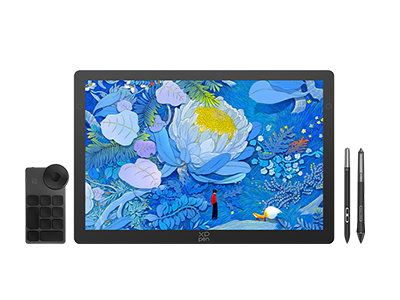
Part 4. Best Drawing Tablet for Digital Art: XPPen Artist Ultra 14
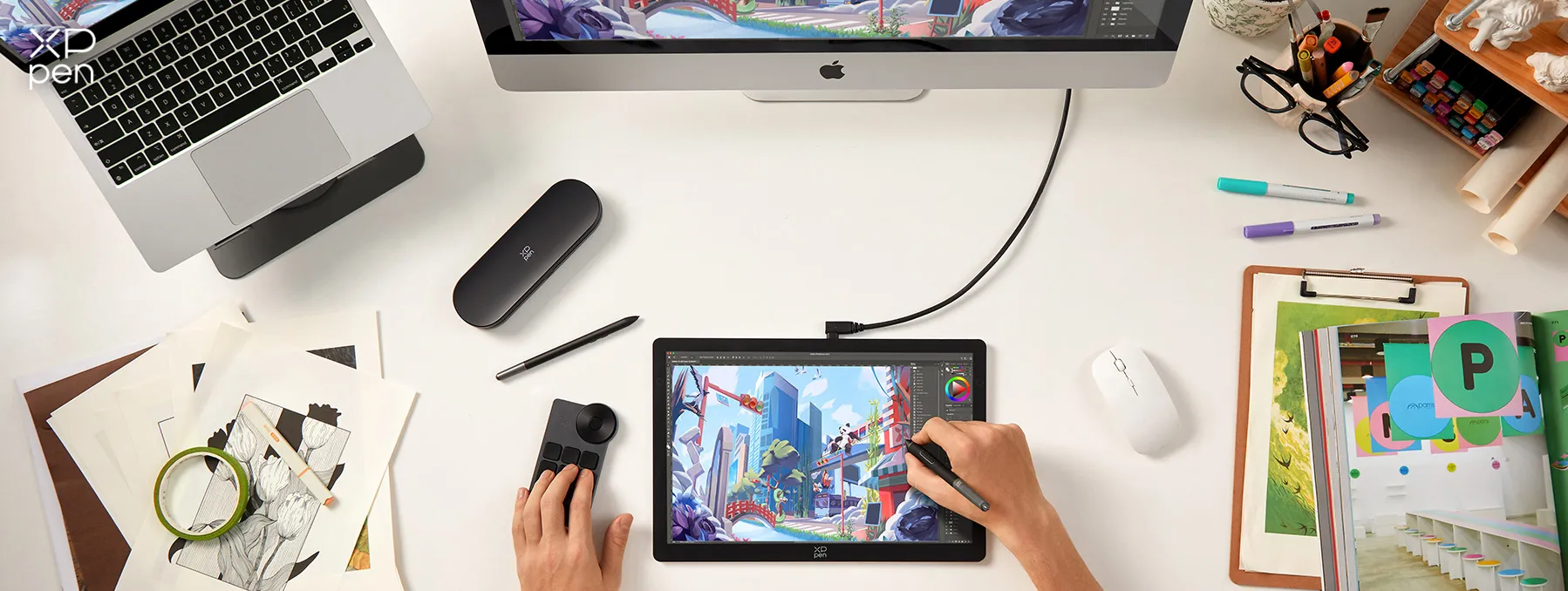
The right drawing tablet can make free drawing software feel much more natural. If you enjoy creating on the couch, in bed, or anywhere around your home or outside , the XPPen Artist Ultra 14 is designed to keep up with that flexible workflow.
Lightweight and Easy to Create Anywhere
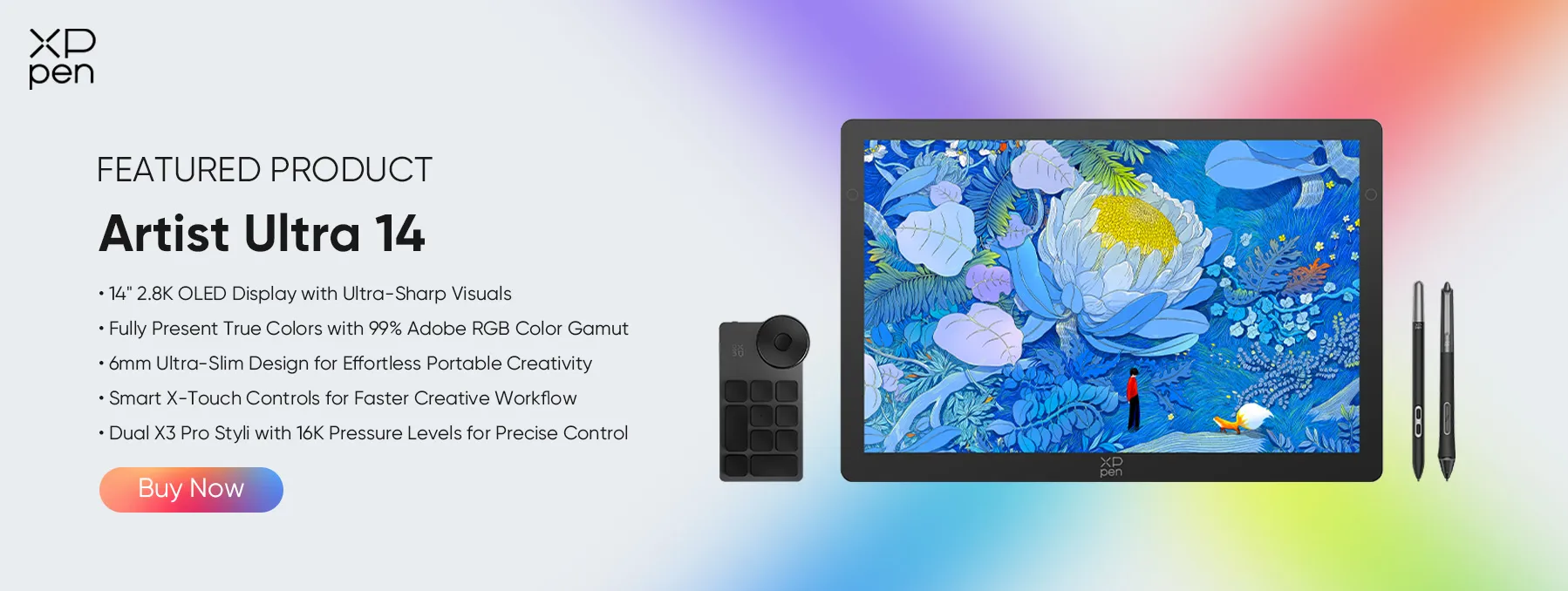
At just 720 g and 6 mm at its thinnest point , the Artist Ultra 14 is slim and easy to carry. You can move from your desk to the couch or bed without having to set up a bulky workstation.
A Sharp, Color-Accurate Canvas
The 14-inch 2.8K OLED display delivers crisp details, while its 90Hz refresh rate keeps pen strokes smooth and responsive. With native 10-bit color depth and 99% Adobe RGB coverage , it can display rich colors and subtle gradients for digital painting and illustration.
Precise Pen Control
The X3 Pro Smart Chip Stylus offers 16,384 pressure levels and 60° tilt support , giving you precise control over line thickness, shading, and brush strokes. The Artist Ultra 14 also supports touch gestures, making it easy to zoom, rotate, and navigate your canvas.
Pair it with free drawing software such as Krita, FireAlpaca, or MediBang Paint for a flexible digital art setup that lets you create comfortably wherever inspiration strikes.
Part 5. Free vs. Paid Drawing Software: Do You Really Need to Pay?
Not necessarily.
For beginners, a free program can provide everything you need to learn digital drawing. You can learn sketching, line art, coloring, shading, layers, digital art, and basic animation before spending money on professional software.
In fact, many artists often recommend starting with free programs such as Krita before considering paid alternatives.
However, paid software can make sense if you specifically need advanced comic tools, professional animation workflows, industry-standard workflows, specialized brushes, advanced vector tools, or specific file compatibility. The important thing is not to pay simply because a program is labeled "professional."
Part 6. FAQs About Free Drawing Software
Q1: Is Krita really free?
Yes. Krita is free and open-source , with no subscription required for its core features. It includes professional painting tools, brushes, layers, and animation features.
Q2: Is Procreate a free app?
No. Procreate is a paid app for iPad and iPhone, so it isn't a free drawing app. If you want a free alternative, consider Krita, ibisPaint, or Adobe Fresco , depending on your device and needs.
Q3: What app is better than Sketchbook?
It depends on what you need. Krita is better for advanced digital painting and animation, while FireAlpaca can be a good alternative if you want a lightweight and beginner-friendly drawing program.
Q4: What is the best free drawing software for beginners?
Sketchbook and FireAlpaca are good starting points for beginners because their interfaces are relatively easy to understand. Krita is a better choice if you want more advanced features as you improve.
Q5: Is Krita better than Photoshop for drawing?
It depends on what you need. Krita is focused strongly on digital painting and illustration and is available for free. Photoshop provides a broader image-editing ecosystem and may be preferable if you need advanced photo manipulation or other Adobe workflows.
Q6: What is the best free drawing software for anime?
Krita, FireAlpaca, and MediBang Paint are all worth considering. Choose based on whether you prioritize advanced painting, a simple workflow, or manga/comic-specific tools.
Conclusion
There is no single drawing application that is perfect for everyone.
For most PC-based digital artists, Krita is the best overall free drawing software because it combines powerful painting tools, customizable brushes, layers, stabilization, animation, and graphics tablet support.
If you're using a drawing tablet, like XPPen Artist Ultra 14 , start by considering your art style and workflow rather than simply choosing the software with the longest feature list.
The best setup is the one that lets you draw naturally, responds well to your stylus, runs smoothly on your computer, and gives you the tools you actually need.
About Us
Founded in 2005, XPPen is a leading global brand in digital art innovation under Hanvon UGEE. XPPen focuses on the needs of consumers by integrating digital art products, content, and services, specifically targeting Gen-Z digital artists. XPPen currently operates in 163 countries and regions worldwide, boasting a fan base of over 1.5 million and serving more than ten million digital art creators.
Learn moreRecommended Articles
TIPS 7 Best Free Drawing Websites Online No Download KNOWLEDGE 6 Best Drawing Apps for iPad Free & Paid 2026 KNOWLEDGE 8 Best Apps for Interior Design (Free & Paid) TIPS 60+ Best Hobbies for Women to Try at Any Age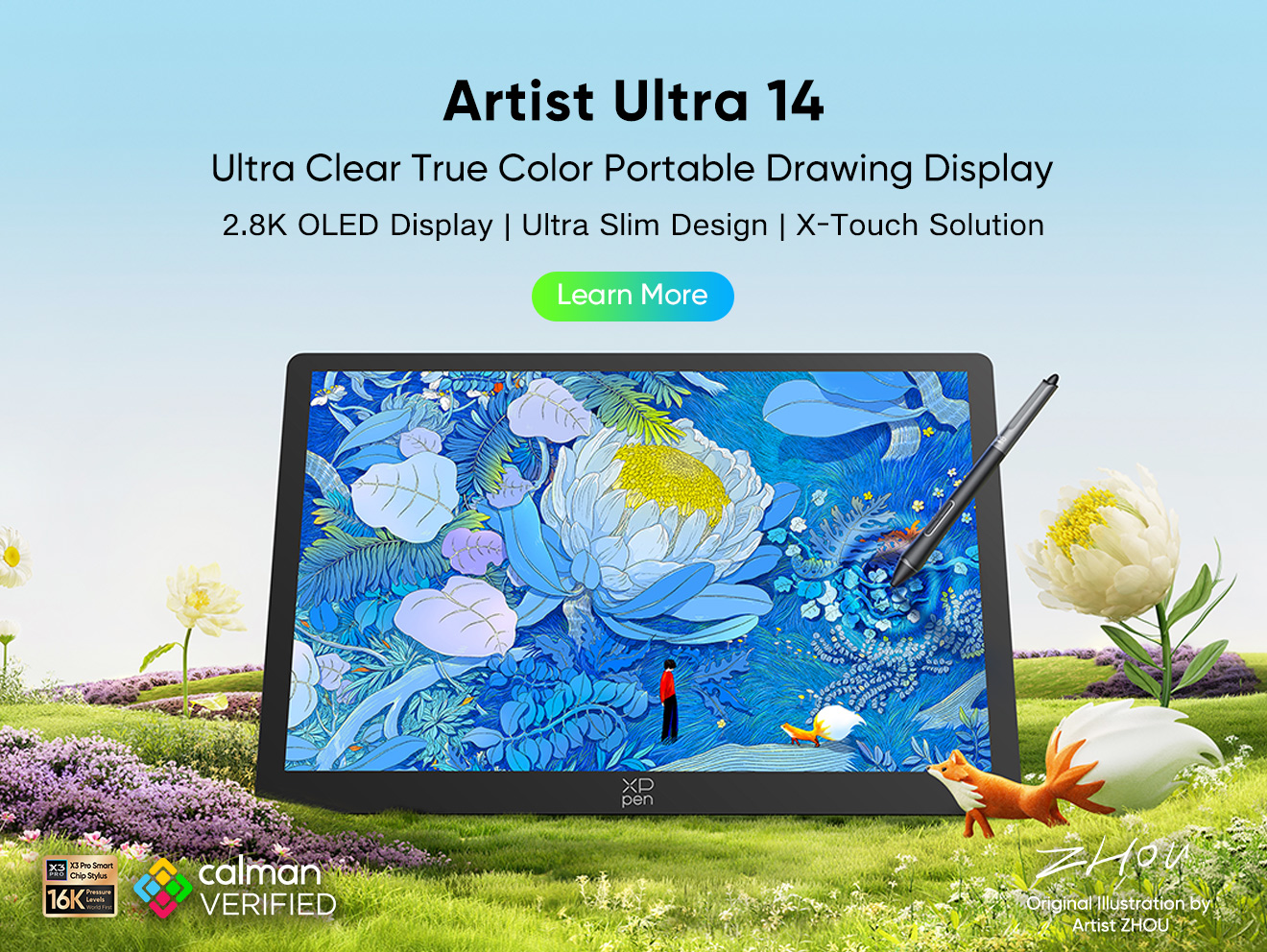


-
 Artist Ultra 14
14-inch 2.8K OLED Display with Ultra-Sharp Visuals
99% Adobe RGB Color Gamut for True-to-Life Color
Ultra-Slim 6mm Design for Portable Creativity
Dual X3 Pro Styli with 16K Pressure Levels
Smart X-Touch Controls for Faster Workflow
It features:
Best 14" OLED drawing display for precision and portability
-
Artist Ultra 14
14-inch 2.8K OLED Display with Ultra-Sharp Visuals
99% Adobe RGB Color Gamut for True-to-Life Color
Ultra-Slim 6mm Design for Portable Creativity
Dual X3 Pro Styli with 16K Pressure Levels
Smart X-Touch Controls for Faster Workflow
It features:
Best 14" OLED drawing display for precision and portability
Looking for the Best Drawing & Design Apps?
Discover essential drawing techniques, expert tips, and the best app recommendations to boost your creativity and master digital art.
