Color Picker From Image: 4 Free Online Tools
KNOWLEDGEHave you ever seen a striking illustration, a powerful photograph, or a neat website design and thought, "What specific shade of blue or emerald green is that?" . Or if you want to explore nature's color palette ideas ?
It is almost impossible to guess colours by eye. Ambient lighting, monitor differences, and slight gradients make it hard to identify exact shades manually. If your work involves graphic design, web development, or digital illustration, choosing the wrong shade can disrupt visual balance and undermine brand consistency.
It's simple enough to find exact colour values once you know which tools to use. Whether you have to sample a single pixel or create an entire palette from a photo, this guide includes all the information you need regarding the use of a colour picker from image .
Part 1. What is an Image Color Picker?
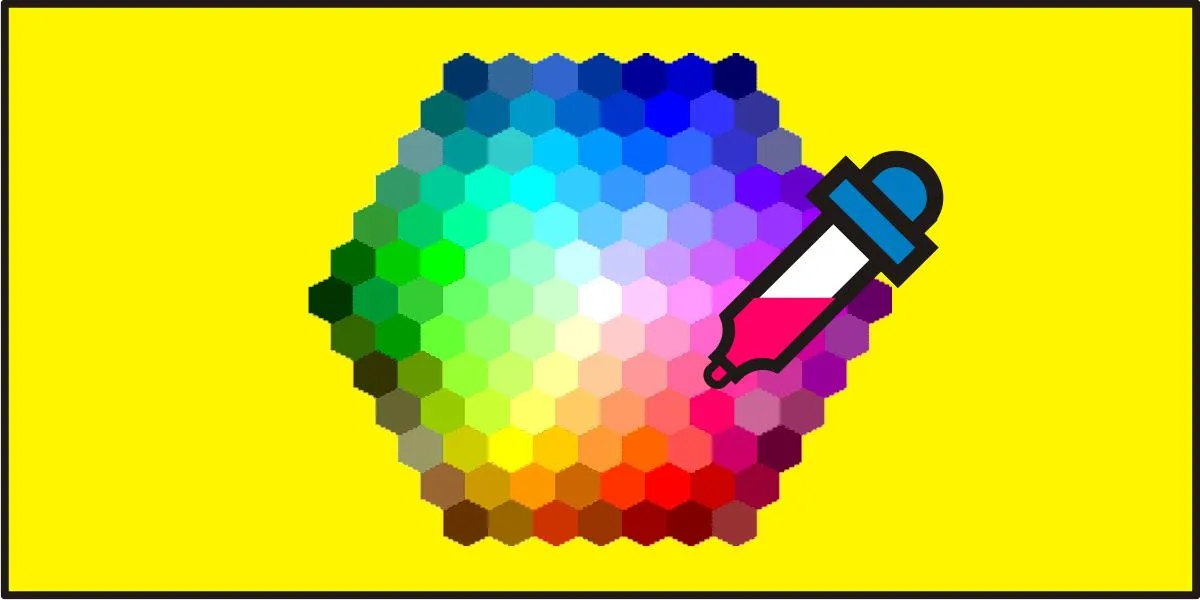
An image colour picker is a digital tool that determines the exact colour values of any pixel in an image. The tool will analyze the pixel data either when you upload an image or when you place your cursor on a particular spot on the screen and immediately show the relevant color models such as:
-
HEX Codes: A string of six characters consisting of letters and numbers (for example, #2A69AC) which is mainly used in web design, CSS and digital branding. A HEX code starts with a hash sign (#), followed by three pairs of alphanumeric characters that indicate the amount of red, green, and blue light.
-
RGB Values: Represent red, green, and blue light intensity ranging from 0 to 255 (for example, rgb(42, 105, 172)).
-
HSL Values: Measurements of Hue, Saturation, and Lightness (for example, hsl(211, 61%, 42%)) that enable artists and designers to make intuitive adjustments to shading, tinting, and brightness.
-
Color names: Descriptive visual labels (for example, "Deep Cerulean" or "Dusty Rose").
Part 2. The Best Free Online Image Color Picker Tools (No Download Needed)
1. ImageColorPicker.com
Ideal For: Fast, pinpoint pixel sampling, complete palette generation, and comprehensive format conversion.
ImageColorPicker.com is generally regarded as one of the best dedicated browser-based image selection tools. As an online image color picker, it doesn't require registration, and you can use PNG, JPG, WEBP, and GIF files via drag-and-drop or by entering the image URL directly. It shows a lot of ads; they don’t hurt much, and it still gets your job done within minutes.
A precision zoom loupe lets you examine individual pixels and easily identify the exact shade you want to extract. When generating the full colour palette, the system not only samples a single point but also automatically retrieves a harmonized set of colours from the image you have uploaded and allows you to download them.
It supports all formats, providing HEX, RGB, HSL, HSV, and CMYK values along with CSS code snippets at once. Its built-in color naming support lets you assign a descriptive label to any sampled point.
If you are searching for a color picker from image free online tool that’s capable of handling both single-pixel sampling and the creation of a full palette without any lag, then ImageColorPicker.com is a reliable option for everyday use.
2. Figma
Ideal For: Professional UI/UX designers, design systems, and vector assets.
Although Figma is mainly regarded as the industry-standard collaborative interface design platform, its free web browser version also functions as a very powerful free image colour picker. Trusted by 95 per cent of the Fortune 500, it's one of the most professional image colour pickers available online.
When you upload any photo, Figma’s tool automatically extracts inspiring, cohesive color palettes to speed up your creative process. Its broad color model support displays sampled colors in HEX, RGB, HSL, and HSB codes, so you can adjust swatches for web development (CSS), digital screens, or precise shade adjustments.
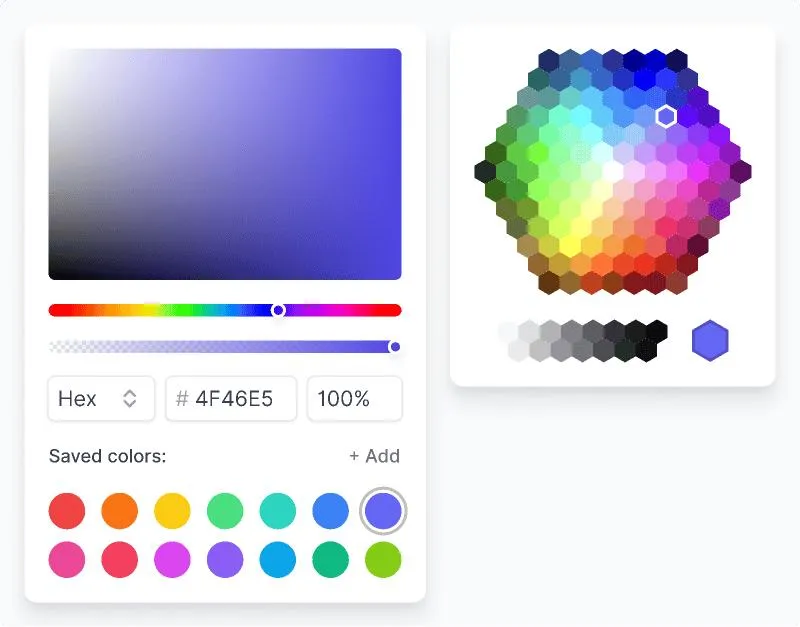
Image source: figma.com
You can open your generated palette directly in Figma Design to experiment with new combinations, build smooth gradients, and maintain overall color harmony.
Best of all, when you open palettes in Figma Design, they are automatically saved to your project files, so you can store your custom colour picker list in a shared library and use the swatches in different files. If you want an online image color picker that samples individual pixels and produces complete, reusable palettes you can place directly on a design canvas, Figma's free tool is an excellent choice.
3. RedKetchup.io
Ideal For: Wide image format compatibility, accurate pixel zooming, and thorough side-by-side color format conversions.
RedKetchup.io offers a robust, browser-based color picker from image online tool designed for accuracy and flexibility. It is a comprehensive utility that lets you upload almost any graphic file, isolate hard-to-target pixels, and convert values between various industry colour models, all without leaving the page.
Unlike many image color pickers limited to basic JPGs, RedKetchup accepts a wide range of formats, including color picker PNG assets, JPEG, WEBP, HEIC, GIF, ICO, TIFF, BMP, and vector SVG files.
If a particular pixel or line of detail is too small or hard to click, you can use the built-in Zoom in function and the dedicated Magnifier button to closely examine the canvas and take an accurate sample.
Beyond sampling photos, Redketchup.io features a full-fledged color converter. You can choose your source format from the Color Format menu, input the numerical values, and then switch formats so that the program automatically converts the values for all the major combinations (such as HEX to RGB, RGB to HEX, HSL to HEX, CMYK to HEX, HSV to RGB, and CMYK to HSL).
4. Canva Color Palette Generator
Ideal For: Creating social media templates, marketing materials, and being used by people who aren't designers.
With instant automatic extraction, you can drag and drop any image into the tool, and Canva 's automated system will immediately produce a coherent four-to-five swatch palette. Canva displays every generated swatch alongside its clickable HEX code when you use the standalone web-based Canva Color Palette Generator.
Its in-Editor Eyedropper turns your cursor into a magnifying lens, letting you hover over and click any pixel of your uploaded image to instantly tint the target element to match. Inside the Canva design space, select any element you want to recolor (text, shapes, or canvas backgrounds), open the color swatch panel, click the "+" (Add a new color) button, and activate the Eyedropper tool icon right beside the HEX input box.
Part 3. How to Pick Colors Directly from Your Screen and Browser
What happens when you need to take a screenshot from a streaming video, an interactive website, or a protected PDF where it is not easy to right-click and save the image? That's where real-time screen samplers come in.
Method 1: Browser Extensions
By installing a color picker from image extension, you will be able to sample any pixel from the browser tabs that are currently active.
Popular add-ons like ColorZilla and Eye Dropper turn your browser into a live colour picker from screen:
-
Install the extension from the Chrome Web Store .
-
Activate the crosshair cursor by clicking the extension icon in your browser's toolbar.
-
Hover over any graphic, button, or background, then click the desired color you want to extract.
-
The sampled value is automatically copied to your clipboard and recorded in your colour history.
This approach makes an ideal color picker from website setup if you're examining competitor layouts or taking ideas from web galleries.
Method 2: Windows 11 Built-in Shortcut: PowerToys Color Picker
With Windows, you don't need any third-party browser add-ons if you want to sample off-browser content, since Microsoft's free PowerToys program includes an excellent colour picker from image Windows 11 feature:
-
Press Win + Shift + S somewhere on your desktop.
-
On the floating toolbar located above your desktop window, click the Colour Picker (pipette/dropper) icon.
-
To see the HEX, RGB, and HSL values of the color, move your mouse over it on the image, then click to copy the color.
The shortcut for the built-in colour picker windows is very time-saving for PC illustrators and developers during their daily work.
Part 4. Step-by-Step Guide: How to Pick and Save Colors from Any Photo
Step 1: Upload Your Image File
Use your favourite free image color picker tool and drag your graphic into the area for uploading. If you are taking a colour sample from a live website, take a high-resolution screenshot first, or use a screen-based colour picker tool.
Step 2: Use the Magnifying Loupe to Select Your Point
When selecting a colou r from image sources such as outdoor photography, do not sample the specular highlights (that is, the pure white glare) or the deep compression artefacts (the noisy black pixels). Instead, choose the midtone areas where the local colour of the subject is most clearly visible.
Step 3: Select Your Preferred Color Format
Depending on your downstream workflow, choose your output:
-
For web development or user interfaces, copy the hex color picker from image value.
-
For graphic layout software or digital drawing canvases, get the RGB colou r picker from the image reader.
-
To adjust the colour balance or to create darker shading tints, record the HSL colour picker showing the image values.
Step 4: Export Your Palette
Put your sampled swatches into an organised palette. There are various useful features which allow you to save your swatches into an exportable palette file (for example, an ASE or CSS code) so that you can use them in other projects.
Part 5. From Color Picking to Digital Creation: Bring Your Palette to Life with XPPen Magic Pro 13
Color picker tools help you identify and collect precise colors, but the next step is putting them into practice. For digital artists and designers, a device that combines portability with professional drawing capabilities can make the creative process much more seamless.
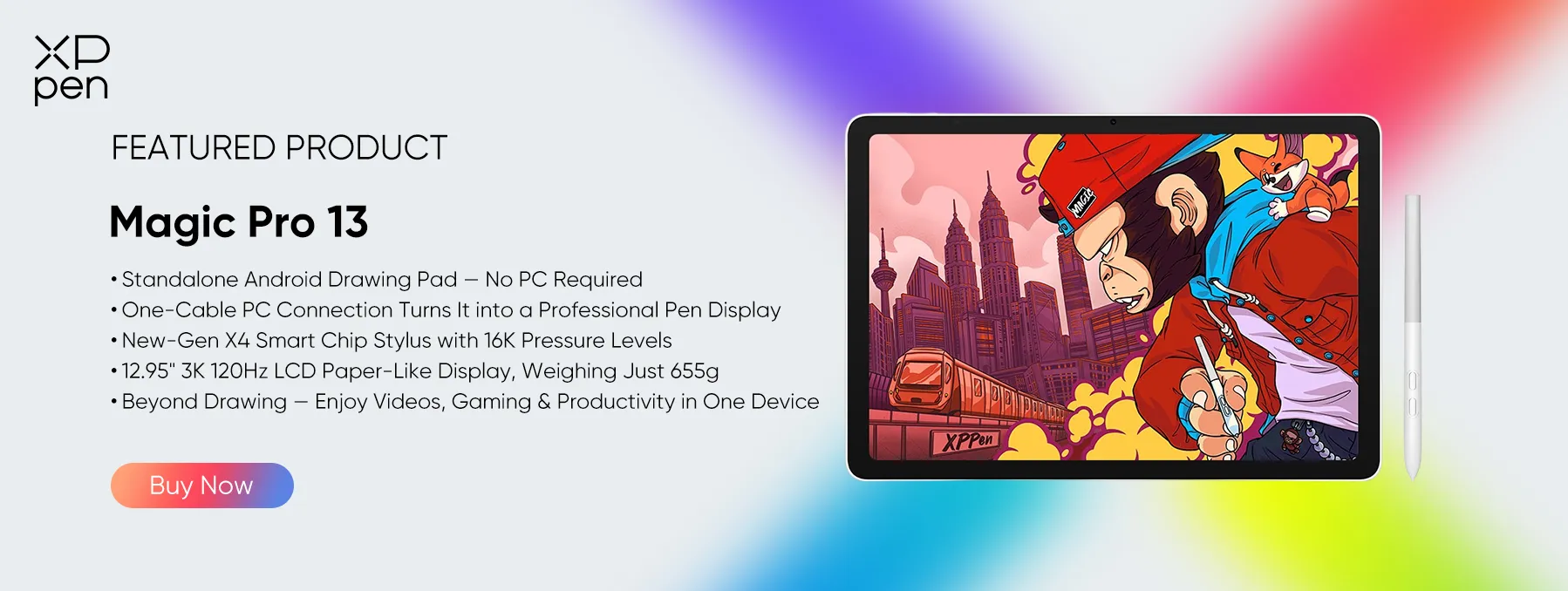
The XPPen Magic Pro 13 is designed to support both standalone creativity and computer-based workflows. Running Android 16(with support for future version updates), it allows artists to work with drawing applications directly on the tablet. When more advanced desktop software is needed, it can also connect to a PC and function as a pen display.

Its 13-inch display, 120Hz refresh rate, and 650-nit brightness provide a responsive and vivid canvas for digital illustration. Artists can use the color palettes collected from online tools as references, experiment with different color combinations, and apply them directly to their artwork.
Whether you're developing a consistent color scheme for a new illustration, exploring shades from photographic references, or refining the details of a digital painting, the Magic Pro 13 offers a flexible creative workspace to turn color inspiration into finished artwork.
From identifying the perfect shade to creating your next digital masterpiece, the right tools can make every step of the creative process easier.
Also Read: XPPen Magic Pro 13 vs Magic Drawing Pad: Which to Buy?
Part 6. FAQs about Image Color Picker
Q1: How do I pick colors from an image?
To pick colors from an image, upload your file to your preferred online image picker tool like ImageColorPicker.com . Use the magnifying loupe to hover over the area you're interested in and click on the specific pixel you need. The tool will show the corresponding HEX, RGB, and HSL values, which you can copy to your clipboard with a single click.
Q2: Is it possible to obtain a HEX color from an image?
Yes, you can get a HEX code from any image using an online eyedropper tool, a browser extension like ColorZilla, or graphic design software. The software determines the red, green, and blue components when you click a pixel, then turns them into a six-character hex string.
Q3: How do I find the exact color code of an image?
If you want to find the exact colour code, open the image in an online color picker tool that has a pixel zooming magnifier. This lets you avoid accidentally clicking adjacent anti-aliased pixels and ensures you sample the exact shade you need.
Q4: Is Image Color Picker free to use?
Yes, popular web-based tools such as ImageColorPicker.com , RedKetchup.io , and Canva's color palette generator are free to use directly in your browser, with no subscription or paid software download required.
Q5: What color formats are supported?
Modern colour pickers usually offer a wide variety of formats, such as HEX, RGB, HSL, HSV, and CMYK, and some platforms also generate formatted CSS and SCSS code snippets for web developers.
Q6: How do I convert color codes?
Most online color picker tools can convert between different color models in real time. Whenever you choose a pixel, the programme shows the corresponding values in HEX, RGB, and HSL. If you already have a code, you can paste it into a free color converter, and it will immediately translate it into other formats.
Conclusion
It's no longer necessary to guess when trying to find the exact shade from an inspiring photo or visual asset. With modern web tools, you can extract accurate color palettes in just a few clicks.
If you need quick, detailed pixel sampling and format conversions from files, you can use imageColorPicker.com . Figma is ideal for incorporating the sampled swatches directly into active graphic layouts. You can use Chrome extensions or the Windows 11 PowerToys shortcut (Win + Shift + C) if you want to sample parts of your screen in real time.
No matter which method you choose, accurate color-extraction tools and a well-calibrated, wide-gamut display ensure the palettes you sample look vivid and true-to-life in your final projects.
About Us
Founded in 2005, XPPen is a leading global brand in digital art innovation under Hanvon UGEE. XPPen focuses on the needs of consumers by integrating digital art products, content, and services, specifically targeting Gen-Z digital artists. XPPen currently operates in 163 countries and regions worldwide, boasting a fan base of over 1.5 million and serving more than ten million digital art creators.
Learn moreRecommended Articles
TIPS From Desert to Ocean: Exploring Nature's Color Palette Ideas KNOWLEDGE 5 Best Color Grading Softwares Free & Paid 2026 KNOWLEDGE Color Correction vs. Color Grading Fully Explained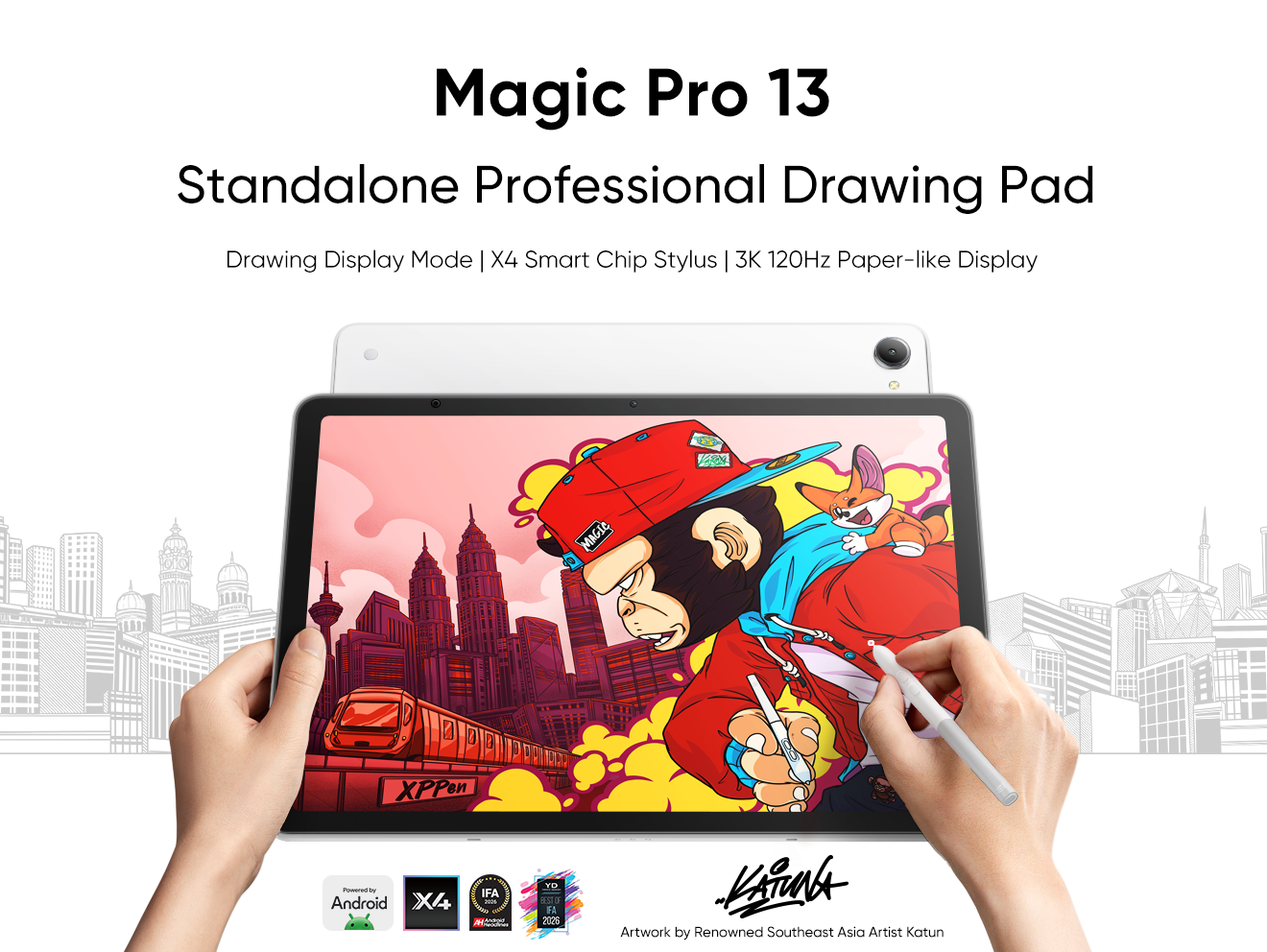



Looking for the Best Drawing & Design Apps?
Discover essential drawing techniques, expert tips, and the best app recommendations to boost your creativity and master digital art.
