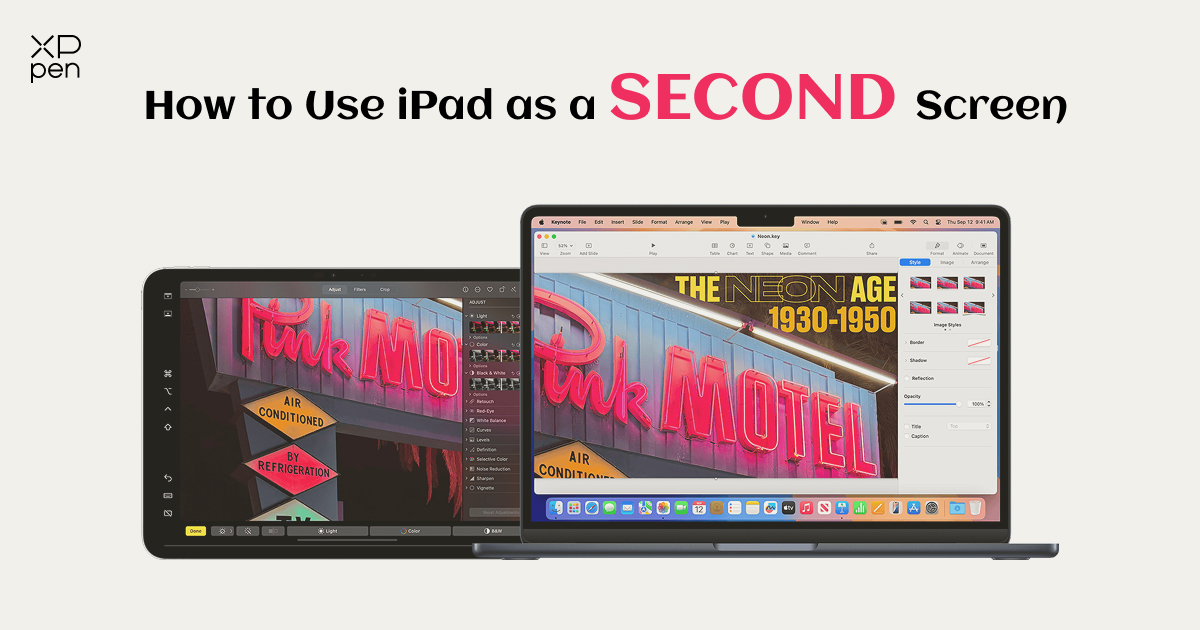
How to Use iPad as Second Screen for Mac & Windows
KNOWLEDGEYou're sitting in a busy coffee shop working on a 14" laptop screen whilst constantly Alt-Tabbing between a spreadsheet, 12 open browser tabs and your inbox. In front of you, an iPad of high resolution and sharpness is sitting right next to your laptop and doing absolutely nothing.
Learning how to use iPad as second screen turns that idle tablet into a portable dual-monitor workstation, making multitasking a breeze. Today, we'll go through the best of the built in features and third party apps that will allow you to extend your iPad screen as a secondary monitor.
But we are talking about Apple, right? So, the discussion won’t be complete without highlighting a few honest limitations of iPad screen-mirroring software and how hardware-based pen tablets solve them.
Part 1. Why Use an iPad as a Second Screen?
Adding a small secondary display to your workflow may at first seem like yet another device to manage, but it can completely change (in a good way of course) work or study. A second monitor can help you:
-
Keep your main document, code editor or design canvas open on your laptop as you're running email/Zoom/reference browser on your iPad.
-
Pin your lecture slides, client briefs, color palettes, financials etc. onto your iPad so you never lose your place when you're switching between windows.
-
Use the hardware you already have rather than spending $150 to $300 on a monitor.
-
Go beyond a simple display and use iPad as a drawing tablet for PC—combining the productivity of a second screen with the creative potential of pen input, so you can sketch, annotate, and design directly on your extended workspace.
Part 2. How to Use iPad as Second Screen for Mac?
If you've got a Mac and an iPad, then Apple make it very easy to get the two of them paired up. The exact method you'll need to use will depend upon how old your devices are and whether they're both signed into the same Apple Account. You really have two main options when it comes to working out how to use an iPad as a second display for a Mac .
Method 1: Apple Sidecar (Built-In, Free & Native)
Apple's built in Sidecar feature lets you extend or mirror your Mac desktop out to your iPad with no additional downloads or subscription costs.
To use Sidecar your Mac must be running macOS Catalina or later (so any Mac from 2016 onwards, with the caveat that the MacBook Air and Mac mini need to be from 2018 onwards) and your iPad must be running iPadOS 13 or later. Both devices need to be signed in to the same Apple Account (with two factor auth on) and Wi-Fi, Bluetooth and Handoff must all be on.
Wireless setup (Sidecar over Wi-Fi)
If you want to use your iPad as a second screen for your MacBook Air wirelessly then Sidecar handles that perfectly over local Wi-Fi and Bluetooth:
-
Just make sure your iPad is unlocked and is within 10m (30ft) of your Mac.
-
On your Mac, click the Control Center icon in the top right of the menu bar.
-
Click Screen Mirroring and then select your iPad from the dropdown list.
-
Once you've connected, re-open Screen Mirroring (or go to System Settings > Displays) and select 'Use as Separate Display' so that your iPad becomes an extended display rather than just a mirror.
Wired setup (using a USB-C or Lightning cable)
Wireless is fine, just can be a bit stutter on busy office or café wi-fi. If you want that lag free mirroring stability and you also want to keep your tablet charged as you're working, you can use the iPad as a second screen for your Mac via cable.
-
Just connect your iPad directly to your Mac via a good quality USB-C or Lightning data cable.
-
If you get a 'Trust This Computer?' prompt on your iPad, zthen just tap 'Trust' and enter your passcode.
-
Open Control Center > Screen Mirroring on your Mac and click on your iPad. The Mac will then automatically route the video signal via the cable (for lower latency and to save battery).
Method 2: Third-Party Apps for Mac
Sidecar hits a wall if you've got an older Mac, if you're trying to connect up multiple iPads or if you're trying to work out how to use your iPad as a second screen with a different Apple ID (i.e. connecting your personal iPad to a work MacBook that's got a different Apple ID). In those scenarios you're back to third party apps.
1. Duet Display
Duet Display isn't free like Sidecar. You have to pay for it, but it does the job. Install the Duet app on both your Mac and your iPad, log into your Duet account and then connect via USB or Wi-Fi. It completely gets around the Apple ID restrictions and you're free to play with the frame rate and resolution settings.
2. Luna Display
Very different from a pure software app, Luna Display is a small physical USB-C dongle (which you plug into your Mac) and operates via a free iPad app. The dongle essentially tricks your Mac into thinking that it's got a physical external monitor attached so the latency is dramatically better over Wi-Fi than you'd get with standard software mirroring.
The best thing about it is that it's completely free to use once you've purchased the dongle (which is $79). So if you're someone who is absolutely against subscriptions then this is the one for you.
Part 3. How to Use iPad as Second Screen for Windows
As Windows PCs don't have native Apple SideCar support, you'll need to install a companion driver on your PC and a client app on your iPad if you want to use your iPad as a second monitor for Windows. The setup to get your iPad working as a second screen for Windows is pretty straightforward and only takes about 5 minutes.
1. Spacedesk (Best Free Option)
If your top priority is to use the iPad as a second monitor on Windows 11 free, then Spacedesk is by far the most popular starting point. It's completely free for personal use and will turn your iPad into a wireless (or USB tethered) Windows display.
Setup Process:
-
On your Windows 10 or 11 PC, go to the Spacedesk website and download the Spacedesk Driver Software for Windows (Primary PC). Run the installer and when prompted allow it through the Windows Firewall.
-
On your iPad, open the App Store and download the free Spacedesk - Multi Monitor app.
-
Connect your PC and your iPad to the same Wi-Fi network (or connect them via USB cable and turn on Personal Hotspot / USB tethering).
-
Open the Spacedesk app on your iPad (your PC's local IP address will appear automatically). Tap Connect.
-
Right click your Windows desktop, go to Display Settings, scroll down to Multiple displays and select 'Extend these displays' from the dropdown.
2. Duet Display (Best for Low-Latency Wired Performance)
Spacedesk is absolutely fine for reading docs and browsing but Duet Display is a whole lot smoother in terms of cursor movement and frame rates (particularly when you've got a physical cable).
Reddit experts are absolutely blown away by Duet Display, calling it 'really smooth' and with very low latency even on older hardware. Against all of its free alternatives it's absolutely worth the price of the subscription in terms of performance, stability and support.
Setup Process:
-
Download and install the Duet Display desktop client on your Windows PC and the Duet Display app on your iPad.
-
Create and sign into the same Duet account on both devices.
-
Plug your iPad into a USB port on your Windows PC using a high speed data cable (or connect over the same Wi-Fi network).
-
Launch Duet on both devices and your Windows desktop will automatically extend across to the iPad screen. You can tweak the resolution and 60fps smoothness via the Duet desktop menu.
Note: The Duet starter plan (Duet Starter at ~$2.99/month billed annually) only supports wired USB connections. If you want to use Wi-Fi, then you have to go with Duet Air (~$3.99/month billed annually).
3. Splashtop Wired XDisplay (Reliable Cable-Only Option)
If you're in an environment without Wi-Fi and just want a simple wired solution, then the Splashtop Wired XDisplay is the one specifically designed for USB. Based on their own experiences, the Reddit users are very much in favor of the Splashtop XDisplay, particularly if you've got an older device that's not quite dead yet (e.g. the iPad 4 running iOS 10.3.4).
Setup Process:
-
Install the Splashtop Wired XDisplay Agent on your Windows PC. (Ensure that iTunes or Apple Devices from the Microsoft Store is also installed so that Windows has the appropriate Apple USB drivers.)
-
Download the Splashtop Wired XDisplay app on your iPad.
-
Connect your iPad to your PC via a USB cable. First time Windows users will see a 'Trust this computer?' prompt on their iPad when they plug the cable in. Tap Trust prior to the XDisplay Agent detecting the tablet.
-
Launch both apps and then arrange your screen layout via Windows Display Settings.
Part 4. Common Issues with iPad as a Second Screen
Using an iPad as an extra monitor is quite acceptable in a pinch, but relying on software workarounds to turn a consumer tablet into a desktop display is very much a compromise in every way.
-
Even on fairly fast home routers wireless screen sharing is reliant on real time video compression. On a congested office or campus Wi-Fi it's very easy to get cursor stutter, typing lag and video frame drops.
-
Not every app will work with every version of iPadOS, macOS or Windows. Updating your computer's OS can at times break third party display drivers and Apple's native Sidecar will simply refuse to connect if your devices are using different Apple IDs.
-
Free Windows apps will frequently cap the refresh rate, compress the display's sharpness and/or strip away multi-touch. For the digital artist or the heavy note taker in particular, software mirroring will often disable true stylus pressure sensitivity and leave you drawing on slick, glossy glass which is just as bad as gliding on ice.
Part 5. XPPen Magic Pro 13: A Better & Creative Tablet to use as Second Screen
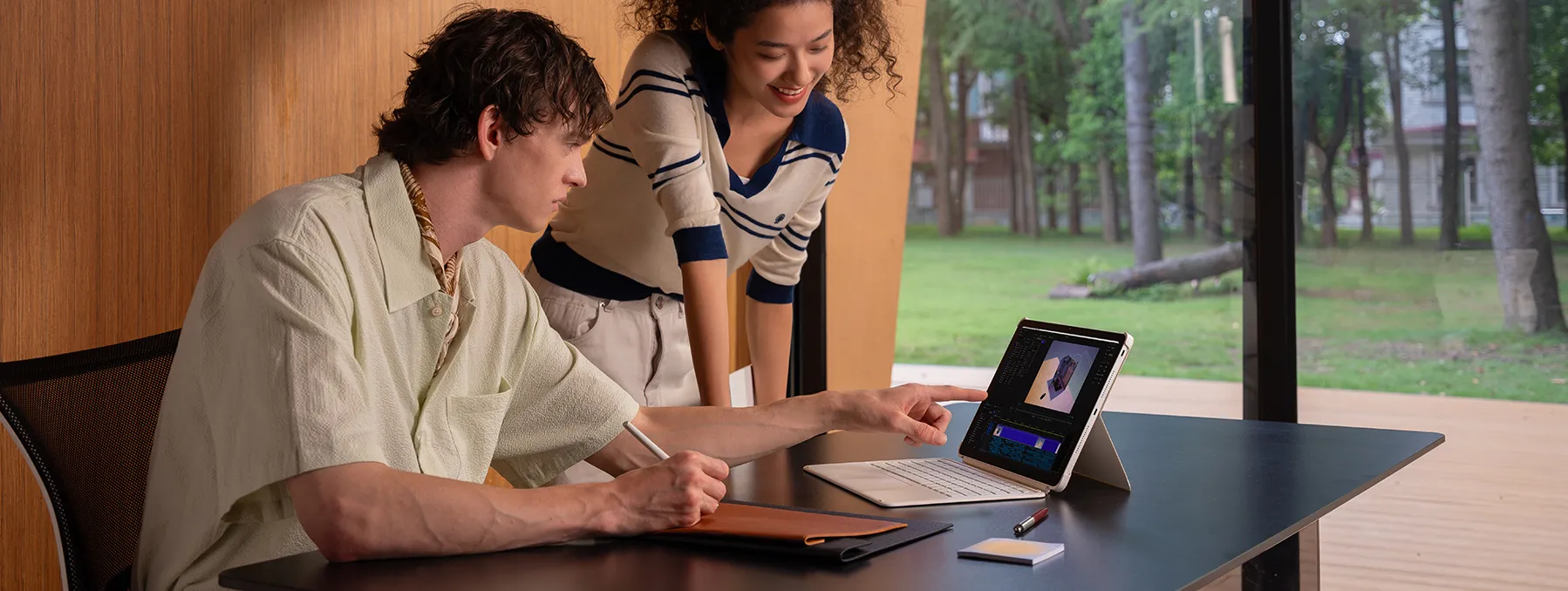
That said it's quite legitimate to look at an alternative and there is one. The XPPen Magic Pro 13 is designed as a tablet that you can use on its own when you're out and about and then connect to your PC as a true zero lag second screen (no third-party drivers, no recurring app fees).
-
True One Cable Drawing Display Mode (DP-IN): Rather than compressing the video over Wi-Fi the Magic Pro 13 simply connects to your Windows PC or Mac via a single full feature USB-C cable (which will support DP-IN signal transmission. Your PC/Mac will immediately see it as a real hardware display with absolutely zero software lag and no subscriptions whatsoever.
-
3K 120Hz Nano-etched X-Paper Display: The big 12.95" 3K (3096 x 2064) display is running at a very smooth 120Hz with 100% sRGB. The 100% sRGB is a nice touch. The matte AG+AF nano-etched X-Paper is excellent in that it gets rid of all that pesky overhead glare and gives you that real paper feel with the pen rather than that glassy slide you get with glass.
-
Included X4 Smart Chip Stylus (16K pressure): Once again unlike the iPads, where you have to pay an additional $79-$129 for an Apple Pencil, the Magic Pro 13 comes complete with the battery free X4 Smart Chip Stylus. It has 16384 levels of pressure sensitivity, 2g initial activation force and 60-degree tilt support so it maintains full desktop pen sensitivity when you plug it into your PC or Mac.
-
Standalone Android 16 Versatility: Unplug the cable and it's a fully functional lightweight Android 16 tablet in its own right, powered by an 8-core Dimensity 8300 chip, 8GB of RAM and 256GB of storage (microSD card slot available).
Ready to ditch the lag and upgrade your second-screen setup? Get the XPPen Magic Pro 13 now!
XPPen Magic Drawing Pad: An Affordable Alternative to the Magic Pro 13
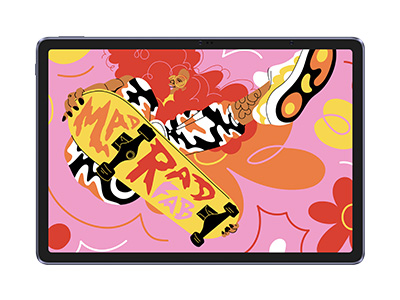
Already in love with the paper-like screen, 16K smart chip stylus, and the hardware level 2nd screen capability but don't want to pay more? The XPPen Magic Drawing Pad is a very direct and affordable alternative.
It's a 12.2 inch 3:2 anti-glare X-Paper screen, 8GB of RAM, 256GB of expandable storage, comes with the X3 Pro Slim Stylus and has USB-C DP-IN screen sharing. It's a very good standalone tablet and PC display for students, note takers and everyday artists.

Conclusion
Multitasking is the very essence of modern day working. There are a million different ways you can go about incorporating it into your day but ultimately the one thing that really counts is are you using your tools right? The answer could be yes if you already know how to use your iPad as a second screen. Because its one of the easiest hacks to get a productivity boost without having to buy any extra travel gear.
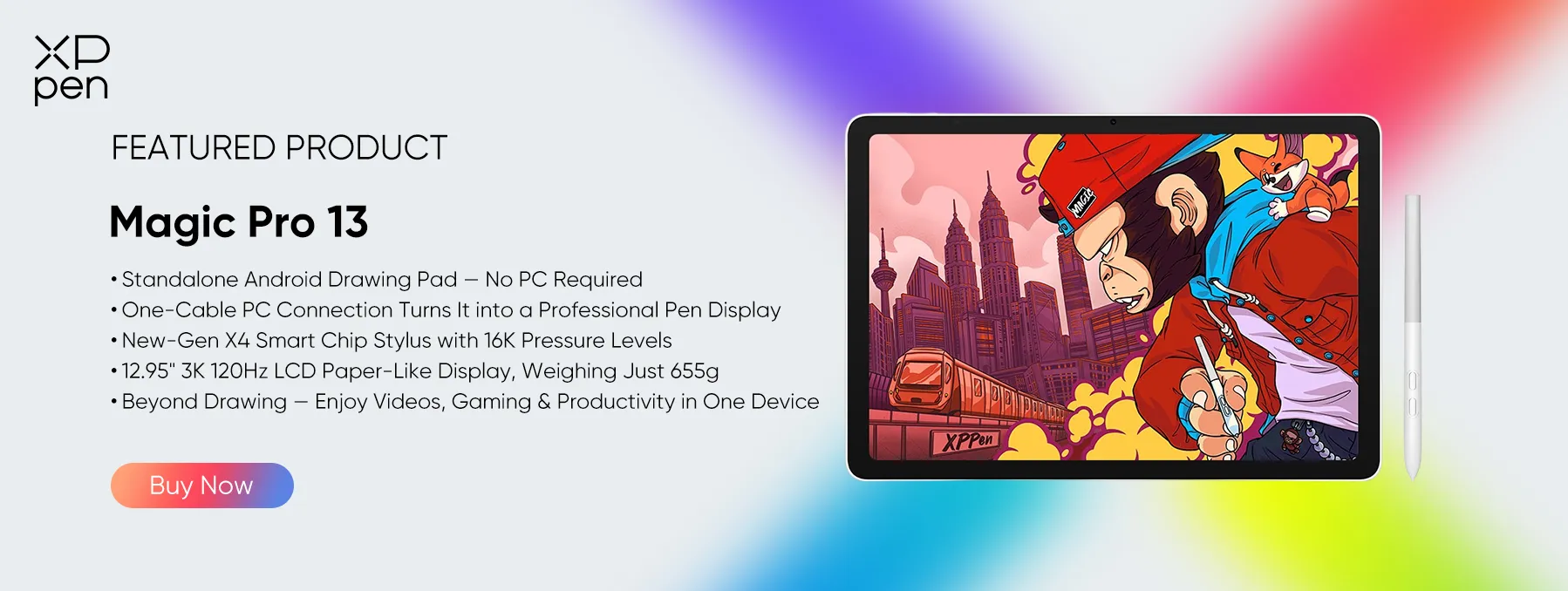
Of course software based screen mirroring has its limitations, particularly when your Wi-Fi starts to get a bit slow or when you need genuine pen pressure and a decent drawing surface. That's where a standalone tablet that can be used as a lag free, hardware level second monitor really comes into its own. You've got a very nice matte paper like screen and a 16K stylus (the XPPen Magic Pro 13 Standalone Drawing Pad or the more affordable XPPen Magic Drawing Pad which gives you a very smooth all in one solution.
FAQs
Q1: Can I use my iPad as a second monitor wirelessly?
On a Mac Apple SideCar works wirelessly over local Wi-Fi and Bluetooth (up to 30 feet). On Windows you can use a range of free and paid apps (Spacedesk, Duet Display, Luna Display etc.) to wirelessly extend your desktop over to your iPad on the same Wi-Fi network.
Q2: Does using the iPad as a second screen drain the battery?
Running your iPad as a wireless second screen over Wi-Fi will obviously be a massive drain on the battery as it constantly decodes live video. A USB-C connection solves that problem as you can keep your iPad fully charged whilst it's acting as an external display.
Q3: Can I use my Apple Pencil when my iPad is being used as a second monitor?
Yes. With Apple Sidecar on a Mac you can use your Apple Pencil to annotate PDFs, sign documents and sketch in the various supported macOS creative apps. On Windows you can also use Duet Display (Pro tier) and Luna Display to pass the Apple Pencil through to desktop apps.
Q4: Why won't Sidecar connect to my iPad?
If your iPad isn't showing up under Screen Mirroring on the Mac, check the following four things: that both devices are signed in to the same Apple ID, that Handoff is turned on in the Settings on both devices, that neither device is running an active VPN and that you try connecting them directly via a USB cable to get the handshake going.
About Us
Founded in 2005, XPPen is a leading global brand in digital art innovation under Hanvon UGEE. XPPen focuses on the needs of consumers by integrating digital art products, content, and services, specifically targeting Gen-Z digital artists. XPPen currently operates in 163 countries and regions worldwide, boasting a fan base of over 1.5 million and serving more than ten million digital art creators.
Learn moreRecommended Articles
TIPS How to Use iPad as a Drawing Tablet for PC in 2026 KNOWLEDGE Use Android Tablet as Drawing Pad for PC [Complete Guide] ROUNDUPS 5 Best iPad Alternatives for Drawing and Artists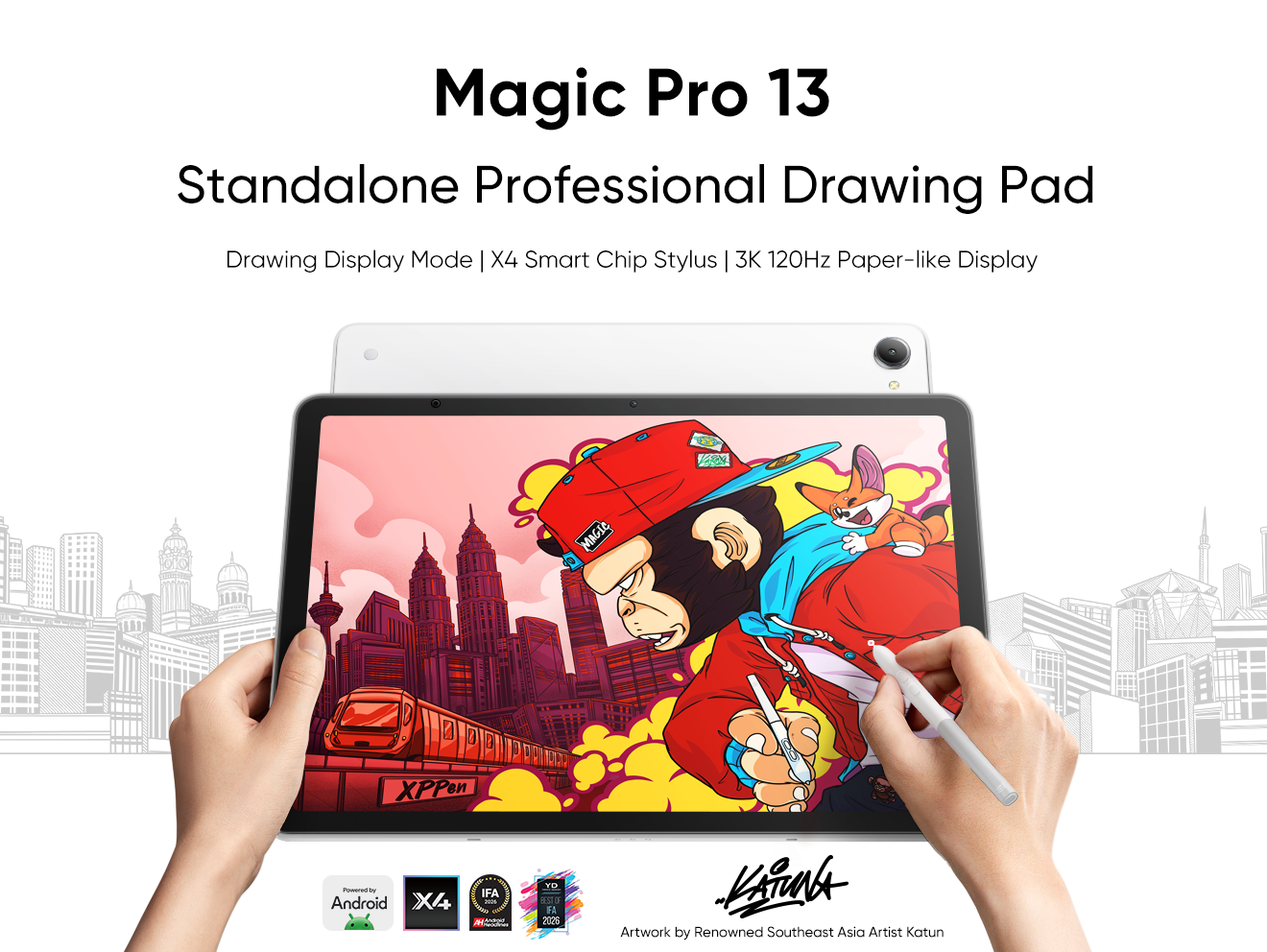


-
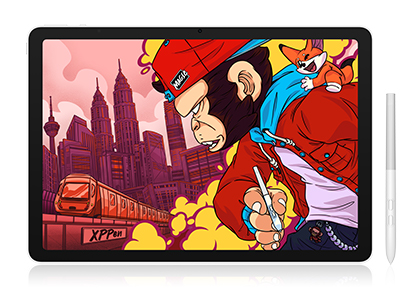 Magic Pro 13
Standalone Android 16 Drawing Pad, No Computer Required
3K 120Hz Display with 100% sRGB Color
X4 Smart Chip Stylus with 16K Pressure Levels
One-Cable PC Drawing Display Mode
It features:
Best standalone drawing pad for professional creativity anywhere
-
 Magic Drawing Pad
X3 Pro Slim Stylus with 16,384 pressure levels and tilt support
X-Paper display featuring anti-glare and fingerprint resistance
Clip Studio Paint and ibis Paint X 3-month free membership
Super portable- just 6.9mm thin and weighs only 590g
Supports dual Windows and DP-IN functions
It features:
Powered by Android 15, no need to connect to a computer to use.
-
Magic Pro 13
Standalone Android 16 Drawing Pad, No Computer Required
3K 120Hz Display with 100% sRGB Color
X4 Smart Chip Stylus with 16K Pressure Levels
One-Cable PC Drawing Display Mode
It features:
Best standalone drawing pad for professional creativity anywhere
-
Magic Drawing Pad
X3 Pro Slim Stylus with 16,384 pressure levels and tilt support
X-Paper display featuring anti-glare and fingerprint resistance
Clip Studio Paint and ibis Paint X 3-month free membership
Super portable- just 6.9mm thin and weighs only 590g
Supports dual Windows and DP-IN functions
It features:
Powered by Android 15, no need to connect to a computer to use.
Looking for the Best Drawing & Design Apps?
Discover essential drawing techniques, expert tips, and the best app recommendations to boost your creativity and master digital art.
