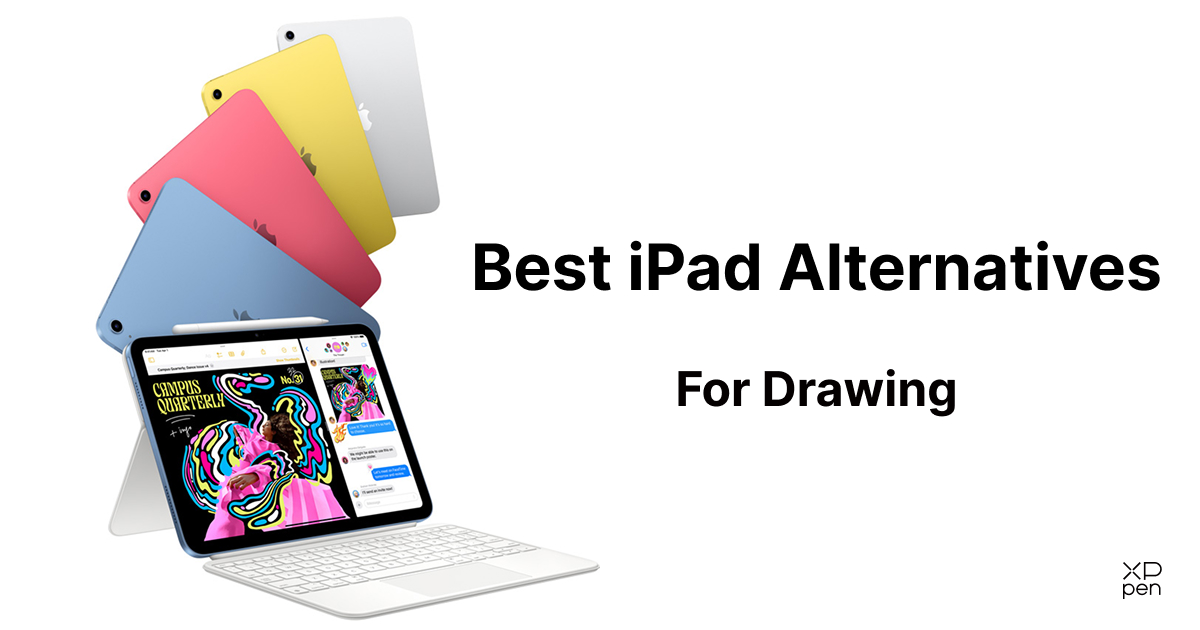
5 Best iPad Alternatives for Drawing and Artists
ROUNDUPSAn iPad can be a great tool for digital art, but it isn't the perfect fit for every artist. Maybe the cost of an iPad and Apple Pencil is stretching your budget. Maybe you want a more natural pen-on-screen feel, or better compatibility with your preferred drawing software. Or perhaps your current setup works well for sketching but feels limiting when you move on to complex illustrations or professional projects.
Choosing an alternative isn't simply about finding a cheaper tablet. Some artists need a standalone drawing pad for sketching anywhere, while others prefer a computer-connected tablet that works with desktop creative software. Beginners may prioritize affordability, whereas experienced illustrators may care more about pen responsiveness, screen quality, and a reliable workflow.
Here we'll compare 5 iPad alternatives for drawing and artists , including XPPen Magic Pro 13 , Samsung Galaxy Tab, Lenovo tablets, XPPen Magic Drawing Pad , and screenless drawing tablets. Whether you're replacing an aging iPad, building your first digital art setup, or looking for a more flexible way to create, this guide will help you choose a device that fits your needs and budget.
Quick Comparison: Which iPad Alternative Is Right for You?
| Device | Best For | Main Advantage | What to Consider |
|---|---|---|---|
| XPPen Magic Pro 13 | Artists switching between mobile and desktop workflows | Standalone drawing and computer-connected drawing display in one device | Regional availability |
| Samsung Galaxy Tab | Artists who also want an everyday tablet | Android apps, productivity, and entertainment | Stylus support and drawing features vary by model |
| Lenovo Tablets | Budget-conscious beginners and casual artists | Multiple configurations for everyday use | Pen performance and app compatibility vary by model |
| XPPen Magic Drawing Pad | Beginners who want a dedicated standalone drawing pad | Portable digital art without a computer | Android version update |
| Screenless Drawing Tablets | Affordable computer-based drawing | Low-cost entry into digital art | Requires a computer and practice with hand-eye coordination |
1. XPPen Magic Pro 13 — Best for Professional Drawing and All-Around Use
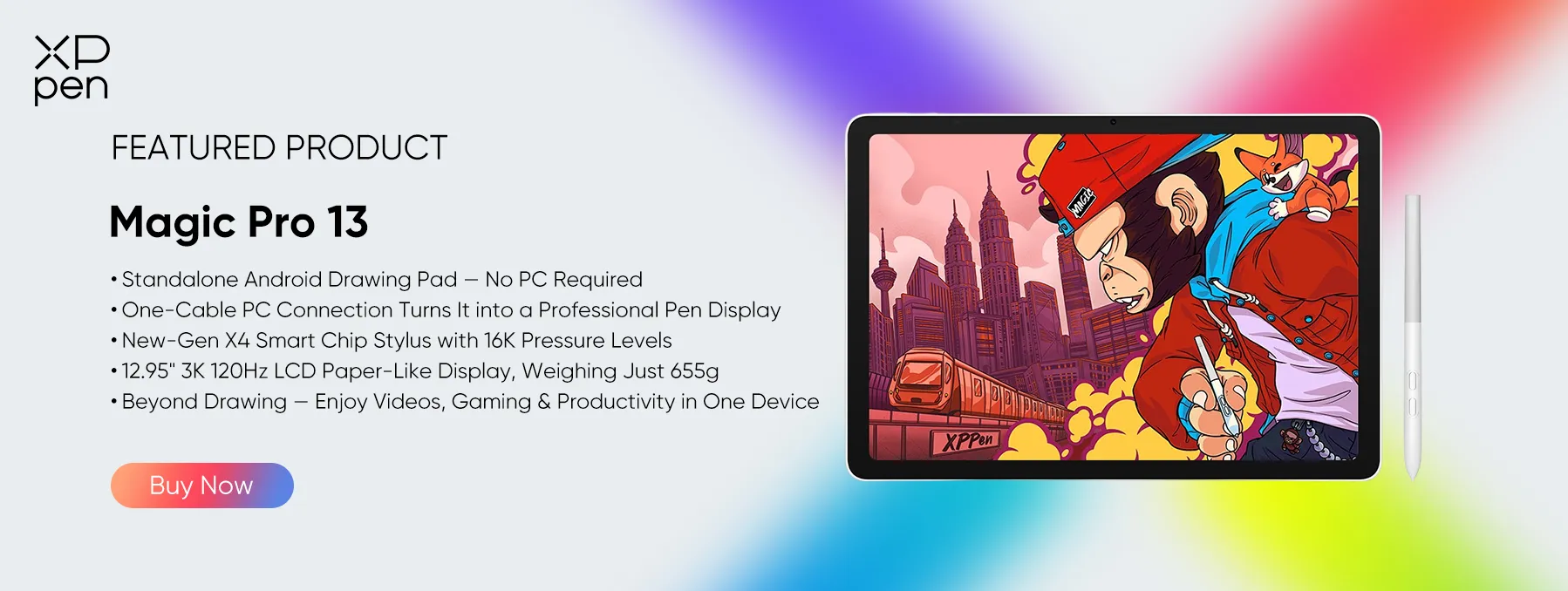
If you're looking for an iPad alternative that combines digital art with everyday tablet functionality, the XPPen Magic Pro 13 Standalone Drawing Pad is worth considering.
Designed as a professional all-scenario drawing pad, Magic Pro 13 combines a standalone Android tablet with a dedicated Drawing Display Mode. It offers the flexibility to create artwork, browse the web, watch videos, read, take notes, and handle everyday tasks—all on one portable device. When you need a more advanced creative setup, you can also connect it to a compatible computer and use it as a drawing display.

One Device for Drawing and Everyday Tasks
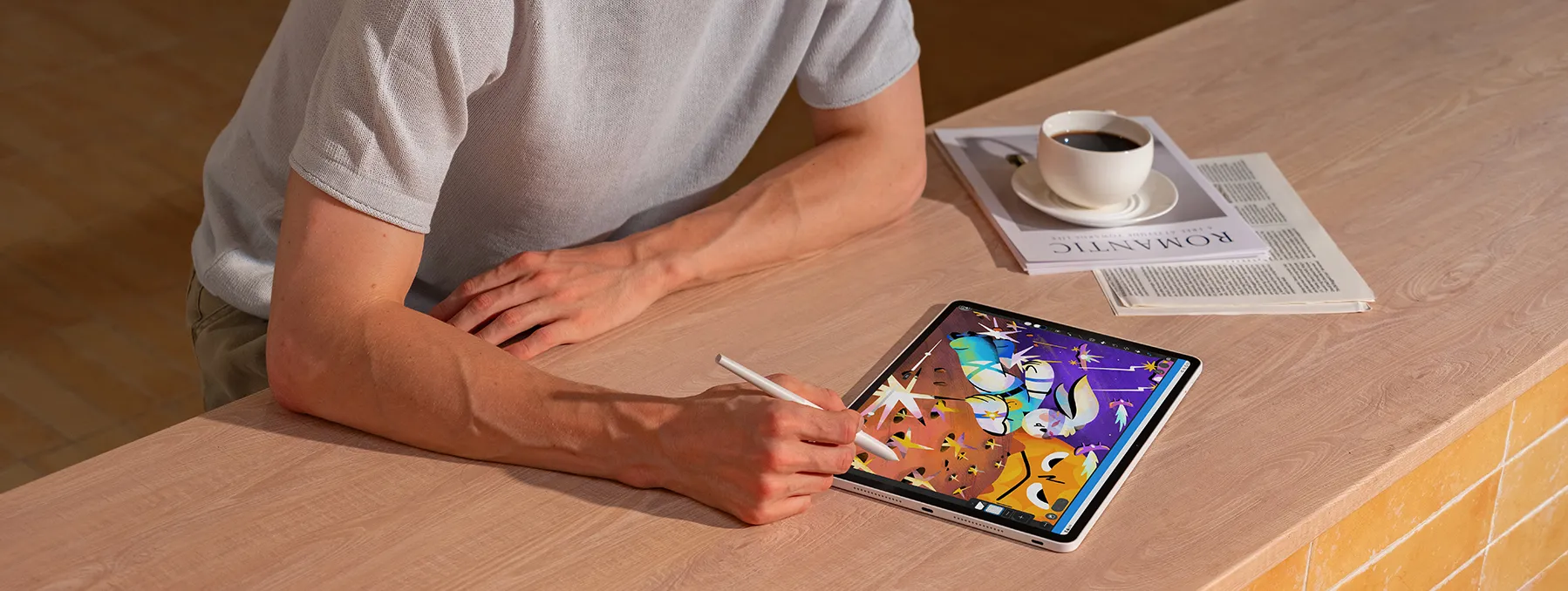
Running Android 16, Magic Pro 13 supports compatible drawing apps as well as everyday applications for entertainment, productivity, and communication. Whether you're sketching at a café, watching tutorials, browsing for creative inspiration, reading documents, or taking notes, you can use it much like a conventional Android tablet.
Its standalone design means you don't need to carry a separate computer for everyday tasks or mobile drawing. You can also use compatible productivity apps to review documents and manage files, making it useful for students, designers, and professionals who want a device that serves both creative and daily needs.
When you need a desktop-based creative workflow, connect Magic Pro 13 to a compatible computer using a full-featured USB-C cable to access Drawing Display Mode. This allows you to work with compatible desktop creative software while drawing directly on the tablet's screen.
By combining standalone functionality with computer connectivity, Magic Pro 13 offers an alternative to choosing between a general-purpose tablet and a dedicated drawing display.
A High-Resolution Display for Art and Entertainment
Magic Pro 13 features a 12.95-inch LCD with a 3096 × 2064 resolution, a 3:2 aspect ratio, and refresh rates of up to 120Hz. Its color coverage reaches 100% sRGB and 96% DCI-P3, with brightness of up to 650 nits.
For digital artists, the high resolution helps display fine lines and intricate details, while the wide color coverage supports color-conscious creative work. The high refresh rate also contributes to fluid on-screen interaction.
Beyond drawing, the large, high-resolution screen is suitable for watching videos, viewing reference images, reading, and working with documents. Its anti-glare and anti-fingerprint nano-etched glass is designed to reduce reflections and provide a more comfortable drawing surface.
Precise Pen Input for Sketching and Illustration
The included X4 Smart Chip Stylus supports 16,384 pressure levels, 60-degree tilt recognition, and a 2g initial activation force.
Pressure sensitivity allows compatible applications to translate variations in hand pressure into changes in line thickness or opacity. Tilt recognition can support shading and brush effects, depending on the application.
These features are useful for everything from quick sketches to detailed illustrations. However, pressure-level counts alone do not determine drawing quality; pen responsiveness, line stability, application support, and the interaction between the stylus and screen all contribute to the experience.
Portable Performance for Work and Play
Magic Pro 13 comes with 8GB RAM and 256GB storage, expandable via microSD up to 2TB. Its 10,200mAh battery and 45W PD fast charging support mobile use, while its approximately 655g weight and 6.65mm thickness make it convenient to carry.
XPPen Magic Pro 13 Standalone Drawing Pad also includes XPPen's Shelf and Canvas apps for organizing inspiration and capturing ideas. Compatible third-party Android apps extend its usefulness across creative and everyday activities. Selected apps, including ibisPaint, Clip Studio Paint, and MediBang Paint, are offered with promotional memberships subject to applicable terms.
With Wi-Fi 6E, Bluetooth 5.4, cameras, and quad speakers, Magic Pro 13 supports a range of daily activities beyond digital art.
Best for: Artists, students, and creative professionals who want one portable device for digital drawing, everyday entertainment, productivity, and computer-connected creative work.
2. Samsung Galaxy Tab — Best for Android Drawing and Everyday Productivity
A Samsung Galaxy Tab can be a practical iPad alternative if you want to draw, take notes, browse the web, and handle everyday tasks on one device.
For artists who already use Android phones or prefer an Android-based workflow, the Galaxy Tab series offers an alternative to Apple's ecosystem. Depending on the model, you can use compatible drawing apps alongside productivity tools, reference images, cloud services, and entertainment apps.
A Versatile Tablet for Creative Work
Selected Galaxy Tab models support the S Pen, allowing users to sketch, paint, and take handwritten notes. Having a compatible pen available can reduce the need to purchase a separate stylus, although the included accessories depend on the specific model.
Android also offers several drawing applications, including Infinite Painter and Clip Studio Paint. Availability, features, and pricing vary, so check the app requirements before switching from an iPad.
For artists who need a tablet for more than drawing, this versatility can be a significant advantage. You can use the same device for creative projects, schoolwork, reading, and media consumption.
What Should Artists Check Before Buying?
Not every Galaxy Tab offers the same drawing experience. Before choosing a model, compare: s tylus support, display quality, performance, and software compatibility .
If you primarily draw sketches and illustrations, a midrange model may be sufficient. If your work involves larger files, complex brushes, or more demanding applications, you may benefit from a higher-performance configuration.
Best for: Artists who want a multipurpose Android tablet for drawing, productivity, and everyday use.
Consider before buying: Compare the total cost of the tablet and accessories, and verify stylus support and app compatibility for the exact model.
3. Lenovo Tablets — Best for Budget-Conscious Beginners
If your main goal is to start drawing digitally without spending too much, Lenovo tablets are another option to explore.
Lenovo offers tablets across different price and performance levels. Depending on the model, a compatible tablet and stylus may support sketching, simple illustrations, visual notes, and other everyday creative tasks.
This makes Lenovo worth considering if you want a general-purpose device and don't necessarily need a dedicated drawing tablet.
An Accessible Starting Point for Digital Art
Beginners do not always need a premium device to learn drawing fundamentals. Practicing shapes, line control, perspective, and color can be done on a range of devices, provided the stylus and drawing app meet your needs.
A Lenovo tablet may also serve as a study or entertainment device, which can make the purchase more practical if digital art is only one of your interests.
However, the model matters. Some tablets support active styluses with pressure sensitivity, while others may have more limited pen functionality. Do not assume that every Lenovo tablet will provide a comparable drawing experience.
How to Avoid Buying the Wrong Model
Before purchasing, check whether the exact tablet supports an active stylus, which pen features are available, and whether the stylus is included in the package.
You should also consider memory, storage, display resolution, and application compatibility. If you want to create detailed illustrations or work with multiple layers, an entry-level device with limited memory may become frustrating over time.
For casual sketching, a lower-cost configuration may be enough. For professional illustration, check the device's performance and software support more carefully rather than choosing by price alone.
Best for: Beginners, students, and casual artists looking for an everyday tablet that can also handle drawing.
Consider before buying: Confirm active stylus support, pressure sensitivity, compatible apps, and the total cost of any required accessories.
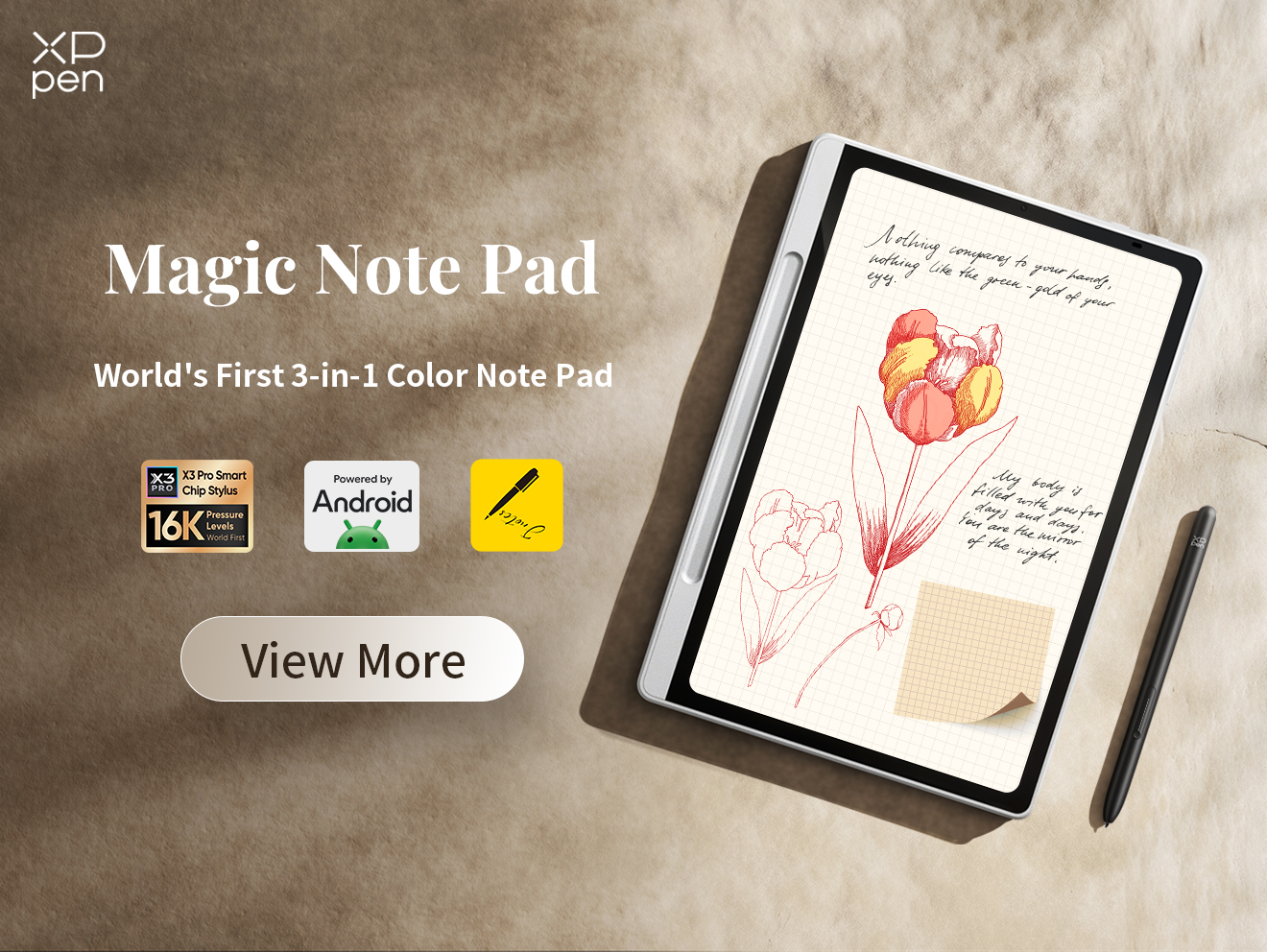
4. XPPen Magic Drawing Pad — Best for Standalone Digital Art for Beginner
For artists who want to draw without carrying a laptop or connecting to a computer, the XPPen Magic Drawing Pad offers an all-in-one creative setup. Its Android system, drawing-focused display, and included stylus make it ideal for sketching, illustration, and digital art on the go.
A Paper-Like Display for Natural Drawing
The Magic Drawing Pad features a 12.2-inch X-Paper display with a 2160 × 1440 resolution and a 3:2 aspect ratio, offering 18.5% more canvas space than a standard 16:9 display. Its anti-glare surface provides a paper-like drawing feel, while 97% sRGB color coverage supports vibrant artwork.
The included X3 Pro Slim Stylus supports 16,384 pressure levels and 60° tilt recognition. Its battery-free EMR technology eliminates the need for charging or Bluetooth pairing, while its lightweight 10g design supports comfortable drawing.
Create Anywhere Without a Computer
Running Android 14, the Magic Drawing Pad supports popular drawing apps such as Clip Studio Paint, ibis Paint X, and MediBang. At just 6.9mm thick and 590g, it is easy to carry wherever inspiration strikes.
With 8GB RAM, 256GB storage expandable up to 1TB, and an 8,000mAh battery, it provides a portable workspace for artwork on the go. The compatible MDP1221 model can also connect to a PC or Mac via USB-C and function as a drawing display.
Best for: Artists who want a portable, standalone drawing tablet for sketching and illustration without a computer.
Consider before buying: Check that your preferred drawing apps are compatible with Android.
5. Screenless Drawing Tablets — Best for Affordable Computer-Based Drawing
Already have a capable computer and want an affordable way to draw digitally? A screenless drawing tablet, like Deco 01 V3 is a cost-effective option. You draw on the tablet’s surface while viewing your work on a connected computer monitor, without paying for a built-in display or standalone hardware.
Screenless tablets offer an affordable entry into digital art and support various desktop creative applications, depending on software and operating system compatibility. They’re suitable for digital illustration, graphic design, photo editing, and other computer-based creative tasks.
The main challenge is hand-eye coordination: you draw on the tablet while watching your strokes appear on a separate monitor. Although this may feel unfamiliar to iPad users, most can adapt with practice.
When comparing models, consider the active drawing area, pressure sensitivity, shortcut controls, driver support, and operating system compatibility.
Best for: Beginners, students, and desktop artists who want an affordable way to use computer-based drawing software.
Consider before buying: Make sure you are comfortable with a screenless workflow and have a compatible computer.
How to Choose the Right iPad Alternative for Your Needs
Consider these five factors to find a tablet that fits your drawing needs and budget.
1. Set a Budget for the Complete Setup
Factor in the stylus, accessories, software subscriptions, storage, and potential computer upgrades. If you already own a capable computer, a screenless drawing tablet is an affordable option. For independent drawing, consider a standalone Android tablet.
2. Choose Between Standalone and Computer-Connected Drawing
Standalone tablets run drawing apps directly, making them ideal for portability. Screenless tablets and drawing displays require a computer, with drawing displays letting you work directly on the screen.
For both standalone and computer-connected drawing, consider the XPPen Magic Pro 13.
3. Prioritize Drawing Experience
Look beyond specifications. Pen responsiveness, line stability, tilt support, palm rejection, and screen quality all affect the drawing experience. Test the device with your preferred app if possible.
4. Check Software Compatibility
Confirm that your preferred apps and features are available on the new platform. For example, Procreate doesn't run natively on Android, where alternatives include Infinite Painter and Clip Studio Paint. Also check file compatibility and desktop software requirements.
5. Consider Your Long-Term Workflow
Think about whether you'll use the tablet for casual sketching, professional artwork, animation, studying, or everyday tasks. Consider your canvas sizes, software needs, and portability requirements to choose a device that supports both your current and future needs.
FAQs about iPad Alternatives for Drawing
1. What is the best iPad alternative for drawing?
The best option depends on your priorities. XPPen Magic Pro 13 is worth considering if you want standalone drawing and a computer-connected drawing display in one device.
Samsung Galaxy Tab offers a multipurpose Android experience, Lenovo tablets can suit budget-conscious users, and XPPen Magic Drawing Pad focuses on portable standalone art. Screenless drawing tablets are an affordable option if you already own a computer.
2. What is the cheapest iPad alternative for drawing?
A screenless drawing tablet may be the least expensive option if you already have a compatible computer. If you need a standalone device, compare the total cost of entry-level Android tablets, including the stylus and any required accessories. The cheapest tablet is not necessarily the best value if its pen performance or software compatibility falls short of your needs.
3. Can I replace my iPad with an Android tablet for digital art?
Yes. Android tablets from Samsung, Lenovo, and XPPen can support digital drawing, but the best choice depends on your preferred apps, stylus performance, and budget. Apps such as Krita, ibisPaint, and Clip Studio Paint are available on Android, although availability and features vary. If you rely on Procreate, remember that it is exclusive to Apple platforms.
4. Does a drawing tablet feel like drawing on paper?
Not exactly. The experience depends on the screen surface, stylus tip, pressure sensitivity, and how quickly strokes appear. A smooth glass screen may feel slippery compared with paper, while an anti-glare or textured surface can provide more friction. If possible, test the stylus before buying, especially if you rely on precise linework or subtle pressure changes.
5. Can I use Procreate on Android tablets?
No. Procreate is designed for Apple's ecosystem and is not available as a native Android app. If you switch to Samsung, Lenovo, or an XPPen Android drawing tablet, you will need a compatible alternative. Check the available tools and file-export options before making the change.
Conclusion
The best iPad alternative for drawing depends on what you want to change about your current setup. If your biggest concern is cost, a screenless drawing tablet or a carefully selected Android tablet may offer better value. If you want a multipurpose device, Samsung Galaxy Tab and Lenovo tablets are worth exploring. If you prefer a portable device designed for independent digital art, XPPen Magic Drawing Pad is another option.
For artists who want more flexibility, XPPen Magic Pro 13 Standalone Drawing Pad combines standalone Android drawing with a dedicated Drawing Display Mode for compatible computer connections. This makes it worth considering if you want to sketch away from your desk and continue working with desktop software when needed.
About Us
Founded in 2005, XPPen is a leading global brand in digital art innovation under Hanvon UGEE. XPPen focuses on the needs of consumers by integrating digital art products, content, and services, specifically targeting Gen-Z digital artists. XPPen currently operates in 163 countries and regions worldwide, boasting a fan base of over 1.5 million and serving more than ten million digital art creators.
Learn moreRecommended Articles
FOCUSED XPPen Magic Drawing Pad vs iPad Pro: I Tested Both KNOWLEDGE 6 Best Drawing Apps for iPad Free & Paid 2026 FOCUSED 5 Best iPads for College: Top Picks for Every Student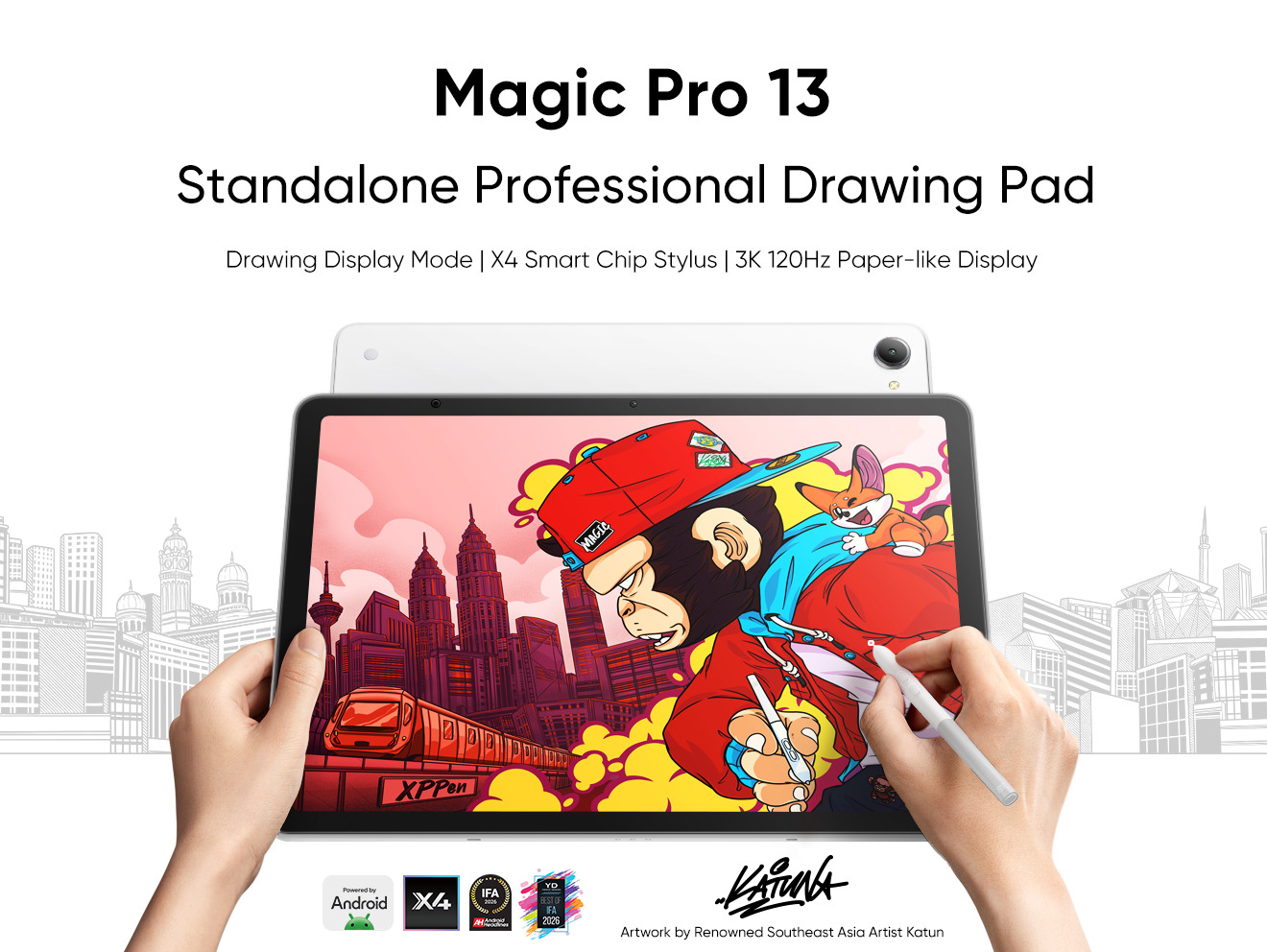


Ready to invest in the right tools?
Get expert buying advice, unbiased reviews, and exclusive deals on drawing tablets, and accessories.
