How to Use iPad as a Drawing Tablet for PC in 2026
TIPSDigital artists who use Apple tablets for creative work often ask, “Can I use my iPad as a graphics tablet for PC?” The short answer is yes; you can use your iPad as a graphics tablet for PC workflows via third-party apps and software.
Apple has a native screen mirroring feature (called Sidecar) which allows artists to use iPad as a drawing tablet for Mac with absolutely no extra setup required. On Windows, you do need a bit more work and some third-party software.
In this guide, we look at how to turn your iPad into a PC pen display, the best bridging apps on the market, step-by-step setup for the major art programs, and why a dedicated standalone tablet is ultimately the better long-term solution for pro artists.
We'll also introduce the XPPen Magic Pro 13 Standalone Drawing Pad , a more integrated alternative that works as both a standalone Android drawing tablet and a PC/Mac pen display via a single USB-C connection. For professional artists seeking a dedicated drawing experience without relying on third-party mirroring apps, it's well worth considering.
Part 1. Can You Use iPad as Drawing Tablet for PC?
Apple prefers to keep its devices locked within its own ecosystem. However, if your primary workstation is a Windows PC, there are plenty of options to use iPad as drawing tablet for PC. A number of third-party developers have created dedicated mirroring apps that turn your iPad into a touchscreen secondary monitor which responds to input from your Apple Pencil. You can therefore take advantage of the much larger screen of your PC whilst drawing on your tablet.
As this setup is reliant on software emulation, there are three fairly common factors to keep in mind when attempting to bridge these two very different operating systems:
-
Input Latency: Wireless video streaming over a local network can introduce some very subtle micro-delays which can cause fast pen strokes or quick hatching lines to drag behind your pen tip. That's why we'd recommend a USB connection rather than connecting your iPad to a PC over WIFI.
-
Pressure Sensitivity Translation: Getting the Apple Pencil tilt and pressure curves to pass through your third-party drivers into the Windows-native software can be hit and miss depending on your app setup. It's therefore vital to pick the mirroring app that is best suited to your hardware and your budget (more details below).
-
Subscription Fatigue: A lot of the very best bridging apps lock the key artist tools (pressure mapping, custom gesture shortcuts, etc.) behind a monthly or annual subscription. It'll take a bit of research to find the best app to use your iPad as a drawing tablet for PC within your budget.
Part 2. Best Apps to Use iPad as Drawing Tablet for PC
Here are four leading software options to use iPad as pen tablet for pc workflows:
1. Astropad Studio
Trusted by 100,000+ digital artists, Astropad Studio is one of the best mirroring apps for connecting an iPad to a Windows PC for creative tasks. Built by former Apple engineers, it delivers low-latency performance thanks to an innovative video technology, “LIQUID,” that delivers stunning image quality and responsive brush tracking over wired USB or 5GHz Wi-Fi.
The application translates Apple Pencil pressure curves and tilt mechanics with incredible accuracy, giving digital painters and 3D sculptors an experience that closely mirrors a high-end dedicated graphics tablet. It also offers deep workflow customizations, including per-app shortcut panels, customizable pressure curves, and custom touch gestures, to streamline work in software like Photoshop and Clip Studio Paint.
Why It's Best: It delivers the smoothest, most accurate pressure sensitivity translation and tactile gesture mapping available, specifically optimized for the professional digital artist.
The Setback: It's on a premium ongoing subscription model ($99.99/year), so it's a very significant long-term investment compared to the one time purchase alternatives.
2. Duet Display (Duet Pro)
Also developed by former Apple engineers, Duet Display is a very efficient cross-platform solution that links iPadOS and Windows PCs. It's pretty much plug-and-play, in terms of setup. Install the software on both the iPad and the PC, connect them via USB, and the app will automatically launch to mirror your desktop. Even on the entry-level Duet Starter, you can expect a very responsive, low-latency second screen that supports standard touch gestures (tap, pan, zoom, etc.) over a USB connection.
For pro creators, the Duet Pro upgrade unlocks additional features, including the ultimate remote desktop app, the ability to mirror iOS to Mac or PC, and privacy mode. It's built to handle major desktop art packages (Photoshop, Illustrator, Corel, Manga, Toon Boom, etc.) and provides efficient screen mirroring with encrypted remote desktop connectivity, so you can securely access your full PC from anywhere in the world.
Why It's Best: Duet is well optimized to use minimal CPU and battery, so you can sketch for hours without being plugged in. If you run into any technical issues, their support team is responsive and will help at any time of day or night.
The Setback: To unlock Pro features (low-latency stylus pressure mapping), access to remote desktops, and more, you need to upgrade to a paid subscription tier.
3. EasyCanvas
EasyCanvas is an affordable mirroring app that turns your iPad into an interactive pen display or an extra second monitor for your PC. With a wide range of features, including full pen pressure, tilt, and palm rejection, plus custom menu shortcuts and touch gestures, it keeps your workflow as smooth as possible.
The refresh rate is very good, up to 120Hz, delivering incredibly smooth pen tracking, crisp lines, and seamless canvas transitions. EasyCanvas supports both wired and wireless connections. You can use a high-speed, low-latency wired USB connection for the best possible drawing stability or go completely wireless via Wi-Fi.
EasyCanvas is aimed squarely at the budget artist. Instead of locking core pressure sensitivity and gesture controls behind a monthly or annual subscription, it's a one-off in-app purchase after the 3-day free trial. It's a simple model, which is why it appeals to students, hobbyists, and beginner artists who want a reliable, affordable way to bring their PC art to an iPad canvas.
Why It's Best: Offers a high-performance 120Hz display, custom gesture shortcuts, and wired or wireless connectivity. All for a one-time price (no subscription).
The Setback: Advanced pressure curve customization is somewhat limited compared with the professional subscription packages. The initial wireless Wi-Fi pairing can sometimes require a short, wired connection to sync properly.
4. Sunshine + Moonlight
For creators who want to use iPad as drawing tablet for pc for free, pairing Sunshine with Moonlight turns your iPad into a wireless, ultra-responsive secondary canvas. Sunshine is a self-hosted desktop streaming server that runs on your Windows PC, and Moonlight is the client receiver app that runs on your iPad.
With hardware-accelerated encoding, it can stream up to 4K HDR at 120 FPS and deliver incredibly smooth visuals with microsecond latency (the same as paid mirroring solutions). Because Moonlight is open source and community-run, it has no ads, no paywalls, and no subscription fees.
Although Moonlight supports ultra-fast screen mirroring, it's not quite a plug-and-play digital painting setup (like EasyCanvas) because it was built primarily as a high-framerate remote desktop/gaming solution. It also has limited and experimental Apple Pencil pressure mapping support for Windows art apps.
Why It's Best: It's completely free, open source, and provides industry-leading 4K 120fps desktop streaming with extremely low latency and zero subscription paywalls.
The Setback: It needs a bit of technical setup and manual host server configuration to pass Apple Pencil pressure sensitivity and tilt data properly into Windows desktop art applications.
Part 3. How to Convert Your iPad into a Drawing Tablet for PC
Setting up your iPad as a Windows pen tablet takes just a few minutes:
Step 1: Choose Your Connection Method
Decide how you want to link your iPad to your PC based on your creative needs:
-
Wired Connection (Recommended): Connect your iPad via a high-speed USB-C or Lightning cable. A wired connection delivers the lowest possible latency and the most stable line for intensive drawing.
-
Wireless Connection: Make sure both your Windows PC and iPad are on the same Wi-Fi network for wireless mobility.
Step 2: Install the Companion Applications
Download the appropriate host and client software for your mirroring application of choice (Duet Display, Astropad Studio, EasyCanvas, or Sunshine + Moonlight):
-
On your Windows PC: download and run the desktop installer from the software's official website.
-
On your iPad: search for and install the corresponding app from the Apple App Store.
Step 3: Pair Your Devices
Open the software on both devices to establish a connection:
-
For Wired Setups: simply plug in your cable and launch both apps. In most cases, your PC and iPad will automatically detect and pair.
-
For wireless setups: open the iPad app, select your PC from the list of local devices, and enter the on-screen pairing PIN if asked.
Part 4. The Limitations of iPad Mirroring
While software mirroring is a quick fix if you already have an iPad, it has a few operational issues for heavy production workflows.
-
Software Emulation Delays: Streaming video over USB or Wi-Fi introduces slight latency, which can cause pen strokes to trail behind the nib.
-
Battery Drain and Heat: Real-time video decoding, high screen brightness, and background data transfers running at the same time will make the iPad get quite warm and drain the battery very quickly.
Part 5. A Superior Standalone Drawing Pad with Seamless PC Connectivity
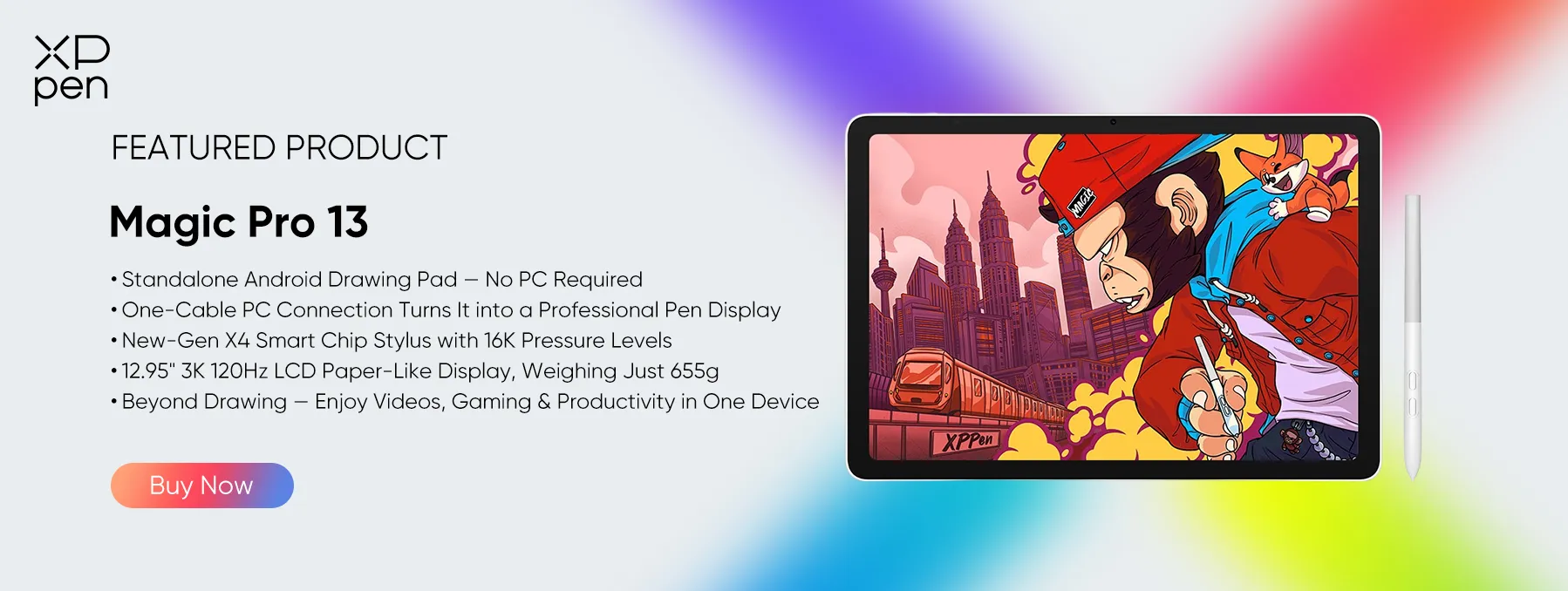
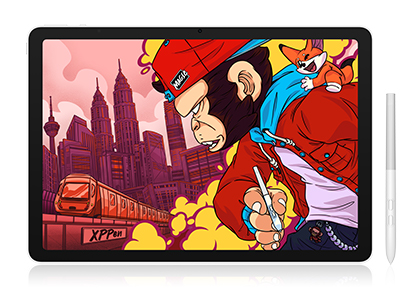
If you're looking for a more versatile alternative to iPad mirroring, the XPPen Magic Pro 13 Standalone Drawing Pad offers the best of both worlds: a standalone Android drawing tablet and a professional PC/Mac pen display.
Unlike iPad mirroring, it connects directly to your computer via a single full-featured USB-C cable, eliminating the need for third-party streaming apps, software subscriptions, or complicated pairing.
Powered by Android 16, the Magic Pro 13 works independently for sketching and digital painting on the go. When connected to a PC or Mac, it switches to Drawing Display Mode, letting you work directly with desktop creative software such as Adobe Photoshop, Clip Studio Paint, and Blender.

What makes it particularly appealing to digital artists is its combination of professional-grade drawing hardware and portability. Key highlights include:
-
X4 Smart Chip Stylus: Features 16,384 levels of pressure sensitivity and a 2g initial activation force, capturing subtle strokes and precise shading.
-
3K 120Hz X-Paper Display: Its 12.95-inch display delivers sharp details, smooth visuals, and a spacious 3:2 drawing canvas.
-
Natural Paper-like Feel: The nano-etched, anti-glare surface reduces reflections and provides tactile drawing resistance without requiring an additional screen protector.
-
Standalone + PC Dual Mode: Draw independently on Android or connect directly to a PC/Mac to use professional desktop applications.
-
No Extra Stylus or Mirroring Subscription: The X4 Smart Chip Stylus is included, and direct USB-C connectivity eliminates the need for paid third-party mirroring software.
Whether you're sketching on the go or working on detailed professional illustrations at your desk, the Magic Pro 13 provides a flexible drawing solution without the extra software costs and setup hassles of iPad mirroring.
Part 6. iPad + PC Mirroring vs. XPPen Magic Pro 13: Head-to-Head Comparison
| Feature | iPad (via Mirroring Software) | Magic Pro 13 |
|---|---|---|
| PC Connectivity | Third-party software emulation | Native Direct USB-C Hardware Display |
| Stylus Included? | No ($129+ Apple Pencil sold separately) | Yes (X4 Smart Chip Stylus included) |
| Pressure Levels | Up to 4,096 levels | 16,384 levels (X4 Smart Chip) |
| Screen Texture | Glossy glass (Requires screen protector) | Native Nano-Etched X-Paper Surface |
| Ongoing Software Costs | $99/year subscription fees | $0 Subscription fee |
| Input Latency | Minor to noticeable streaming lag | Zero-latency hardware connection |
Part 7. Frequently Asked Questions (FAQs)
Can I use iPad as a drawing tablet for PC for free?
Yes, you can use open-source streaming software (Sunshine as the host server and Moonlight as the client app) to stream your PC screen to an iPad for free. Just keep in mind you'll need to configure a few settings manually for accurate pen pressure mapping.
Is there any lag when using the iPad as a graphics tablet with Windows?
Yes. Because Windows doesn't natively support screen-sharing protocols like Apple's Sidecar, third-party software has to compress the display data and transmit it over Wi-Fi or USB. Connecting via USB noticeably reduces the latency compared to Wi-Fi.
What's the difference between using an iPad on a Mac versus on a Windows PC?
MacOS has a native Sidecar feature that allows you to use your iPad as a drawing tablet for your Mac (wirelessly or via USB) with no setup required and no software cost. Windows has no native Sidecar support, and you'd have to resort to third-party bridging apps (Astropad, EasyCanvas, etc.).
Conclusion
Using an iPad as a PC drawing tablet is a great, flexible workaround if you already have Apple hardware and want to use some desktop creative apps. However, software bridging comes with trade-offs like streaming latency and subscription costs.
If you want a proper studio rig with a 13-inch paper-like screen, 16K levels of pen pressure, and native USB-C desktop connectivity with no hidden accessory costs, then a dedicated tablet such as the XPPen Magic Pro 13 Standalone Drawing Pad is the way to go and will provide a vastly superior and much more seamless drawing experience.
About Us
Founded in 2005, XPPen is a leading global brand in digital art innovation under Hanvon UGEE. XPPen focuses on the needs of consumers by integrating digital art products, content, and services, specifically targeting Gen-Z digital artists. XPPen currently operates in 163 countries and regions worldwide, boasting a fan base of over 1.5 million and serving more than ten million digital art creators.
Learn moreRecommended Articles
FOCUSED Magic Pro 13 vs iPad Pro: The Best Standalone Drawing Pad? ROUNDUPS 5 Best iPad Alternatives for Drawing and Artists FOCUSED 5 Best iPads for College: Top Picks for Every Student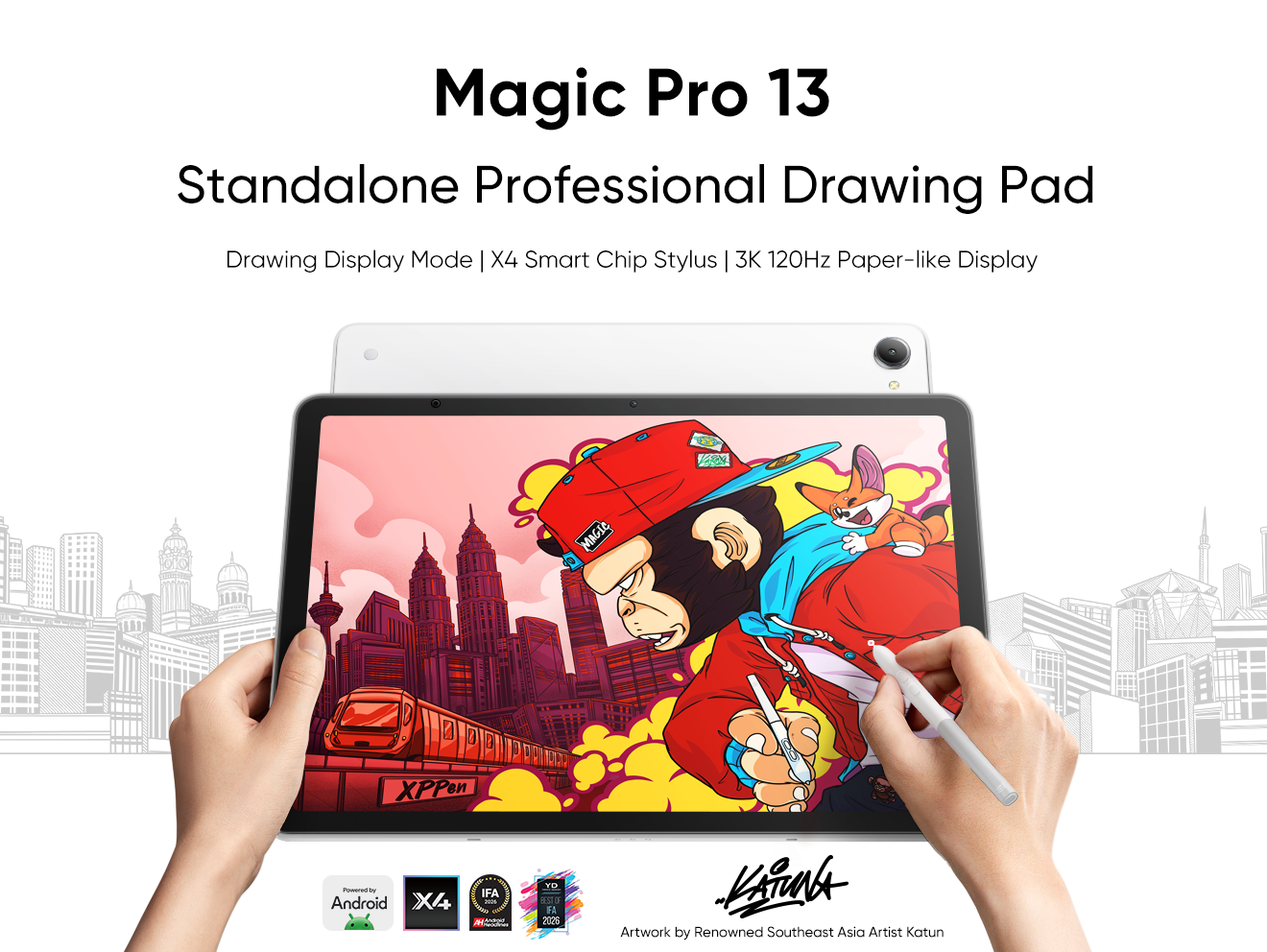


Looking for the Best Drawing & Design Apps?
Discover essential drawing techniques, expert tips, and the best app recommendations to boost your creativity and master digital art.
