Is Blender for iPad Available & How to Use? Latest Answer
TIPSOne common thing digital artists and 3D creators dream about is getting the raw computational power of a desktop PC, but in a sleek, compact form factor of a tablet. So, of course, most of iPad users keep asking one question.
Can I run Blender on my iPad? You’d think that mobile 3D creation would be the norm with the arrival of desktop-class M series chips in the iPad Pro line. But it's actually a lot more complicated to run 3D modeling software tools like Blender on your Apple tablet.
So in this article, we’ll discuss the official perspective on Blender for iPad, the options, community response, and why many 3D artists are moving towards dedicated hybrid Android hardware these days.
Part 1. What is Blender for iPad?
Blender is a leading free and open source, 3D creation tool (modeling, sculpting, animation, etc.) that covers the full 3D pipeline. It's free and open source with the professional tool set you usually get in much more expensive studio software. It's used by millions of artists every single day.

When Apple came out with the M-series chips for the iPad line artists were all over the place in hopes of a native Blender for the tablet, tailored to touch, apple pencil. It's not just about raw power processing (though it does play a part) but more so the software architecture, file permissions, system touch interface, license and so on.
Part 2. Official Current Status and Availability
The Blender Foundation initially created a lot of excitement at SIGGRAPH in August 2025 by previewing a functional prototype of Blender running natively on an iPad Pro with Apple Pencil support. But they had major issue in adapting complex desktop interface & hurdle in releasing for official dev.
Later in January 2026, a twist came when the blender foundation declared indefinite pause on their development for iPad native app diverting the dev team’s main focus and resources to Android development.
So currently no official Blender app available on apple appstore yet.
That being said, it’s only natural for digital artists to lookout other powerful alternative native app for iOS (for example: like nomad sculpt or forger etc..) or use remote software app to stream their desktop blender to iPad (e.g. like Duet display/easy canvas/splashtop etc.)
It’s imperative to note that some unrelated third-party apps on the App Store (such as "Blender 3D: Image to 3D") use the name "Blender" for AI generator tools, but they are not official products of the Blender Foundation.
Community Reaction
Various popular online forum (for example, the popular r/apple and r/blender Reddit threads) that went viral, are full of disappointment on:
Redditors were in pieces about the halting of the much-anticipated iPad Pro version, especially when you take into account how much raw power the M-series iPads have under the hood.
Those desperate artists who are dying for a blender app native for iOS are ready to commit self-immolation at the news of the halts, which they view as complete stupidity. The iPad is the tool of choice for most pro artists as far as their professional workflow goes. Users are feeling nothing but contempt! "With great power comes... nothing to actually use it on."
The community of creators have reached the conclusion that a real-native pipeline is either going to require third-party streaming solutions or the shift in preferment of hardware towards ones that are getting active mobile support.
Part 3. Other Options for Using Blender on an iPad
Let's make this very clear. You can't simply just grab your iPad and install Blender on it. Hit the ground running. There's no official app store download for you. No native iPad version of Blender you can open to go with Procreate. Not yet.
People always get surprised at how powerful modern iPad is. Blender as a matter of fact is quite demanding for a lot of power but also, it is designed around desktop stuff (lots of keyboard shortcuts, mouse precision, desktop UI). The whole thing to achieve that type of feeling on a touch first device is a huge challenge.
So, when someone would say that they "use blender on an iPad", it is not really the case. Usually blender is "somewhere" (mac, pc, remote station etc.). iPad is just an interface. Once you understand this, then you see that various "hacks" make a lot more sense.
1. Use as a Remote Display / Mirroring
You can run blender on desktop PC/Mac and mirror it to iPad using 3rd party display apps (EasyCanvas for example) over USB-c or Wi-Fi. You get to use your apple pencil and touch, you have physical keyboard and mouse for all the full set of shortcuts etc. So you get full desktop blender (but there is a heavy reliance of having a good connection).
2. Build Blender for iPad / Unofficial Repositories
There's the obvious option for the more power users to go that extra step, and compile/install experimenter community ports (say, like source builds from Blender Projects, or GitHub repos) directly to their compatible m series iPad. (alpha stage, not full touch optimized)
3. iPad 3D Modeling Alternatives (Native Apps)
So basically, if you want native 3D sculpting/modeling in iPad OS, right now, without a computer connection - it's either Nomad sculpt, zbrush for ipad or forger. Lots of artists end up sculpting their assets in the iPad (on one of those) and export through obj/fbx to desktop blender for final render.
Part 4. A Better Hardware Alternative for Mobile 3D Creation
Without official native blender app for the iPad so currently lots of artist searching for an authentic, hardware integrated 3d/digital art experience are increasingly moving toward specialized hybrid devices like XPPen standalone drawing tablets.
XPPen has revolutionized the mobile digital art space by pioneering the hardware specifically built from the ground up for digital artists who desire both the mobility and the power to connect to a desktop.
Why XPPen Standalone Drawing Tablets Stand Out for 3D & Digital Art
-
True Dual Mode Versatility: Unlike regular tablets which are just app streaming devices. XPPen standalone tablets are full blown Android devices for mobile sketch and note taking on the go. Then you just plug them straight in to a windows or linux workstation with a single usb-c cable to be a zero latency PC pen display (in hardward DP-IN mode).
-
Industry leading styluses: The Battery free EMR X3 Pro & X4 Smart chip styluses. with XPPen Drawing pad and Magic pro 13. Have a huge 16384 level of pressure sensitivity. A massive upgrade from regular consumer tablets. Thanks to the lowed initial activation force (IAF) for an organic/precise sculpting strokes with fine control in 3D.
-
Tactile X-Paper Displays: With a specialist mattenano etched anti-glare glass with the tactile friction and resistance of actual paper (not the slick/slithery feel of regular consumer glass screen).
Spotlight on Top XPPen Standalone Models:
1. XPPen Magic Drawing Pad
The XPPen Magic Drawing Pad features a gorgeous 12.2-inch 3:2 aspect ratio display with an anti-glare matte finish, powered by an 8-core processor, 8GB RAM, and 256GB storage (expandable via MicroSD). Bundled with the X3 Pro Slim Stylus (16K pressure levels) and a protective case with a built-in pen holder, it gives you a professional yet portable sketchbook experience for under $500.

2. XPPen Magic Pro 13
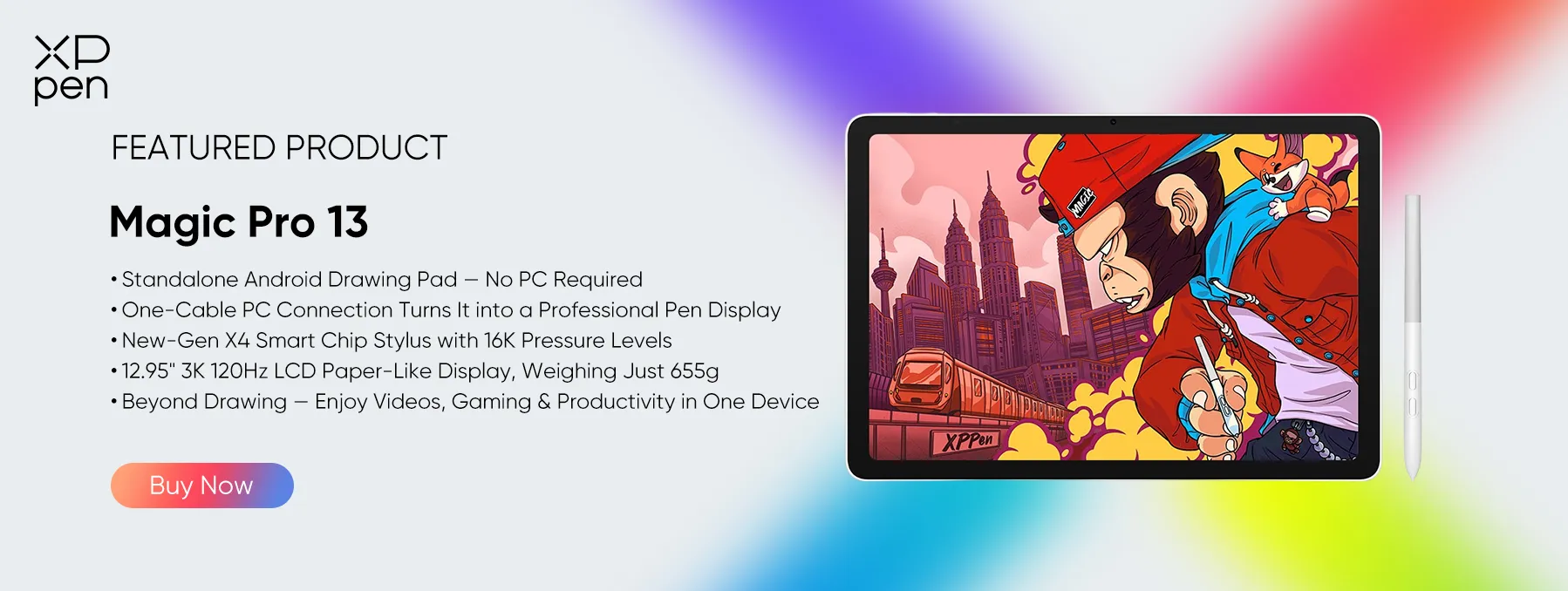
XPPen Magic Pro 13 is a professional studio flagship, designed for demanding creative workflows, 3D modeling, and professional digital painting. It packs a stunning 3K resolution 120Hz display with 650 nits peak brightness and 100% sRGB color accuracy. Equipped with the next-gen X4 Smart Chip Stylus (16K pressure levels, 2g IAF) and a dual USB-C port architecture that allows simultaneous 45W fast charging while tethered to your PC workstation as a primary drawing display.
Conclusion
The dream of running full desktop-grade 3D software completely untethered on an iPad is still very much a dream. Although remote streaming apps and excellent native alternatives (Nomad Sculpt, etc.) are both in the mix and help to some degree, an official native Blender app for iPadOS is still indefinitely on hold.
You can absolutely run your 3D workflow on your tablet via remote streaming to your desktop Blender, you can use mobile sculpting apps to do some work on the go, or you can go the route of a very capable standalone hybrid device (XPPen Magic Drawing Pad or Magic Pro 13, for example), and your 3D workflow doesn't have to be confined to a traditional desk setup.
FAQs
Q1: Can I install Blender directly onto an iPad?
There is no official native version of Blender on the iOS App Store now. The Blender Foundation put official development of an iPad app on hold indefinitely in January 2026 to prioritize Android development.
Q2: Is there a native Blender app for iPad coming?
There's no release date at this stage. Development has been put on hold to focus on the Android version, and the iPad version is effectively on hold for the foreseeable future.
Q3: Are there some alternative apps like Blender for iPad?
The top pro alternatives available natively on iPadOS are Nomad Sculpt, ZBrush for iPad, and Forger. For the hardware option that goes straight to PC, the XPPen Magic Pro 13 is a very good alternative.
About Us
Founded in 2005, XPPen is a leading global brand in digital art innovation under Hanvon UGEE. XPPen focuses on the needs of consumers by integrating digital art products, content, and services, specifically targeting Gen-Z digital artists. XPPen currently operates in 163 countries and regions worldwide, boasting a fan base of over 1.5 million and serving more than ten million digital art creators.
Learn moreRecommended Articles
BEGINNER How to Make 3D Models for Games [Step-by-Step Guide] TIPS Is Drawing Tablet a Must-have for 3D Design? KNOWLEDGE 5 Best 3D Modeling Softwares for Beginners and Pros TIPS 8 Best 3D Printing Design Software Tools 2026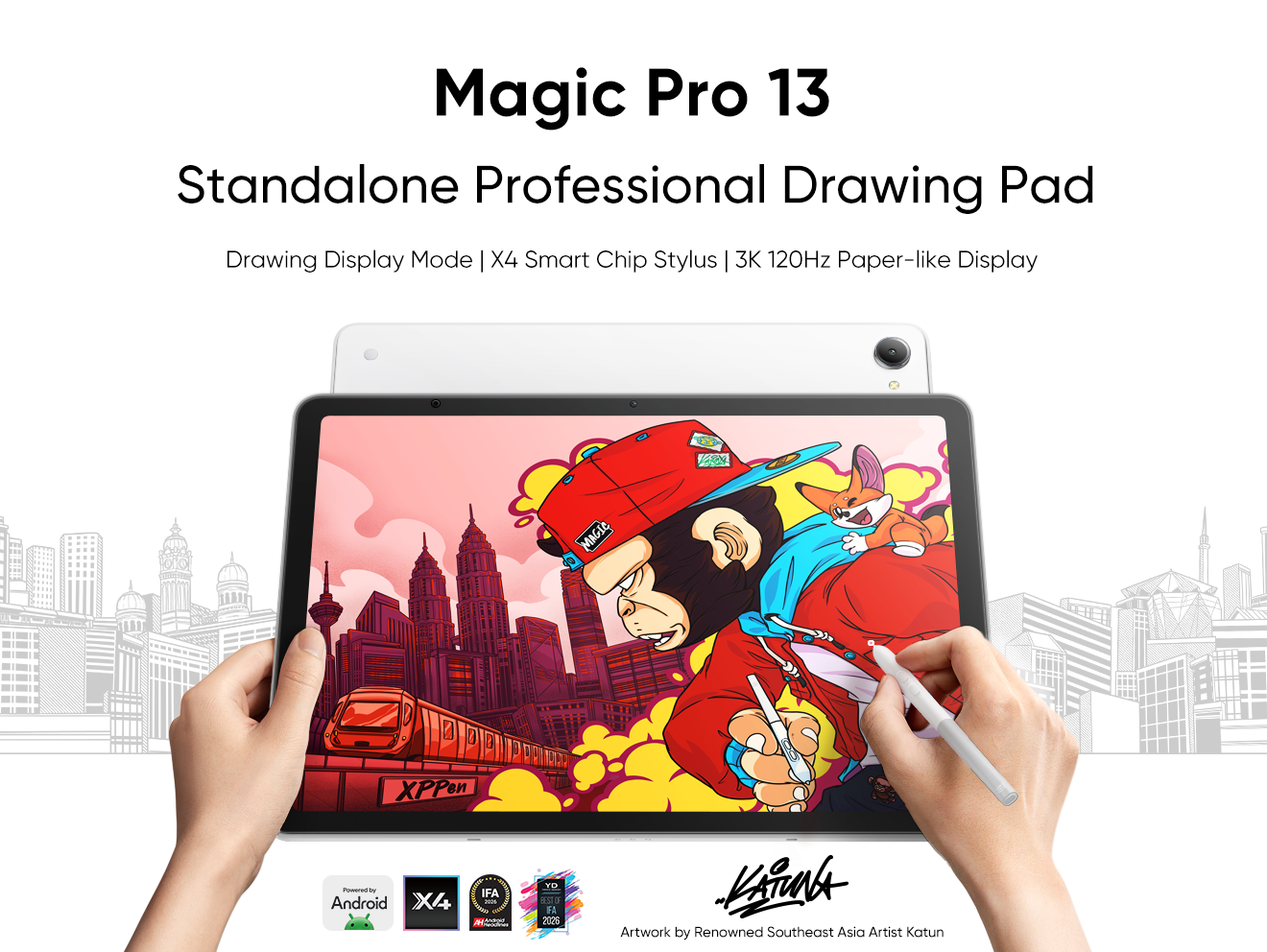


-
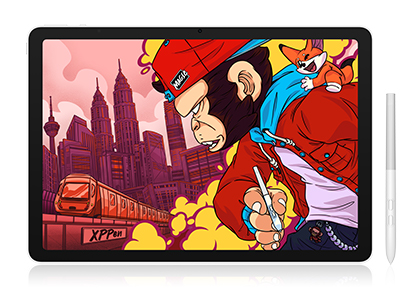 Magic Pro 13
Standalone Android 16 Drawing Pad, No Computer Required
3K 120Hz Display with 100% sRGB Color
X4 Smart Chip Stylus with 16K Pressure Levels
One-Cable PC Drawing Display Mode
It features:
Best standalone drawing pad for professional creativity anywhere
-
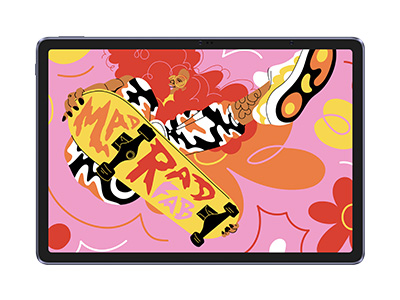 Magic Drawing Pad
X3 Pro Slim Stylus with 16,384 pressure levels and tilt support
X-Paper display featuring anti-glare and fingerprint resistance
Clip Studio Paint and ibis Paint X 3-month free membership
Super portable- just 6.9mm thin and weighs only 590g
Supports dual Windows and DP-IN functions
It features:
Powered by Android 15, no need to connect to a computer to use.
-
Magic Pro 13
Standalone Android 16 Drawing Pad, No Computer Required
3K 120Hz Display with 100% sRGB Color
X4 Smart Chip Stylus with 16K Pressure Levels
One-Cable PC Drawing Display Mode
It features:
Best standalone drawing pad for professional creativity anywhere
-
Magic Drawing Pad
X3 Pro Slim Stylus with 16,384 pressure levels and tilt support
X-Paper display featuring anti-glare and fingerprint resistance
Clip Studio Paint and ibis Paint X 3-month free membership
Super portable- just 6.9mm thin and weighs only 590g
Supports dual Windows and DP-IN functions
It features:
Powered by Android 15, no need to connect to a computer to use.
Looking for the Best Drawing & Design Apps?
Discover essential drawing techniques, expert tips, and the best app recommendations to boost your creativity and master digital art.
