5 Best Windows Tablets in 2026: Top Picks Compared
FOCUSEDWindows tablets give users more freedom than traditional tablets because they can run many desktop apps while keeping a compact design. Students can use them for study, professionals can handle office work, and creators can use touch and pen input for notes, sketches, and design tasks.
In 2026, buyers can choose from lightweight 2-in-1 models, business tablets, gaming tablets, and creator-focused devices. The best Windows tablet depends on your work, budget, screen needs, and portability.
Here are 5 options worth considering in 2026, along with an alternative, XPPen Magic Pro 13 Standalone Drawing Pad for people who mainly want a standalone pad for digital art.
Quick Answer: What Are the Best Windows Tablets in 2026?
| Windows Tablet | Best For | Display | RAM | Storage | Main Strength |
|---|---|---|---|---|---|
| Microsoft Surface Pro | Work and portability | 12" or 13" | Up to 64GB | Up to 1TB | Flexible 2-in-1 design |
| Lenovo ThinkPad X12 Detachable Gen 2 | Business users | 12.3" IPS | Up to 32GB | Up to 1TB | Business features |
| ASUS ROG Flow Z13 | Gaming and heavy work | 13.4" 2.5K 180Hz | Up to 128GB | 1TB | High-end performance |
| ASUS ProArt PZ13 | Creators | 13.3" 3K OLED | Up to 16GB | Up to 1TB | OLED display and pen support |
| Dell Pro 11 | Students and basic work | 11.6" HD | Up to 8GB | Up to 256GB | Compact 2-in-1 option |
Part 1. 5 Best Windows Tablets Compared
1. Microsoft Surface Pro
The Microsoft Surface Pro is a strong option for users who want a Windows computer that can switch between tablet and laptop use. Its built-in kickstand lets you position the screen for typing, video calls, reading, or working with a stylus, while the detachable keyboard provides a more familiar laptop experience.
Current Surface Pro generations offer different processor, memory, and storage configurations, so buyers should compare the exact model before purchasing. Selected 13-inch configurations offer up to 64GB of memory and 1TB of storage, while display features vary by generation. Microsoft also offers USB-C connectivity and Wi-Fi 7 on supported current models.
This combination makes the Surface Pro suitable for office tasks, studying, web research, presentations, and light creative work. Its slim design is particularly useful for people who move between a desk, classroom, and meetings throughout the day.
Key Features
-
Display options: Available in different screen sizes, including 12-inch and 13-inch models, depending on the generation.
-
Processor choices: Current configurations use Qualcomm Snapdragon processors, with capabilities varying by model.
-
Memory and storage: Selected 13-inch configurations offer up to 64GB RAM and 1TB storage.
-
Detachable keyboard: Switch between touchscreen tablet use and laptop-style typing.
-
High-refresh-rate display: Supported 13-inch configurations offer refresh rates of up to 120Hz.
-
Connectivity: USB-C and Wi-Fi 7 are available on supported models.
-
Pen support: Compatible Surface pens support handwriting, annotations, and drawing. Check accessory compatibility before buying.
Why Choose Surface Pro?
Choose the Surface Pro if you need a portable Windows device for documents, spreadsheets, browser-based tools, online classes, meetings, and note-taking. Its kickstand and detachable keyboard let you change working styles without carrying a separate laptop and tablet. The larger configurations also provide room for demanding multitasking, although buyers should select their memory and processor according to their workload.
Keep in mind: The keyboard and pen may cost extra, and Windows software compatibility can differ between processor platforms. Check the precise model's specifications and included accessories before purchasing.
2. Lenovo ThinkPad X12 Detachable Gen 2
The Lenovo ThinkPad X12 Detachable Gen 2 is designed for business users who need a compact Windows device for office work, travel, and meetings. Its 12.3-inch touchscreen has a 1920 × 1280 resolution, a 3:2 aspect ratio, and up to 400 nits of brightness in the listed configuration. This screen shape provides useful vertical space for reviewing documents, editing spreadsheets, and reading long web pages.
Lenovo offers Intel Core Ultra 5 and Core Ultra 7 Series 1 processor options, up to 32GB of soldered LPDDR5X memory, and SSD storage up to 1TB. Its detachable keyboard helps users move between conventional typing and touchscreen interaction. The device also includes Thunderbolt 4 and USB-C connectivity, making it easier to connect compatible monitors, docks, and external storage.
Key Features
-
3-inch IPS touchscreen: 1920 × 1280 resolution, 3:2 aspect ratio, and up to 400 nits of brightness.
-
Intel Core Ultra processors: Configurations include Core Ultra 5 134U and Core Ultra 7 164U.
-
Memory options: Up to 32GB LPDDR5X memory, soldered to the system board.
-
SSD storage: Configurations offer up to a 1TB PCIe NVMe SSD.
-
Business-ready cameras: 5MP front camera with infrared support and privacy shutter, plus an 8MP rear camera.
-
External connectivity: Thunderbolt 4, USB-C, and a 3.5mm audio jack.
-
Optional accessories: Lenovo lists pen and folio keyboard bundles on selected models.
Why Choose ThinkPad X12?
The ThinkPad X12 suits professionals who need a compact device for documents, video conferences, remote work, and business applications. Its Thunderbolt 4 connection is useful for compatible docks and external displays, while the detachable keyboard makes longer typing sessions more practical. The infrared camera can also simplify supported Windows sign-in workflows.
Keep in mind: The memory is soldered, so buyers should choose sufficient RAM when ordering. Keyboard and pen inclusion varies by configuration, and its integrated graphics are better suited to general business workloads than demanding gaming or GPU-intensive production.
3. ASUS ROG Flow Z13
The ASUS ROG Flow Z13 is a performance-focused Windows tablet for users who want gaming hardware in a portable form. The 2026 configuration described here can use an AMD Ryzen AI MAX+ 395 processor with integrated Radeon 8060S graphics. Selected configurations support up to 128GB of LPDDR5X memory and a 1TB PCIe 4.0 SSD.
Its 13.4-inch 2.5K touchscreen, 180Hz refresh rate, and 100% DCI-P3 color coverage make it suitable for fast-paced games as well as visual work that benefits from a high-refresh-rate display. The built-in kickstand supports different viewing angles, while the detachable keyboard allows users to type when needed.
This hardware also makes the Flow Z13 worth considering for demanding multitasking, video editing, and some 3D applications. However, performance depends on the specific configuration, software, power settings, and cooling conditions.
Key Features
-
4-inch touchscreen: 2.5K resolution for detailed game visuals and everyday content.
-
High refresh rate: Up to 180Hz for smoother motion in supported games and applications.
-
Wide color coverage: Listed configurations offer 100% DCI-P3 coverage.
-
AMD Ryzen AI MAX+ 395: A processor option for demanding computing workloads.
-
Radeon 8060S graphics: Integrated graphics designed for more demanding work than basic tablet graphics.
-
High memory capacity: Up to 128GB LPDDR5X in the specified configuration.
-
Fast storage: A 1TB PCIe 4.0 SSD in the configuration described.
-
Tablet and keyboard design: A kickstand and detachable keyboard support gaming, typing, and different viewing positions.
Why Choose ROG Flow Z13?
Consider the ROG Flow Z13 if you want a Windows tablet that can handle gaming alongside productivity and creative applications. Its high-refresh-rate display is useful for games with fast movement, while its processor and graphics configuration can support heavier workloads than basic education tablets. It is also an option for users who want one compact device for entertainment and work.
Keep in mind: Gaming performance, battery life, and fan noise can vary with the workload and power settings. Demanding games and creative applications generally consume more power than document editing, so this model is less suited to buyers who prioritize long unplugged sessions and minimum weight above performance.
4. ASUS ProArt PZ13
The ASUS ProArt PZ13 is a creator-focused Windows tablet built around a high-resolution OLED touchscreen and a power-efficient Snapdragon processor. Its 13.3-inch display has a 2880 × 1800 resolution, a 16:10 aspect ratio, and 100% DCI-P3 color coverage.
ASUS also lists Pantone validation and HDR True Black 500 certification for the specified model, features that can help users assess its suitability for visual work. The Snapdragon X Plus X1P-42-100 processor includes an integrated Qualcomm Adreno GPU and a Hexagon NPU rated at up to 45 TOPS. The listed configuration has 16GB of LPDDR5X memory and a 1TB PCIe 4.0 SSD.
Two USB4 ports support data transfer, power delivery, and display output, while an SD Express card reader helps photographers and other creators transfer compatible media. Stylus support adds options for sketching, annotations, and handwritten notes.
Key Features
-
3-inch 3K OLED display: 2880 × 1800 resolution with a 16:10 aspect ratio.
-
Color-focused screen: 100% DCI-P3 coverage and Pantone validation in the listed configuration.
-
Snapdragon X Plus processor: Eight CPU cores and an integrated Qualcomm Adreno GPU.
-
AI processing: Hexagon NPU rated at up to 45 TOPS.
-
Memory and storage: 16GB LPDDR5X memory and a 1TB PCIe 4.0 SSD in the specified model.
-
USB4 connectivity: Two USB-C ports support data, power delivery, and external displays.
-
Media transfer: An SD Express 7.0 card reader supports compatible memory cards.
-
Pen and keyboard support: Touch and stylus input support creative tasks, while keyboard accessories provide a more traditional work setup.
Why Choose ProArt PZ13?
The ProArt PZ13 is a suitable choice for artists, photographers, and other creators who prioritize screen quality and portability. Its OLED panel delivers deep blacks and high contrast, while its wide color gamut supports color-conscious workflows. The card reader and USB4 connections are useful when transferring media or attaching compatible peripherals.
Keep in mind: Its 60Hz screen does not offer the same refresh rate as the ROG Flow Z13. Also, some Windows applications and plug-ins may behave differently on Snapdragon-based systems than on x86 computers. Check software compatibility before choosing it for a professional workflow. Keyboard availability can vary by package.
5. Dell Pro 11
The Dell Pro Education 11 is a compact Windows device designed for educational environments and everyday computing. The PE11260 series is offered in laptop and 2-in-1 configurations, with selected versions providing an 11-inch touchscreen that can be used for touch-based interaction and classroom activities.
Dell lists Intel N150 and N250 processor options, while memory and storage depend on the selected configuration. For example, Dell's US listing shows options with 4GB or 8GB of LPDDR5 memory and storage configurations that can include 128GB UFS or a 256GB SSD.
These entry-level components are intended for tasks such as online learning platforms, word processing, web browsing, email, and video calls rather than demanding games or complex creative applications. Wi-Fi 6E is available in listed configurations.
Dell Pro 11
Key Features
-
Compact display: An 11-inch HD touch option is available in the 2-in-1 configuration.
-
Processor choices: Intel Processor N150 or N250, depending on configuration.
-
Windows operating system: Listed configurations include Windows 11 Pro.
-
Memory options: 4GB or 8GB LPDDR5, depending on the selected model.
-
Storage choices: Available configurations include 128GB UFS and 256GB SSD options.
-
Wireless connectivity: Wi-Fi 6E is offered in listed configurations.
-
Flexible form factor: The 2-in-1 version supports touchscreen interaction for school and everyday tasks.
Why Choose Dell Pro 11?
Choose the Dell Pro 11 if your priorities are basic Windows applications, portability, and education-focused use. It can serve students who mainly need to access online lessons, write assignments, research topics, and attend video calls. The touchscreen option can also make navigating educational apps more convenient.
Keep in mind: The Intel N-series processor and lower memory configurations are not intended for heavy multitasking, demanding editing, or modern AAA gaming. If you routinely keep many browser tabs and applications open, compare higher-memory options or consider a more capable tablet. Confirm whether the exact configuration includes a touchscreen, keyboard, and the storage capacity you need.
Part 2. What Should You Look for in a Windows Tablet?
Choosing the right Windows tablet depends on how you plan to use it. Before buying, check the processor, RAM, storage, display, keyboard, pen support, and ports. These features affect performance, portability, comfort, and how well the tablet handles your daily tasks.
1. Processor
The processor controls how well a tablet handles apps and multitasking. For basic work, an entry-level chip can handle web browsing, documents, email, and video calls. For professional work, look for newer Intel Core Ultra, AMD Ryzen AI, or Qualcomm Snapdragon processors.
2. RAM and Storage
Choose at least 8GB of RAM for basic Windows use. For office work, editing, and multitasking, 16GB makes a better choice. Storage also matters. A 256GB SSD works for normal users, while 512GB or 1TB gives more room for files, apps, photos, and videos.
3. Display
A good display should provide sharp text, accurate colors, and comfortable viewing. A 12- to 13-inch screen works well for portability. OLED panels offer strong contrast and deep blacks, while high refresh rates can make scrolling and pen movement feel smoother.
4. Keyboard and Pen Support
A detachable keyboard can turn a tablet into a small laptop. Pen support also matters for students, designers, and people who take handwritten notes. Check whether the keyboard and pen come with the device or require a separate purchase.
5. Ports
Check the ports before buying. USB-C is now common, but some users still need USB-A, HDMI, a headphone jack, or a card reader. Thunderbolt or USB4 can help users connect fast storage and external displays.
Part 3. An Alternative for Digital Artists: XPPen Magic Pro 13
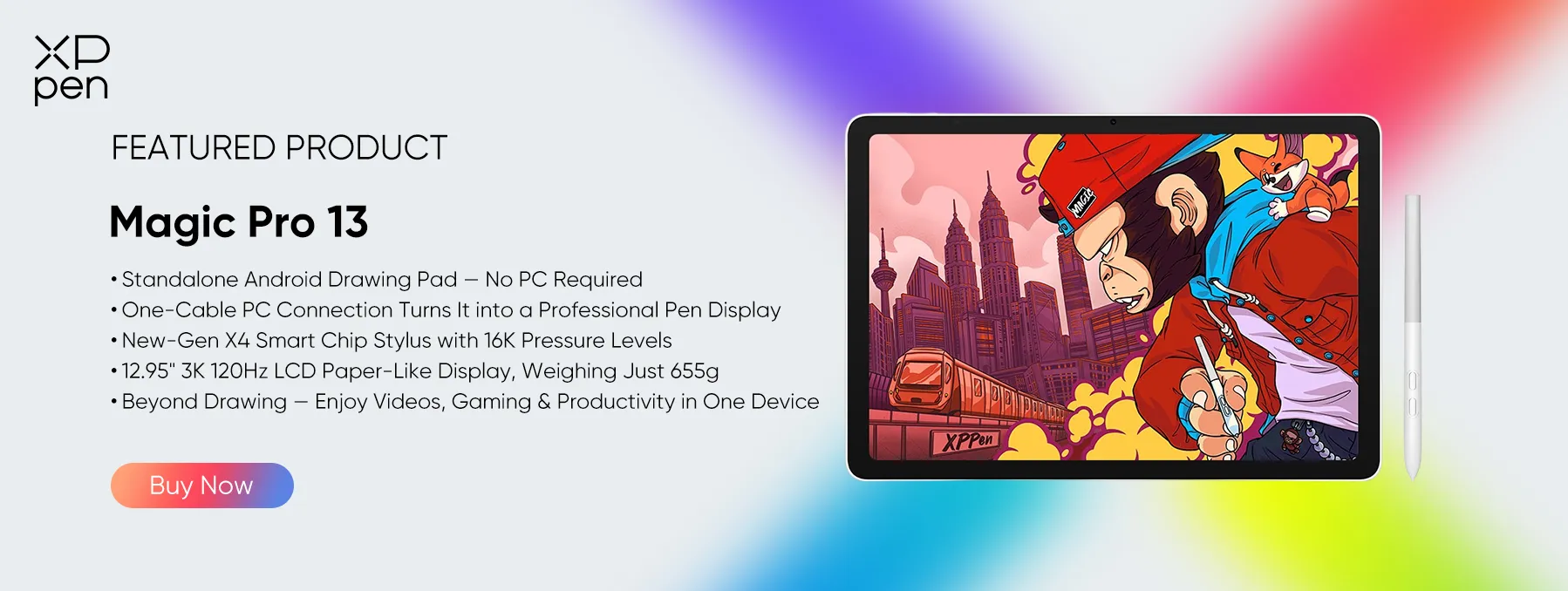
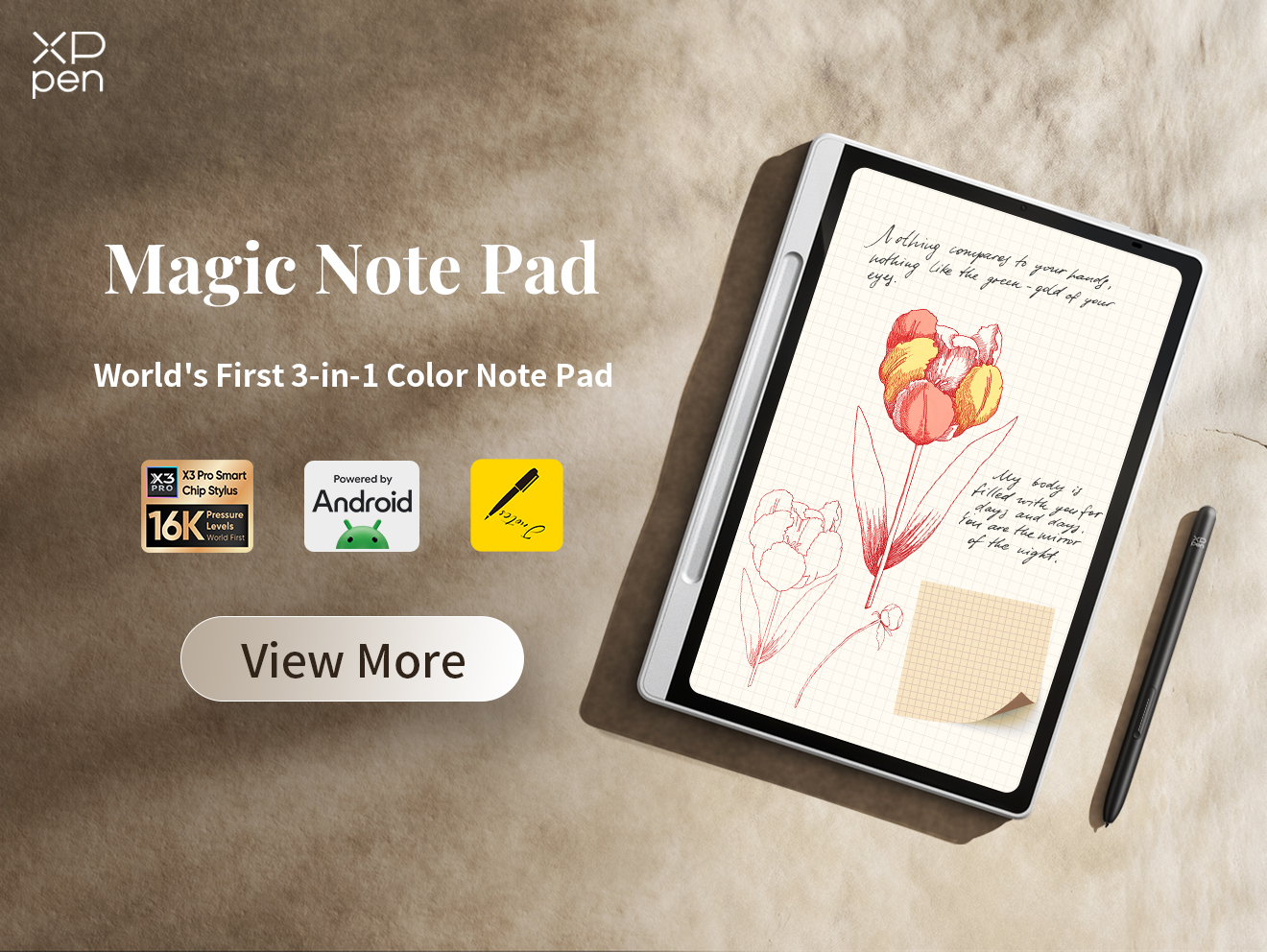
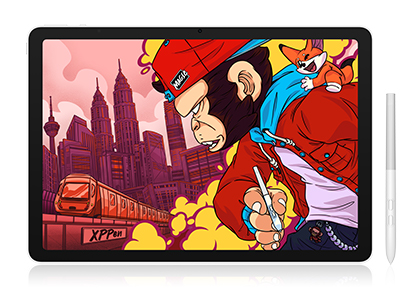
For digital artists, illustrators, design students, and users who prioritize pen-based creativity, a dedicated drawing device may offer a more focused experience. If your main goal is drawing, sketching, annotating visual references, or creating artwork on the go, the XPPen Magic Pro 13 Standalone Drawing Pad is worth considering as an alternative to a traditional Windows tablet.

The Magic Pro 13 runs Android 16 rather than Windows. It combines a standalone drawing pad with a dedicated drawing display mode, allowing users to create independently or connect it to a compatible PC for a desktop drawing workflow. This makes it particularly appealing to users who want a portable creative device without giving up the option of working with a larger computer.

Key Features of XPPen Magic Pro 13
-
95-inch 3K display: The 3096 × 2064 resolution and 3:2 aspect ratio provide detailed visuals for illustration, sketching, and visual design.
-
Paper-like drawing surface: AG+AF nano-etched glass provides a textured drawing feel, while the display offers up to 650 nits of peak brightness.
-
Standalone creative experience: Powered by a MediaTek Dimensity 8300 processor and running Android 16, it supports mobile creative apps without requiring a connected PC.
-
Professional PC drawing display mode: Connect to a compatible computer through a single full-featured USB-C cable to use the device as a professional drawing display.
-
Portable design: At approximately 655g and 6.65mm thick, it is easy to carry between home, school, a studio, and other workspaces.
Is XPPen Magic Pro 13 Right for You?
Choose the XPPen Magic Pro 13 if your priorities are digital drawing, illustration, pen responsiveness, portability, and the flexibility to connect to a PC for a larger creative workflow . It is especially suitable for artists who want a standalone drawing device and already have a Windows computer for tasks that require desktop software.
If you need one device to run Windows applications, manage documents, attend meetings, and handle a wide range of productivity tasks, the Microsoft Surface Pro or another full Windows tablet remains the better fit. But if drawing is your primary use case, the Magic Pro 13 offers a more specialized alternative worth exploring.
Part 4. FAQs About Windows Tablets
1. What is the best Windows tablet in 2026?
The Microsoft Surface Pro is a strong all-around option for work, study, and portability. The Lenovo ThinkPad X12 Detachable Gen 2 is worth considering for business use, while the ASUS ROG Flow Z13 suits gaming and demanding workloads. Creators may prefer the ASUS ProArt PZ13 for its OLED screen, and the Dell Pro 11 fits basic educational tasks.
2. Can a Windows tablet replace a laptop?
Yes, a Windows tablet can replace a laptop for many users, particularly when it supports a detachable keyboard, desktop applications, and sufficient memory and storage. Surface Pro and ThinkPad X12 are suitable examples. However, users who need sustained high performance, extensive port selection, or a larger screen should compare their requirements before switching.
3. Which Windows tablet is best for students?
The best choice depends on the student's workload and budget. The Surface Pro suits students who need a versatile device for research, assignments, and handwritten notes. The Dell Pro 11 is an option for basic online learning and document work, while the ThinkPad X12 may appeal to students who need business-oriented features.
4. How much RAM do you need in a Windows tablet?
For basic browsing and document editing, 8GB may be sufficient. For multitasking, office applications, and light creative work, 16GB is a more comfortable target. Demanding workloads may benefit from 32GB or more, depending on the software. Remember that some tablets use soldered memory, so you should choose the required capacity before purchasing.
5. Do Windows tablets come with a keyboard and stylus?
Not always. Some models and bundles include a keyboard or pen, while others sell these accessories separately. Availability may also vary by retailer and region. Check the exact product configuration and package contents before buying to avoid unexpected additional costs.
Final Thoughts
The best Windows tablet depends on your priorities, whether that’s productivity, business, gaming, or creative work. The Surface Pro offers versatility, the ThinkPad X12 suits business users, the ROG Flow Z13 delivers powerful performance, the ProArt PZ13 appeals to creators, and the Dell Pro 11 is suitable for everyday tasks.
If digital drawing is your main focus, the XPPen Magic Pro 13 Standalone Drawing Pad is another option worth considering. With its standalone drawing capabilities and PC connectivity, it offers flexibility for artists who want to create on the go.
Choose the device that best matches your workflow, software requirements, and budget.
About Us
Founded in 2005, XPPen is a leading global brand in digital art innovation under Hanvon UGEE. XPPen focuses on the needs of consumers by integrating digital art products, content, and services, specifically targeting Gen-Z digital artists. XPPen currently operates in 163 countries and regions worldwide, boasting a fan base of over 1.5 million and serving more than ten million digital art creators.
Learn moreRecommended Articles
ROUNDUPS XPPen Magic Pro 13 vs Magic Drawing Pad: Which to Buy? FOCUSED Magic Pro 13 vs iPad Pro: The Best Standalone Drawing Pad? FOCUSED Best Tablets for Students: 7 Picks Compared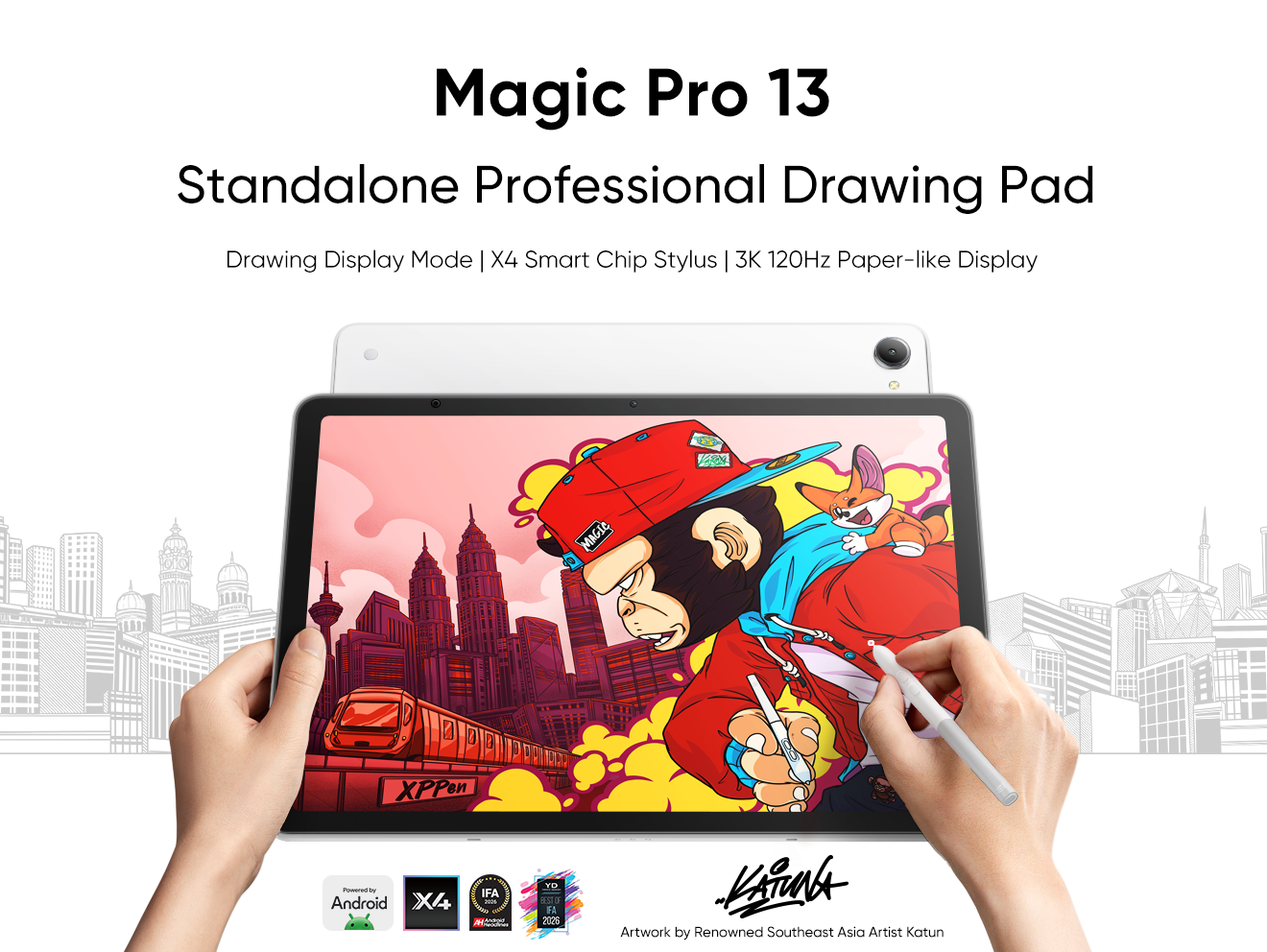


Ready to invest in the right tools?
Get expert buying advice, unbiased reviews, and exclusive deals on drawing tablets, and accessories.
