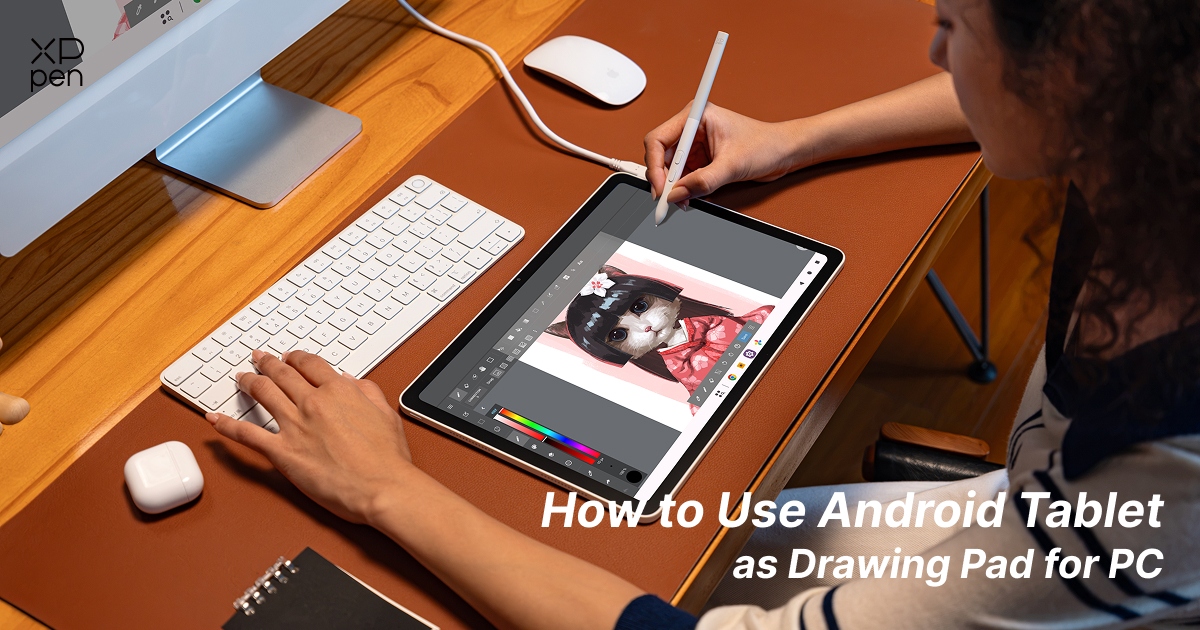
Use Android Tablet as Drawing Pad for PC [Complete Guide]
KNOWLEDGEDo you want to use your Android tablet as a drawing pad for your PC without buying an expensive graphics tablet? Whether you own a Samsung Galaxy Tab, Xiaomi Pad, or a dedicated Android drawing tablet, there are several ways to connect it to a Windows computer and use it for digital art.
Some Android tablets can work as drawing displays through third-party applications, while dedicated Android drawing tablets offer more direct connectivity. For example, the XPPen Magic Pro 13 and XPPen Magic Drawing Pad support Drawing Display Mode, allowing users to connect to a computer with a single USB-C cable and instantly use the device as a professional drawing display.
This guide explains how to use an Android tablet as a PC drawing pad, compares popular connection methods, introduces hardware-level one-cable connectivity, and shares practical tips for improving your drawing experience.
Part 1. Can You Use an Android Tablet as a Drawing Pad for PC?
Yes. You can use a compatible Android tablet as a drawing pad or drawing display for a Windows PC. The exact experience depends on your tablet's hardware and the connection method. There are 3 common approaches:
-
Third-party drawing tablet software: Applications such as SuperDisplay and VirtualTablet connect your Android tablet to a PC and enable stylus input.
-
Screen streaming and remote desktop: Tools such as Sunshine + Moonlight let you access and control desktop applications from your tablet.
-
Hardware-level Drawing Display Mode: Compatible dedicated drawing tablets, such as the XPPen Magic Pro 13 and and XPPen Magic Drawing Pad , support a direct USB-C connection for use as a computer drawing display.
The main difference is how the devices communicate with your PC. Software-based solutions rely on applications, drivers, or network connections, while supported hardware-level solutions provide a more direct plug-and-play workflow.
Part 2. Best Ways to Use an Android Tablet as a Drawing Pad for PC
There are several ways to connect an Android tablet to a computer. The best option depends on whether you prioritize convenience, pressure sensitivity, compatibility, or a direct wired connection.
1. XPPen Android Tablets’ Hardware-Level One-Cable Connection
For creators who want a zero-lag professional workflow, direct hardware connection via a full-featured USB-C cable is the way to go.
Advanced hybrid creative Android tablets, like XPPen Magic Pro 13 and and XPPen Magic Drawing Pad , have native DisplayPort-In (DP-IN) screen sharing, called Drawing Display Mode . That's what enables these modern tablets to function as both standalone Android/Windows computers and wired pen displays for a PC.

When you connect via a video-capable USB-C cable, DP-IN takes the uncompressed video signal straight from the host PC's graphics card and feeds it to the tablet's screen.
It's not like any of the wireless screen-casting tools out there (Samsung Second Screen, Apple Sidecar, Duet Display, etc.), which all compress the video over Wi-Fi and route it via local network protocols and background servers. As it's a native wired monitor, it doesn't suffer from network lag, compression artifacts, or Wi-Fi dropouts.
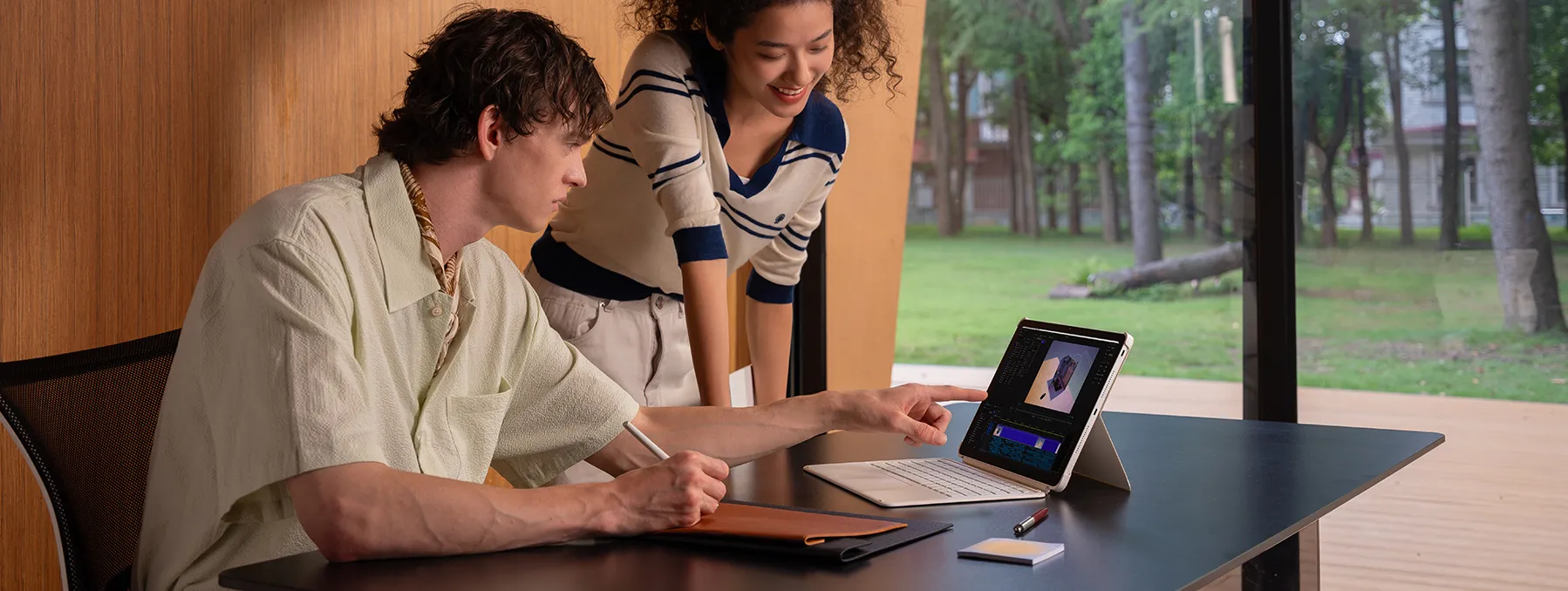
Key advantages of XPPen’s Direct Hardware DP-IN Mode:
-
One-cable connection: Connect the compatible device to your computer using a single USB-C cable.
-
Plug-and-play workflow: Switch to Drawing Display Mode and use the device as a drawing display for your PC.
-
Less complicated setup: Avoid relying on wireless screen streaming or multiple third-party applications.
-
Flexible creative workflow: Use your computer's desktop drawing applications while drawing on the tablet.
For artists who want to use an Android drawing tablet as a PC drawing display, this offers a convenient alternative to configuring general-purpose Android tablets with third-party software.
2. SuperDisplay
Undeniably the best-performing option for Android-to-Windows streaming, SuperDisplay has near-native drawing responsiveness with full pressure sensitivity, palm rejection, cursor hover, and tilt tracking (all the things you'd expect in professional creative apps like Photoshop or Krita).
It connects your Android tablet to your PC either via a physical USB cable (definitely the way to go if you want minimal lag) or over a local Wi-Fi network. Users have reported successful pressure-sensitive drawing with compatible devices.
Advantages:
-
Supports stylus input and pressure sensitivity on compatible setups.
-
Can turn an Android tablet into a drawing display.
-
Offers USB and Wi-Fi connection options.
-
Requires a Windows driver on the computer.
Things to Consider:
-
Some users report minor input lag.
-
Palm rejection may not work as well as drawing directly on the Android tablet.
-
Certain tablet models may have USB or wireless connection problems.
3. VirtualTablet
Want to use Android tablet as drawing pad for PC free? VirtualTablet is a capable, very inexpensive (and in fact partially free) utility that takes input from your tablet's stylus and maps it directly to your PC desktop via Wi-Fi, Bluetooth, or USB tethering.
Users have described its free version as suitable for basic drawing, with additional features available through paid options. Just be aware that the level of pressure sensitivity you achieve can vary from one piece of hardware and setup to another.
Advantages:
-
Offers an alternative to dedicated drawing tablet hardware.
-
Supports pressure sensitivity on compatible devices.
-
Can be used with a phone or tablet.
Things to Consider:
-
Available features may depend on the version.
-
Stylus and pressure compatibility should be tested on your own setup.
4. Sunshine + Moonlight
Sunshine and Moonlight provide another approach. Instead of functioning solely as drawing tablet software, they allow you to stream your PC desktop to your Android tablet. You can access desktop applications such as Photoshop, Krita, or Blender from your tablet.
Advantages:
-
Provides access to desktop applications.
-
Offers a flexible remote drawing workflow.
-
Can be useful when traditional drawing tablet software does not meet your needs.
Things to Consider:
-
Drawing responsiveness depends on network conditions and device performance.
-
Stylus pressure and multi-touch gestures may not work consistently.
-
Additional configuration may be required.
Some users have reported successful setups with particular versions of Moonlight and Sunshine. These individual experiences do not guarantee compatibility across all devices.
5. Samsung Second Screen
Samsung tablets with the Second Screen feature may connect to compatible Windows PCs without requiring a separate drawing display application.
A Galaxy Tab S9 FE user reported eventually choosing Samsung's built-in screen-sharing feature after encountering problems with SuperDisplay. This can be a convenient way to use your tablet as an additional display. However, screen connection alone does not guarantee that stylus pressure will work in desktop drawing applications.
6. EasyCanvas, PenBridge, and Other Alternatives
Some users also recommend other tools below. These tools are not interchangeable. Check their current documentation and supported operating systems before choosing one.
-
EasyCanvas : A Galaxy Tab user reported good results with an Intel-based laptop, although some compatibility issues occurred on AMD systems.
-
PenBridge : Some users reported improved stability after connecting through USB and enabling USB tethering.
-
Weylus: A self-hosted screen-sharing option, but one commenter noted that stylus events were supported on Linux rather than Windows or macOS in the version they discussed.
-
Parsec : A remote desktop alternative. Users discussed its low latency and security features, while noting that stylus support is associated with its paid version.
Part 3. XPPen Drawing Display Mode vs. Software-Based Connection Methods
Not all Android tablet drawing setups work in the same way. Understanding the differences can help you choose the right solution.
| Connection Method | Connection Type | Main Advantage | Potential Limitation |
|---|---|---|---|
| XP-Pen Drawing Display Mode | Hardware-level USB-C | One-cable, plug-and-play workflow | Only XPPen's standalone Android drawing tablets support this feature |
| SuperDisplay | USB or Wi-Fi | Drawing display functionality and stylus support | Driver and device compatibility |
| VirtualTablet | Software-based connection | Alternative drawing tablet solution | Feature and stylus compatibility |
| Sunshine + Moonlight | Network streaming | Remote access to desktop applications | Network latency and input support |
| Samsung Second Screen | Wireless display | Built-in option on compatible Samsung devices | Stylus pressure may not work as expected |
If you already own a general-purpose Android tablet, third-party software may be a practical way to get started.
However, if you want a more direct connection without relying on wireless streaming or configuring multiple applications, a compatible XP-Pen device, like XPPen Magic Pro 13 and and XPPen Magic Drawing Pad , with Drawing Display Mode offers a dedicated alternative.
Part 4. How to Use Android Tablet as Drawing Pad for PC
What You Need Before Getting Started
Before connecting your Android tablet to a PC, prepare the following:
1. An Android Tablet and Compatible Stylus
You need a touchscreen tablet. For digital drawing, a pressure-sensitive stylus is strongly recommended.
Samsung Galaxy Tab devices with S Pen support and compatible Xiaomi tablets are examples of devices that may support pressure-sensitive input. Dedicated Android drawing tablets, such as the XP-Pen Magic Drawing Pad, are also designed with creative workflows in mind.
However, having a pressure-sensitive stylus does not automatically guarantee that pressure will work when connected to a PC. Compatibility depends on the device, stylus, connection method, drivers, and drawing application.
2. A Windows PC
Your computer should be capable of running your preferred drawing software, such as Photoshop, Krita, Clip Studio Paint, Blender, or other compatible creative applications. In a remote streaming setup, these desktop applications run on your PC, while the tablet acts as the display and input device.
3. A Suitable Connection Method
Depending on your tablet and software, you may connect through:
-
USB-C cable
-
USB connection with a compatible driver
-
Wi-Fi
-
Wireless screen sharing
-
Hardware-level Drawing Display Mode
If you want a simple setup, check whether your tablet supports direct USB-C drawing display connectivity before choosing a software-based solution.
Steps to Use Android Tablet as Drawing Pad for PC
Here are the general setup steps using wired/wireless Apps like SuperDisplay or EasyCanvas.
1. Prepare your stylus. Ensure your tablet is using amanufacturer-approved active stylus or an S Pen. Basic rubber-tip capacitive styluses lack the support for pressure sensitivity.
2. Enable Developer Options (if required by the app):
-
Go to Settings > About Tablet and tap Build Number 7 times in a row until you've unlocked Developer Options.
-
Open Developer Options and turn on USB debugging.
3. Install the Software:
-
Download the mobile client app (SuperDisplay or EasyCanvas) from the Google Play Store onto your Android tablet.
-
Download and install the appropriate desktop client software and drivers onto your Windows PC.
4. Connect the Devices:
-
Wired (best for lowest lag and continuous charging): connect your Android tablet to your PC via a high-speed USB-C data cable.
-
Wireless: ensure both your PC and your tablet are on the same local Wi-Fi network (some streaming apps will require an initial USB plug-in to pair the devices before you can switch to wireless mode).
5. Configure your art software: Open your software (Photoshop, Clip Studio Paint, Krita, etc.) on your PC. Go into the device preferences, and make sure that tablet and pen pressure input is switched on.
Step-by-Step Setup:
-
Connect a full-featured, high-speed USB-C data cable between the tablet and your Windows or Linux PC.
-
Select 'DP-in Screen Sharing' or 'Drawing Display Mode' from the quick settings prompt on the tablet.
-
Launch Photoshop, Krita, or Blender straight away. Your PC immediately detects the tablet as a native secondary pen display with no configuration required, no driver crashes, and no network lag.
Common Problems and How to Fix Them
| Problem | Possible Cause | What to Try |
|---|---|---|
| Tablet cannot connect to PC | Network, USB, or driver issue | Check the cable, network, and Windows driver |
| Screen is black after connection | Software or display compatibility issue | Restart the connection and check display settings |
| Stylus works but pressure does not | Pressure input is unsupported or incorrectly configured | Check stylus compatibility and drawing app settings |
| Noticeable drawing lag | Network or device performance | Try a wired connection if supported or improve Wi-Fi stability |
| Palm rejection does not work | Limited input support | Check the app's palm rejection and stylus settings |
| USB-C connection does not work | Cable or port does not support the required connection | Check device and cable specifications |
Part 5. Pros and Cons of Using an Android Tablet as a PC Drawing Pad
Pros
-
Save Money: You may not need to buy separate drawing hardware if you already own a compatible Android tablet. Software options such as VirtualTablet and other connection tools provide different ways to get started.
-
Reuse Existing Devices: Some users have successfully repurposed older tablets for creative work, extending the useful life of their existing hardware.
-
Access Desktop Drawing Software: With a suitable connection, you can use desktop applications such as Photoshop, Krita, and Clip Studio Paint from your tablet.
-
Enjoy a Flexible Workspace: Use your PC monitor for reference images, tool panels, or other windows while drawing on the tablet.
-
Simplify Connectivity with Dedicated Drawing Display Mode: Compatible XP-Pen Magic Drawing Pad and Magic Pro 13 devices support a hardware-level one-cable connection. This provides a more direct way to use the device as a professional drawing display for a computer.
Cons
-
Pressure Sensitivity Is Not Guaranteed on Every Setup: Some users reported that their stylus worked but pressure sensitivity did not. Compatibility varies between devices, software, drivers, and drawing applications.
-
Input Lag Can Affect Drawing: Wireless streaming performance depends on network conditions and hardware.
-
Palm Rejection May Be Limited: Some users found palm rejection less reliable than when drawing directly on their Android tablets.
-
Multi-Touch Gestures May Not Work Properly: Pinch-to-zoom, canvas rotation, and other gestures may be missing or behave differently in remote desktop setups.
-
Device Compatibility Can Be Complicated: A connection method that works on one tablet or PC may fail on another. USB specifications, operating system versions, and hardware configurations all matter.
Part 6. Tips for a Better Android Tablet Drawing Experience
1. Check Compatibility Before Buying Software
Confirm that your tablet model, stylus, Windows version, and drawing application are supported. If you prefer a direct wired setup, check whether your device supports hardware-level Drawing Display Mode.
2. Use a Compatible USB-C Cable
For XP-Pen Drawing Display Mode, use a USB-C cable that meets the device's connection requirements.
3. Test Pressure Sensitivity Early
Open your drawing application and create several brush strokes with different pressure levels.
Check whether:
-
Light pressure creates thinner or lighter strokes.
-
Firm pressure creates thicker or darker strokes.
-
Pressure settings work with your selected brush.
4. Test Palm Rejection and Touch Gestures
Before starting a long drawing session, test whether your palm causes unwanted marks and whether gestures such as pinch-to-zoom and canvas rotation work properly.
5. Optimize Your Connection
If you use a wireless setup, keep both devices on a reliable network. If your software supports USB, consider a wired connection for a more stable workflow.
6. Keep Your Software Updated
Check for updates to tablet applications, Windows drivers, streaming clients, and drawing software. Consult official compatibility information if problems continue.
Conclusion
By transforming your mobile slate to a desktop input device you can have the full-fledge power of desktop creative software, but without the limitations of a conventional monitor.
While the third party apps can help you start with the basics of sketching, there is nothing like going the native way with hardware-supported devices like XPPen Magic Pro 13 and and XPPen Magic Drawing Pad . A true, zero-latency, professional-grade 2-in-1 studio approach for modern-day sketching and digital art. Enjoy the best of both worlds - the mobility of a mobile and the power of a computer.
So which device will you choose to use Android tablet as drawing pad for PC?
Frequently Asked Questions (FAQs)
Q1: How do I use my Android tablet as a drawing pad for my PC?
Third-party mirroring apps (Super-display, USB-network drivers etc.) or a dedicated hybrid tablet (XPPen Magic Drawing Pad and Magic Pro 13) with native hardware DP-IN screen share via one single USB-C cable is what you can use for your Android tablet as PC drawing pad.
Q2: How do I use a mobile as a drawing tablet for PC?
Install client-server mirroring app (example: VirtualTablet or Spacedesk) on your mobile device and Windows/Linux PC. And then use a Wi-Fi/USB tethering to connect them.
Q3: Can I connect my iPad to my Windows PC as a drawing tablet?
Yes. You can use your ipad as drawing tablet for your pc with the help of 3rd party app(example: EasyCanvas or Astropad Studio). And please note, that latency is very much related to the quality of your local network/usb connectivity.
Q4: Can I connect a drawing tablet to my PC?
Yes. You can use traditional drawing tablets which will be connected to PC directly via USB or HDMI cable. And you can use modern hybrid android tablets as standalone device or via full-featured USB-c cable to connect it to pc as your secondary drawing display.
About Us
Founded in 2005, XPPen is a leading global brand in digital art innovation under Hanvon UGEE. XPPen focuses on the needs of consumers by integrating digital art products, content, and services, specifically targeting Gen-Z digital artists. XPPen currently operates in 163 countries and regions worldwide, boasting a fan base of over 1.5 million and serving more than ten million digital art creators.
Learn moreRecommended Articles
ROUNDUPS Best Android Tablets for Drawing in 2026 TIPS How to Use iPad as a Drawing Tablet for PC in 2026 FOCUSED XPPen Magic Pro 13 Review: Is It Worth Buying? ROUNDUPS 2 Best XPPen Standalone Drawing Tablets for Beginners and Pros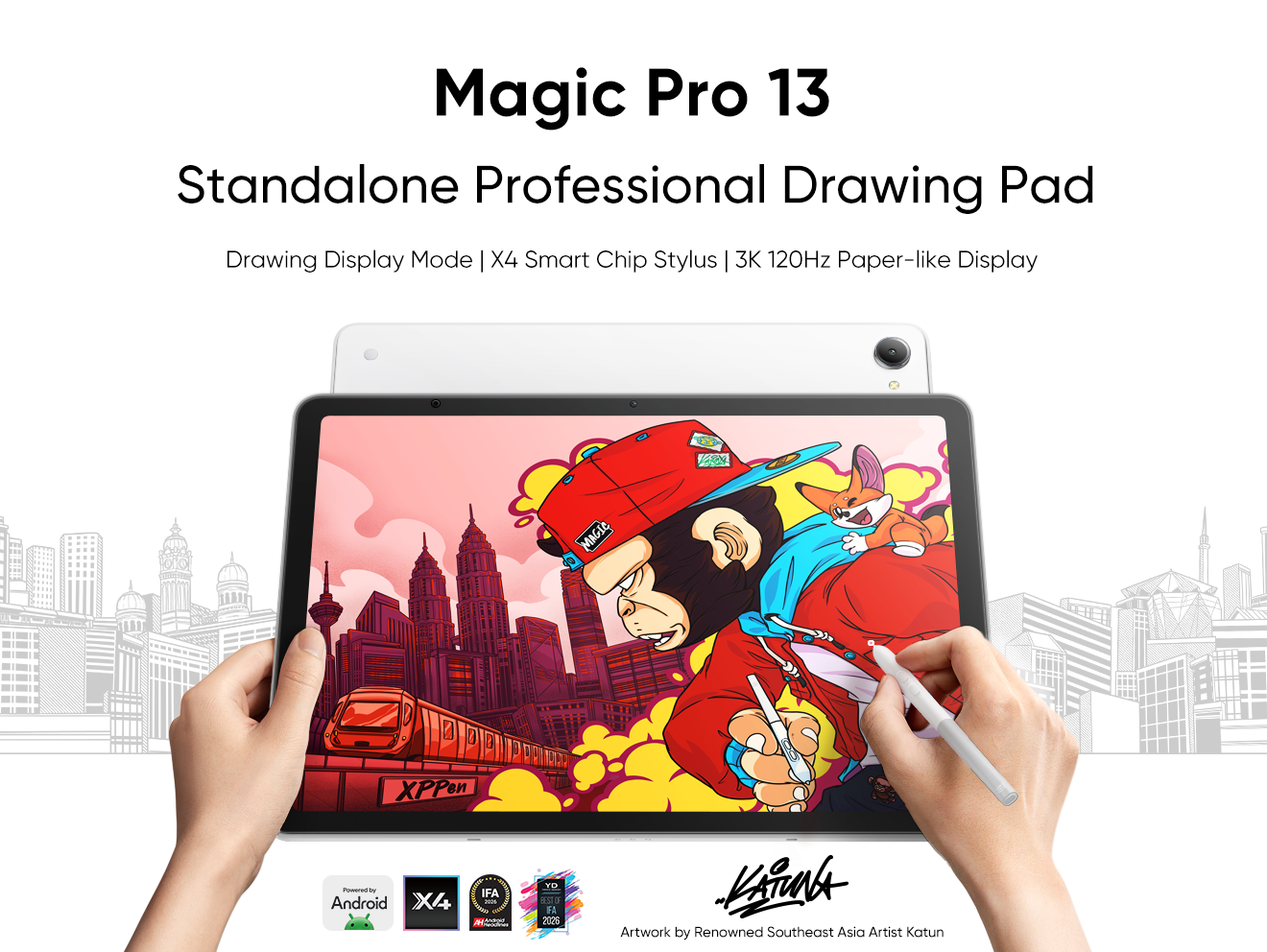


-
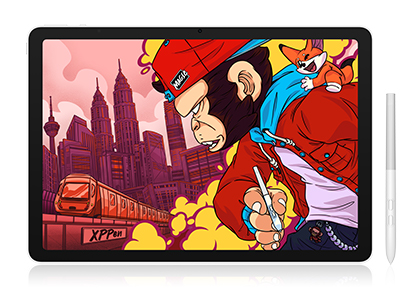 Magic Pro 13
Standalone Android 16 Drawing Pad, No Computer Required
3K 120Hz Display with 100% sRGB Color
X4 Smart Chip Stylus with 16K Pressure Levels
One-Cable PC Drawing Display Mode
It features:
Best standalone drawing pad for professional creativity anywhere
-
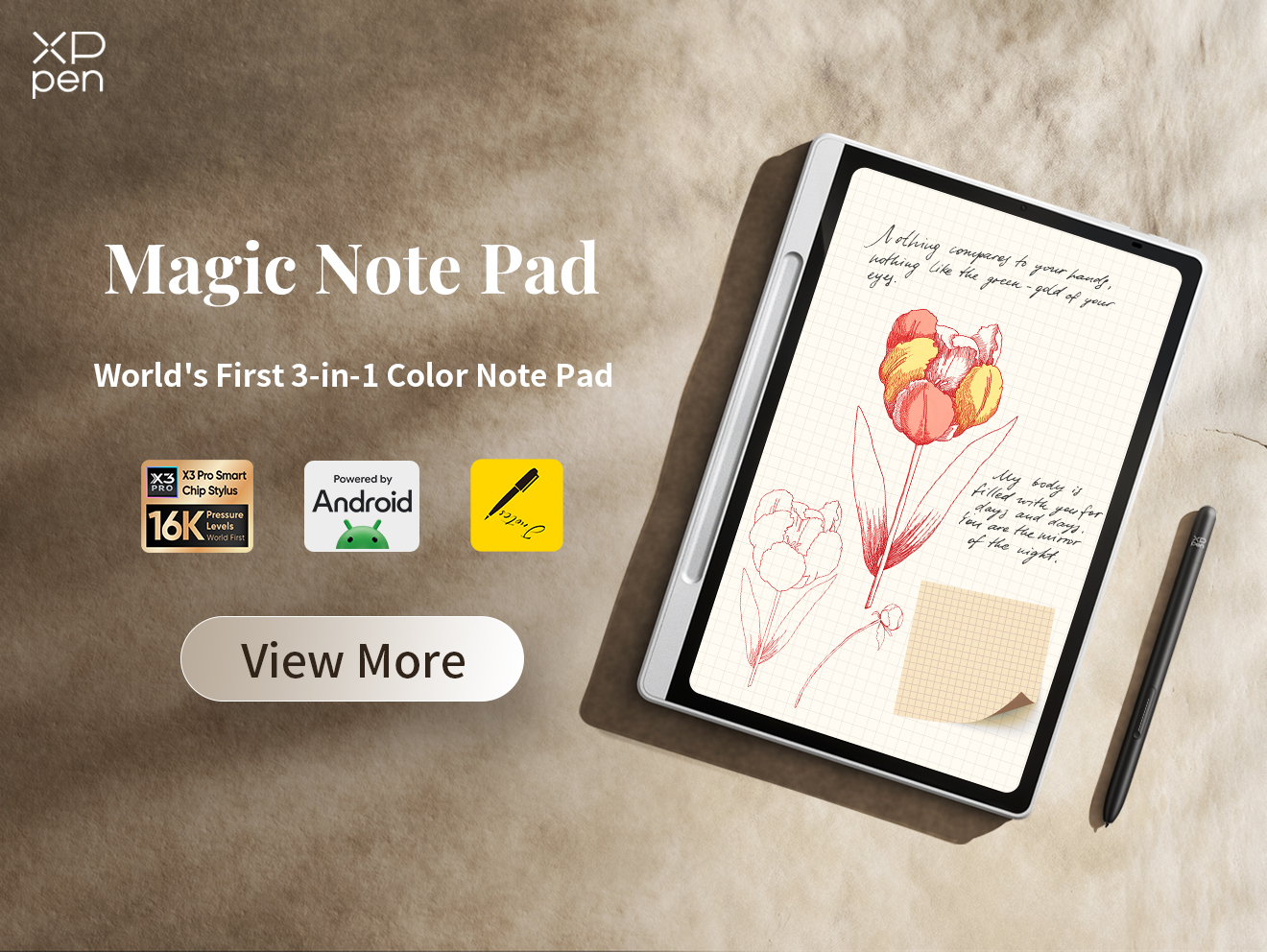
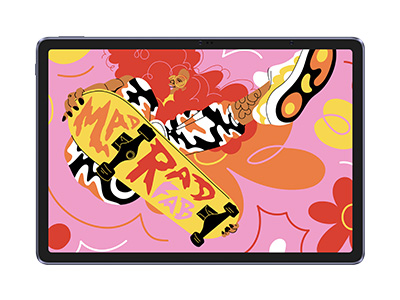 Magic Drawing Pad
X3 Pro Slim Stylus with 16,384 pressure levels and tilt support
X-Paper display featuring anti-glare and fingerprint resistance
Clip Studio Paint and ibis Paint X 3-month free membership
Super portable- just 6.9mm thin and weighs only 590g
Supports dual Windows and DP-IN functions
It features:
Powered by Android 15, no need to connect to a computer to use.
-
Magic Pro 13
Standalone Android 16 Drawing Pad, No Computer Required
3K 120Hz Display with 100% sRGB Color
X4 Smart Chip Stylus with 16K Pressure Levels
One-Cable PC Drawing Display Mode
It features:
Best standalone drawing pad for professional creativity anywhere
-
Magic Drawing Pad
X3 Pro Slim Stylus with 16,384 pressure levels and tilt support
X-Paper display featuring anti-glare and fingerprint resistance
Clip Studio Paint and ibis Paint X 3-month free membership
Super portable- just 6.9mm thin and weighs only 590g
Supports dual Windows and DP-IN functions
It features:
Powered by Android 15, no need to connect to a computer to use.
Looking for the Best Drawing & Design Apps?
Discover essential drawing techniques, expert tips, and the best app recommendations to boost your creativity and master digital art.
