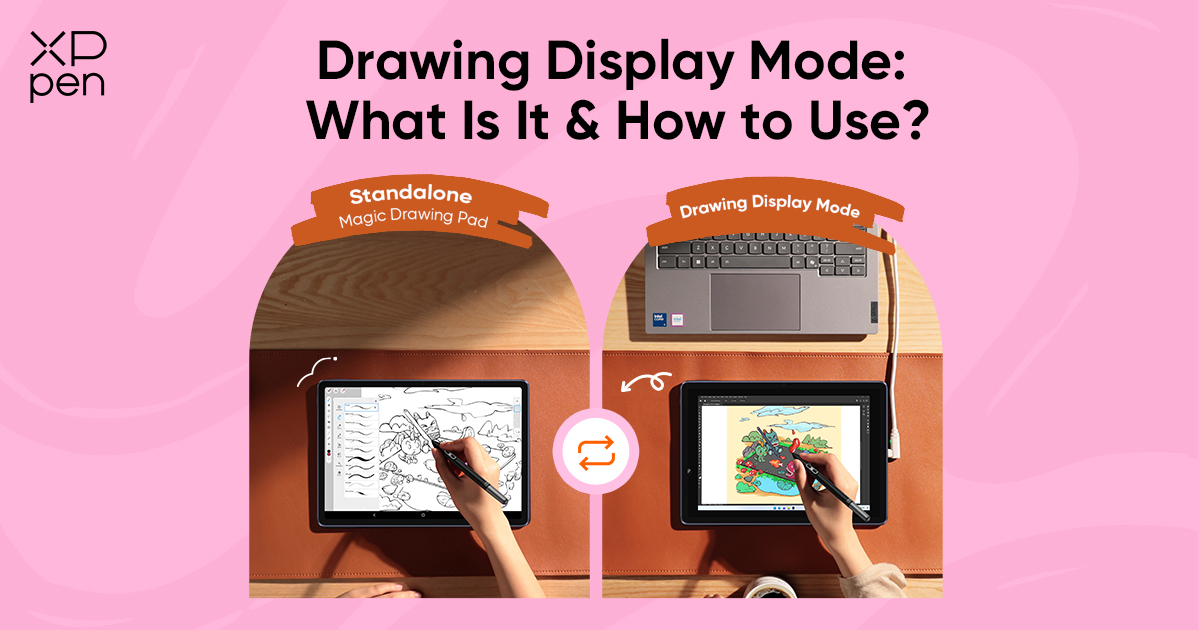
Drawing Display Mode: Hardware DP-IN for a Better Pen Display Experience
FOCUSEDA standalone drawing tablet is great for portability, but it does not support all the software and tools needed for heavy professional projects. However, traditional pen displays usually keep creators tied to a desk with extra cables and setup complexity.
The Drawing Display Mode solves both issues with its hardware-level DP-IN technology. It allows the XPPen Magic Drawing Pad to work as a portable Android drawing tablet and a professional pen display connected to your computer.
So if you want to sketch on the go or create in a studio, you can switch workflows without changing devices or sacrificing drawing comfort.
What Is Drawing Display Mode?
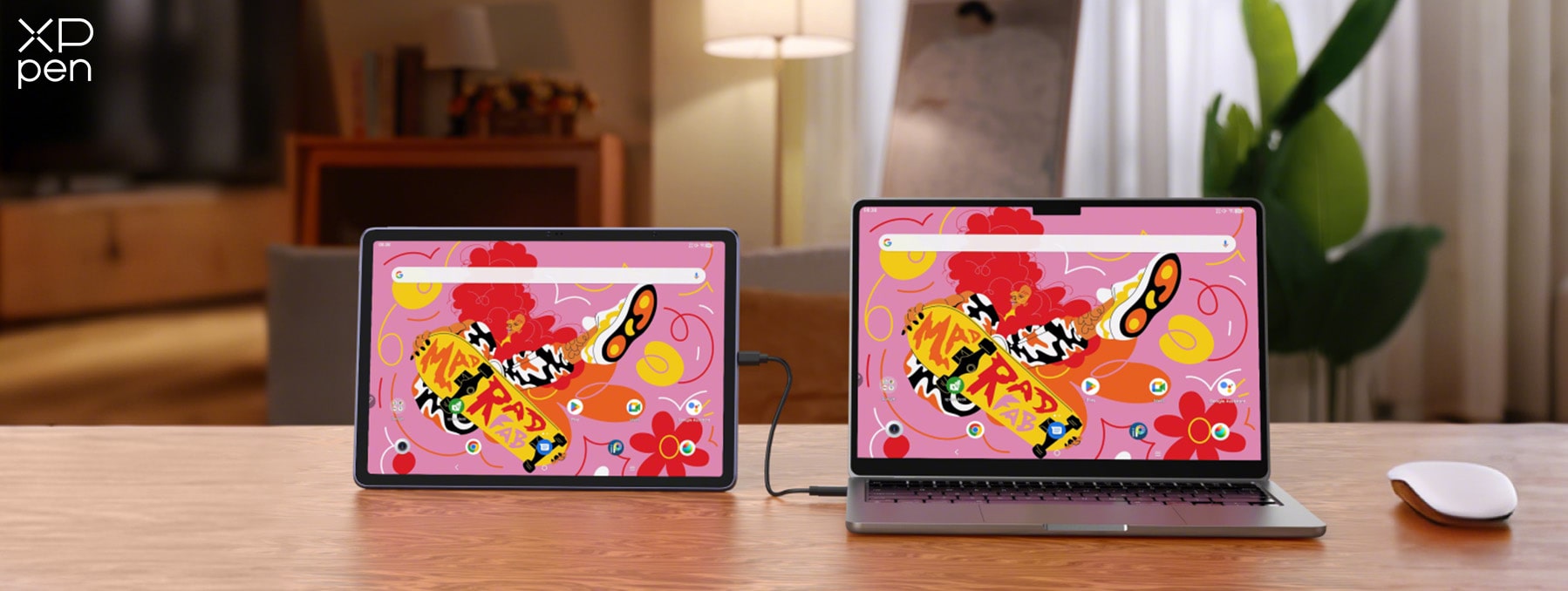
Drawing Display Mode is a hardware-level DP-IN (DisplayPort Input) technology built into the XPPen Magic Drawing Pad. It allows the tablet to connect directly to a desktop computer or laptop and function like a traditional pen display.
Instead of relying on screen mirroring apps or wireless casting software, the Magic Drawing Pad uses a direct hardware connection through a full-featured USB-C cable that supports video signal transmission. Once connected, users can draw directly on the Magic Drawing Pad screen while using professional desktop applications on the connected computer.
That means you can enjoy:
-
A true pen-display workflow
-
Direct interaction with desktop creative software
-
Lower latency
-
Better stability
-
A more natural drawing experience
With this feature, you’re essentially getting both a standalone Android drawing tablet and a professional pen display in one device.
Why Hardware Solution Matters
Many tablets offer software-based screen mirroring solutions, but hardware DP-IN provides a completely different level of reliability and drawing responsiveness.
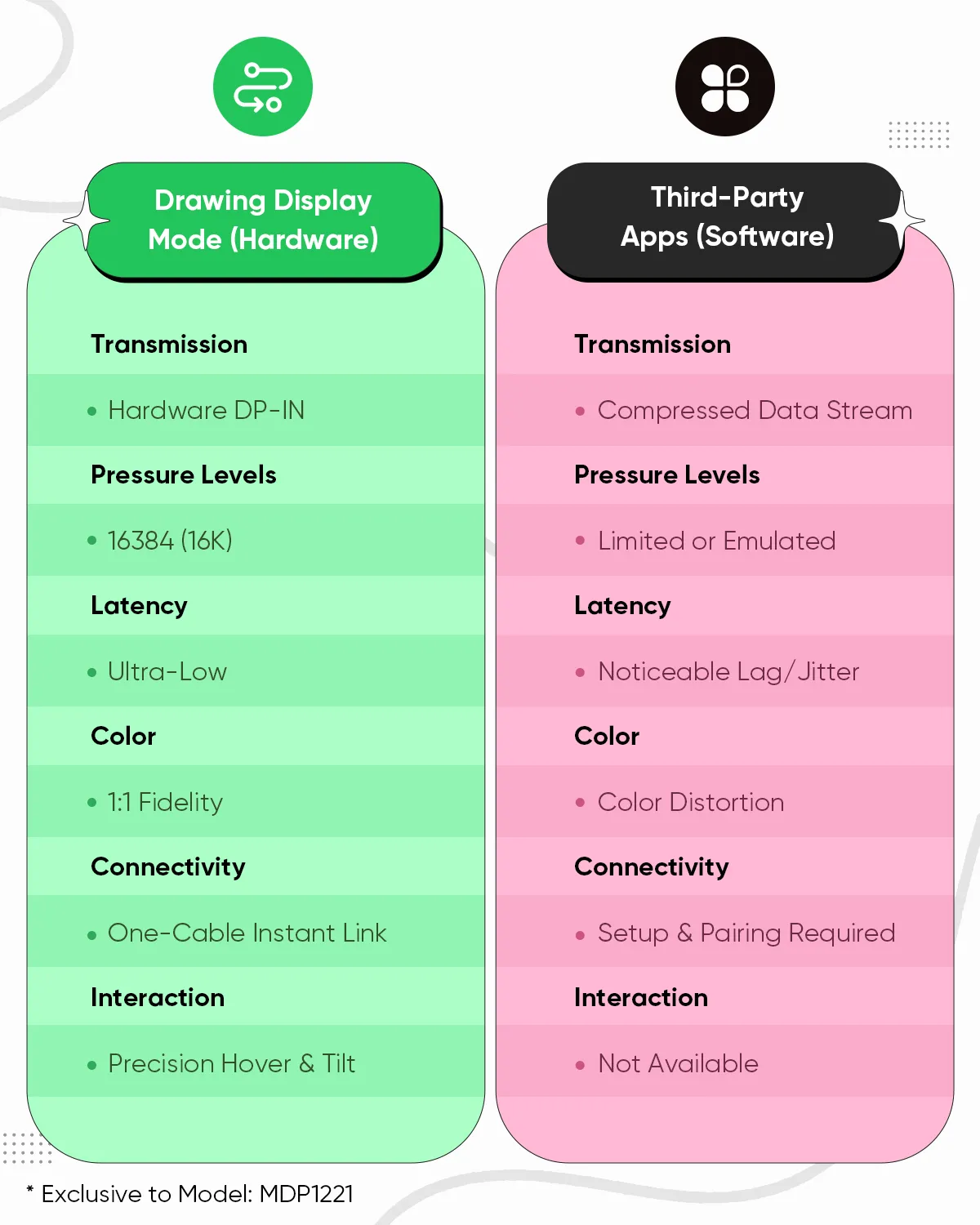
The limitations of Software mirroring are:
-
Unstable connection
-
Extra Apps & setup required
-
Compressed data stream
-
Limited pressure levels
-
Cursor hovering not available
-
Color distortion
-
Noticeable lag/jitter, etc.
These limitations can interrupt creative flow, especially when working on detailed illustrations or professional projects.
On the other hand, the Drawing Display Mode on the XPPen Magic Drawing Pad provides a hardware-level direct connection. The Magic Drawing Pad behaves much closer to a dedicated pen display because the display signal is transmitted directly through the cable rather than streamed through software.
Benefits of Hardware DP-IN
-
Stable direct connection with only a full-featured USB-C cable
-
No extra apps or complicated setup
-
Uncompressed visual transmission
-
Full pen pressure support
-
Cursor hovering supported
-
Accurate color performance
-
Smooth, low-latency drawing experience
For artists, the difference becomes obvious during long drawing sessions. Brush strokes will feel more immediate, and cursor tracking will be more precise with the Drawing Display Mode. You can enjoy an uninterrupted workflow with ease.
Hardware vs Software Mirroring
How Drawing Display Mode Benefits Artists
The biggest advantage of Drawing Display Mode is flexibility. Artists no longer need separate devices for mobile creativity and desktop production.
Create Freely Anywhere
The XPPen Magic Drawing Pad works as a fully standalone drawing tablet. You do not need to stay connected to a computer just to sketch ideas, paint illustrations, or practice concepts. You can transform ideas anywhere, whether you are sitting in a café, traveling, relaxing on the couch, or attending a class.
The slim 6.9mm body and lightweight 590g design make it easy to carry throughout the day. The Android 14 system allows you to open drawing apps instantly and start creating without dealing with extra cables or desk setups.
Turn It Into a Pen Display in Seconds
For professional work, Drawing Display Mode becomes especially useful. When it is connected to a laptop or desktop with a compatible USB-C cable, it works like a dedicated pen display. The artists can draw directly on the screen while using desktop creative software like Photoshop, Clip Studio Paint, Illustrator, or Blender.
The transition feels smooth because creators continue using the same screen and the same X3 Pro Slim Stylus they are already familiar with. There is no need to adapt to a different drawing surface or change your drawing habits every time you switch workflows.
The XPPen Magic Drawing Pad review shows the real comparison with traditional pen displays and portable drawing tablets.
A Drawing Experience That Feels Natural
The X3 Pro Slim Stylus is designed to feel precise and responsive. With 16K pressure levels and 60° tilt support, even small changes in pressure and angle can be captured more accurately. This gives artists better control over line thickness, shading, and brush effects.
The stylus is battery-free. There is no charging or Bluetooth pairing required. You simply pick it up and start drawing immediately.
The X-Paper display further improves the experience by adding a paper-like texture that creates gentle resistance against the pen tip. Strokes feel more controlled and natural in sketching, handwriting, and detailed illustrations.
Better Value for Artists and Students
The XPPen Magic Drawing Pad simplifies the workflow by combining a tablet for portable work and a pen display into one device. Artists can use it independently when traveling or switch to Drawing Display Mode whenever they need desktop software and a larger production workflow.
For students, beginners, freelancers, and budget-conscious creators, this creates much better long-term value. No need to manage multiple drawing devices, cables, and accessories. You can rely on a single portable solution that easily adapts to different creative situations.
Comfortable Drawing with X-Paper Display
The display itself makes Drawing Display Mode feel closer to a professional pen display experience.
The AG etched X-Paper surface reduces glare and reflections and adds a subtle paper-like texture. This helps the pen move more naturally across the screen instead of feeling overly smooth or slippery like regular glass tablets.
As a result, artists can enjoy:
-
Better stroke control
-
More precise line work
-
Reduced hand fatigue
-
A more familiar traditional drawing feel
The display is also TÜV Rheinland certified for low blue light, helping reduce eye strain during long drawing sessions or late-night creative work.
Vibrant Professional Colors
With 97% sRGB color gamut coverage and 16.77 million colors, creators can confidently work on colorful illustrations, comics, and digital paintings with accurate color representation.
XPPen Magic Drawing Pad Product Specifications
| Specification | Details |
|---|---|
| Product | XPPen Magic Drawing Pad |
| Display Size | 12.2 inches |
| Resolution | 2160 × 1440 |
| Color Gamut | 97% sRGB |
| Stylus | X3 Pro Slim Stylus |
| Pressure Levels | 16,384 |
| Tilt Support | 60° |
| OS | Android 14 |
| RAM | 8GB |
| Storage | 256GB |
| Battery | 8000mAh/3.85V |
| Weight | 590g |
| Thickness | 6.9mm |
| Regular Price | $499.99 on the XPPen US store |
How to Use Drawing Display Mode on XPPen Magic Drawing Pad
Setting up Drawing Display Mode is simple. You don’t need to install complicated software or wireless pairing.
Step 1: Prepare the Device
First, make sure you are using an XPPen Magic Drawing Pad model that supports DP-IN functionality.
Step 2: Get the Right Cable
Use a full-featured USB-C cable that supports video transmission. Some USB-C cables only support charging, so they will not work for Drawing Display Mode.
Step 3: Connect to Your Computer
Plug the USB-C cable into both the Magic Drawing Pad and your laptop or desktop computer. The connection is direct and provides a more stable drawing experience.
Step 4: Enable Display Mode
After connecting, the tablet asks you to choose a connection mode. Simply select "DP-in Screen Sharing" from the pop-up menu to continue.
Step 5: Start Creating
Open your preferred desktop creative software, such as Photoshop or Clip Studio Paint, and begin drawing directly on the Magic Drawing Pad screen using the X3 Pro Slim Stylus.
The entire process is designed to feel smooth and beginner-friendly. You can focus more on creativity instead of setup.
Final Words
With hardware DP-IN support, Drawing Display Mode gives artists the freedom to create anywhere without losing access to a professional desktop workflow. The XPPen Magic Drawing Pad combines portability and pen display functionality in one device, making digital creation more flexible, convenient, and comfortable.
FAQs
Q1: Is Drawing Display Mode a hardware solution?
Yes. Drawing Display Mode is based on hardware-level DP-IN connectivity. It allows direct display signal transmission through a full-featured USB-C cable, not wireless software mirroring.
Q2: Which device supports Drawing Display Mode?
This feature is exclusive to model MDP1221 , and we recommend using the included full-featured USB-C cable.
Q3: Why is hardware DP-IN better than software mirroring?
With a direct hardware connection, it avoids compressed data streaming, reduces lag and jitter, preserves color accuracy, and supports 16K pressure sensitivity, hover, and tilt. It also offers a simpler one-cable connection, without extra setup or pairing through third-party apps.
Q4: Do I still need drawing software on the tablet?
Not necessarily. When using a Magic Drawing Pad with Drawing Display Mode, you can run desktop creative applications directly from the connected computer.
About Us
Founded in 2005, XPPen is a leading global brand in digital art innovation under Hanvon UGEE. XPPen focuses on the needs of consumers by integrating digital art products, content, and services, specifically targeting Gen-Z digital artists. XPPen currently operates in 163 countries and regions worldwide, boasting a fan base of over 1.5 million and serving more than ten million digital art creators.
Learn moreRecommended Articles
FOCUSED Magic Drawing Pad: XPPen's First Standalone Drawing Tablet KNOWLEDGE Clip Studio Paint Free Trial: How to Get It with XPPen Magic Drawing Pad? TIPS Which Drawing Pad is Right for You? Explore Hardware Devices and Online Platforms FOCUSED XPPen Magic Drawing Pad vs iPad Pro: I Tested Both


-
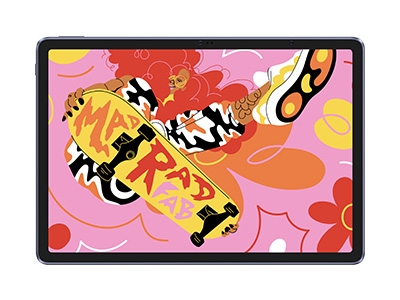 Magic Drawing Pad
X3 Pro Slim Stylus with 16,384 pressure levels and tilt support
X-Paper display featuring anti-glare and fingerprint resistance
Clip Studio Paint and ibis Paint X 3-month free membership
Super portable- just 6.9mm thin and weighs only 590g
Supports dual Windows and DP-IN functions
It features:
Powered by Android 14, no need to connect to a computer to use.
-
Magic Drawing Pad
X3 Pro Slim Stylus with 16,384 pressure levels and tilt support
X-Paper display featuring anti-glare and fingerprint resistance
Clip Studio Paint and ibis Paint X 3-month free membership
Super portable- just 6.9mm thin and weighs only 590g
Supports dual Windows and DP-IN functions
It features:
Powered by Android 14, no need to connect to a computer to use.
Ready to invest in the right tools?
Get expert buying advice, unbiased reviews, and exclusive deals on drawing tablets, and accessories.
