Best Design Software for Beginners: Top 10 Picks
BEGINNERStarting graphic design can feel confusing when you see so many design programs available. Some tools focus on photo editing, while others work better for logos, illustrations, layouts, or social media graphics. The good news is that beginners do not need to learn every program. You only need the right tool for your goals, budget, and skill level.
In this guide, we review the best design software for beginners, including free and paid options such as Photoshop, Illustrator, Canva, Figma, etc.
Best Design Software for Beginners: Quick Comparison
| Software | Best For | Price | Ease of Learning | Platforms |
|---|---|---|---|---|
| Adobe Photoshop | Photo editing and digital graphics | From $22.99/month | Medium | Windows, Mac, Web, Mobile |
| Adobe Illustrator | Logos, icons, and vector art | From $22.99/month | Medium | Windows, Mac, Web, iPad |
| Canva | Social media and simple designs | Free; Pro from $144/year | Very Easy | Web, Windows, Mac, Mobile |
| Figma | UI/UX and web design | Free; paid plans available | Easy | Web, Windows, Mac |
| Affinity | Vector, photo, and layout work | Free | Easy–Medium | Windows, Mac, iPad |
| GIMP | Free photo editing | Free | Medium | Windows, Mac, Linux |
| Inkscape | Free vector graphics | Free | Medium | Windows, Mac, Linux |
| Sketch | Mac-based UI design | From $12/month | Easy–Medium | Mac, Web |
| CorelDRAW | Vector and print design | Paid; trial available | Medium | Windows, Mac, Web |
| BrandCrowd | Logos and branding | Free options; paid plans | Very Easy | Web |
*Prices can change by region, billing method, taxes, and plan.
Part 1. Full List: Top 10 Design Software for Beginners
Choosing the right design software can make learning easier and more enjoyable. The best option depends on what you want to create, how much control you need, and whether you prefer templates, professional tools, or a completely free solution. These 10 design software options cover graphic design, digital art, logos, UI design, branding, and other creative projects, giving beginners a range of tools to start with.
1. Adobe Photoshop
Best for: Photo editing, digital graphics, thumbnails, posters, and image manipulation
Price: From $22.99/month for the annual, billed-monthly Photoshop plan
Platforms: Windows, macOS, web, and mobile
Easy for beginners? Yes, but expect a learning period
Key strength: Advanced image editing
Adobe Photoshop is one of the most versatile choices for beginners who want to learn professional graphic design. It can handle everything from photo retouching and social media graphics to posters, thumbnails, digital artwork, and more complex image compositions.
Its layer-based workflow also introduces beginners to important design concepts such as masking, blending, typography, color adjustment, and non-destructive editing. Adobe's AI-powered tools, including Generative Fill and Generative Expand, can also speed up common editing tasks.
The biggest drawback is the learning curve. Photoshop offers far more tools than a beginner needs at first, so it is better to learn the basics gradually rather than trying to master everything at once. Once you become comfortable with layers, selections, masks, and basic adjustments, Photoshop can support a wide range of creative projects.
2. Adobe Illustrator
Best for: Logos, icons, vector illustrations, and branding
Price: From $22.99/month for the annual, billed-monthly individual plan
Platforms: Windows, macOS, web, and iPad
Easy for beginners? Fairly easy after learning the basic tools
Key strength: Vector design
Adobe Illustrator is a strong starting point for beginners interested in logo design, branding, icons, and vector illustration . Unlike Photoshop, which primarily works with pixels, Illustrator uses vector graphics that can be resized without losing quality.
This makes it particularly useful for learning how professional logos, icons, patterns, and illustrations are created. Beginners can start with simple shapes and gradually learn the Pen Tool, Shape Builder, typography, color, layers, and alignment.
Illustrator does take more practice than beginner-focused tools such as Canva. However, if your goal is to develop long-term graphic design skills rather than simply create quick graphics, learning Illustrator can give you a strong foundation in vector design.
3. Canva
Best for: Beginners, social media posts, presentations, flyers, thumbnails, and simple branding
Price: Free; Canva Pro is listed at $144/year for individuals in the US pricing view
Platforms: Web, Windows, Mac, Android, and iOS
Easy for beginners? Very easy
Key strength: Templates and drag-and-drop editing
Canva is arguably the easiest design software for complete beginners. Instead of starting with a blank canvas and a large set of professional tools, you can choose a template and customize it with drag-and-drop editing.
It is especially useful for social media posts, presentations, posters, invitations, thumbnails, resumes, and simple brand materials. Beginners can experiment with layouts, fonts, colors, and images while learning basic design principles along the way.
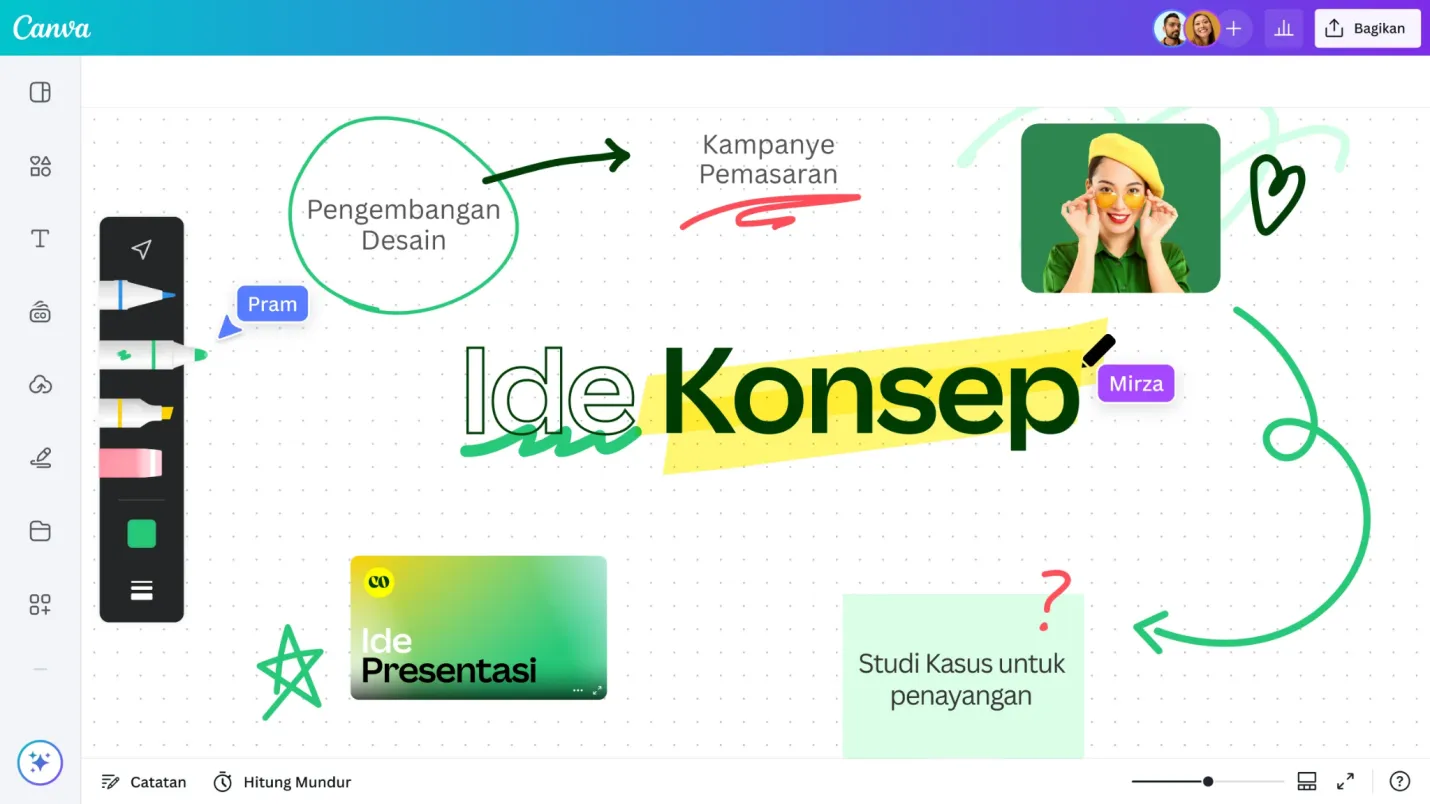
The free version provides a large selection of templates and design assets, while Canva Pro adds premium content and tools such as background removal. For someone who wants to create good-looking designs quickly without spending weeks learning complicated software, Canva is one of the best places to start.
4. Figma
Best for: UI design, websites, apps, prototypes, and team projects
Price: Free Starter plan; Professional starts at $16/month for a full seat
Platforms: Web, Windows, and macOS
Easy for beginners? Yes
Key strength: Interface and prototype design
Figma is one of the best choices for beginners interested in UI/UX and digital product design . Rather than focusing mainly on photo editing or traditional graphic design, it lets you build website layouts, mobile app screens, navigation menus, buttons, and interactive prototypes.
Its browser-based workflow also makes it easy to start designing without installing complicated software. Beginners can learn through small projects, such as recreating a simple website or designing a mobile app screen, before moving into components, design systems, and interactive prototypes.
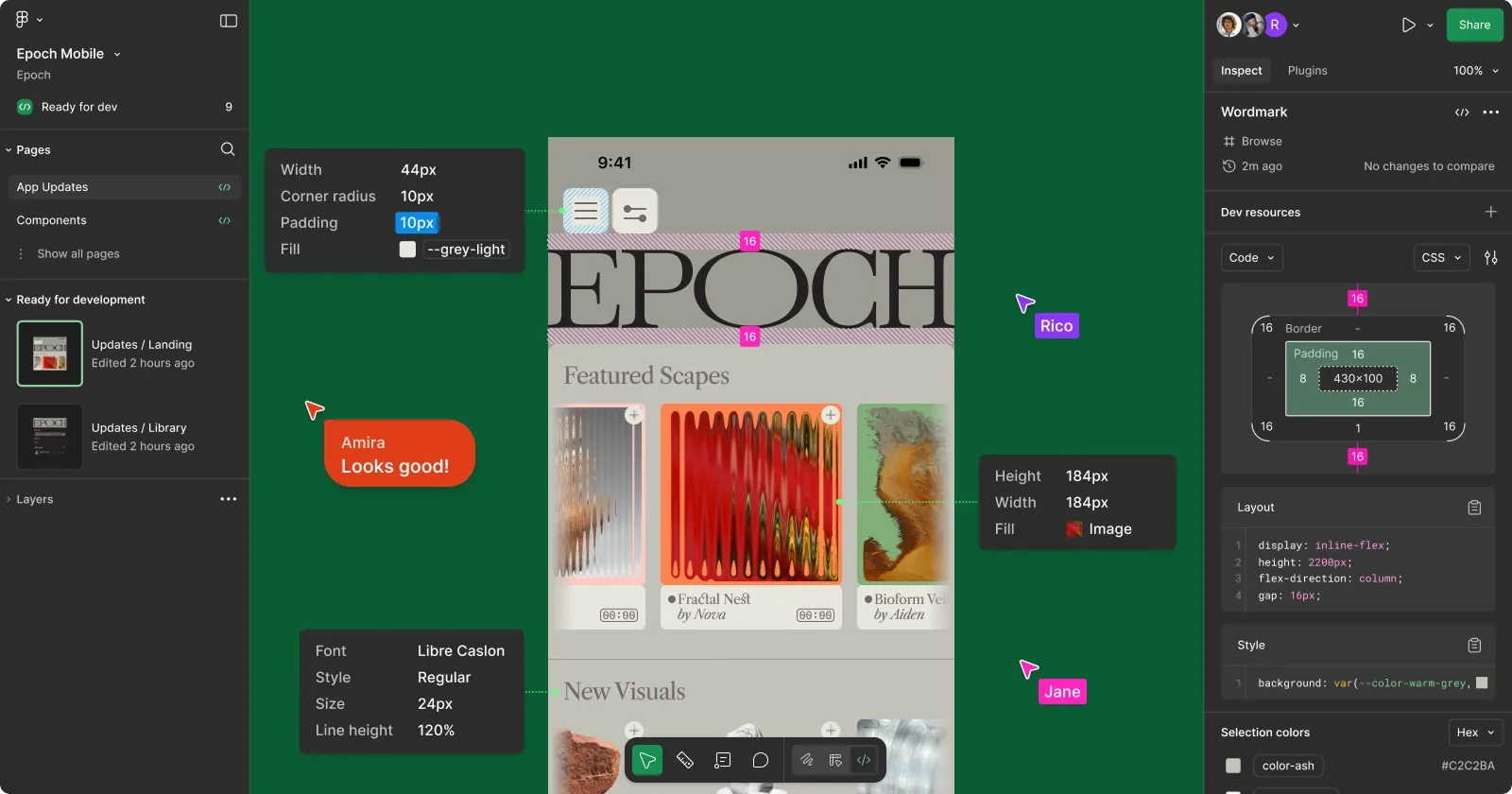
The free Starter plan is enough for learning and personal projects. If you are considering a career in UI or UX design, Figma is particularly useful because its workflow is widely suited to collaborative product design.
5. Affinity
Best for: Vector design, photo editing, illustrations, and page layouts
Price: Free
Platforms: Windows, Mac, and iPad
Easy for beginners? Easy to medium
Key strength: Professional design tools without a subscription
Affinity is an appealing option for beginners who want professional-level creative tools without a subscription . The current Affinity app combines vector design, photo editing, and page layout capabilities in one application.
This gives beginners more freedom than template-based platforms such as Canva. You can start with simple shapes, illustrations, photo adjustments, or page layouts and gradually explore more advanced workflows as your skills improve.
It is particularly suitable for learners who want to develop transferable design skills while keeping their software costs low. The interface may take some time to understand, but it provides a useful middle ground between beginner-friendly design platforms and more complex professional software.
6. GIMP
Best for: Free photo editing and image manipulation
Price: Free
Platforms: Windows, macOS, Linux, and other supported systems
Easy for beginners? Medium
Key strength: Free and open-source image editing
GIMP is a strong choice for beginners who want to learn image editing without paying for software . It can be used for photo retouching, image composition, background editing, digital graphics, and other pixel-based design tasks.
Because GIMP is open source, it is also highly customizable and supports third-party plugins. This makes it more flexible as your skills grow, although the interface can feel less approachable than Canva or other beginner-focused tools.
For beginners on a budget, GIMP is particularly valuable because you can learn important concepts such as layers, selections, masks, brushes, and image adjustments without a subscription. It is a good option if learning the tools themselves is more important than having the simplest possible interface.
7. Inkscape
Best for: Vector graphics, logos, icons, and illustrations
Price: Free
Platforms: Windows, macOS, and Linux
Easy for beginners? Medium
Key strength: Free vector design
Inkscape is one of the best free options for beginners who want to learn vector design . You can use it to create logos, icons, illustrations, diagrams, patterns, and other graphics that need to remain sharp at different sizes.
The software introduces many of the concepts beginners will encounter in professional vector design, including paths, nodes, shapes, fills, strokes, layers, and typography. Starting with simple logo or icon projects can make these tools easier to understand.
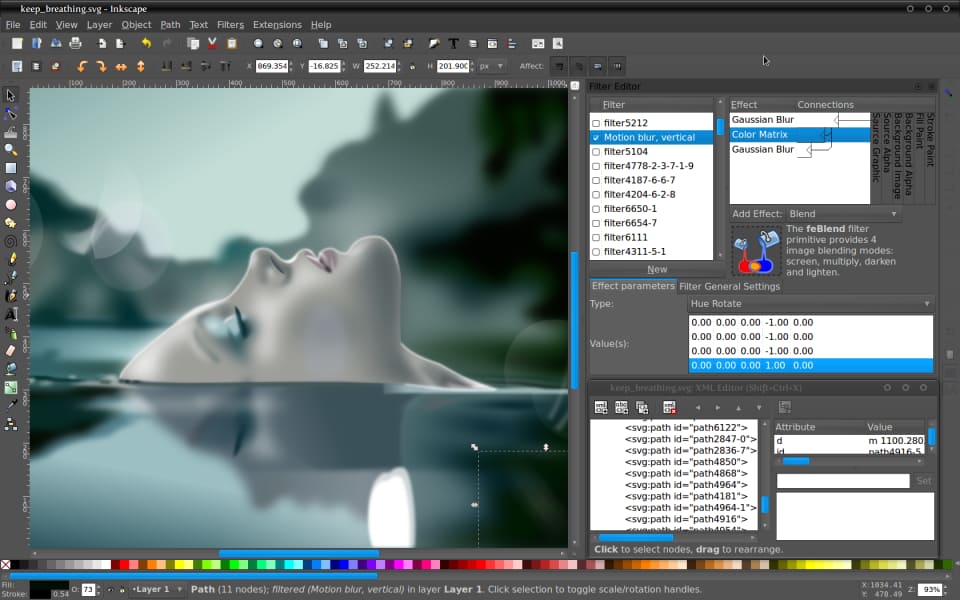
The interface is not as beginner-friendly as Canva, but that is partly because Inkscape gives you much greater control over the design. If you want to learn vector graphics without paying for Illustrator, it is a practical place to start.
8. Sketch
Best for: UI design and digital product design on Mac
Price: Standard starts at $12 per editor/month when billed yearly; a Mac-only license costs $120 and includes one year of updates
Platforms: Mac and web
Easy for beginners? Easy to medium
Key strength: Mac-based interface design
Sketch is designed primarily for UI and digital product design , making it a good choice for beginners who want to create websites, apps, and digital interfaces rather than traditional print graphics.
Its interface focuses on artboards, layouts, components, prototypes, and design systems. Beginners can start by creating individual app screens or website pages before learning how reusable components and shared design libraries work.
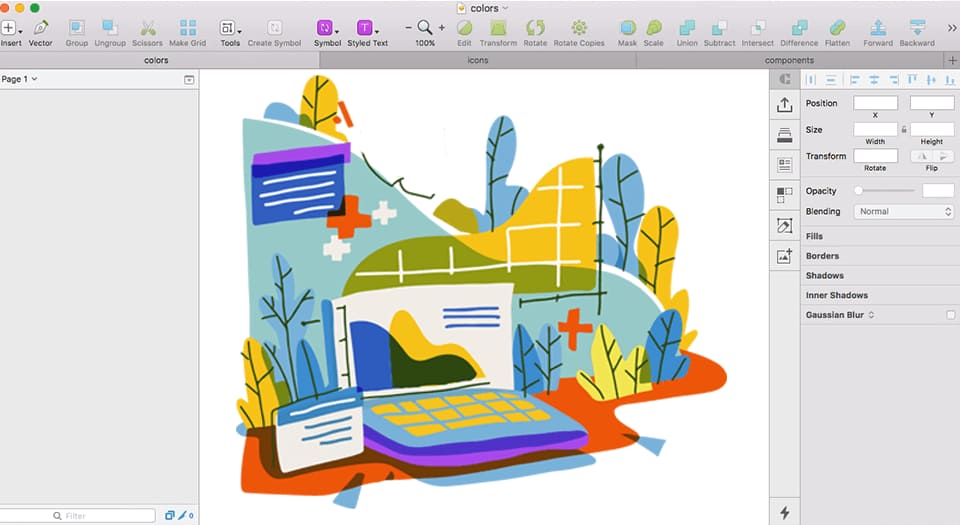
Sketch is especially worth considering if you already use a Mac and want a focused UI design environment. A 30-day free trial also gives beginners a chance to explore the workflow before committing to a plan.
9. CorelDRAW
Best for: Print design, vector graphics, typography, and professional layouts
Price: Paid; 15-day free trial available
Platforms: Windows, Mac, and web
Easy for beginners? Medium
Key strength: Vector and print design
CorelDRAW is a versatile design suite for beginners who are interested in print design, vector graphics, typography, and professional layouts . It can be used to create logos, business cards, posters, banners, brochures, and other marketing materials.
Compared with simpler online design tools, CorelDRAW gives you greater control over shapes, typography, page layouts, and vector artwork. This makes it a useful option for beginners who want to eventually work on more professional or print-focused projects.
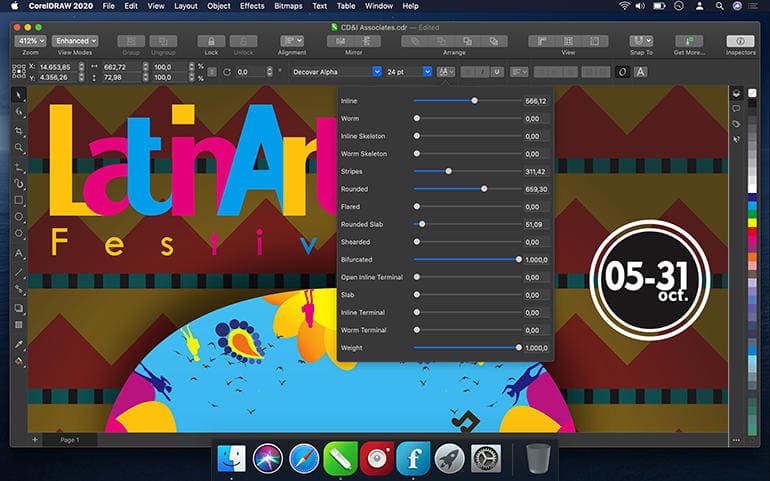
The software has a steeper learning curve than Canva, but its combination of vector illustration, page layout, photo editing, and typography tools means you can continue using it as your skills develop. Corel also offers a 15-day free trial for beginners who want to test it first.
10. BrandCrowd
Best for: Logos, branding, social graphics, and quick designs
Price: Free options; paid plans are available
Platforms: Web
Easy for beginners? Very easy
Key strength: Logo templates and simple customization
BrandCrowd is designed for beginners who need to create a logo or basic branding materials quickly rather than learn a full design application. Instead of building a design from scratch, you can choose from ready-made templates and customize the colors, fonts, layouts, and other elements.
It is particularly useful for small businesses, new websites, creators, and anyone who needs a simple logo without investing significant time in learning professional design software. Designs can also be downloaded in formats such as PNG, JPG, SVG, EPS, and PDF.
The trade-off is flexibility: BrandCrowd is much easier to use than Illustrator or CorelDRAW, but it does not provide the same level of creative control. For beginners who prioritize speed and simplicity, however, it can be a practical starting point.
Part 2. How to Choose Design Software as a Beginner
Choosing the best design software for beginners depends on what you want to create.
Consider Your Design Goals
Start with your main task. Choose Photoshop for photo editing, Illustrator or Inkscape for vector graphics, Canva for social media content, and Figma or Sketch for UI design.
Consider Your Budget
If you want to spend nothing, start with Canva Free, GIMP, Inkscape, Affinity, or Figma's free plan. Paid software makes more sense when you need advanced features for professional work.
Consider the Learning Curve
Canva and BrandCrowd offer the easiest starting points. Photoshop, Illustrator, CorelDRAW, GIMP, and Inkscape need more practice.
Consider Your Future Career
Think about the work you want to do later. A freelancer who creates logos may benefit from Illustrator or Affinity. A UI designer may prefer Figma or Sketch. A social media designer can start with Canva.
Common Mistakes Beginners Make
-
Mistake 1: Choosing the Most Powerful Software: More features do not always mean a better choice. Pick software that matches your current needs.
-
Mistake 2: Starting With Too Many Apps: Do not install ten programs and try to learn all of them. Pick one and practice regularly.
-
Mistake 3: Choosing Based Only on Templates: Templates help you start, but design skills matter more. Learn color, typography, spacing, alignment, and composition.
-
Mistake 4: Ignoring File Compatibility: Check whether your clients, printers, or websites accept your preferred file formats before starting a project.
-
Mistake 5: Paying Before Trying: Use free plans and trials when available. Test the interface before you commit to a subscription.
Part 3. How to Start Learning Design as a Beginner
You do not need a degree to start learning graphic design. You need regular practice and good learning resources.
Start with these steps:
-
Choose one design area, such as logos, social media graphics, photo editing, or UI design.
-
Pick one software instead of learning several programs at once.
-
Learn the basic tools and shortcuts.
-
Copy simple designs for practice, but do not present copied work as your own.
-
Create small personal projects every week.
-
Study typography, color, spacing, alignment, and layout.
-
Build a small portfolio after completing several projects.
You can also learn from online courses, tutorials, and design communities. Coursera's graphic design learning guide can help beginners understand where to start. Medium's beginner graphic design guide also provides a starting point, while Reddit's graphic design community discussion offers experiences from other designers.
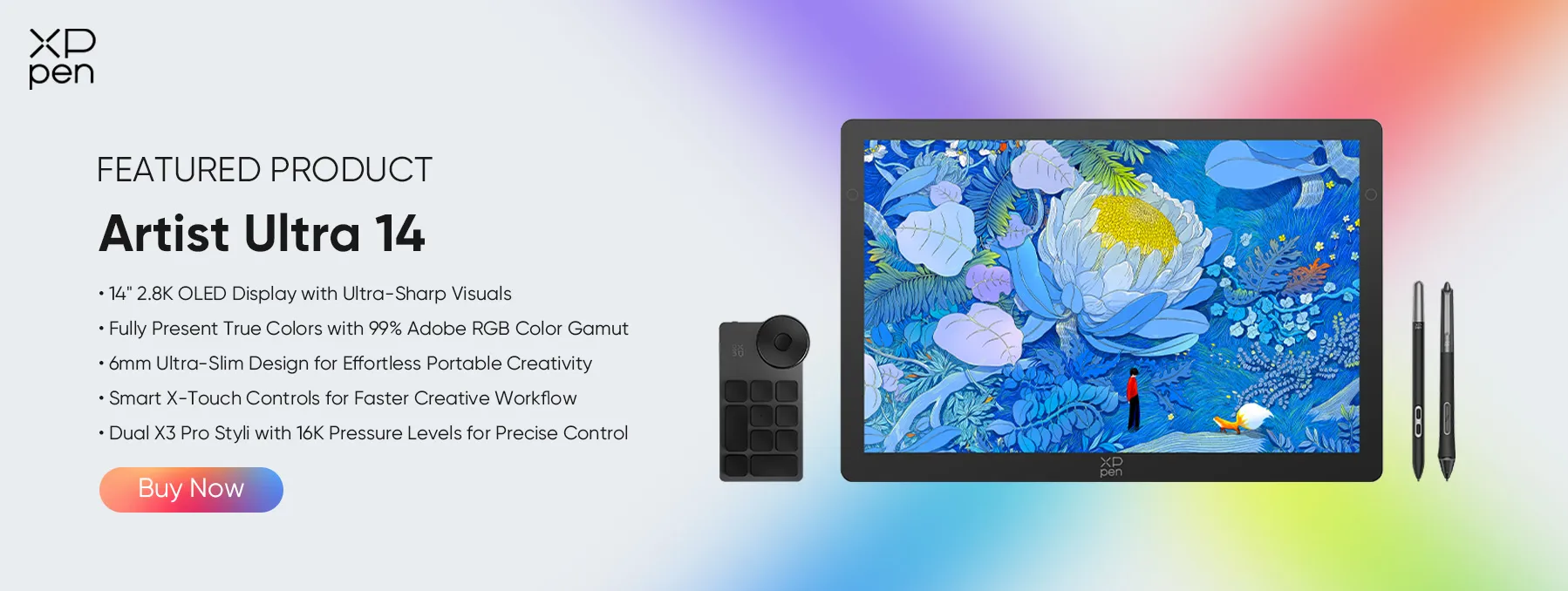
Part 4. Artist Ultra 14: A Beginner-Friendly Drawing Tablet for Digital Design
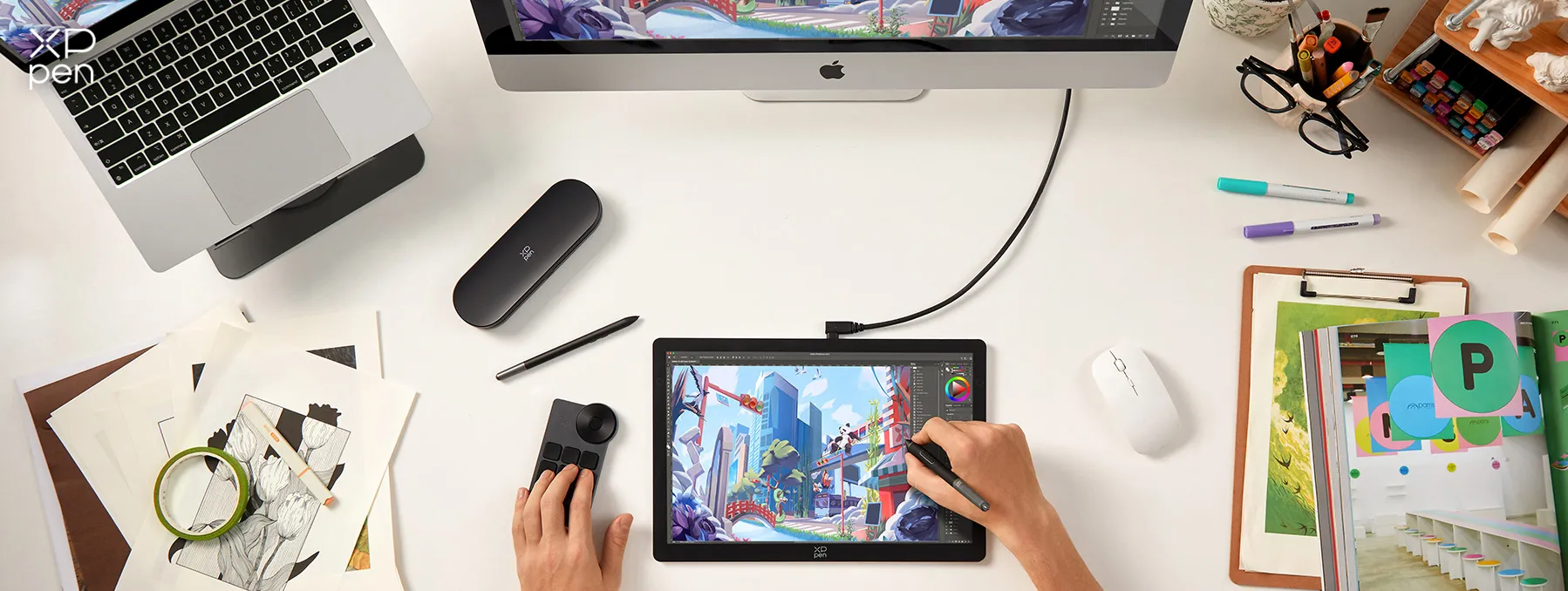
Software handles the design work, but a drawing display can make drawing and digital art feel more natural. The XPPen Artist Ultra 14 offers a 14-inch 2.8K OLED display, 90Hz refresh rate, 10-point touch, and 16,384 pressure levels.
The Artist Ultra 14 supports Windows, macOS, Android, ChromeOS, and Linux, depending on system requirements. It also works with popular programs such as Photoshop, Illustrator, etc.
For beginners who want to move from mouse-based design to drawing directly on a screen, it can provide a more natural way to work.
Part 5. FAQs About Digital Art Software
Q1: What is the best simple design software for beginners?
Canva is the easiest option for most beginners. Its templates and drag-and-drop editor help new users create designs without learning complex tools first.
Q2: Should I learn Photoshop or Illustrator first?
Choose Photoshop first if you want to edit photos, create thumbnails, or make image-based graphics. Choose Illustrator first if you want to create logos, icons, and vector illustrations.
Q3: Can I use digital art software without a drawing tablet?
Yes. You can use almost all design software with a mouse or trackpad. A drawing tablet becomes more useful when you want to draw, paint, or make detailed illustrations.
Q4: What is the best digital art software for graphic design?
There is no single answer for every user. Photoshop works well for image-based design, Illustrator and Affinity work well for vector design, while Canva works well for simple online graphics.
Q5: Should I choose free or paid digital art software as a beginner?
Start with free software if you are still learning. Move to paid software when you need specific features, professional workflows, or tools that free programs do not provide.
Conclusion
The best design software for beginners depends on what you want to create. Canva offers the easiest starting point, while Photoshop and Illustrator provide deeper professional skills. Figma and Sketch suit UI design, GIMP and Inkscape offer free alternatives, Affinity now provides a free professional design option, and BrandCrowd works well for quick logo creation. CorelDRAW remains a strong choice for vector and print work.
You also do not need a drawing tablet to begin. The XPPen Artist Ultra 14 can help if you want to practice digital drawing directly on a high-resolution display. Start with one program, practice regularly, and build your skills through real projects rather than trying to learn every tool at once.
About Us
Founded in 2005, XPPen is a leading global brand in digital art innovation under Hanvon UGEE. XPPen focuses on the needs of consumers by integrating digital art products, content, and services, specifically targeting Gen-Z digital artists. XPPen currently operates in 163 countries and regions worldwide, boasting a fan base of over 1.5 million and serving more than ten million digital art creators.
Learn moreRecommended Articles
KNOWLEDGE 8 Best Apps for Interior Design (Free & Paid) TIPS 8 Best 3D Printing Design Software Tools 2026 TIPS 8 Best Product Design Software Tools (Free & Paid) TIPS 8 Best Landscape Design Software Tools (Free & Paid)


-
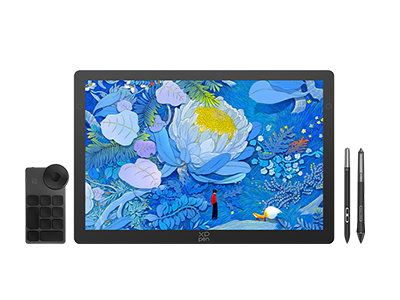 Artist Ultra 14
14-inch 2.8K OLED Display with Ultra-Sharp Visuals
99% Adobe RGB Color Gamut for True-to-Life Color
Ultra-Slim 6mm Design for Portable Creativity
Dual X3 Pro Styli with 16K Pressure Levels
Smart X-Touch Controls for Faster Workflow
It features:
Best 14" OLED drawing display for precision and portability
-
Artist Ultra 14
14-inch 2.8K OLED Display with Ultra-Sharp Visuals
99% Adobe RGB Color Gamut for True-to-Life Color
Ultra-Slim 6mm Design for Portable Creativity
Dual X3 Pro Styli with 16K Pressure Levels
Smart X-Touch Controls for Faster Workflow
It features:
Best 14" OLED drawing display for precision and portability
Looking for the Best Drawing & Design Apps?
Discover essential drawing techniques, expert tips, and the best app recommendations to boost your creativity and master digital art.
