7 Best Digital Art Software Tools (Free & Paid)
TIPSChoosing the best digital art software, or the best free drawing software can change how comfortably and efficiently you create. Some programs focus on natural painting and sketching, while others provide advanced tools for illustration, photo editing, comics, animation, and professional design. The right choice depends on your device, budget, experience, and the type of art you want to create.
This guide compares seven popular digital art programs, including free and paid options. Whether you need the best digital art software for beginners, a powerful drawing program for PC, or a professional illustration tool, you can find a suitable option here.
Quick Picks
-
Best overall for iPad: Procreate
-
Best for comics and manga: Clip Studio Paint
-
Best professional all-rounder: Adobe Photoshop
-
Best free digital art software: Krita
-
Best free image editor: GIMP
-
Best free option for touch devices: Adobe Fresco
-
Best lightweight PC drawing software: PaintTool SAI
Part 1. 7 Best Digital Art Software Tools (Free & Paid)
Digital artists have different needs, so no single application works perfectly for everyone. The seven options below cover everything from beginner sketching to professional illustration and animation.
1. Procreate
Best for: iPad illustration, sketching, painting, and concept art
Price: Paid app; check the App Store for current regional pricing
Platform: iPad
Beginner-friendly: Yes
Key strength: Natural drawing experience and powerful brushes
Procreate remains one of the strongest choices for artists who prefer drawing directly on an iPad. The software focuses heavily on a natural painting experience and works closely with Apple Pencil. Its brush system gives artists extensive control over texture, pressure, tilt, and other stroke characteristics.
The interface also keeps many tools within easy reach. Artists can organize their work with layers, adjust colors, create selections, transform artwork, and build custom brushes without dealing with an overly complicated desktop interface.
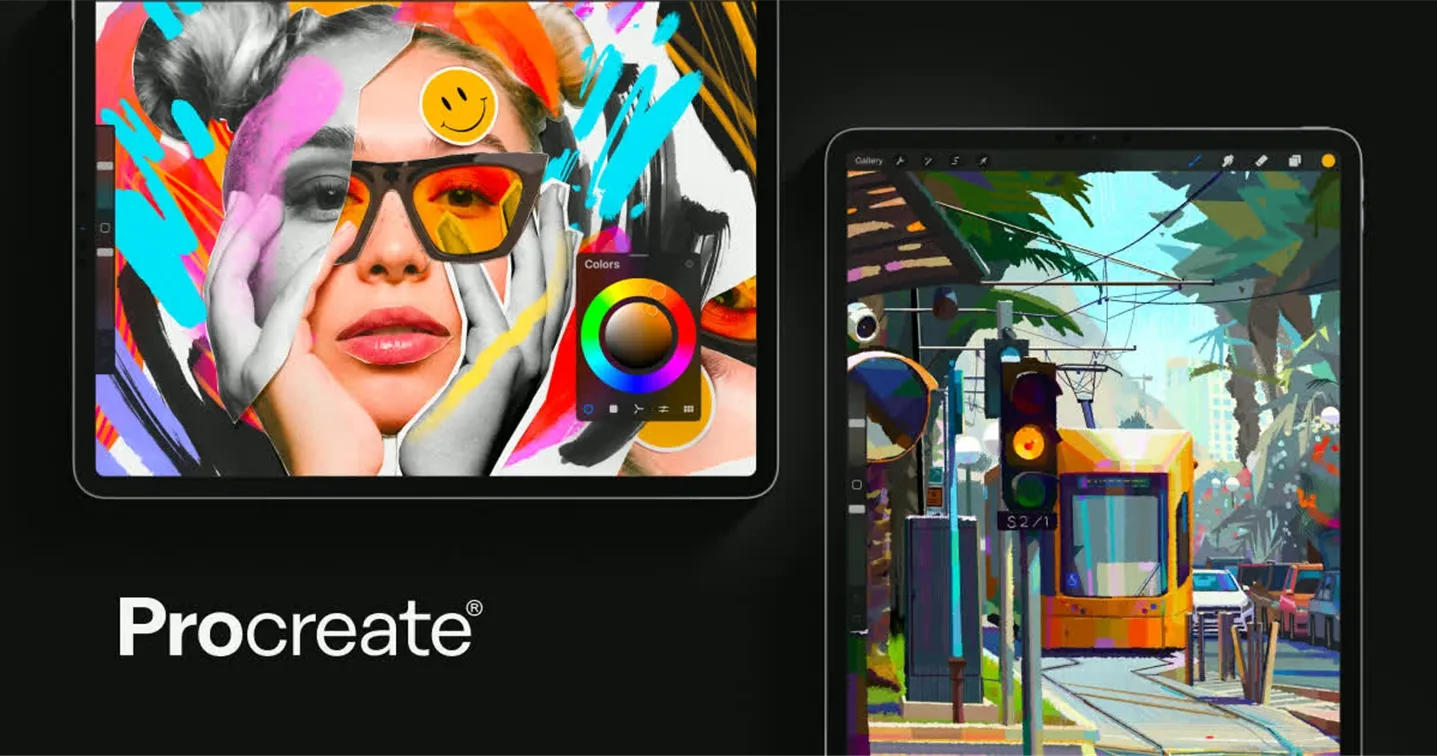
Procreate also supports hundreds of brushes and lets artists customize brush behavior. You can import additional brushes, including compatible Photoshop brush files, which makes it easier to expand your creative library.
The main limitation is platform support. Procreate targets Apple devices, so it does not serve Windows or traditional PC users.
Why choose it: If you already own a compatible iPad and want a focused drawing experience, Procreate offers an excellent combination of simplicity and creative control.
Also Read: 6 Best Drawing Apps for iPad Free & Paid
2. Clip Studio Paint
Best for: Manga, comics, character art, illustration, and animation
Price: Subscription and perpetual-license options
Platform: Windows, macOS, iPad, Android, iPhone
Beginner-friendly: Moderate
Key strength: Comic, illustration, 3D reference, and animation tools
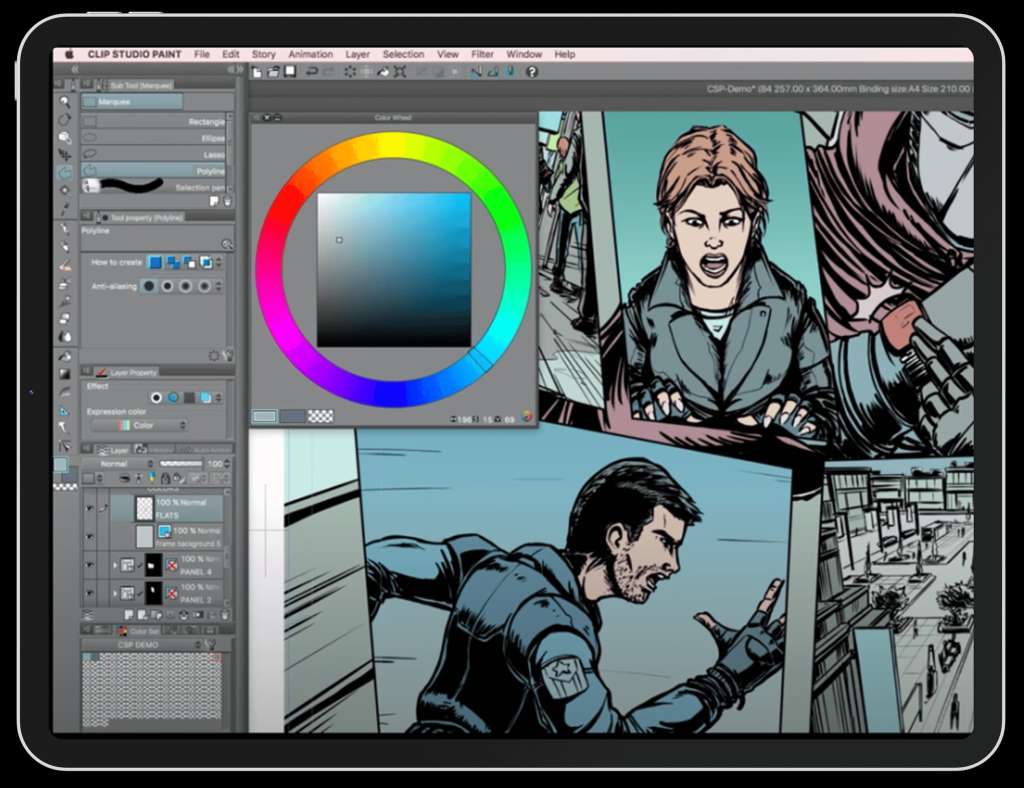
Clip Studio Paint gives digital artists a broad set of tools for illustration and sequential art. Its PRO edition targets character artists, concept artists, illustrators, and designers, while EX adds advanced comic and animation capabilities.
(Source: https://astropad.com/)
The software supports brushes, vector tools, rulers, 3D models, layers, transformation tools, filters, and specialized comic features. Artists can also import, edit, and save Photoshop PSD and PSB files while keeping layers intact.
Clip Studio Paint currently offers both subscription plans and perpetual licenses for Windows and macOS. The official site lists the Ver. 5.0 PRO perpetual license at US$63 and EX at US$277, while subscription pricing varies by device and plan.
Why choose it: Choose Clip Studio Paint if you want serious illustration tools but also need dedicated features for comics, manga, webtoons, or animation.
3. Adobe Photoshop
Best for: Professional digital art, photo manipulation, concept art, and design
Price: From US$22.99/month for the standalone Photoshop plan, annual billed monthly
Platform: Windows, macOS, web, and mobile
Beginner-friendly: Moderate to difficult
Key strength: Professional editing and creative workflow
Adobe Photoshop has long served as a standard tool for professional visual work. Although many people know it as a photo editor, artists also use it for digital painting, concept art, matte painting, character design, texture creation, and commercial graphics.
Photoshop provides extensive control over layers, masks, selections, brushes, colors, filters, and image adjustments. Its wider Adobe ecosystem also makes it useful for professionals who move between Photoshop, Illustrator, Lightroom, and other Creative Cloud applications.
Adobe currently offers Photoshop as a subscription rather than a permanent one-time purchase. Its standalone plan costs US$22.99 per month when billed annually, while the Photography plan includes Photoshop and Lightroom for US$19.99 per month on the annual billed-monthly option.
Why choose it: Photoshop makes the most sense for professionals who need digital painting alongside advanced image editing, design, and commercial production.
Also Read: Adobe Illustrator vs. Adobe Photoshop: When to Use Each
4. Krita
Best for: Free digital painting, concept art, and illustration
Price: Free and open source
Platform: Windows, macOS, Linux, and other supported platforms
Beginner-friendly: Yes, after a short learning period
Key strength: Professional painting tools without a subscription
Krita stands out when you want the best digital art software free of subscription costs. It is a professional, free, open-source painting application designed specifically around digital artists.
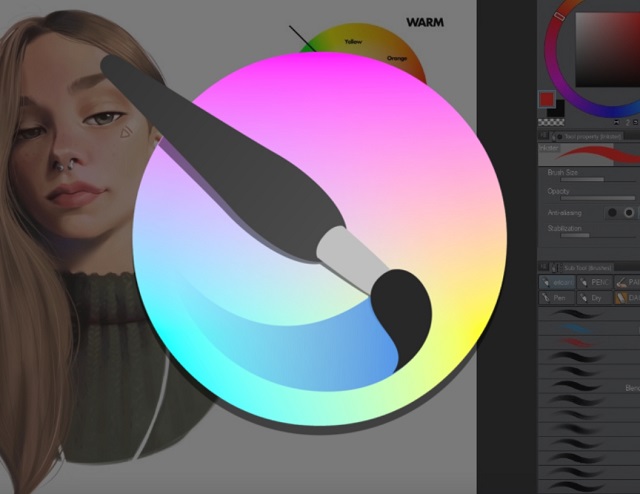
The program provides a large selection of brushes, layers, blending options, stabilizers, color tools, and other features for painting and illustration. You can also use Krita for commercial work because its license does not restrict the artwork you create with the software.
Krita supports Windows, macOS, and Linux, making it especially attractive to PC users who want a capable drawing application without paying a monthly fee. The official project continues to release updates and improvements.
Why choose it: Krita offers one of the strongest combinations of professional painting features, affordability, and platform flexibility.
5. GIMP
Best for: Free image editing, digital artwork, and graphic work
Price: Free and open source
Platform: Windows, macOS, Linux, and more
Beginner-friendly: Moderate
Key strength: Flexible image editing and customization
GIMP , or GNU Image Manipulation Program, provides another powerful free option. Unlike Krita, which focuses more strongly on digital painting, GIMP covers a wider range of image manipulation and graphic-editing tasks. You can use GIMP for photo editing, graphic design, image composition, retouching, and some forms of digital illustration.
The program also supports customization and third-party plugins, allowing users to extend its capabilities. Because GIMP works across Windows, macOS, Linux, and other operating systems, it can suit artists who use different computer environments. However, artists who mainly want a painting-first workflow may prefer Krita's more art-focused interface.
Why choose it: Select GIMP if you want a free PC application that combines digital artwork with serious image-editing capabilities.
6. Adobe Fresco
Best for: Touchscreen drawing, painting, and beginners
Price: Free
Platform: iPadOS, iOS, and Windows
Beginner-friendly: Yes
Key strength: Natural brushes and accessible interface
Adobe Fresco gives artists a simpler way to enter digital drawing. Adobe describes Fresco as a free professional-level painting and drawing application with unlimited layers and thousands of vector, raster, and live brushes.
Its brush-focused workflow works particularly well on touch devices. Artists can sketch, paint, blend, and experiment with different brush types without navigating the larger feature set found in Photoshop.
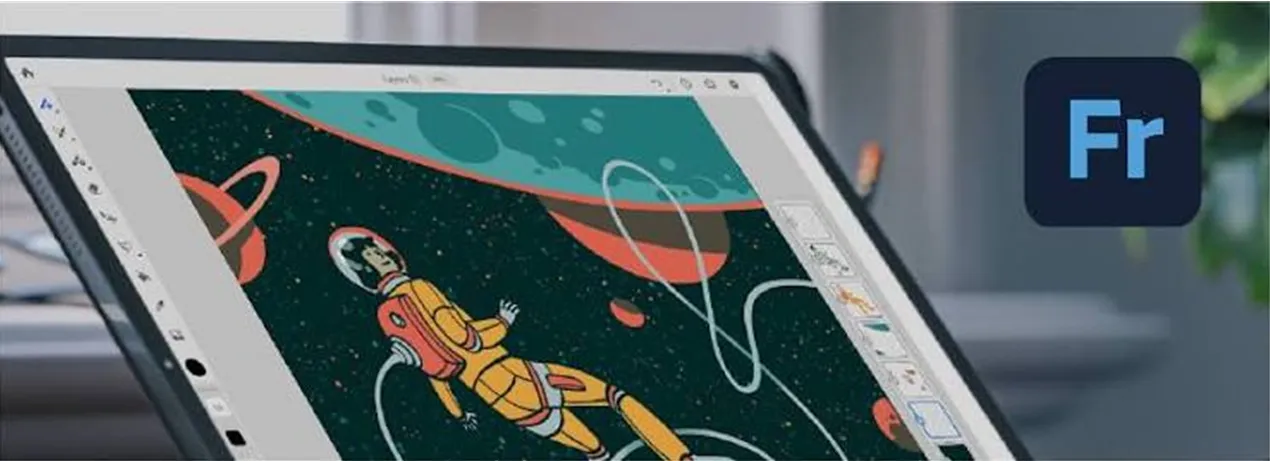
Fresco also makes a strong choice for beginners who want to learn digital drawing without immediately paying for professional software. Adobe supports iPad, iPhone, and Windows versions, although device capabilities can vary.
Why choose it: Fresco works well when you want a free drawing application with a straightforward interface and a strong brush collection.
7. PaintTool SAI
Best for: Lightweight PC drawing and line art
Price: Paid software
Platform: Windows
Beginner-friendly: Yes
Key strength: Lightweight performance and smooth line work
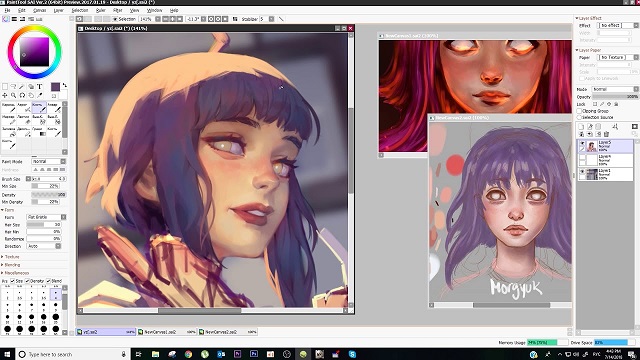
PaintTool SAI takes a different approach from large creative suites. Systemax describes it as lightweight painting software with full digitizer support, pressure sensitivity, anti-aliased drawing, and a simple interface.
Artists often appreciate SAI for clean line work and responsive drawing. Its relatively simple interface can also help beginners focus on drawing instead of navigating dozens of menus. The major drawback involves platform support and its comparatively limited ecosystem. Artists who need advanced photo editing, animation, or extensive cross-platform support may find other applications more suitable.
Why choose it: SAI makes sense for Windows users who prioritize responsive drawing, clean lines, and a lightweight application.
Part 2. Common Mistakes When Choosing Digital Art Software
Finding the best digital art software involves more than choosing the most famous application. Avoid these common mistakes.
Choosing Based Only on Popularity
A popular program does not automatically suit your workflow. Photoshop may work perfectly for one artist but feel unnecessarily complicated for someone who only wants to sketch. Focus on your actual requirements instead of copying another artist's setup.
Paying for Features You Don't Need
Premium software can include hundreds of advanced tools. If you only need brushes, layers, and basic color controls, a free application such as Krita may provide everything you need. Before paying, identify the features you will actually use.
Ignoring the Learning Curve
Some programs offer huge feature sets but require more time to learn. Beginners should consider the interface, available tutorials, and how quickly they can start creating. A simpler application can help you build skills faster.
Ignoring Tablet and Stylus Compatibility
Your drawing tablet affects your experience as much as your software. Check pressure sensitivity, tilt support, drivers, screen compatibility, and operating-system support before buying either product.
Choosing Software That Doesn't Fit Your Workflow
A comic artist, concept artist, photographer, and hobby illustrator may need completely different tools. Define your primary work first, then select software around it.
Part 3. The Best Drawing Tablet to Pair With Your Digital Art Software
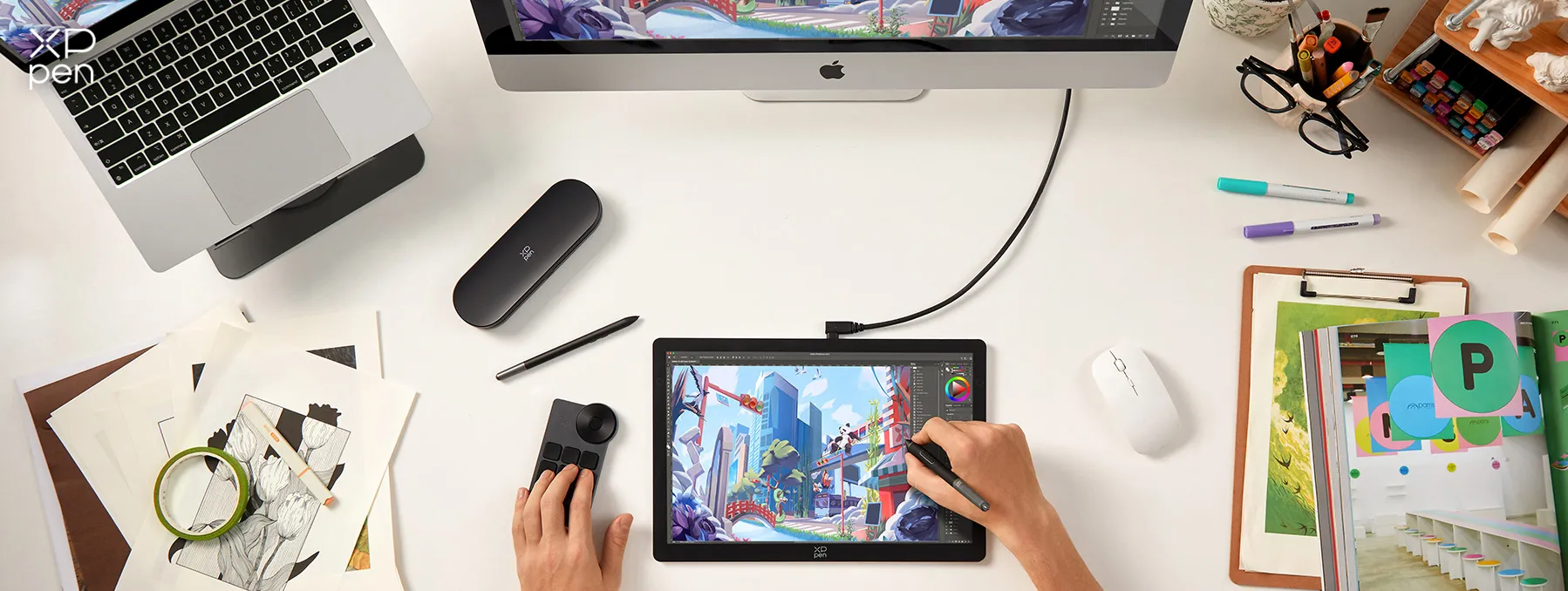
Good software needs responsive hardware. If you prefer drawing directly on the screen, the XPPen Artist Ultra 14 provides a strong setup for digital illustration.
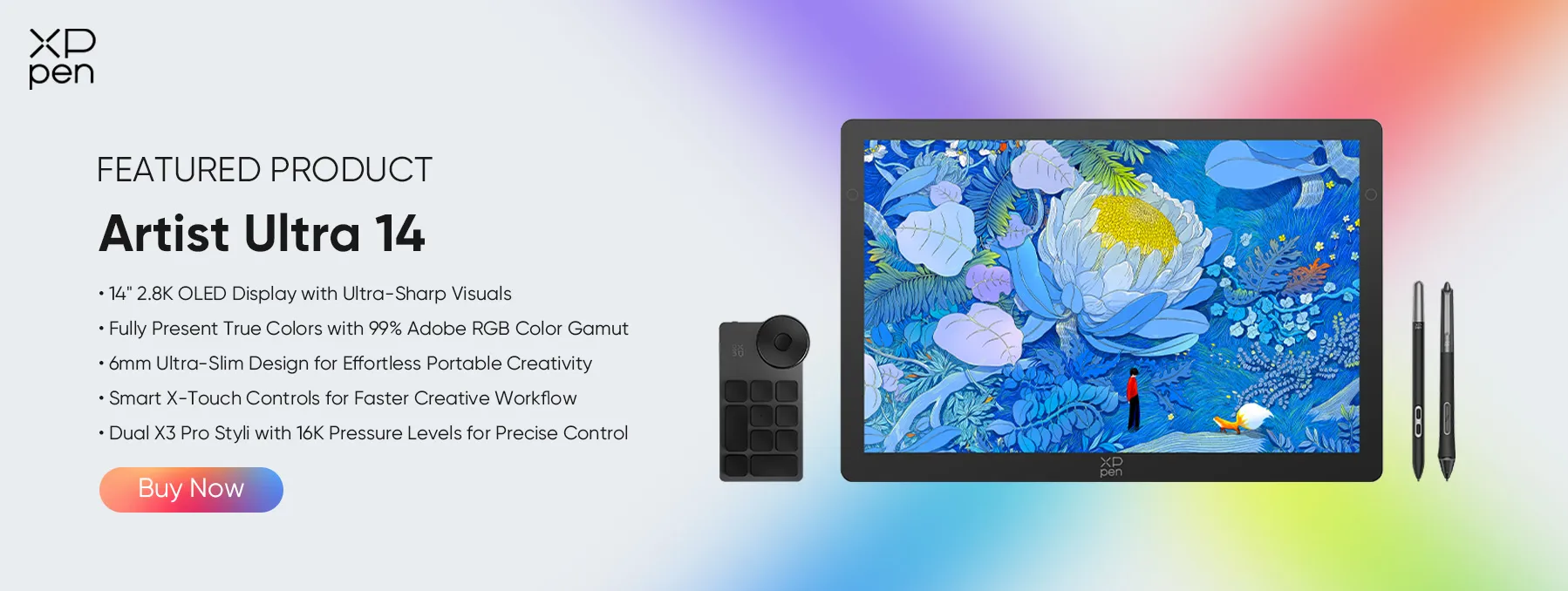
The XPPen Artist Ultra 14 combines a 14-inch 2.8K OLED display with a 90Hz refresh rate, 10-bit color depth, and 99% Adobe RGB coverage. It also includes X3 Pro stylus technology with 16,384 pressure levels and 60-degree tilt support.
Its touch system lets you zoom, rotate, and navigate the canvas using gestures. The tablet also supports Windows, macOS, Android, ChromeOS, and Linux, with software compatibility covering Photoshop, Clip Studio Paint, and other creative applications.
Part 4. FAQs About Digital Art Software
Q1: What is the best digital art software for beginners?
Krita and Adobe Fresco offer strong starting points for beginners. Krita works especially well for PC users who want free professional painting tools, while Fresco provides an accessible touch-focused drawing experience.
Q2: What is the best free digital art software?
Krita is one of the best free options for digital painting and illustration. GIMP also provides a powerful free alternative, particularly for users who need broader image-editing capabilities.
Q3: Is Photoshop or Krita better for digital art?
Choose Krita if you mainly want digital painting and prefer free, open-source software. Choose Photoshop if you need advanced image editing, commercial design features, and integration with Adobe's wider creative ecosystem.
Q4: Is Procreate better than Photoshop for drawing?
For iPad-based drawing, Procreate can offer a more focused and natural experience. Photoshop provides a broader professional toolkit across image editing, design, and digital artwork. Your device and workflow should determine the better option.
Q5: What software do professional digital artists use?
Professional artists use different programs depending on their field. Photoshop, Clip Studio Paint, Procreate, and Krita can all serve professional creative workflows. The best choice depends on the type of artwork and production process.
Q6: What is the best software for drawing with a graphics tablet?
Krita, Photoshop, Clip Studio Paint, SAI, and GIMP can all work with graphics tablets. Your choice should depend on your preferred drawing tools, operating system, budget, and required features. The XPPen Artist Ultra 14 supports several of these applications directly.
Conclusion
The best digital art software depends on what you create and how you like to work. Procreate stands out for iPad artists, Clip Studio Paint excels at comics and illustration, and Photoshop remains a powerful professional option.
If you need the best digital art software free, Krita offers an impressive painting-focused package, while GIMP provides broader image-editing capabilities. Beginners can start with Krita or Fresco, while Windows artists who want lightweight drawing software can consider PaintTool SAI.
For a more immersive setup, the XPPen Artist Ultra 14 adds a high-resolution OLED display, responsive styluses, and broad software compatibility.
About Us
Founded in 2005, XPPen is a leading global brand in digital art innovation under Hanvon UGEE. XPPen focuses on the needs of consumers by integrating digital art products, content, and services, specifically targeting Gen-Z digital artists. XPPen currently operates in 163 countries and regions worldwide, boasting a fan base of over 1.5 million and serving more than ten million digital art creators.
Learn moreRecommended Articles
KNOWLEDGE 8 Best Apps for Interior Design (Free & Paid) TIPS 8 Best 3D Printing Design Software Tools 2026 TIPS 8 Best Product Design Software Tools (Free & Paid) BEGINNER Best Design Software for Beginners: Top 10 Picks TIPS 8 Best Landscape Design Software Tools (Free & Paid)


-
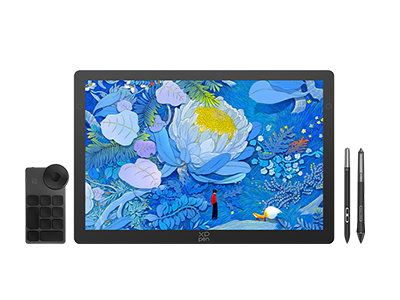 Artist Ultra 14
14-inch 2.8K OLED Display with Ultra-Sharp Visuals
99% Adobe RGB Color Gamut for True-to-Life Color
Ultra-Slim 6mm Design for Portable Creativity
Dual X3 Pro Styli with 16K Pressure Levels
Smart X-Touch Controls for Faster Workflow
It features:
Best 14" OLED drawing display for precision and portability
-
Artist Ultra 14
14-inch 2.8K OLED Display with Ultra-Sharp Visuals
99% Adobe RGB Color Gamut for True-to-Life Color
Ultra-Slim 6mm Design for Portable Creativity
Dual X3 Pro Styli with 16K Pressure Levels
Smart X-Touch Controls for Faster Workflow
It features:
Best 14" OLED drawing display for precision and portability
Looking for the Best Drawing & Design Apps?
Discover essential drawing techniques, expert tips, and the best app recommendations to boost your creativity and master digital art.
