8 Best 3D Printing Design Software Tools 2026
TIPSChoosing the right 3D printing design software or 3D modeling software can make the difference between a model that prints correctly and one that needs several fixes. Beginners need simple tools, while engineers often need accurate dimensions, assemblies, and parametric controls.
This guide covers 8 popular options, from free tools such as Tinkercad, Blender, and FreeCAD to professional choices such as Fusion, Shapr3D, and SOLIDWORKS. You will also learn which software works best for different types of 3D printing projects, what each tool costs, and which option fits your skill level.
Part 1. Best 3D Printing Design Software at a Glance
| Software | Best For | Pricing | Skill Level | Main Strength |
|---|---|---|---|---|
| Tinkercad | Beginners | Free | Beginner | Simple browser-based design |
| Blender | Organic models | Free | Intermediate | Sculpting and detailed shapes |
| FreeCAD | Mechanical parts | Free | Intermediate | Parametric CAD |
| Fusion | Product design | Free personal plan; paid plans available | Intermediate | CAD and manufacturing |
| Onshape | Cloud CAD | Free personal plan; paid plans available | Intermediate | Browser-based collaboration |
| Shapr3D | Precise 3D printing | Free plan; Pro from $299/year | Beginner to Professional | Easy CAD modeling |
| SketchUp | Simple objects | Free/paid plans | Beginner to Intermediate | Easy 3D modeling |
| SOLIDWORKS | Professional CAD | Makers from $48/year | Advanced | Engineering and assemblies |
The best software depends on the type of model you want to create. Tinkercad works well for beginners, while Blender suits artistic and organic models. FreeCAD, Fusion, Onshape, Shapr3D, SketchUp, and SOLIDWORKS offer stronger CAD features for more detailed projects.
*Pricing can change by region and plan, so check the official pricing page before purchasing.
Also Read: 18 Best 2D & 3D CAD Software for Technical Drawing: Free, Paid and Online
Part 2. 8 Best 3D Printing Design Software Tools
These 8 best 3D printing design software tools can help you create accurate, printable models for different projects. From beginner-friendly apps to professional CAD programs, each option offers useful features for designing mechanical parts, artistic models, prototypes, and everyday 3D prints.
1. Tinkercad
Best for: Beginners and students
Price: Free
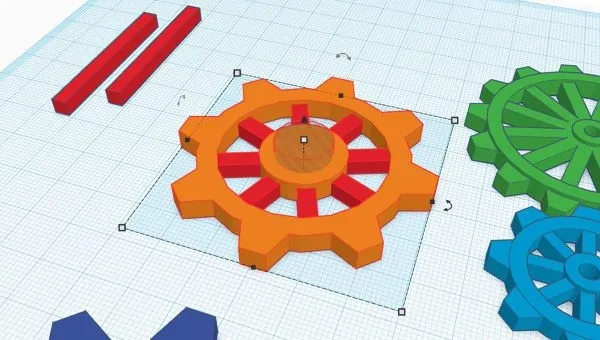
Tinkercad remains one of the easiest choices for people who are new to 3D printing. It runs in a web browser, so beginners can start designing without installing complex CAD software.
You can create models by combining basic shapes such as cubes, cylinders, spheres, and cones. You can also resize, rotate, align, group, and subtract shapes to create custom objects. Tinkercad works especially well for school projects, simple household parts, basic toys, nameplates, and beginner prototypes.
Key benefits of Tinkercad
-
Easy browser-based modeling
-
Free to use
-
Simple shape-based design
-
Good for basic 3D prints
-
Beginner-friendly interface
If you have never used CAD before, Tinkercad provides a good starting point before moving to more advanced software.
2. Blender
Best for: Organic and artistic 3D models
Price: Free and open source
Blender is a strong choice when you want to create artistic, detailed, or organic 3D models. The software is free and open source, and you can use it for commercial work as well.
Unlike traditional CAD programs, Blender focuses heavily on mesh modeling, sculpting, materials, animation, and visual design. That makes it useful for figurines, characters, decorative objects, miniatures, and other models with curved surfaces.
Key benefits of Blender:
-
Advanced mesh modeling
-
Powerful sculpting tools
-
Excellent for organic shapes
-
Free and open source
-
Supports detailed creative designs
Blender also includes sculpting tools that let you shape models much like digital clay. However, beginners may need more time to learn its interface than they would with Tinkercad.
3. FreeCAD
Best for: Mechanical and functional parts
Price: Free and open source
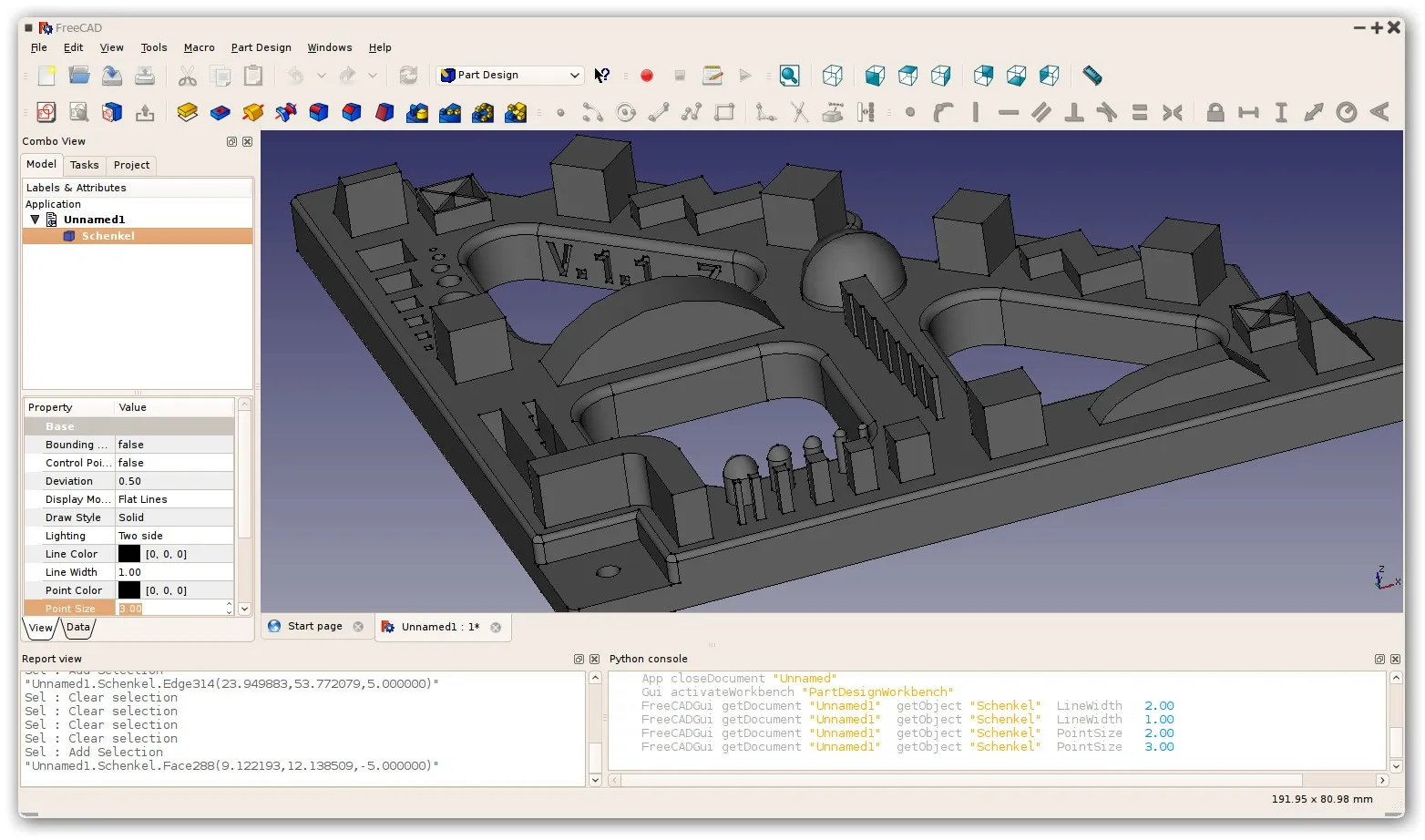
FreeCAD is one of the strongest options if you want free 3D printing design software for mechanical parts. It uses parametric modeling, which means you can change dimensions and update the model without rebuilding everything.
Key benefits of FreeCAD:
-
Parametric modeling
-
Precise dimensional control
-
Free to use
-
Open-source software
-
Suitable for mechanical designs
You can use FreeCAD to design brackets, enclosures, gears, mounts, tools, replacement parts, and other functional objects. The software also supports different workbenches for tasks such as Part Design, Assembly, Draft, and TechDraw. FreeCAD is open source and supports Windows, macOS, and Linux.
FreeCAD may feel more technical than Tinkercad, but it offers much more control when dimensions matter.
Also Read: 10 Best Free 3D Modeling Software Tools
4. Fusion
Best for: Product design and engineering
Price: Free Personal Use for qualifying non-commercial users; commercial Fusion starts at $57/month billed annually ($684/year)
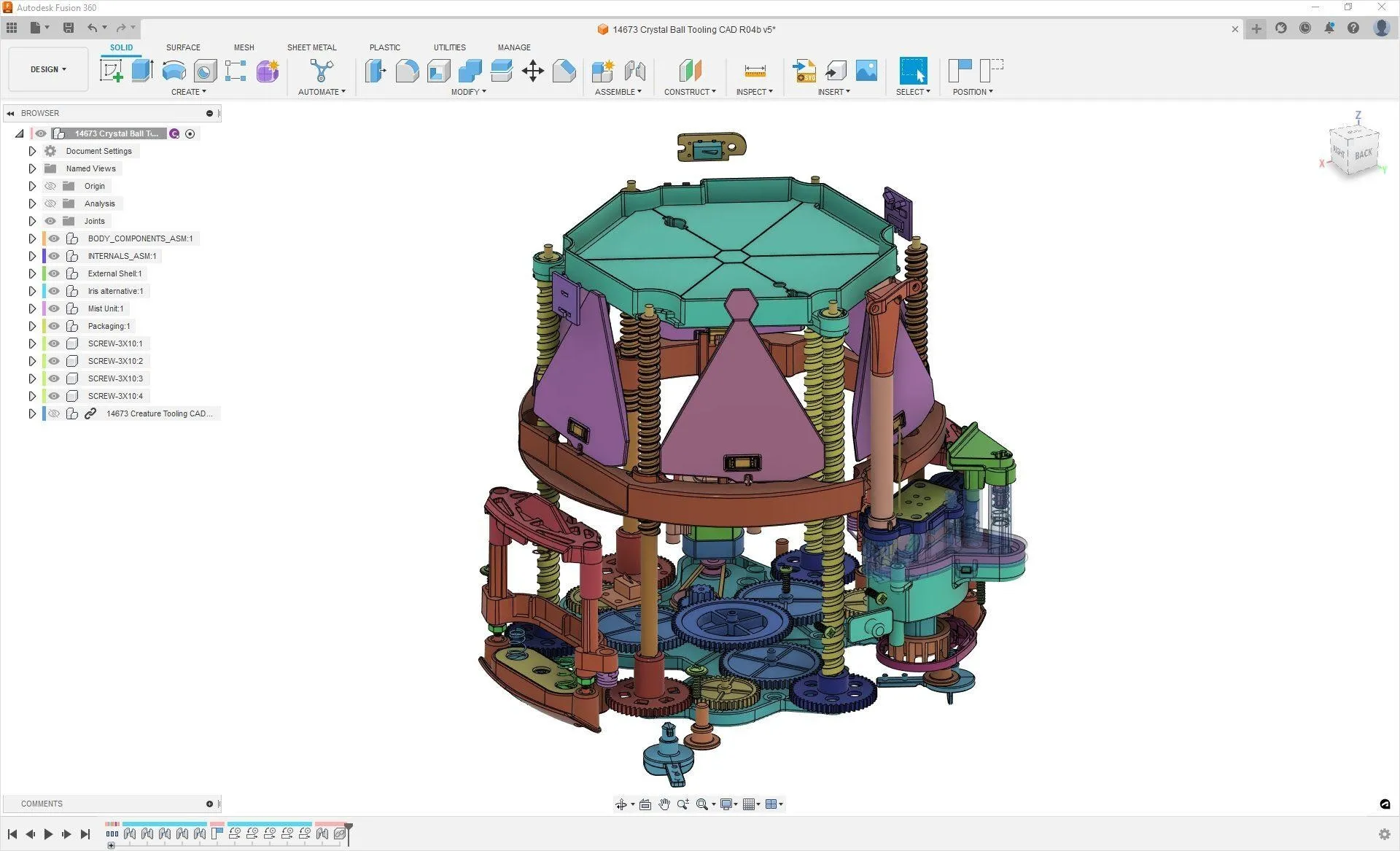
Autodesk Fusion is a strong choice for product design, engineering, prototyping, and 3D printing. It combines 3D CAD with manufacturing and engineering tools. For hobbyists, Autodesk provides a limited free Personal Use version for qualifying non-commercial projects.
Key benefits of Fusion:
-
Professional 3D CAD tools
-
Parametric modeling
-
Integrated manufacturing tools
-
Useful for product development
-
Free personal-use option
The current terms include a revenue limit and restrict the license to personal, non-commercial work. Fusion supports precise sketches, solid modeling, assemblies, technical drawings, and manufacturing workflows. You can also export models for use with 3D printer slicers.
Autodesk states that the Personal Use license supports qualifying non-commercial projects and can be used for three years before renewal.
5. Onshape
Best for: Cloud-based CAD and collaboration
Price: Free for non-commercial use; Standard $1,500/user/year; Professional $2,500/user/year
Onshape takes a different approach because it runs in the browser. You do not need a traditional desktop installation to start designing. Onshape works well for students, hobbyists, teams, and people who want to access designs from different devices.
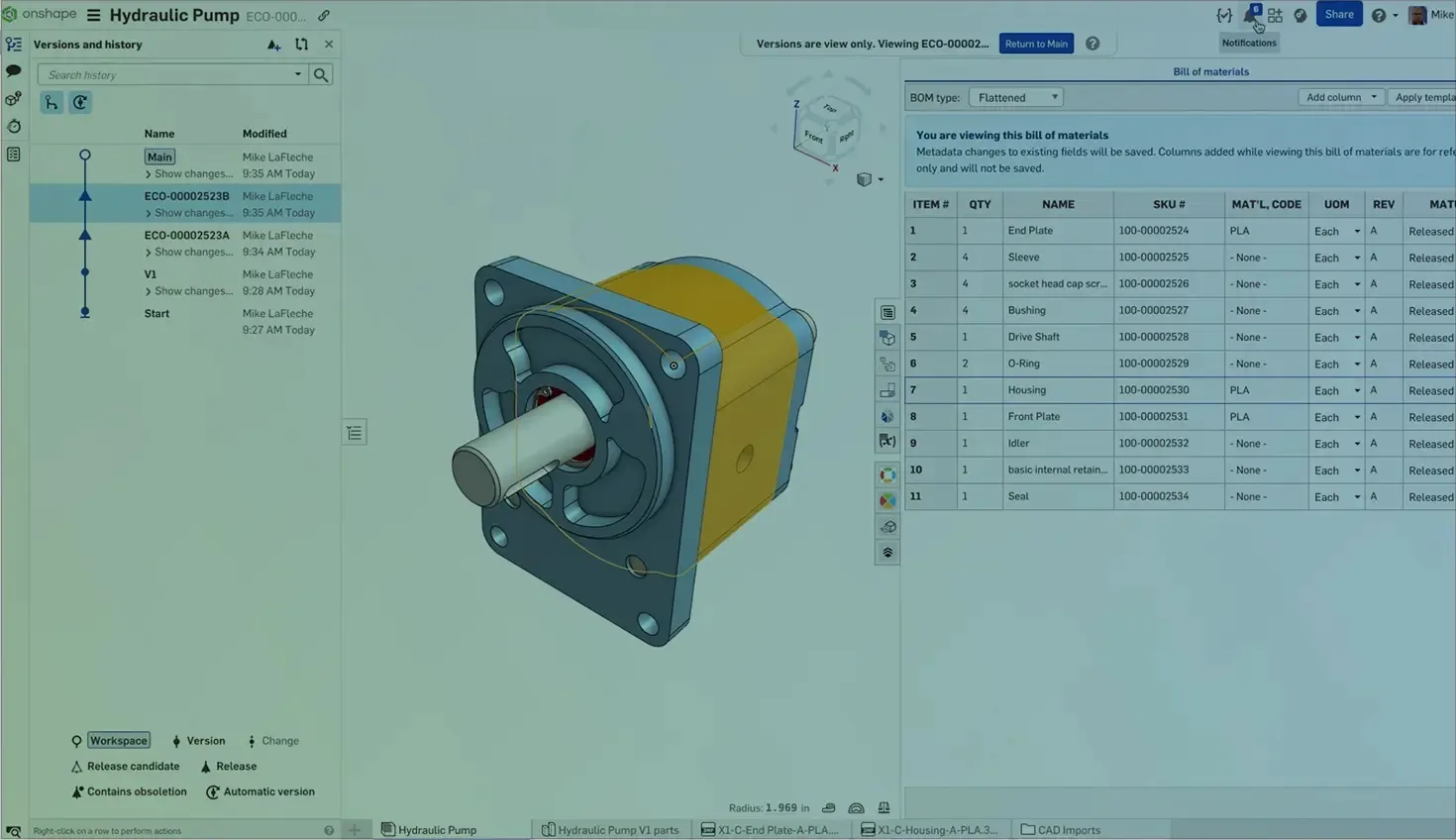
Key benefits of Onshape:
-
Browser-based CAD
-
Real-time collaboration
-
Version control
-
Access from multiple devices
-
No traditional installation required
Its Free plan provides CAD tools, unlimited public storage, real-time collaboration, version control, mobile apps, and online training. However, the free plan is for non-commercial use, and documents remain publicly accessible.
6. Shapr3D
Best for: Precise 3D printing and product design
Price: Free Basic plan; Pro $299/user/year billed annually, excluding VAT
Shapr3D stands out for its simple interface and precise CAD tools. It supports Windows, macOS, and iPadOS, and it works particularly well with a stylus on compatible devices.
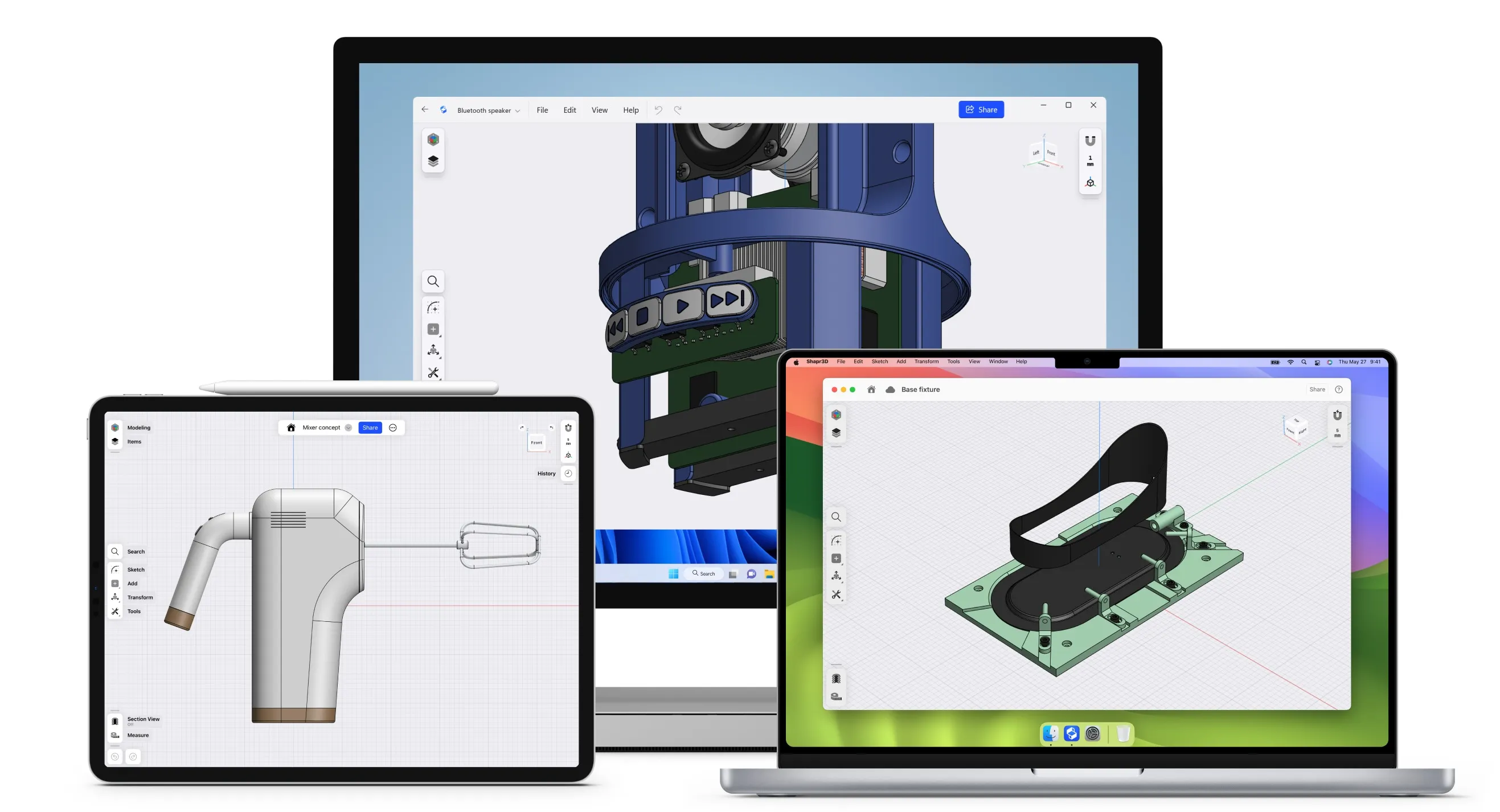
Key benefits of Shapr3D:
-
Precise solid modeling
-
Easy CAD interface
-
Stylus-friendly workflow
-
Supports 3D-printing formats
-
Works across multiple platforms
Shapr3D uses precise solid modeling, making it suitable for functional 3D prints such as brackets, clips, fixtures, organizers, and product prototypes. It also supports common 3D printing formats such as 3MF, STL, and OBJ. Its 3D printing workflow lets you move a finished model into slicer software without complex extra steps.
Shapr3D can be a good choice if you want professional modeling features without starting with a very complex interface.
7. SketchUp
Best for: Simple objects and architectural models
Price: Go $10.75/month; Pro $33.25/month; Studio $71.58/month, all billed annually
SketchUp works well for people who prefer simple 3D modeling tools. You can create objects by drawing shapes and pushing or pulling surfaces into 3D forms. It can work for furniture, room accessories, architectural models, organizers, decorative objects, and basic 3D printing projects.
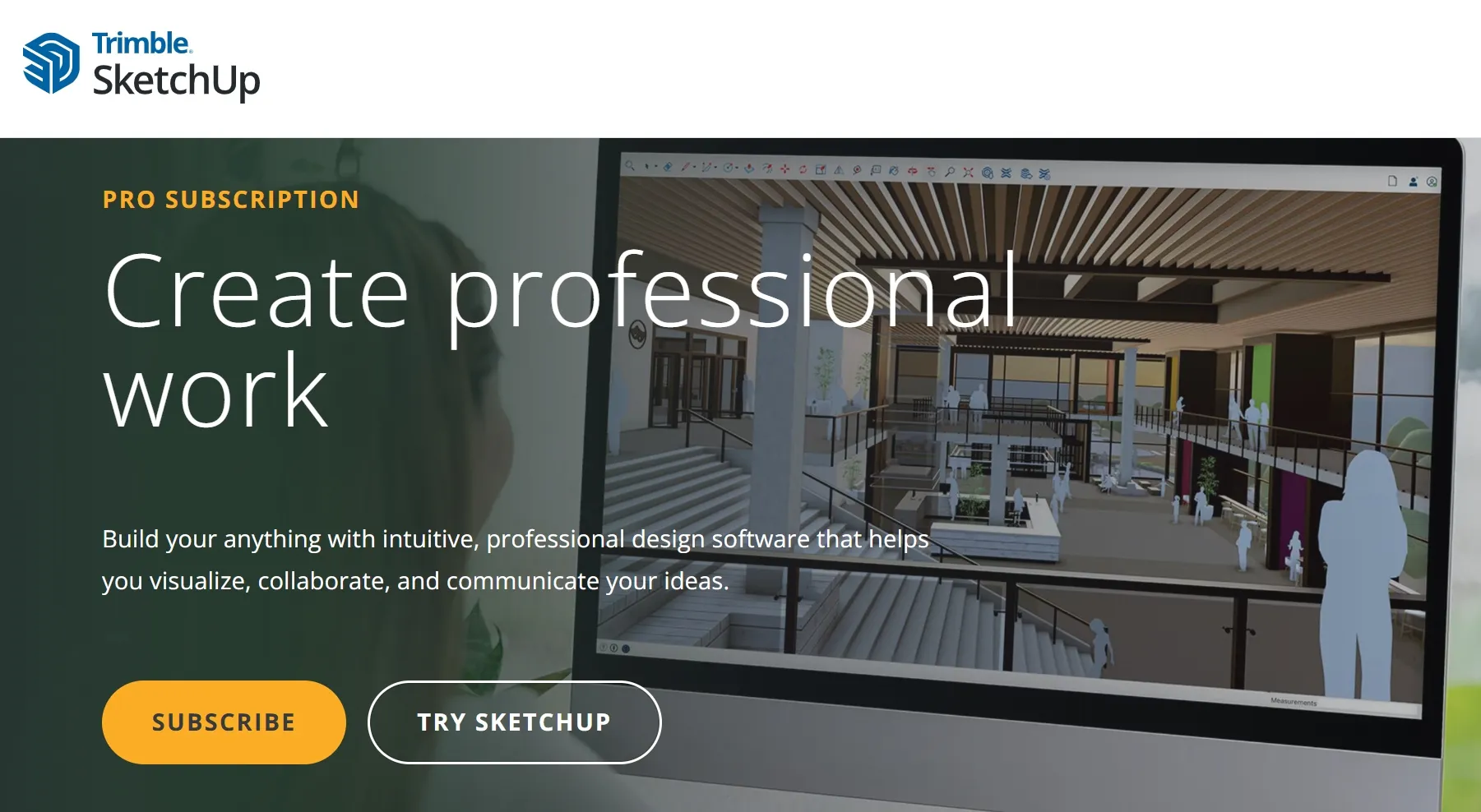
Key benefits of SketchUp:
-
Simple visual modeling
-
Easy push-and-pull workflow
-
Large 3D Warehouse
-
Useful for architectural designs
-
Good for simple 3D-printing projects
SketchUp also offers different plans. Its current plans include a free trial and paid options, while SketchUp for Schools is free for eligible education users with supported Google Workspace or Microsoft Education accounts.
For highly precise mechanical parts, however, you may prefer FreeCAD, Fusion, Shapr3D, or SOLIDWORKS.
8. SOLIDWORKS
Best for: Advanced mechanical design
Price: $48/year or $15/month for SOLIDWORKS for Makers, excluding taxes
SOLIDWORKS is a professional CAD choice for users who need detailed mechanical designs, assemblies, and engineering workflows.
It offers tools for parts, assemblies, drawings, sheet metal, structural design, mold design, rendering, and other professional tasks. SOLIDWORKS also offers a Makers version for personal, non-commercial projects. The current SOLIDWORKS for Makers price starts at $48 per year or $15 per month in the United States, excluding local taxes.
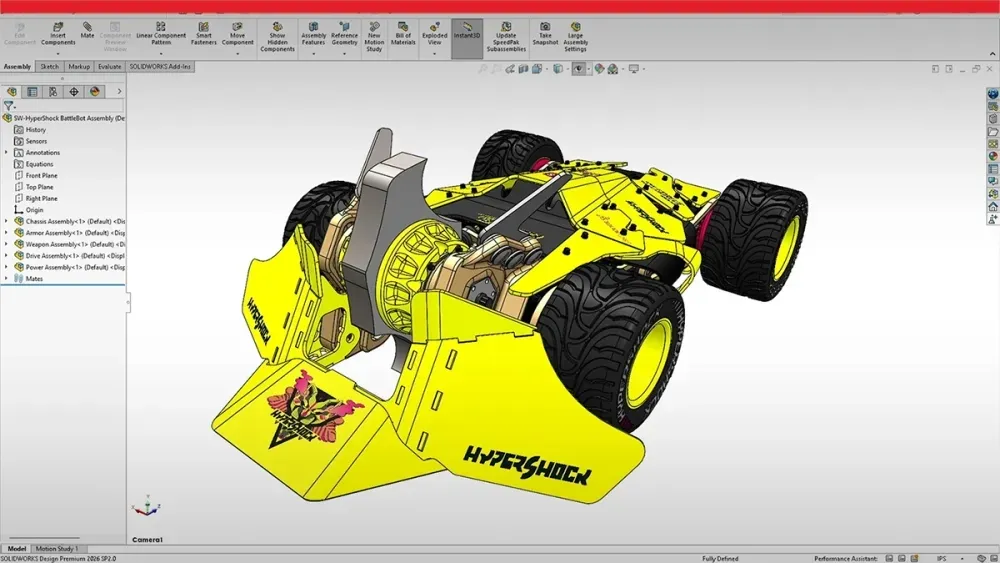
Key benefits of SOLIDWORKS:
-
Advanced mechanical CAD
-
Powerful assembly tools
-
Detailed part modeling
-
Professional engineering workflow
-
Suitable for complex products
SOLIDWORKS may be more than a beginner needs, but it makes sense if you plan to move from simple 3D prints into serious product or engineering design.
Part 3. How to Choose 3D Printing Design Software
Choosing the right software depends on your project, skill level, required accuracy, budget, and printing workflow. Consider these five factors before selecting a tool:
-
Project Type: Use Tinkercad for simple objects, Blender for artistic models, and CAD tools for functional mechanical parts.
-
Skill Level: Beginners can start with Tinkercad or SketchUp, while experienced users can choose FreeCAD, Fusion, Shapr3D, or SOLIDWORKS.
-
Required Precision: Choose parametric CAD software when your design needs exact dimensions, measurements, or adjustable features.
-
Export Formats: Check support for common 3D-printing formats such as STL and 3MF. STEP is useful for exchanging precise CAD geometry.
-
Price and Licensing: Compare free and paid plans, and check whether the license allows commercial use if you plan to sell your designs.
Your device and preferred workflow also matter. Browser-based tools such as Tinkercad and Onshape offer convenient access, while desktop software can provide deeper modeling controls. If you design on an iPad, Shapr3D can provide a convenient stylus-based workflow. Finally, choose software that works smoothly with your slicer and supports the file formats you regularly use.
Part 4. A Professional Drawing Display for 3D Design Workflows
A good display can also help when you create, inspect, or edit detailed 3D models. A pen display gives you direct control over drawings, sketches, sculpting work, and visual details.
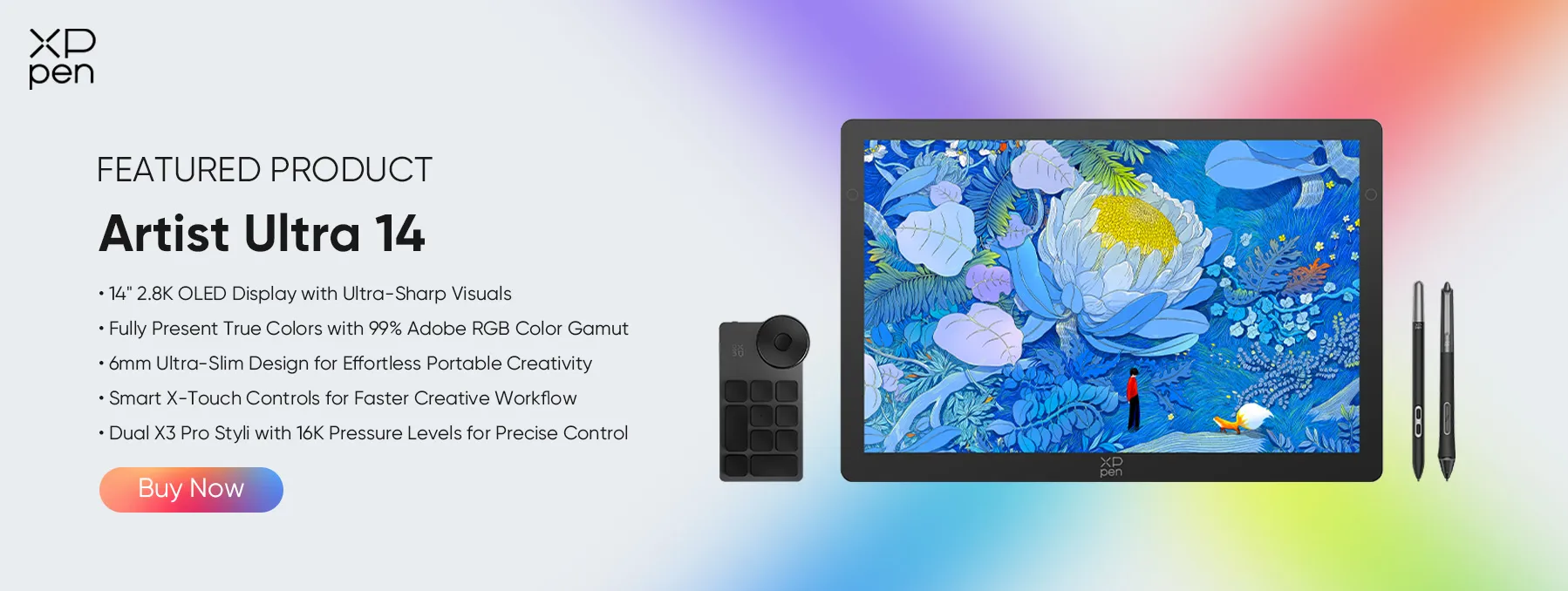
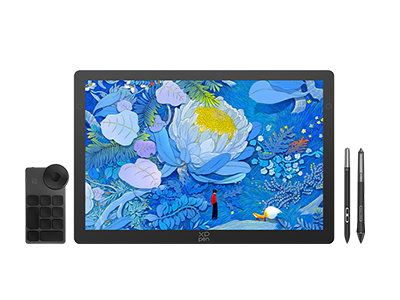
The XPPen Artist Ultra 14 offers a 14-inch 2.8K OLED display, 90Hz refresh rate, 10-bit color depth, 99% Adobe RGB coverage, and two X3 Pro styluses.
Its stylus supports 16K pressure levels and 60-degree tilt, which can help artists and designers control strokes during drawing and sculpting work. The display also supports USB-C connection and works with Windows, macOS, and Linux through its driver setup.
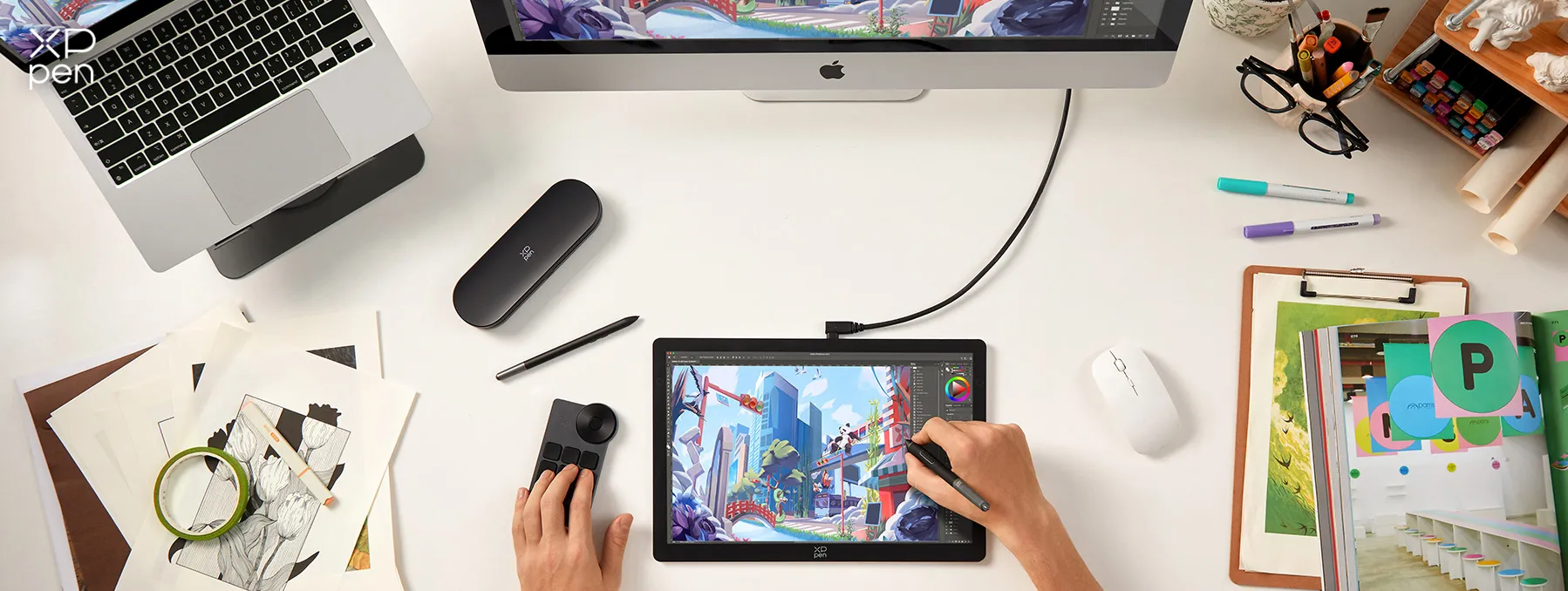
The Artist Ultra 14 is not a replacement for 3D CAD software. Instead, it can support the creative side of a 3D workflow, especially when you sketch ideas, sculpt models, create textures, or work with artistic software.
Part 5. FAQs About 3D Printing Design Software
Q1: Which 3D modeling software is the easiest to learn?
Tinkercad is usually the easiest option for beginners. Its simple browser-based interface lets you build models from basic shapes without learning complex CAD commands.
Q2: What is the best alternative to Fusion 360 for 3D printing?
FreeCAD, Onshape, and Shapr3D are strong alternatives. FreeCAD works well for free mechanical CAD, Onshape suits browser-based workflows, and Shapr3D focuses on simple but precise modeling.
Q3: Should I use Fusion 360, FreeCAD, Onshape, or Tinkercad for 3D printing?
Choose Tinkercad for basic beginner projects. Choose FreeCAD for free parametric CAD. Choose Onshape for browser-based collaboration. Choose Fusion when you need a broader product design and manufacturing workflow.
Q4: What is the best 3D design software for creating complex or organic shapes for 3D printing?
Blender is a strong choice for organic models, sculptures, characters, miniatures, and artistic shapes. Its sculpting and mesh tools give you much more freedom than basic CAD software.
Q5: What CAD software should I use for designing precise mechanical parts and functional 3D prints?
FreeCAD, Fusion, Shapr3D, and SOLIDWORKS all support precise mechanical design. FreeCAD gives you a free option, while SOLIDWORKS targets more advanced professional workflows.
Q6: What 3D modeling software should I learn if I want to design my own 3D printable models from scratch?
Start with Tinkercad if you are completely new. Move to FreeCAD or Fusion when you need accurate dimensions and functional parts. Choose Blender if you mainly want artistic or organic models.
Conclusion
The best 3D printing design software depends on your project, experience, and budget. Tinkercad offers the easiest starting point, while Blender works well for organic and artistic models. FreeCAD gives you a strong free CAD option, and Fusion provides a broader design workflow for qualifying hobbyists. Onshape stands out for browser-based CAD, while Shapr3D combines simple controls with precise modeling. SketchUp suits simple 3D projects, and SOLIDWORKS fits advanced mechanical work.
For creative 3D workflows, the XPPen Artist Ultra 14 can also provide a useful pen-display workspace for sketching, sculpting, and detailed visual work.
About Us
Founded in 2005, XPPen is a leading global brand in digital art innovation under Hanvon UGEE. XPPen focuses on the needs of consumers by integrating digital art products, content, and services, specifically targeting Gen-Z digital artists. XPPen currently operates in 163 countries and regions worldwide, boasting a fan base of over 1.5 million and serving more than ten million digital art creators.
Learn moreRecommended Articles
KNOWLEDGE 8 Best Apps for Interior Design (Free & Paid) TIPS 10 Best Free Drawing Software Tools for Digital Art TIPS 8 Best Product Design Software Tools (Free & Paid) TIPS 8 Best Landscape Design Software Tools (Free & Paid) FOCUSED XPPen Artist Ultra 14 Review: Is It Worth Buying?


-
 Artist Ultra 14
14-inch 2.8K OLED Display with Ultra-Sharp Visuals
99% Adobe RGB Color Gamut for True-to-Life Color
Ultra-Slim 6mm Design for Portable Creativity
Dual X3 Pro Styli with 16K Pressure Levels
Smart X-Touch Controls for Faster Workflow
It features:
Best 14" OLED drawing display for precision and portability
-
Artist Ultra 14
14-inch 2.8K OLED Display with Ultra-Sharp Visuals
99% Adobe RGB Color Gamut for True-to-Life Color
Ultra-Slim 6mm Design for Portable Creativity
Dual X3 Pro Styli with 16K Pressure Levels
Smart X-Touch Controls for Faster Workflow
It features:
Best 14" OLED drawing display for precision and portability
Looking for the Best Drawing & Design Apps?
Discover essential drawing techniques, expert tips, and the best app recommendations to boost your creativity and master digital art.
