5 Best Video Editing Controller 2026 for Beginners & Pros
FOCUSEDVideo editing is time-consuming, but the right tools help. Most editors still rely on a keyboard and mouse for every cut, transition, or color tweak—often clicking and pressing hundreds of times per project.
A video editing controller offers dedicated buttons, dials, and shortcuts, letting you perform common actions with one touch instead of searching menus or memorizing commands. This guide reviews the best controllers of 2026, how they boost speed, and how to choose one for your workflow.
Part 1. Video Editing Controller Change How You Edit Videos
A video editing controller is a hardware device designed to give editors direct access to editing functions through physical controls. These controls may include programmable buttons, jog wheels, rotary dials, sliders, and LCD displays.
Traditional editing depends heavily on a mouse and keyboard. With a dedicated controller, frequently used commands stay within easy reach. Instead of opening menus repeatedly, editors can perform actions instantly.
Common tasks handled by a controller include:
-
Timeline navigation
-
Frame-by-frame scrubbing
-
Cutting clips
-
Trimming footage
-
Color grading adjustments
-
Audio level control
-
Playback control
-
Marker placement
-
Zooming in and out of timelines
-
Applying custom shortcuts
According to demonstrations from professional editors, dedicated controllers can significantly reduce mouse travel and repetitive actions.
Many users report noticeable productivity improvements because physical dials and wheels allow faster navigation than repeatedly dragging a mouse across the screen. The result is a smoother editing experience with fewer interruptions.
Mouse vs Controller Workflow
| Editing Task | Mouse & Keyboard | Video Editing Controller |
|---|---|---|
| Timeline Scrubbing | Multiple clicks and dragging | Dedicated jog wheel |
| Color Grading | Adjust sliders individually | Multiple dials simultaneously |
| Clip Trimming | Repeated keyboard shortcuts | Single-button actions |
| Playback Control | Keyboard commands | Dedicated transport controls |
| Marker Placement | Shortcut memorization | Physical buttons |
| Zoom Timeline | Mouse wheel or shortcuts | Custom dial control |
Many professional editors use both systems together. The keyboard handles text input and advanced shortcuts, while the video editing controller manages repetitive editing actions.
Also Read: Best Video Editing Courses Free & Paid
Part 2. 5 Best Video Editing Controller 2026
The market offers many options, but only a few devices consistently deliver excellent editing performance. Below are the best video editing controllers worth considering in 2026.
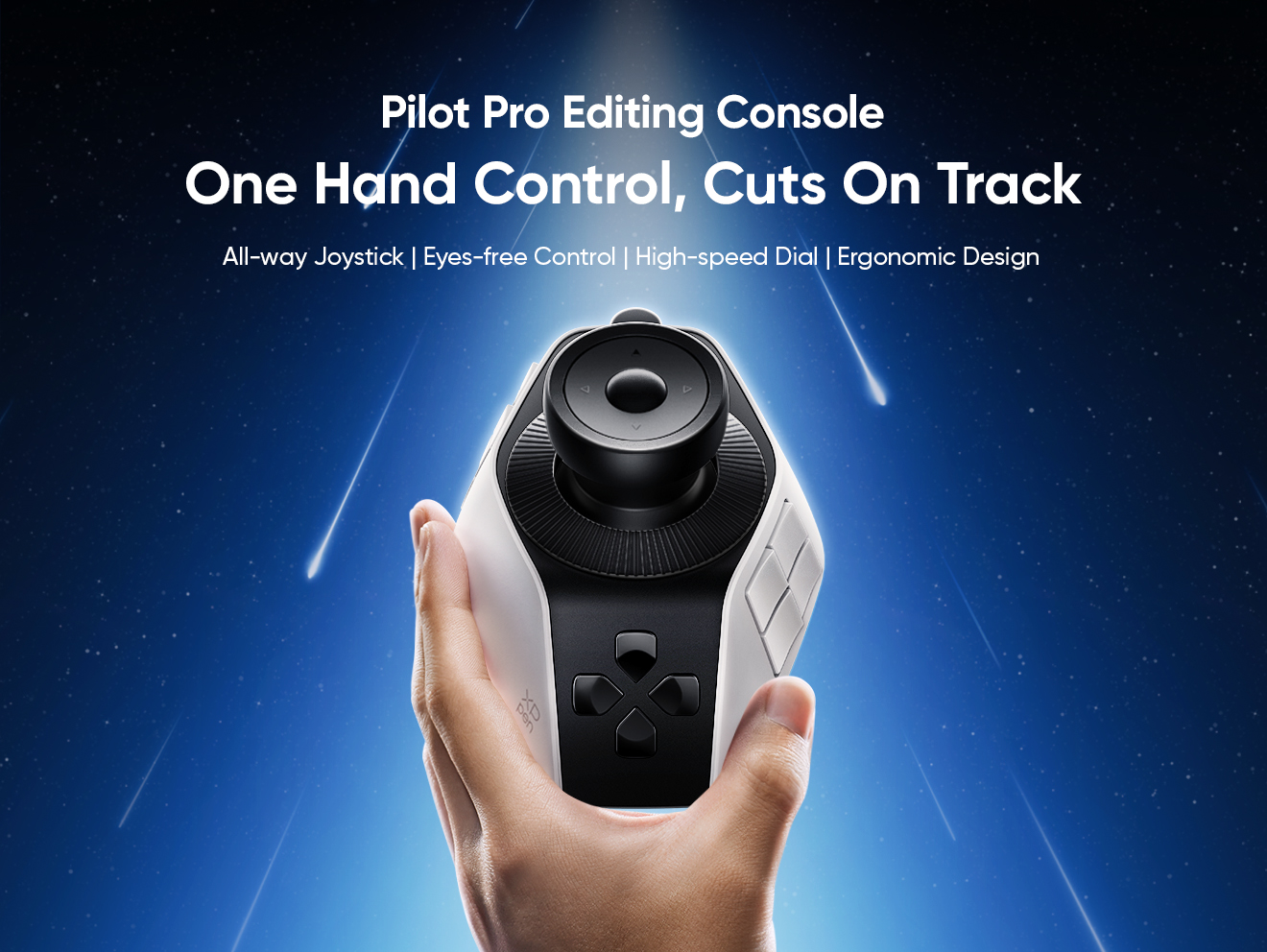
1. XPPen Pilot Pro Editing Console
XPPen Pilot Pro Editing Console is one of the strongest choices for modern editors. XPPen designed this console specifically for creative professionals who need quick access to editing functions without relying solely on keyboard shortcuts.
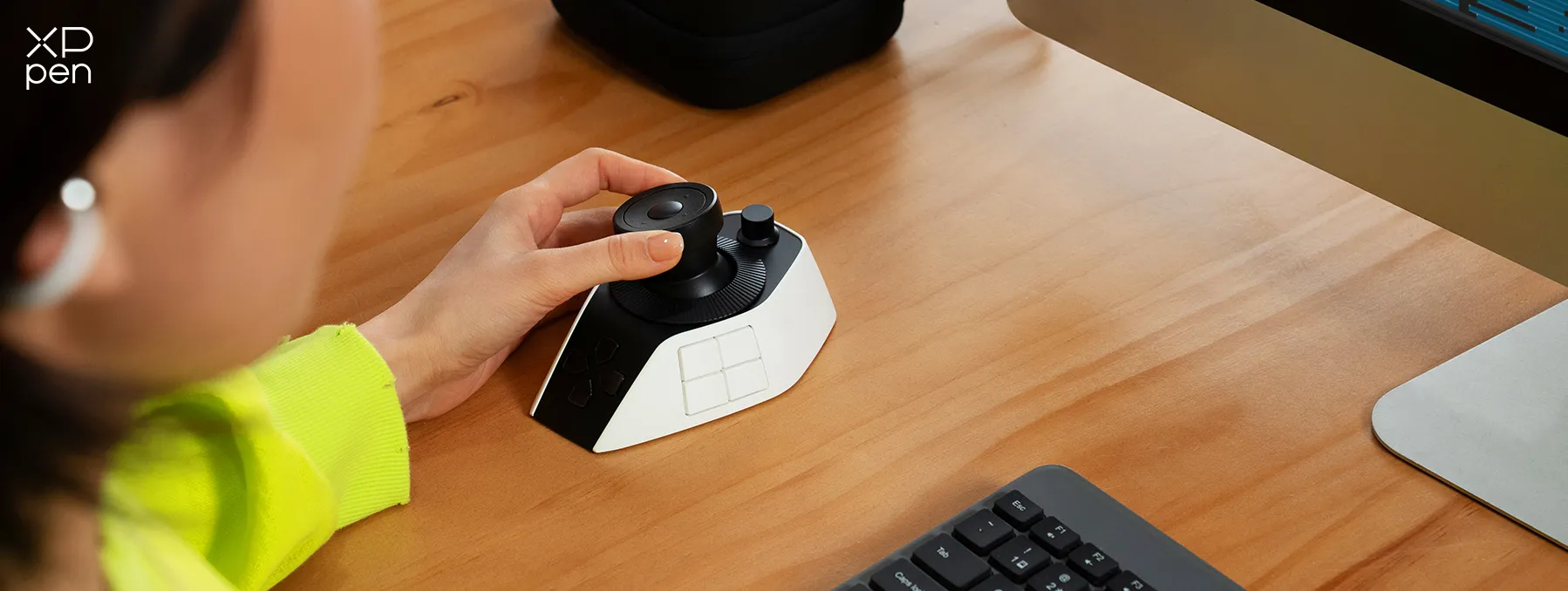
The device includes customizable buttons, programmable dials, and workflow controls that integrate with major editing software. Editors can create profiles for different applications and switch between them quickly.
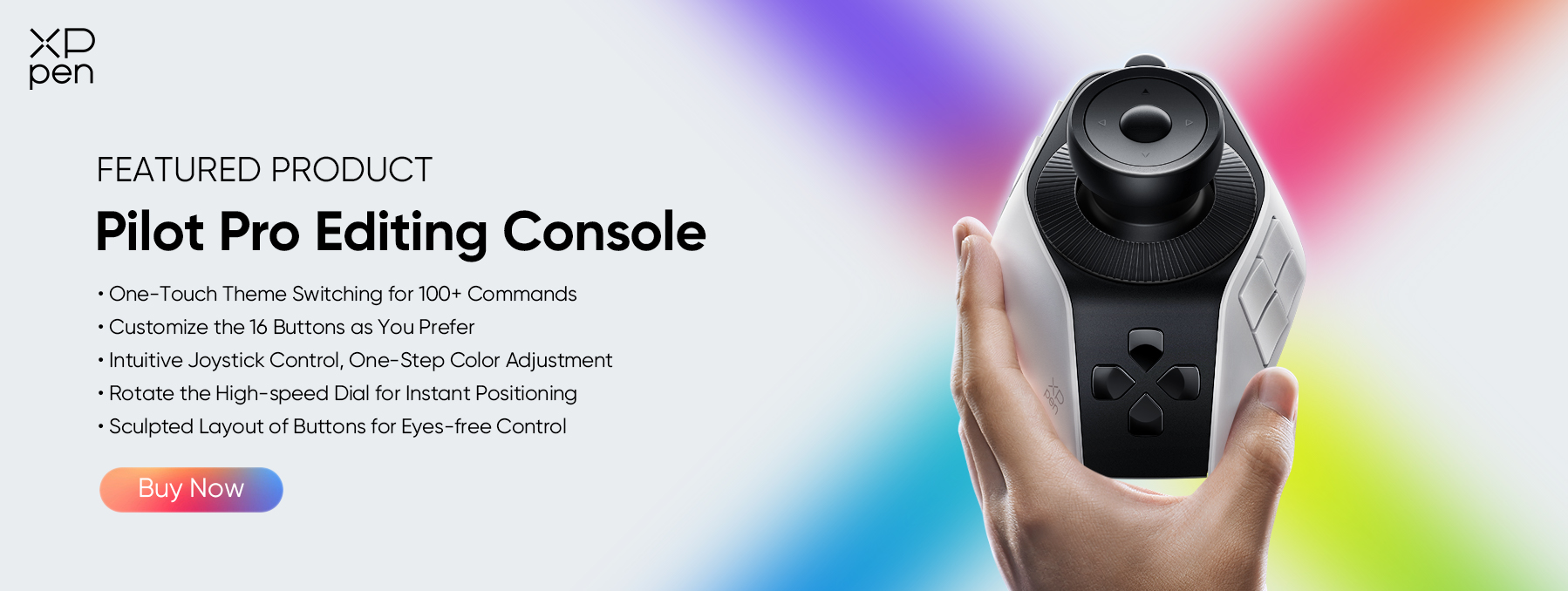
Key Features of Pilot Pro Editing Console
-
Large customizable shortcut system
-
Multiple programmable rotary dials
-
Application-specific profiles
-
Comfortable desktop design
-
Supports major editing platforms
-
Custom macro creation
Software Compatibility
The Pilot Pro video editing controller works with:
-
Adobe Premiere Pro
-
DaVinci Resolve
-
Final Cut Pro
-
Photoshop
-
Other creative software
Pilot Pro Editing Console is best for content creators, YouTubers, filmmakers, wedding editors, and professionals who want a dedicated editing console without paying premium enterprise prices.
The Pilot Pro video editing controller earns the top position because it balances features, usability, software support, and affordability better than most competitors.
2. Loupedeck Live S
Loupedeck remains one of the most recognized names among creative professionals, especially among video editors, photographers, streamers, and content creators who need quick access to frequently used tools.
The Live S combines touchscreen controls with customizable buttons and rotary dials, allowing users to build a workflow that matches their editing style. Editors can create personalized workspaces for different stages of production, such as rough cuts, color correction, audio mixing, and final export preparation.
3. Logitech MX Creative Console
The Logitech MX Creative Console focuses on improving productivity for creators who regularly work across video editing, graphic design, photography, and content creation projects.
It offers programmable keys and customizable controls that help users access common commands without constantly navigating software menus. Editors can create custom workflows tailored to their preferred editing software, making repetitive tasks quicker and easier to manage.
4. DaVinci Resolve Speed Editor
Blackmagic Design created the DaVinci Resolve Speed Editor specifically for DaVinci Resolve users who want faster timeline navigation and editing control. Rather than serving multiple applications, this controller focuses entirely on maximizing editing speed inside Resolve.
It features a high-quality jog wheel, dedicated trim buttons, transport controls, and shortcut keys designed for professional editing workflows. Editors can quickly scrub through footage, make precise cuts, review clips, and move around large projects with greater accuracy than using a mouse alone.
5. TourBox Elite
TourBox Elite offers a unique design that combines multiple knobs, buttons, wheels, and tactile controls in a compact desktop device. Unlike traditional editing consoles, it places a wide range of customizable controls within easy reach, allowing editors to perform common actions without constantly switching between the keyboard and mouse.
Many editors appreciate its compact size and extensive customization options, which make it suitable for both fixed workstations and portable editing setups.
Part 3. How to Choose the Best Video Editing Controller
Not every controller fits every workflow. Before purchasing a video editing controller, consider the factors below.
1. Software Compatibility
Always verify software compatibility before buying a video editing controller. A controller is only useful if it works properly with the programs you use every day.
Some controllers support multiple applications such as Adobe Premiere Pro, DaVinci Resolve, Final Cut Pro, After Effects, and Photoshop, while others are designed primarily for one platform.
2. Number of Physical Controls
Different projects require different levels of control. Editors who perform extensive color grading often benefit from multiple dials. Timeline-heavy editors may prioritize jog wheels and transport controls.
Consider whether you need:
-
Programmable buttons
-
Rotary dials
-
Jog wheels
-
Sliders
-
Touchscreen controls
More controls generally provide greater flexibility.
3. Customization Options
The best controllers allow users to build custom workflows.
Look for devices that support:
-
Macro commands
-
Custom shortcuts
-
Application profiles
-
Button remapping
-
Multi-step actions
Customization helps editors adapt the controller to their editing style rather than changing their workflow to match the hardware.
4. Build Quality and Comfort
Editing sessions often last several hours. Comfortable controls and durable construction matter more than many buyers realize. High-quality dials, responsive buttons, and sturdy materials contribute to a better daily experience. A controller should feel reliable during continuous use.
5. Budget and Value
Controllers range from entry-level devices to professional editing consoles. A higher price does not automatically mean better value. Focus on features that directly improve your workflow.
The Pilot Pro video editing controller stands out because it provides professional functionality without reaching the cost of many premium alternatives.
Part 4. FAQs About Video Editing Controller
Q1: Does XPPen Pilot Pro work well with Premiere, Final Cut, or Resolve?
Yes. The Pilot Pro video editing controller supports major creative applications including Adobe Premiere Pro, Final Cut Pro, and DaVinci Resolve. Users can create customized profiles for each application and switch workflows when needed.
Q2: Best budget video editing controller with physical dials and buttons?
The Pilot Pro video editing controller is one of the strongest budget-friendly options that still provides professional-level controls. It offers programmable buttons, rotary dials, shortcut customization, and compatibility with leading editing software.
Q3: Are dedicated controllers actually faster than keyboard shortcuts?
For many editors, yes. Keyboard shortcuts remain important, but dedicated controllers reduce mouse movement and repetitive actions. Physical dials improve timeline navigation, color grading, and playback control. Most experienced users combine shortcuts with a controller for maximum efficiency.
Conclusion
A good video editing controller boosts comfort, cuts repetitive actions, and streamlines your workflow by giving you direct access to key commands via dedicated buttons, wheels, and dials.
Among the best options in 2026, the XPPen Pilot Pro Editing Console stands out for its balance of customization, software compatibility, practical controls, and value. Before buying, consider your editing software, workflow style, customization needs, and budget.
About Us
Founded in 2005, XPPen is a leading global brand in digital art innovation under Hanvon UGEE. XPPen focuses on the needs of consumers by integrating digital art products, content, and services, specifically targeting Gen-Z digital artists. XPPen currently operates in 163 countries and regions worldwide, boasting a fan base of over 1.5 million and serving more than ten million digital art creators.
Learn moreRecommended Articles
TIPS 18 Best Free Video Editing Software No Watermark in 2026 KNOWLEDGE sRGB vs Adobe RGB vs Others: Which Color Space is Best for Photos, Videos, and Printing? FOCUSED What Is the Best Tablet for Video Editing? ROUNDUPS Best Monitors for Video Editing, Gaming & Color Correction ROUNDUPS 6 Best Photo Editing Controllers in 2026 FOCUSED What Makes a Good Video Editing Console in 2026? FOCUSED XPPen Pilot Pro Review: Smart Editing Console for Creators


Ready to invest in the right tools?
Get expert buying advice, unbiased reviews, and exclusive deals on drawing tablets, and accessories.
