6 Best Graphic Design Software Tools Free & Paid
TIPSThe best graphic design software should help you turn an idea into finished work without forcing every project into the same workflow. A logo needs scalable shapes and precise curves. A photo-led campaign needs image-editing tools. A brochure needs organized pages, readable typography, and consistent formatting.
Our recommendations reflect those differences: Adobe Illustrator for vector graphics, Photoshop for image-based design, Canva for accessible template-led creation, and Affinity for a free desktop application that combines vector, photo, and layout tools. Other options offer more focused workflows for interface design, digital painting, and publications.
This guide compares 6 graphic design software tools by their strengths, limitations, pricing models, and practical uses. Whether you need the best graphic design software for beginners or a more specialized application for client work, start with what you actually want to create.
Part 1. Best Graphic Design Software at a Glance
| Software | Recommended use | Pricing model | Main consideration |
|---|---|---|---|
| Adobe Illustrator | Logos, icons, and scalable brand graphics | Paid subscription | Best suited to vector-focused work rather than photo editing. |
| Adobe Photoshop | Photo editing and image-based compositions | Paid subscription | Works primarily with pixel-based graphics. |
| Canva | Beginner-friendly marketing and social graphics | Free plan; paid upgrades | Premium content and advanced features vary by plan. |
| Affinity | Free all-in-one desktop design | Free core application; premium Canva plan for more tools | Requires a Canva account. |
| Figma | UI design, prototypes, and collaborative projects | Free Starter plan; paid plans | Advanced capabilities depend on plan and seat type. |
| Inkscape | Free vector graphics and SVG editing | Free and open source | Primarily a vector editor, not a photo editor. |
How This Graphic Design Software List Was Selected
The selections cover common creative tasks rather than simply collecting the applications with the longest feature lists.
The comparison considers five questions:
-
What kind of work is the software designed to handle?
-
Does it provide free ongoing access, a limited free plan, or paid access?
-
How much manual control does the workflow require?
-
Does it support the way you need to collaborate or deliver files?
-
What compromises should you understand before committing?
The priority is fit . Templates speed up production, vector tools offer precise control, photo editors handle images, and layout apps organize multipage documents. Adobe’s guidance reflects these distinct roles—no single tool does everything.
Part 2. Top 6 Graphic Design Software Options
1. Adobe Illustrator: Best for Professional Vector Graphics
Design focus: Vector illustration, typography, and brand assets
Payment model: Subscription.
Platforms: Windows and macOS
Adobe Illustrator is a strong choice when your work depends on scalable, editable artwork. Its vector approach makes it particularly relevant to logos, icons, patterns, and illustrations that need to appear at different sizes.
Why choose Illustrator?
A brand asset rarely stays in one place. A logo may need to work on a small website header, packaging, printed stationery, and a large display. Vector artwork provides a suitable foundation because it can scale without the same pixelation associated with enlarging a raster image.
Illustrator is also relevant when you need to build original visual elements rather than arrange existing ones. You can develop a consistent set of shapes, symbols, and typographic treatments around a specific identity.
Consider a café branding project. The logo, decorative pattern, and supporting icons all belong to the same visual system. Illustrator is suited to creating those individual assets, which can later be used in layouts and promotional compositions.
Reasons to choose it
-
Your work regularly includes original logos or icons.
-
You need scalable artwork for different outputs.
-
Custom vector illustration is central to your projects.
Our recommendation: Shortlist Illustrator if vector artwork is a recurring part of your professional work. If you only need occasional template-based graphics, start with a simpler workflow.
Pro Tip: Turn Your Creative Ideas into Reality
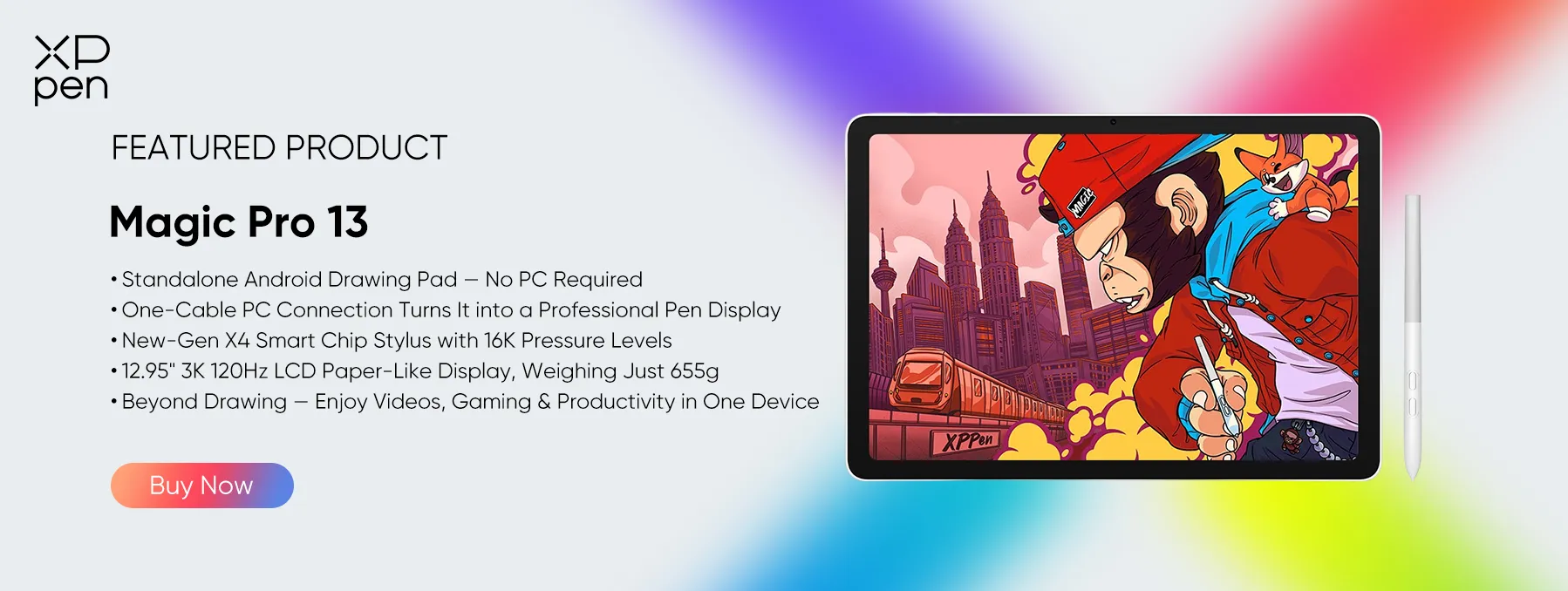
The right software helps you design, but the right tools can make creating feel more natural. XPPen Magic Pro 13 Standalone Drawing Pad lets you sketch on the go and switch to PC-based design workflows when you need more creative control—making it a great companion for graphic designers who love drawing by hand.
2. Adobe Photoshop: Best for Photo Editing and Compositing
Design focus: Raster images, photographic compositions, and digital artwork
Payment model: Subscription.
Platforms: Windows and macOS
Adobe Photoshop is a better match for work built around photographs and pixel-based images. Adobe positions it for combining photos, graphics, and text, using layers and customizable editing tools.
For a content creator, that can mean building an image-led campaign graphic, combining several visual elements into a promotional composition, or preparing photographs for a design project. Its role is different from Illustrator’s: Photoshop manipulates image content, while Illustrator focuses on scalable vector artwork.
Reasons to choose it
-
You create photo-led campaigns or promotional graphics.
-
Your work involves compositing and image manipulation.
-
You need an image editor alongside a vector or layout tool.
Our recommendation: Choose Photoshop for image-centered design. Do not select it simply because it is a familiar name if most of your projects involve another discipline.
3. Canva: Best Graphic Design Software for Beginners
Design focus: Vector graphics, photo editing, illustration, and page layout
Payment model: Free core application with a Canva account.
Platforms: Windows and macOS
Canva is the most approachable recommendation here for people who want to create useful marketing graphics without beginning with a complex desktop workflow.
Its free plan includes a drag-and-drop editor, templates, and stock assets. Paid plans add premium content, more powerful design tools, and additional creative capabilities.
The practical appeal is the starting point. Instead of constructing every element from an empty canvas, you can begin with an existing layout and customize the content. For a blogger, small business owner, or social media manager, that approach can make routine visual production more manageable.
Reasons to choose it
-
You create routine marketing or social content.
-
You prefer adapting layouts to building everything manually.
-
You want to begin with a free plan.
Our recommendation: Start with Canva for accessible content production. Move toward a specialized editor when a project requires capabilities beyond your template workflow.
4. Affinity: Best Free All-in-One Desktop Option
Design focus: Vector graphics, photo editing, illustration, and page layout
Payment model: Free core application with a Canva account.
Platforms: Windows and macOS
Affinity stands out because its current application brings vector design, photo editing, illustration, and page layout into one desktop environment. Its Pixel, Vector, and Layout studios are available free with a Canva account.
This is an important distinction from older comparisons that describe Affinity only as separate paid applications. The current all-in-one product provides its core design tools and export features without a subscription charge. Integrated Canva AI tools, however, require an eligible premium Canva plan.
Affinity is especially appealing if you want to move between different kinds of work without immediately paying for several applications. You can explore image editing, vector artwork, and document layout within the same product. It currently supports Windows and macOS.
Reasons to choose it
-
You need a mix of vector, image, and layout capabilities.
-
You want a free desktop application.
-
You work on Windows or Mac and prefer a combined environment.
Our recommendation: Affinity is a strong starting point if you want the best graphic design software free and you want a broad desktop toolset rather than a limited trial.
5. Figma: Best for UI Design and Collaborative Workflows
Design focus: Interfaces, components, and interactive prototypes
Payment model: Free Starter plan with paid plans and seat types.
Platforms: Windows, macOS, and Mobile
Figma is a strong choice when your work involves interfaces, reusable components, interactive prototypes, and feedback from other people.
Its documented capabilities include vector editing, layout grids, components, responsive frames, interactive prototypes, and live collaboration. Its free Starter plan provides limited access, while paid plans expand file management, libraries, prototyping, and development-handoff capabilities.
For a website or app project, those features connect design decisions to how an interface should behave. Rather than delivering only a static visual, you can organize reusable elements and demonstrate interactions.
Reasons to choose it
-
You design websites or app interfaces.
-
Reusable UI elements are important to your work.
-
You need shared feedback and interactive presentations.
Our recommendation: Choose Figma for collaborative interface design rather than treating it as a replacement for every graphics application.
6. Inkscape: Best Free Vector Graphics Editor
Design focus: SVG graphics, logos, diagrams, and vector illustration
Payment model: Free and open source
Platforms: Windows, macOS, and Linux
Inkscape is a free, open-source vector editor available for Windows, macOS, and GNU/Linux. It uses SVG as its main format and supports work such as logos, typography, illustrations, diagrams, and flowcharts.
It is a strong candidate when you need direct vector-editing tools without a software subscription. Its focus on scalable shapes also makes it a more appropriate starting point for original logo artwork than a photo editor.
Inkscape can import and export various formats, including SVG, PDF, EPS, and PNG, although the exact suitability of a format should still be checked against your project requirements.
Reasons to choose it
-
You need free vector-editing tools.
-
SVG is important to your projects.
-
You want to create original scalable graphics.
Our recommendation: Choose Inkscape when vector graphics are the main requirement, especially if you want an open-source workflow.
Part 3. How to Choose the Best Graphic Design Software
Before choosing graphic design software, consider these six factors to find the right tool for your needs.
1. Identify Your Design Goals
Choose software based on your projects. Use vector tools for logos and icons, image editors for photo manipulation, and layout applications for brochures and magazines. For website and app interfaces, consider Figma.
2. Consider Your Skill Level
The best graphic design software for beginners should be easy to learn and flexible enough to support future growth. Canva is ideal for quick designs, while Inkscape and GIMP help beginners develop more advanced editing skills for free.
3. Compare Free and Paid Features
Free graphic design software can handle many everyday tasks. Before choosing, check export formats, commercial-use rights, and access to essential features. Compare free alternatives with paid plans to determine the best long-term value.
4. Check PC and Mac Compatibility
When choosing graphic design software for PC or Mac, verify operating system support and hardware requirements. Browser-based tools such as Canva and Figma are convenient alternatives if you prefer not to install desktop applications.
5. Evaluate File Formats and Export Quality
Ensure your software supports the formats required by your workflow, including SVG for vector graphics, PNG and JPEG for images, and PDF for sharing and print production. Compatibility is especially important when collaborating with other designers.
6. Consider Your Long-Term Workflow
Choose software that fits your current needs and future plans. Freelancers may prioritize professional compatibility, small businesses may prefer templates, and students may benefit most from free tools and learning resources. Start with one suitable application and add others as your projects become more complex.
Part 4. Take Your Graphic Design Workflow Further with XPPen Magic Pro 13
Choosing the best graphic design software is only part of building your creative workflow. When a project calls for original illustrations, hand-drawn elements, or detailed image editing, drawing directly on a screen gives you another way to develop your ideas. XPPen Magic Pro 13 Standalone Drawing Pad brings mobile sketching and desktop creation together in one device.
Use it as a standalone Android drawing tablet to explore concepts wherever inspiration strikes. Our Shelf app helps you organize reference images with tags, annotations, and visual search, while Canvas provides a lightweight space for capturing early ideas. When you are ready to develop those concepts further, connect Magic Pro 13 to your PC through a single USB-C cable. Drawing Display Mode turns it into a pen display for working in desktop software running on your connected computer, keeping mobile flexibility and desktop tools within the same creative setup.
The 12.95-inch display combines a 3096 × 2064 resolution with a 120Hz refresh rate, giving detailed artwork and on-screen movement room to shine. Its 3:2 aspect ratio provides space for your canvas, while AG+AF nano-etched glass adds a paper-like drawing surface.
The X4 Smart Chip Stylus complements that display with 16,384 pressure levels, a 2g initial activation force, and 60° tilt support. These capabilities are designed to capture light strokes, pressure changes, and expressive shading—particularly useful when creating custom illustrations or painted elements for a larger design. Pressure and tilt behavior will depend on the application and brush settings you use.

For designers who move between drawing, reference gathering, and desktop refinement, Magic Pro 13 offers a practical bridge between those stages. Start with an idea on the go, develop it with pen input, and bring it into your desktop workflow when the project calls for more.
Part 5. FAQs about Graphic Design Software
1. What is the best graphic design software for beginners?
Canva is a practical starting point for template-based content because it combines a drag-and-drop editor with ready-made layouts. Affinity is a stronger option for beginners who specifically want to learn desktop vector, photo, and layout tools within one application.
2. What is the best graphic design software for beginners free of subscription fees?
Want graphic design software for beginners free? Canva Free offers an accessible template-led route, while Affinity provides a free desktop environment with more extensive manual tools. Inkscape is another option if the learning goal is specifically vector design.
3. Where can I find graphic design software for free download?
Inkscape, GIMP, and Krita provide free software through their official websites. Affinity also provides its core application free with a Canva account.
When finding graphic design software free download, check whether it is ongoing access or a temporary trial. For example, CorelDRAW offers a 15-day trial rather than a permanently free full suite.
4. Can free graphic design software handle serious work?
Free software can provide substantial capabilities. Affinity includes vector, pixel, and layout studios; Inkscape supports scalable vector artwork. Whether any one application suits a professional project depends on the required features and deliverables.
5. Should I use Photoshop or Illustrator?
Use Photoshop when the work centers on photographs and pixel-based editing. Use Illustrator when it centers on scalable shapes, icons, logos, and vector illustrations. They solve different problems and can complement each other rather than serving as direct substitutes.
Conclusion
The best graphic design software is the one that fits what you create. Choose a photo editor for image-led campaigns, a vector tool for logos and brand assets, or a layout application for multipage publications. If your priority is producing everyday content quickly, a template-based platform may be enough. Free software can also be a practical starting point—focus on the capabilities you need before committing to a paid plan.
When your projects call for original illustrations, hand-drawn elements, or detailed pen-based editing, consider the hardware alongside the software. Our XPPen Magic Pro 13 Standalone Drawing Pad combines standalone Android drawing with a one-cable PC Drawing Display Mode, letting you sketch on the go and continue in desktop software on your connected computer. It is designed to connect mobile inspiration with a more hands-on desktop workflow.
About Us
Founded in 2005, XPPen is a leading global brand in digital art innovation under Hanvon UGEE. XPPen focuses on the needs of consumers by integrating digital art products, content, and services, specifically targeting Gen-Z digital artists. XPPen currently operates in 163 countries and regions worldwide, boasting a fan base of over 1.5 million and serving more than ten million digital art creators.
Learn moreRecommended Articles
ROUNDUPS 6 Best Tablets for Graphic Design in 2026: A Comprehensive Buying Guide ROUNDUPS The Best Laptop for Graphic Design in 2026 TIPS 7 Best Digital Art Software Tools (Free & Paid)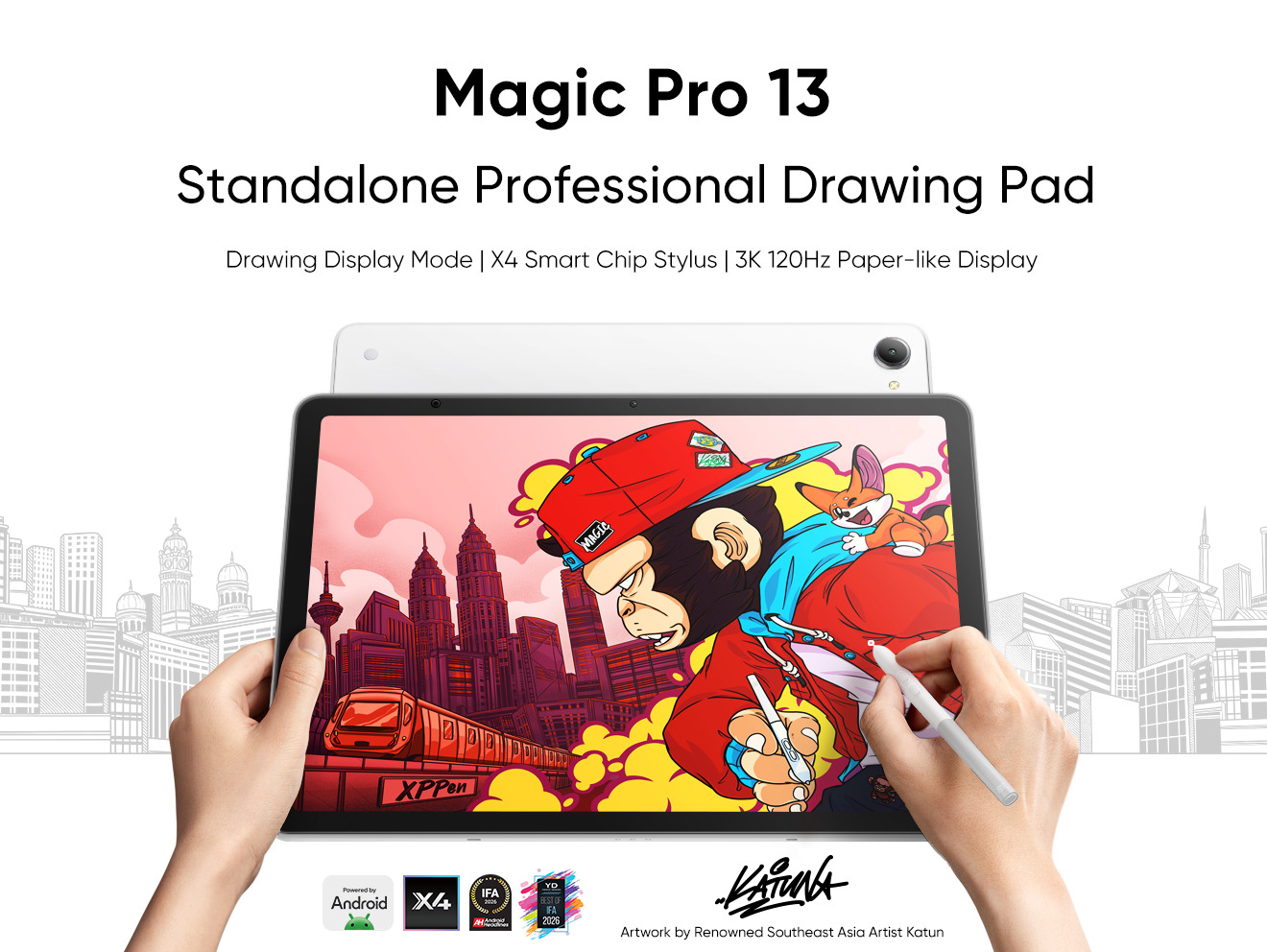


Looking for the Best Drawing & Design Apps?
Discover essential drawing techniques, expert tips, and the best app recommendations to boost your creativity and master digital art.
