How Touchscreen Functions on Drawing Tablets Enhance Your Art
KNOWLEDGEFor drawing tablets, it's always been about the stylus. For decades, the pen was everything. Pressure sensitivity gave digital artists the nuance of traditional media without the mess, and touch was met with skepticism. Unwanted input was a real concern, and early touch implementation was finicky enough to justify it.
That conversation has moved on. Modern touch input on pen displays has addressed most of what made artists wary of it, and the question in 2026 is no longer whether touch input is valuable. It's how much of your current workflow you're leaving on the table by not using it.
What Is Touchscreen Functionality on Drawing Tablets?
Touchscreen functionality on a drawing tablet lets you interact with the display using your fingers alongside your stylus, but implementation is what actually determines how useful it is. It’s also an amazing feature for beginners.
Single touch lets a finger tap or click but stops there. No pinching, no rotation, no gestures. Multi-touch opens all of that up by allowing multiple fingers to interact simultaneously. Professional-grade pen displays now support 10-point multi-touch, meaning up to ten contact points at once.
Touch input and stylus input operate independently of each other. The stylus works through electromagnetic resonance, a technology that detects pen position, pressure, and tilt through a dedicated internal sensor layer that sits completely separate from the touch layer above it. One doesn't interfere with the other.
X-Touch is XPPen's branded touch solution, built into their Artist Pro 27 (Gen 2) and Artist Ultra 16. On top of standard gesture support, it adds customizable touch zones and a floating on-screen menu that lets you designate specific areas of the display as dedicated function zones, which is a level of touch customization that goes beyond what most pen displays offer.
Advanced Touch Features in Modern Tablets
Customizable Touch Areas (X-Touch)
One of the most practical advances in touch tablet technology is the ability to define which areas respond to touch and which don't. With the XPPen Artist Ultra 16, you can draw a rectangle directly on the screen to create a touch-dead zone. Anything inside that rectangle ignores finger input entirely, so you can rest your hand there freely without triggering anything. Only the stylus registers in that area.
This is a genuinely good solution to the problem artists have always had with touch on pen displays. Instead of keeping your hand constantly hovering above the surface or wearing an artist's glove, you define your natural working position and configure the touch behavior around it.
Beyond exclusion zones, X-Touch also supports a floating menu that gives you touch-based access to customizable shortcuts including undo, copy and paste, delete, and layer operations. Three, four, and five finger gestures can each be mapped to different functions, which makes this a true one-handed operation system rather than just a navigation tool with some gesture support bolted on.
Palm Rejection Technology
There are a few ways palm rejection is handled on modern pen displays. When the EMR layer detects a stylus is present, the touch layer automatically de-prioritizes large contact areas that match a palm profile. Shape analysis of the touch input can also distinguish between a finger, which leaves a small round contact point, and a palm, which leaves a larger and more irregular one.
On Windows, most major drawing applications add a second layer of software-based palm rejection on top of that. On macOS the situation is less consistent, with some applications offering limited palm rejection support for external touch displays and others not.
The Best Touchscreen Drawing Tablets
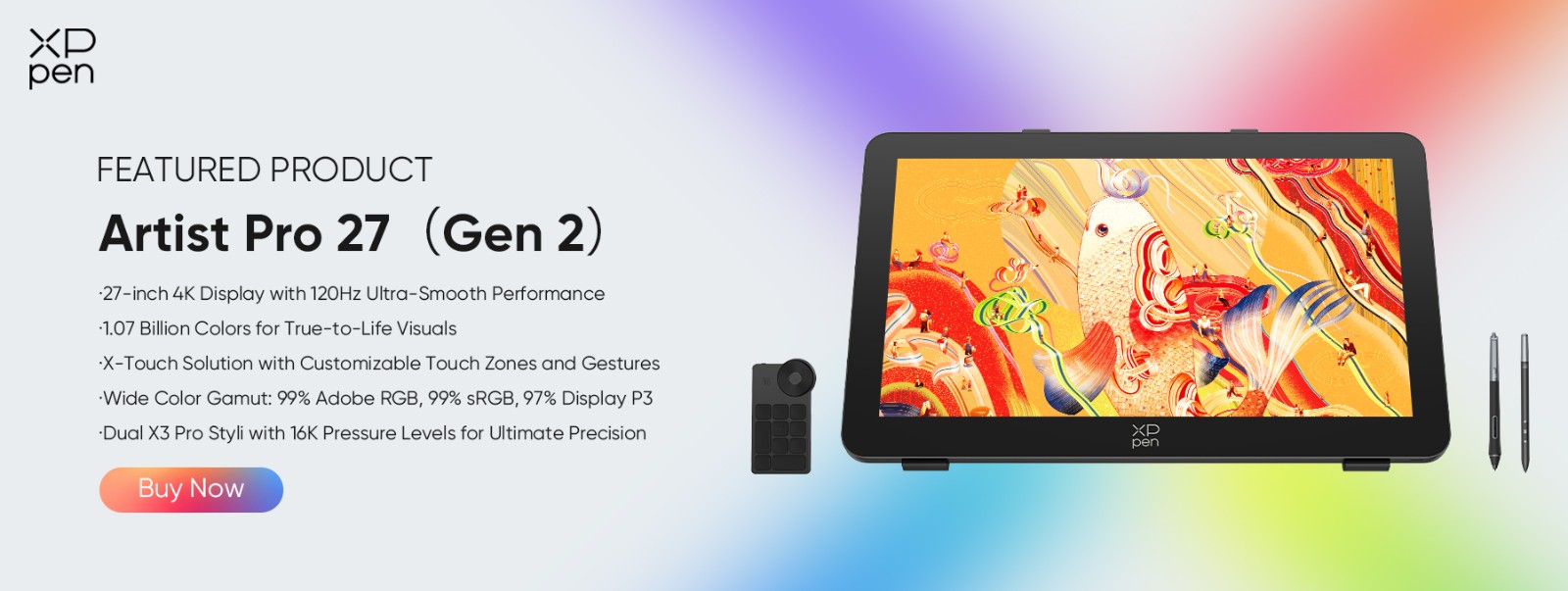
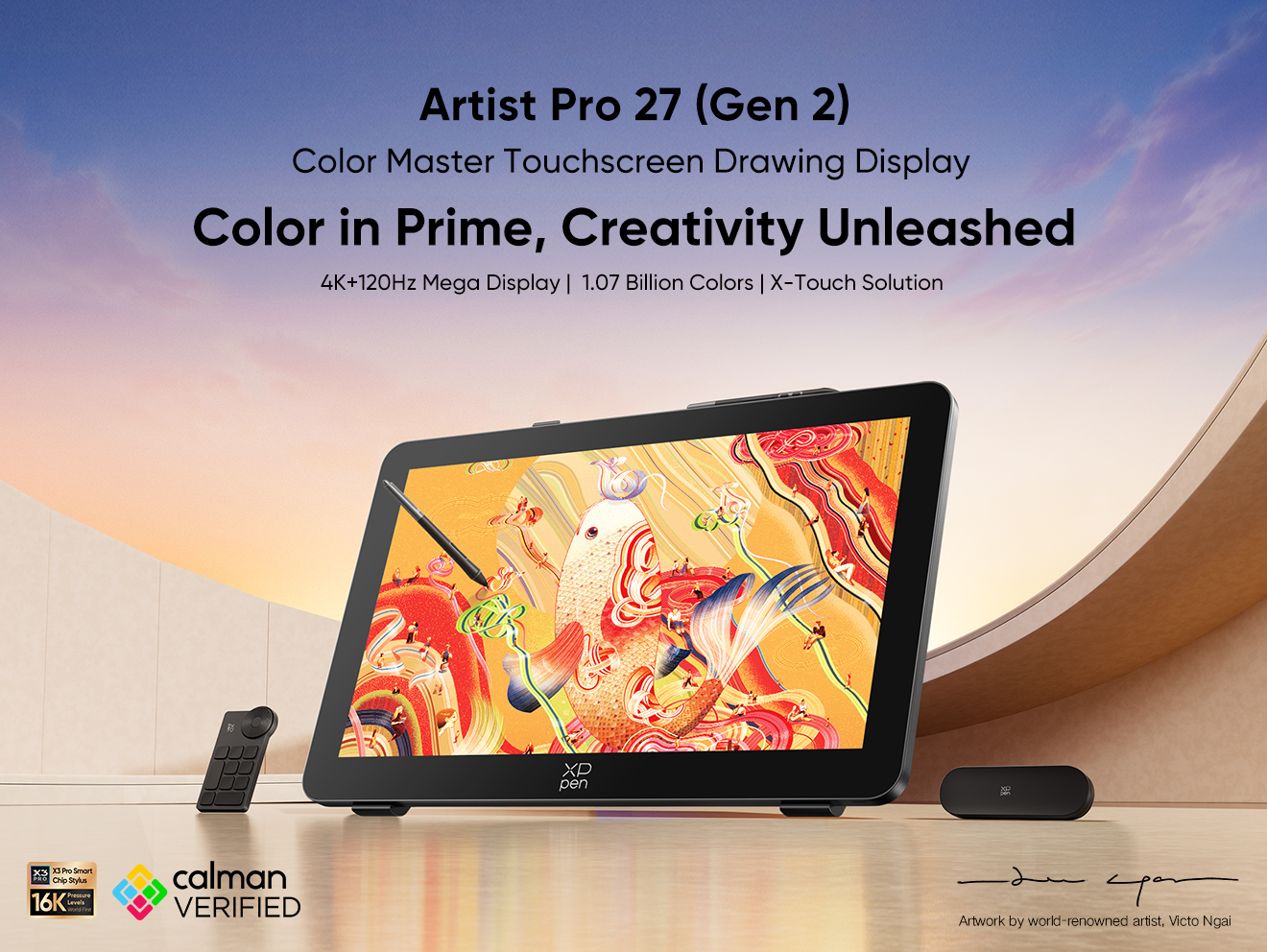
XPPen Artist Pro 27 (Gen 2)
The Artist Pro 27 (Gen 2) is the largest touch-enabled drawing surface XPPen produces, and the size makes a real difference in how drawing actually feels. At 26.9 inches, you have enough room to work on a composition at near actual size without constantly resizing your canvas and repositioning your tools and references.
It works well across Windows, macOS, and Linux, with touch input and a 120Hz refresh rate that keeps gestures and drawing feeling smooth and responsive. Color accuracy is independently verified at the highest level currently available in any pen display, which makes it a strong fit for print work and client-facing deliverables.
The one honest drawback is weight. At 7kg, this is a desk setup, not something you're carrying anywhere.
Pros:
-
Largest touch canvas in the lineup
-
120Hz for fluid gesture and stroke work
-
Best overall color accuracy of the three.
Cons:
-
Standard multi-touch without the advanced zone customization found on the Artist Ultra 16
-
Desk-bound by its size and weight.
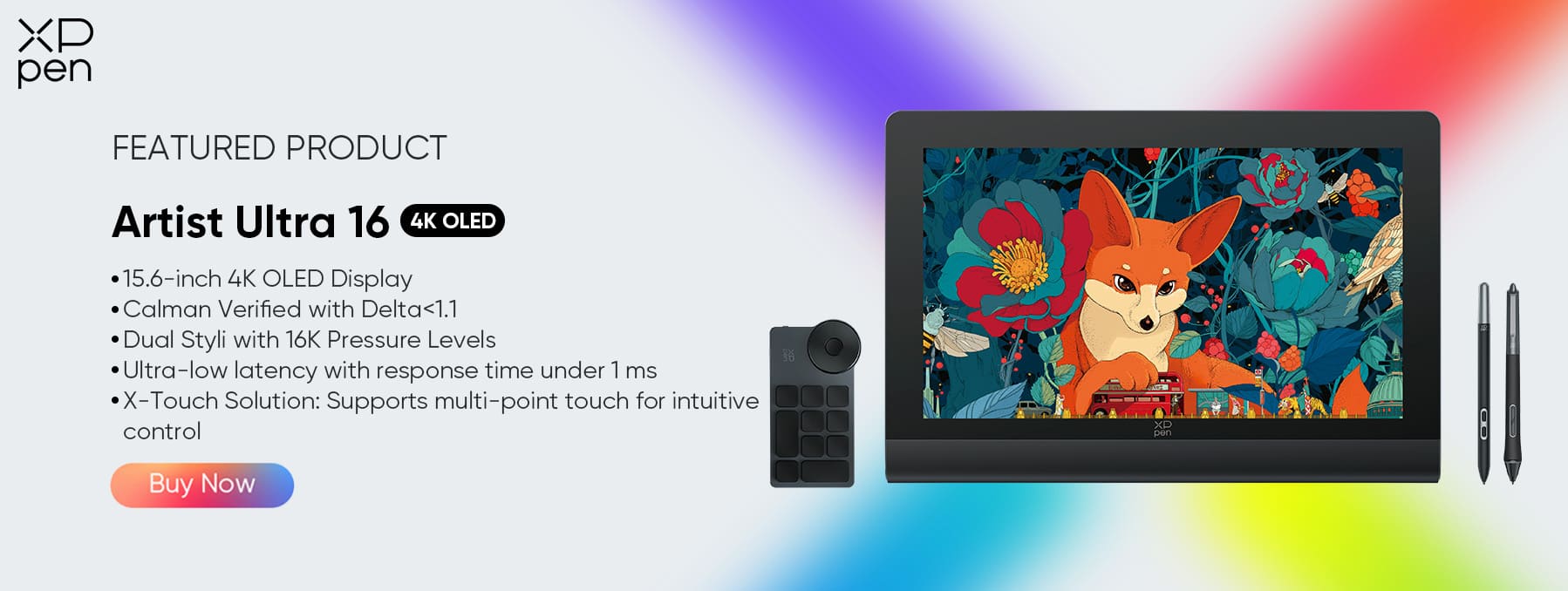
XPPen Artist Ultra 16
The Artist Ultra 16 features an OLED display, which means deeper blacks, richer contrast, and more saturated colors than a standard LCD panel. At 15.6 inches it's significantly more portable than the Artist Pro 27, and it's the only XPPen tablet that combines OLED with the X-Touch system, their 10-finger multi-touch solution that lets you designate specific screen areas as touch-only zones to prevent accidental palm input while you're drawing.
Color accuracy is Calman Verified and two pens are included. The one drawback worth knowing about is macOS compatibility. The experience on Windows is smooth, but Mac users have reported inconsistency that makes it a less reliable choice if that's your primary platform.
Pros:
-
Most advanced touch implementation in the lineup
-
OLED contrast and color depth, portable form factor
-
Dual styli included
Cons:
-
Touch experience is better on Windows than macOS
-
No built-in stand, 60Hz refresh rate.
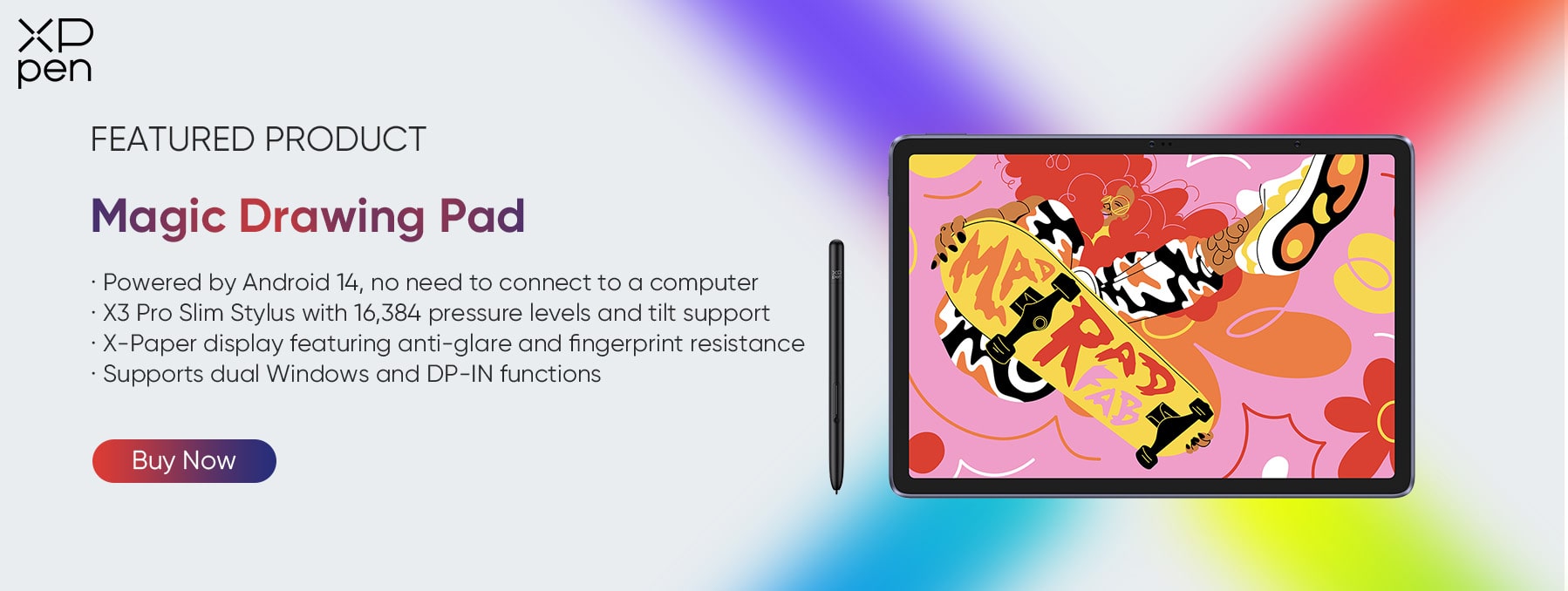
XPPen Magic Drawing Pad
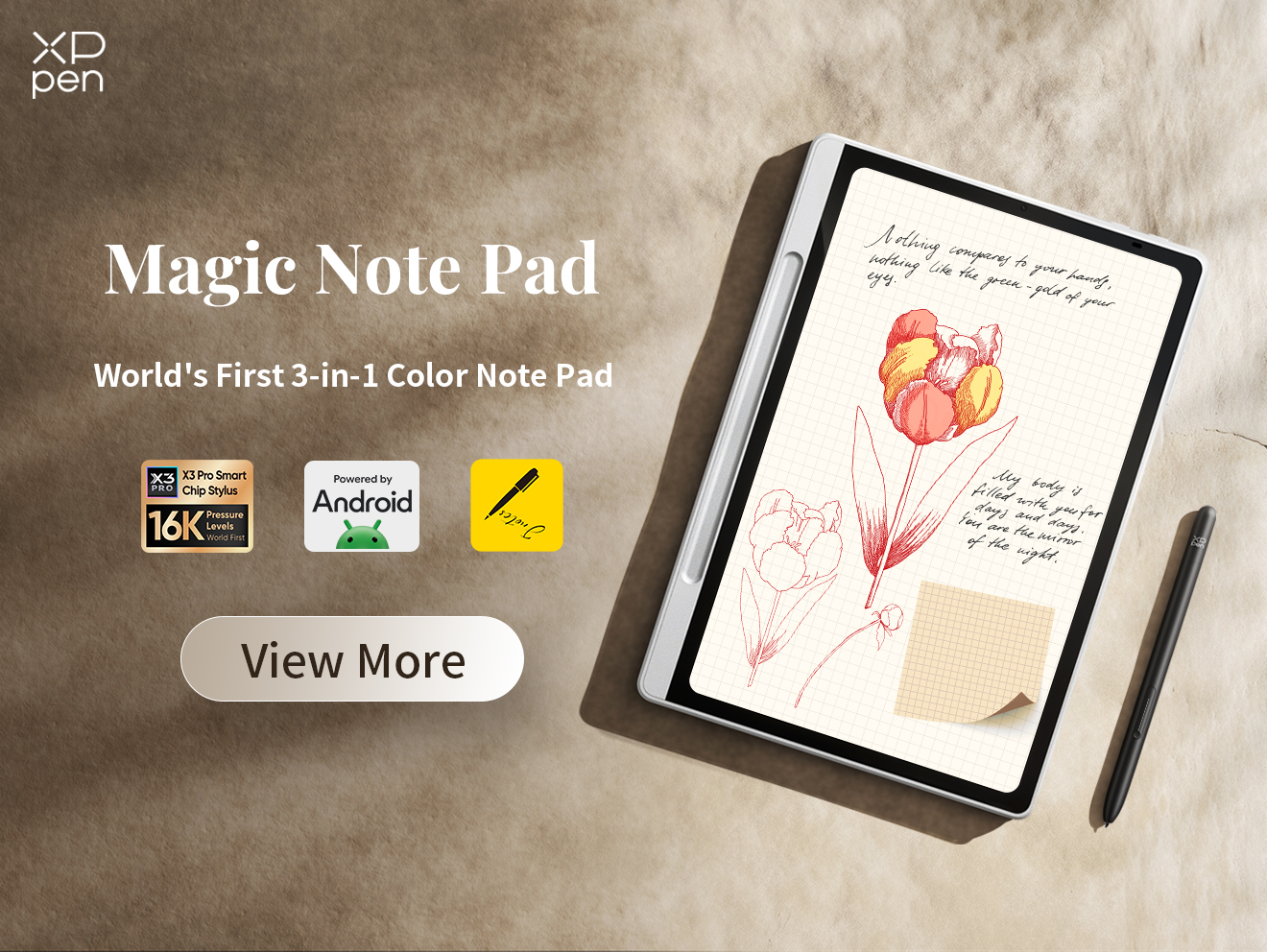
The Magic Drawing Pad is the only standalone tablet on this list. It runs Android 14 straight out of the box, which means you open it and you're ready to draw. No laptop required. At 12.2 inches and 599g, it's light enough to hold for extended periods, and the battery holds up for around 13 hours.
The tradeoff is software. There's no Procreate and no Adobe support. Clip Studio Paint, ibisPaint X, and MediBang are all available and capable on Android, but if your workflow depends on anything outside of that ecosystem, this isn't the tablet for you. Adobe RGB coverage is also absent, which rules it out for print work.
Pros:
-
Fully standalone
-
13-hour battery
-
Lightest and most portable of the three
-
No setup required
Cons:
-
Android app ecosystem only
-
Meaning there’s no Procreate and no full Adobe apps
-
Not suited for print-critical color work
Touch in a 3D Sculpting Workflow
3D artists working in ZBrush or Blender are probably the most natural fit for touch input on a drawing tablet. Two-finger rotation, two-finger drag for panning, and pinch to zoom into detail areas all work without lifting the stylus or reaching for the keyboard. The sculpting hand stays on the surface and the workflow stays uninterrupted.
The floating touch menu adds another layer to that, letting you switch tools, enable symmetry, and cycle through brush modes without breaking your sculpting hand's position at all.
Touch vs No-Touch: Workflow Comparison
Without touch, you're relying on keyboard shortcuts, a mouse for view control, and software navigators. Every zoom or canvas rotation pulls your drawing hand out of its rhythm.
With touch, canvas navigation becomes gestural and largely one-handed. Zooming and panning happen without reaching for the keyboard, and a floating shortcut menu cuts down on keyboard dependency for the commands you use most. The workflow becomes more continuous, with less time spent managing the interface and more time spent actually working.
The productivity gain is most noticeable in navigation-heavy workflows like compositing, 3D viewports, retouching, and anything that involves frequent switching between full-canvas views and close detail work.
FAQs
Q1: Do professional artists currently use touch on drawing tablets?
Yes, though most are using it for navigation and shortcuts rather than drawing. The stylus is still the preferred tool for actual mark-making.
Q2: Can you disable touch input on a drawing tablet?
Yes. Every tablet covered in this article lets you disable touch input completely.
Q3: How do you prevent accidental touches while drawing?
The most effective method is using touch zones, which let you disable touch input in the specific area where your hand rests. An artist's glove is another option. Software palm rejection is also available in most applications on Windows.
Q4: Is 10-point touch better than 5-point touch for artists?
Not really. Most artists don't use more than three contact points at once. 10-point touch is more relevant in collaborative or presentation environments than in solo creative work.
Q5: Does touch work with drawing gloves?
Artist gloves that cover two or three fingers leave the index finger and thumb free for touch input. Full gloves block touch input entirely.
Q6: What's the difference between X-Touch and regular touch?
Regular touch covers standard gestures. X-Touch adds user-definable touch zones drawn directly on screen, a floating shortcut menu, and customizable three, four, and five-finger gesture assignments. None of those are available with standard multi-touch.
Q7: Do I need touch if I already use a keyboard?
Not strictly. Touch isn't essential, but it's more intuitive than keyboard shortcuts for canvas navigation specifically.
Q8: What drawing software has the best touch gesture support?
Clip Studio Paint and Krita both handle touch gestures particularly well. Photoshop works well with touch on Windows but is inconsistent with external touch displays on macOS. Rebelle also has solid touch support.
Conclusion
For the best touch implementation currently available, the Artist Ultra 16's X-Touch system leads the category, with customizable touch zones that solve the palm rejection problem at the hardware level rather than leaving it to software. For large-format work, the Artist Pro 27 (Gen 2) brings 10-point multi-touch to the widest drawing surface in XPPen's lineup. And for artists who need to work without a computer, the Magic Drawing Pad delivers the full stylus and touch experience untethered.
Touch on drawing tablets has had a complicated reputation, and not without reason. But the 2026 generation is worth a second look for anyone who wrote it off in the past.
About Us
Founded in 2005, XPPen is a leading global brand in digital art innovation under Hanvon UGEE. XPPen focuses on the needs of consumers by integrating digital art products, content, and services, specifically targeting Gen-Z digital artists. XPPen currently operates in 163 countries and regions worldwide, boasting a fan base of over 1.5 million and serving more than ten million digital art creators.
Learn more


-
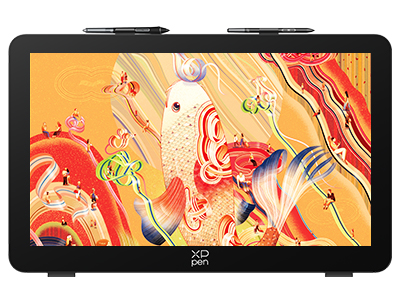 Artist Pro 27 (Gen 2)
26.9-inch 4K 120Hz Mega Display
1.07 Billion Colors
X-Touch Solution, Intuitive Control
Calman Verified, Exceptional Color Accuracy Assured
Dual X3 Pro Styli with 16K Pressure Levels
It features:
Best 27-inch drawing tablet for pros
-
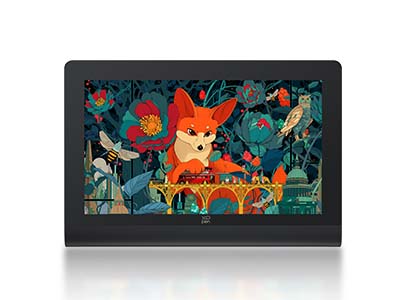 Artist Ultra 16
15.6-inch 4K OLED Display
Calman Verified with Delta < 1.1
Dual Styli with 16K Pressure Levels
Ultra-low latency with response time under 1 ms
X-Touch Solution: Supports multi-point touch for intuitive control
It features:
New-Gen Touch-screen Drawing Display
-
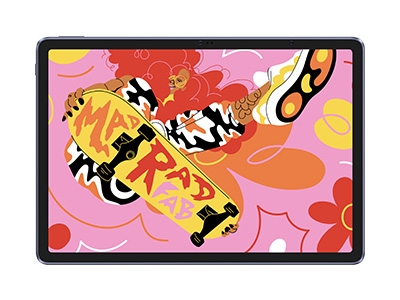 Magic Drawing Pad
X3 Pro Slim Stylus with 16,384 pressure levels and tilt support
X-Paper display featuring anti-glare and fingerprint resistance
Clip Studio Paint and ibis Paint X 3-month free membership
Super portable- just 6.9mm thin and weighs only 590g
Supports dual Windows and DP-IN functions
It features:
Powered by Android 14, no need to connect to a computer to use.
-
Artist Pro 27 (Gen 2)
26.9-inch 4K 120Hz Mega Display
1.07 Billion Colors
X-Touch Solution, Intuitive Control
Calman Verified, Exceptional Color Accuracy Assured
Dual X3 Pro Styli with 16K Pressure Levels
It features:
Best 27-inch drawing tablet for pros
-
Artist Ultra 16
15.6-inch 4K OLED Display
Calman Verified with Delta < 1.1
Dual Styli with 16K Pressure Levels
Ultra-low latency with response time under 1 ms
X-Touch Solution: Supports multi-point touch for intuitive control
It features:
New-Gen Touch-screen Drawing Display
-
Magic Drawing Pad
X3 Pro Slim Stylus with 16,384 pressure levels and tilt support
X-Paper display featuring anti-glare and fingerprint resistance
Clip Studio Paint and ibis Paint X 3-month free membership
Super portable- just 6.9mm thin and weighs only 590g
Supports dual Windows and DP-IN functions
It features:
Powered by Android 14, no need to connect to a computer to use.
Looking for the Best Drawing & Design Apps?
Discover essential drawing techniques, expert tips, and the best app recommendations to boost your creativity and master digital art.
