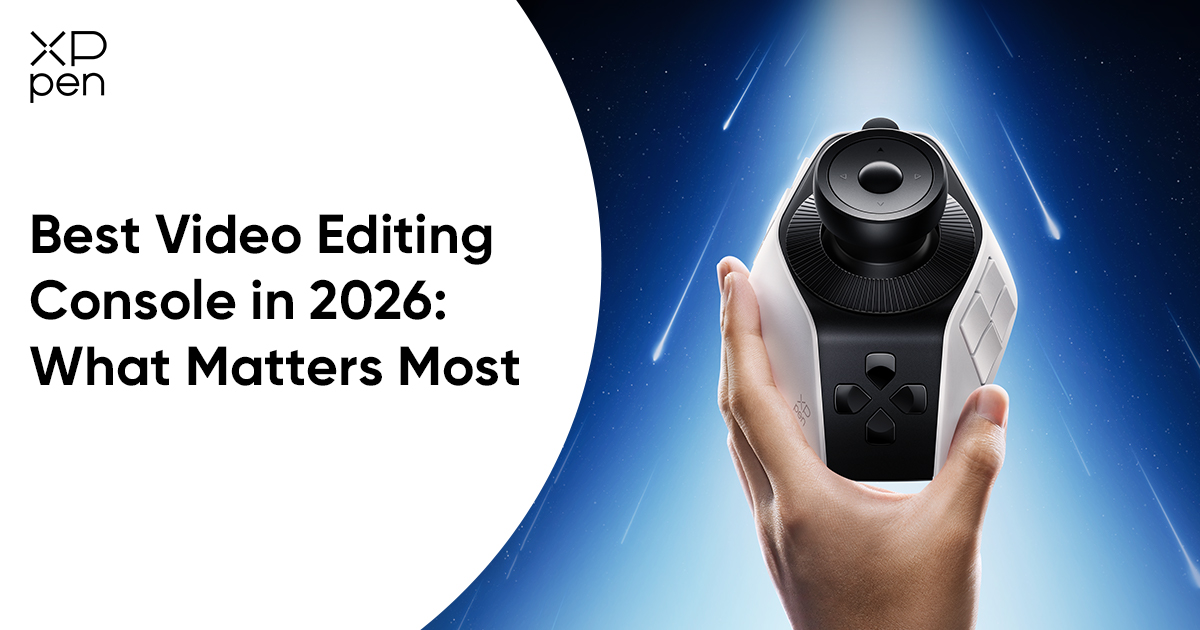
What Makes a Good Video Editing Console in 2026?
FOCUSEDAs we are marching towards a world where short videos are swarming our lives, many video editors come in for the flow. Nowadays, creators often shoot, edit and polish their work in the form of video clips so as to attract their audience.
In that case, a handy tool that can speed up the workflow matters. While keyboard shortcuts remain essential, many editors are looking for ways to work faster, more comfortably, and with greater precision. This is where a video editing console comes in.
What is a good video editing console in this crazy and fast-evolving world? What’s the difference between keyboard shortcuts and the video console? Which one contributes better efficiency for long sessions? Let's break down the features and design principles that matter most. Keep reading.
What Is a Video Editing Console?
A video editing console is a dedicated hardware controller designed to streamline editing tasks through physical inputs such as programmable buttons, dials, wheels, and joysticks.
Instead of relying entirely on keyboard shortcuts and mouse movements, editors can perform frequently used actions through tactile controls that are easier to access and often more intuitive to operate.
Modern video editing consoles are commonly used for:
- Timeline navigation
- Playback control
- Clip trimming
- Color grading
- Audio adjustment
- Tool switching
- Macro execution
The goal is simple: spend less time managing software and more time focusing on creative decisions.
Video Editing Console vs Keyboard Shortcuts
Many editors wonder whether a video editing console can actually replace keyboard shortcuts. The short answer is NO.
In reality, the two work best together. Keyboard shortcuts remain one of the fastest ways to execute commands. However, they require memorization and often involve moving between multiple key combinations throughout a project.
Unlike a traditional keyboard-and-mouse setup, a video editing console enables faster access to frequently used commands through physical buttons, dials, and joysticks. Over time, editors can develop muscle memory for repetitive tasks, reducing reliance on on-screen menus. Advanced consoles such as the XPPen Pilot Pro also support software-specific presets for applications like DaVinci Resolve, Premiere Pro, Photoshop, and Lightroom, allowing controls to adapt automatically to different workflows.
Below is a comparison table to help you better understand the difference between keyboard shortcuts and the editing console in the video editing process.
| Editing Task | Keyboard Shortcut | Video Editing Console |
|---|---|---|
| Timeline Scrubbing | Mouse dragging or repeated key presses | Dedicated dial control |
| Playback Navigation | Keyboard commands | Joystick or wheel control |
| Color Adjustment | Mouse-controlled sliders | Rotary dial adjustment |
| Tool Switching | Shortcut combinations | One-touch programmable button |
For long editing sessions, many creators find that a dedicated console reduces repetitive movements and creates a more comfortable editing experience.
Why More Creators Are Turning to Video Editing Consoles
As content production becomes faster and more demanding, efficiency matters more than ever.
A creator might edit dozens of short-form videos every week. Even saving a few seconds on common actions can add up over time.
Video editing consoles help creators:
- Navigate timelines more efficiently
- Perform precise adjustments
- Reduce repetitive mouse movement
- Maintain focus during long sessions
- Create personalized workflows
Rather than replacing existing tools, they enhance the workflow editors already use every day.
What Makes a Good Video Editing Console?
Not every editing controller improves productivity. The best devices share several key characteristics.
Customization
Every creator works differently.
A good console should allow users to assign shortcuts, create macros, and save application-specific profiles that match their workflow.
Precision Control
Editing often requires small, accurate adjustments.
High-quality dials and navigation controls provide smoother interaction than keyboard inputs alone, especially when working with timelines, color grading, or audio.
Ergonomic Design
Long editing sessions place significant strain on the hands and wrists.
An ergonomic layout helps reduce fatigue while keeping frequently used controls within easy reach.
Software Compatibility
Most creators use more than one application.
A versatile console should support major creative software such as Adobe Premiere Pro, DaVinci Resolve, Final Cut Pro, After Effects, Photoshop, Lightroom, and CapCut.
Workflow Efficiency
Ultimately, every control should help editors complete tasks faster and more comfortably. If a feature adds complexity without saving time, it is not improving the workflow.
Common Types of Controls Found in Video Editing Consoles
Not all video editing consoles are built the same. Some focus on shortcut execution, while others prioritize precise adjustments or timeline navigation. Depending on the workflow, manufacturers may combine different control types into a single device.
Understanding the most common controls can help you identify which features are actually useful for your editing style.
Programmable Buttons
Programmable buttons are the foundation of most editing controllers.
These buttons can be assigned to frequently used commands such as:
- Cut
- Copy
- Paste
- Undo
- Redo
- Play/Pause
- Marker Placement
- Tool Switching
Instead of remembering complex key combinations, editors can trigger common actions with a single press. For creators working on repetitive tasks, programmable buttons can significantly improve efficiency.
Rotary Dials
Rotary dials are designed for continuous adjustments rather than single commands.
They are commonly used for:
- Timeline scrubbing
- Zooming in and out
- Exposure adjustments
- Color correction
- Audio level control
Unlike keyboard shortcuts, dials provide proportional control. Small rotations create fine adjustments, while larger turns allow for faster navigation.
This makes them particularly useful for tasks that require precision.
Jog Wheels
Jog wheels are often found on professional editing controllers.
They are primarily used for:
- Frame-by-frame review
- Playback navigation
- Timeline positioning
Because jog wheels offer highly controlled movement, they are popular among editors who need precise navigation when reviewing footage or trimming clips.
Joysticks
Joysticks are less common but can provide flexible directional control.
Depending on the software and configuration, they may be used for:
- Timeline navigation
- Canvas movement
- Viewport control
- Multi-directional navigation
For users who frequently move around large projects or complex interfaces, a joystick can reduce reliance on constant mouse movement.
Tips: How These Controls Improve Editing Workflows
Timeline Navigation
Timeline navigation is one of the most repetitive activities in video editing.
Editors constantly zoom in, zoom out, scrub through footage, review cuts, and jump between sections of a project. Controls such as rotary dials, jog wheels, and joysticks can make these actions faster and more intuitive than relying solely on a mouse and keyboard.
Color Grading
Color grading often requires subtle, incremental adjustments.
Whether you're fine-tuning exposure, contrast, saturation, or white balance, physical controls offer a level of precision that many editors find more natural than dragging on-screen sliders. Rotary dials are especially valuable in this workflow because they provide smooth, continuous input.
Audio Adjustment
Audio editing frequently involves small changes across multiple tracks.
Dedicated controls can simplify volume adjustments and reduce the need to navigate through menus repeatedly. For creators working on podcasts, interviews, or content with extensive dialogue, this can help streamline the post-production process.
Motion Graphics and Animation
Applications such as After Effects require constant adjustments to properties, keyframes, and compositions.
Physical controls allow creators to make repetitive changes more efficiently, helping maintain focus on creative work rather than interface navigation.
How to Choose the Right Console for Your Workflow
The best video editing console is not necessarily the one with the most controls.
Instead, focus on the tasks you perform most often.
For timeline-focused workflows, strong navigation controls should be a top consideration. Those who frequently perform color correction will likely appreciate precise rotary dials, while creators working across multiple applications should pay close attention to software compatibility and customizable profiles. Likewise, editors who spend long hours at their desks should consider ergonomics and one-handed operation.
A console that fits naturally into your workflow will deliver far more value than one packed with features you rarely use.
Why XPPen Pilot Pro Checks the Right Boxes
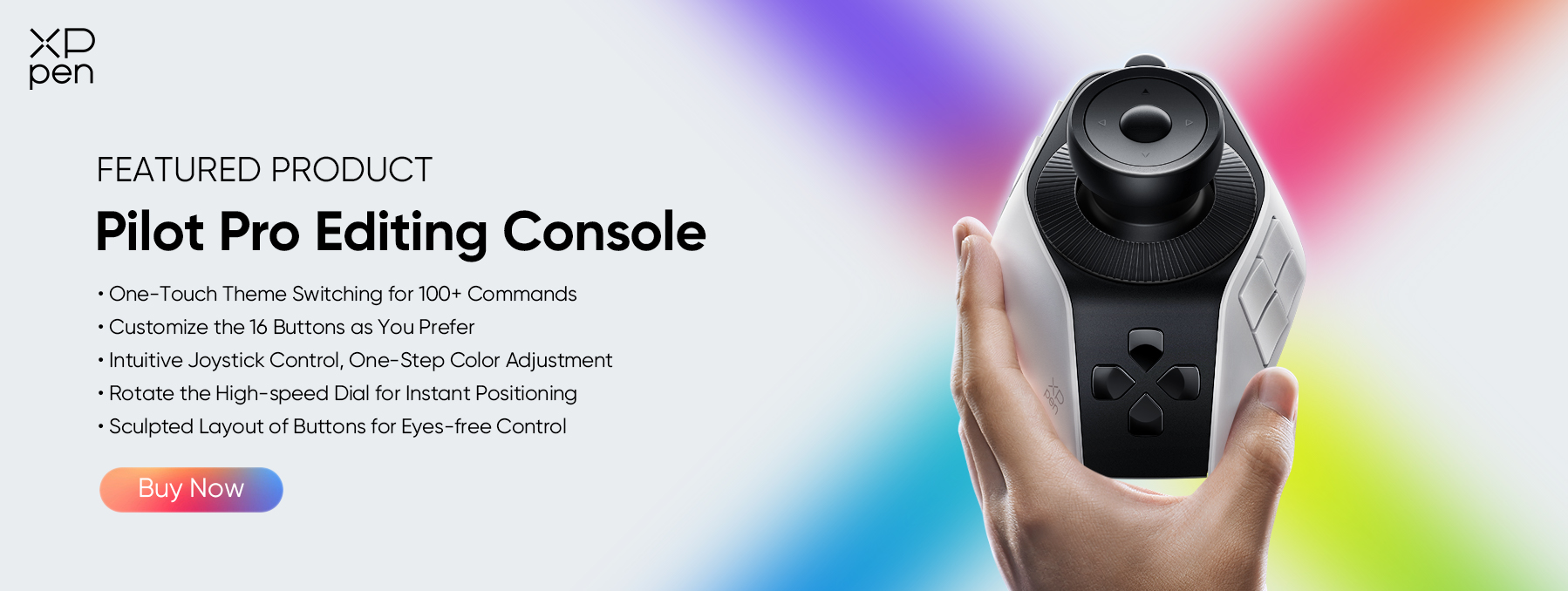
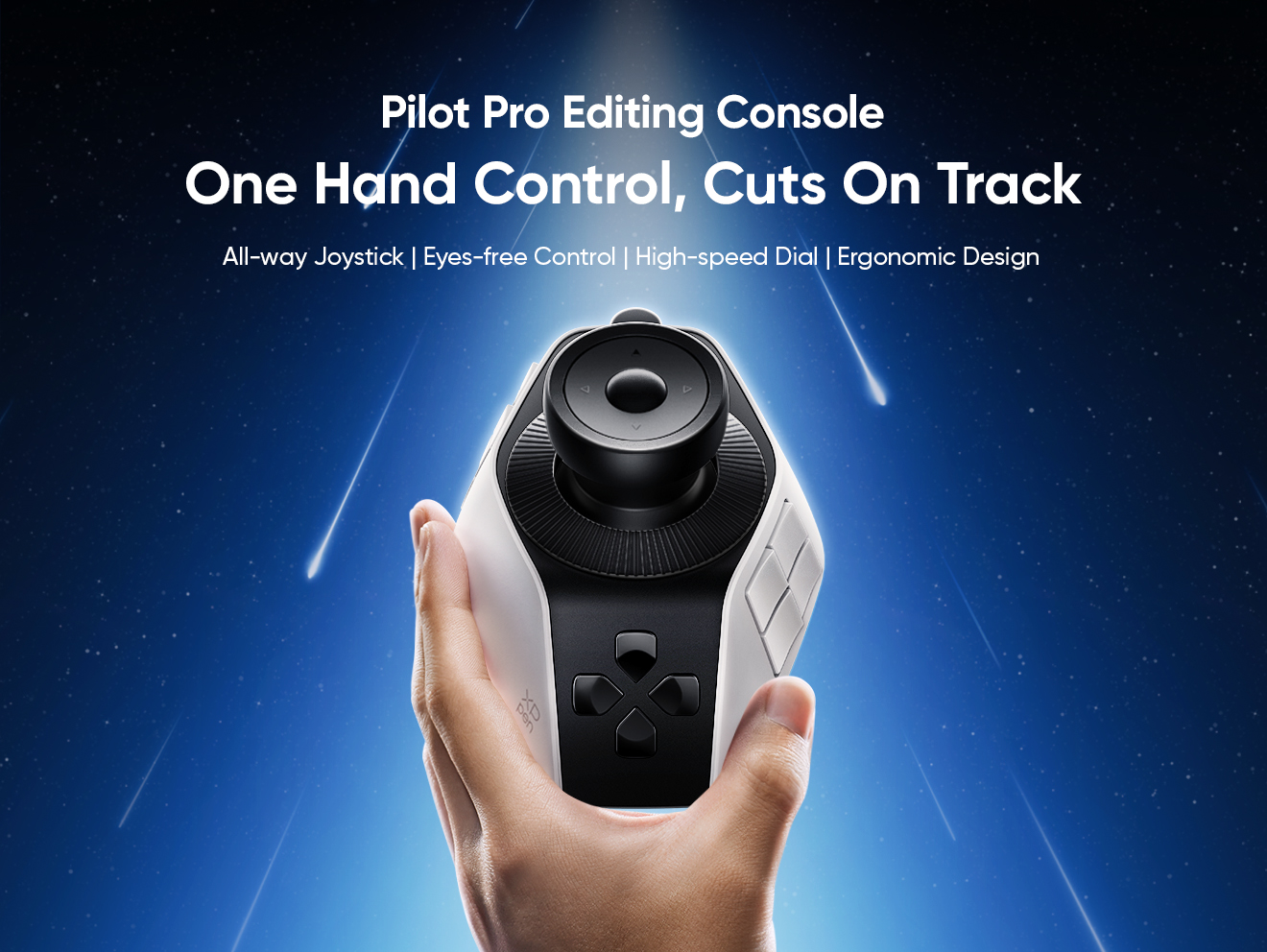
The XPPen Pilot Pro Editing Console combines several control types commonly found across professional editing hardware into a single compact device.
It features:
- Programmable Express Keys for shortcuts and macros
- Rotary Controls for precise adjustments and navigation
- An All-Way Joystick for directional control
- Haptic Feedback for improved tactile response
More importantly, these controls are supported by customizable profiles and compatibility with a wide range of creative software, including Adobe Premiere Pro, DaVinci Resolve, Final Cut Pro, Photoshop, Lightroom Classic, and CapCut.
This flexibility allows creators to build workflows that match their individual editing habits rather than adapting to rigid hardware limitations.
Whether you're trimming timelines, grading footage, adjusting audio, or moving between multiple creative applications, Pilot Pro is designed to keep frequently used controls within easy reach.
Ready to streamline your editing workflow?
Explore how the XPPen Pilot Pro combines programmable shortcuts, precision controls, and broad software compatibility in a compact one-hand design.
Conclusion
A good video editing console should do more than add extra buttons to your desk. It should simplify repetitive tasks, improve precision, and help you stay focused on the creative process.
The right choice ultimately depends on your workflow. Some creators prioritize shortcut execution, while others need precise timeline control, color grading adjustments, or cross-application flexibility. By understanding the different control types and the features that matter most, you can choose a console that fits naturally into the way you work and helps you edit more efficiently.
You May Also Like: XPPen Pilot Pro Review: Smart Editing Console for Creators
About Us
Founded in 2005, XPPen is a leading global brand in digital art innovation under Hanvon UGEE. XPPen focuses on the needs of consumers by integrating digital art products, content, and services, specifically targeting Gen-Z digital artists. XPPen currently operates in 163 countries and regions worldwide, boasting a fan base of over 1.5 million and serving more than ten million digital art creators.
Learn moreRecommended Articles
KNOWLEDGE 5 Best Color Grading Softwares Free & Paid 2026 KNOWLEDGE 5 Best Photo Video Color Correction Softwares 2026 KNOWLEDGE 5 Best Video Capture Softwares for PC Free & Paid 2026


Ready to invest in the right tools?
Get expert buying advice, unbiased reviews, and exclusive deals on drawing tablets, and accessories.
