Windows 11 Keyboard Shortcuts: 2026 Complete Guide
TIPSWindows 11 keyboard shortcuts help you navigate, manage windows, launch apps, and edit files—without reaching for your mouse. Even learning a few key combinations can save you hours over time.
This guide covers essential Windows 11 keyboard shortcuts , and advanced tricks like creating custom hotkeys. These shortcuts will make you faster, more efficient, and more confident on your PC.
Part 1. What are keyboard shortcuts?
Keyboard shortcuts are key combos that do a task fast. You press two or more keys at the same time. For example, press Win + D to show the desktop right away.
These shortcuts save time in daily use. They also help you move between apps, windows, and settings quickly.
Part 2. Best Windows shortcuts to learn first
If you want the best Windows shortcuts, start with these 15 shortcuts, which cover most daily tasks. Once you memorize these, you will already notice a big speed improvement.
| Shortcut | Action |
|---|---|
| Win + D | Show desktop |
| Win + E | Open File Explorer |
| Win + I | Open Settings |
| Win + L | Lock PC |
| Win + S | Open Search |
| Alt + Tab | Switch apps |
| Ctrl + Shift + Esc | Open Task Manager |
| Win + Left/Right Arrow | Snap windows |
| Win + Up/Down Arrow | Maximize / Minimize |
| F5 | Refresh |
| Ctrl + C / Ctrl + V | Copy / Paste |
| Ctrl + Z | Undo |
| Win + V | Clipboard history |
| Win + Shift + S | Screen snip |
| F11 | Full screen |
Part 3. Most used Windows 11 keyboard shortcuts
Beyond the top 15, these shortcuts are also very common. They help you control settings, notifications, virtual desktops, and system tools. Learn these to handle nearly everything without touching your mouse.
| Shortcut | Action |
|---|---|
| Win + D | Show or hide the desktop |
| Win + E | Open File Explorer |
| Win + I | Open Settings |
| Win + L | Lock your PC |
| Win + S | Open Search |
| Win + A | Open Quick Settings |
| Win + N | Open Notifications |
| Win + Tab | Open Task View |
| Alt + Tab | Switch between open apps |
| Ctrl + Shift + Esc | Open Task Manager |
| Win + M | Minimize all windows |
| Win + Shift + M | Restore minimized windows |
| Win + Home | Minimize all except the active window |
| Win + V | Open clipboard history |
| Win + . (period) | Open emoji panel |
| Win + G | Open Game Bar |
| Win + R | Open Run box |
| Win + X | Open power user menu |
| Win + P | Change projection mode (projector/second screen) |
| Win + K | Open Cast/Connect panel |
Part 4. More Window control shortcuts
This section goes deeper into window management. Whether you need to snap, resize, close, or move windows across monitors, these shortcuts give you full control over your screen layout.
Snap & move
-
Win + Left/Right – Snap to side
-
Win + Up/Down – Maximize / restore or minimize
-
Win + Home – Minimize all but active window
-
Win + Shift + Left/Right – Move to another monitor
Minimize, maximize, close
-
Win + M – Minimize all
-
Win + Shift + M – Restore minimized
-
Alt + F4 – Close active window
-
Ctrl + W – Close active tab
Full screen & refresh
-
F11 – Full screen (browsers/apps)
-
F5 – Refresh
-
Ctrl + R – Refresh in browsers
Search & settings
-
Win + S / Q – Search
-
Win + I – Settings
-
Win + R – Run box
-
Win + X – Power user menu
-
Win + A – Quick Settings
-
Win + N – Notifications
File & editing
-
Ctrl + C/X/V – Copy/Cut/Paste
-
Ctrl + Z/Y – Undo/Redo
-
Ctrl + A – Select all
-
Ctrl + Shift + N – New folder
-
F2 – Rename
-
Delete – Recycle Bin
-
Shift + Delete – Permanent delete
Clipboard
-
Win + V – Clipboard history
-
Win + . – Emoji panel
Taskbar & system
-
Win + 1–9 – Open taskbar apps
-
Ctrl + Shift + Esc – Task Manager
-
Win + U – Accessibility
-
Win + H – Voice typing
Virtual desktops
-
Win + Ctrl + D – New desktop
-
Win + Ctrl + Left/Right – Switch
-
Win + Ctrl + F4 – Close desktop
Screenshots
-
Win + PrtScn – Save screenshot
-
Win + Shift + S – Snipping Tool
-
PrtScn – Copy full screen
-
Alt + PrtScn – Copy active window
Part 5. How to create keyboard shortcuts in Windows 11
Not every app gives you a shortcut by default. But Windows lets you create your own for almost any app, file, or folder. This is useful for launching your most-used tools instantly.
Here’s how to create keyboard shortcuts in Windows 11:
Step-by-step (mouse)
-
Right-click the app or file shortcut → Show more options → Properties
-
Go to the Shortcut tab
-
Click the Shortcut key box
-
Press your desired key combination (automatically adds Ctrl + Alt). Example: Press W → becomes Ctrl + Alt + W
-
Click OK
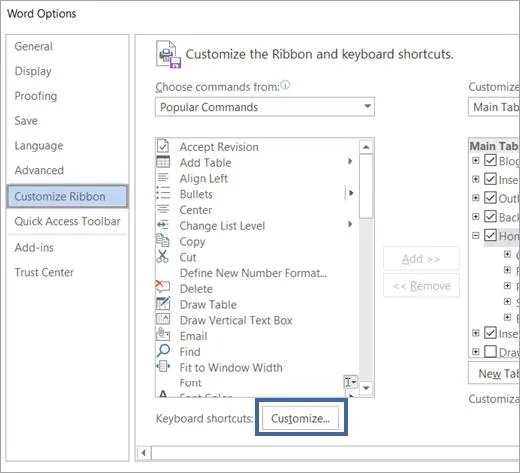
Important notes
-
Shortcuts must start with Ctrl + Alt, Ctrl + Shift, or Ctrl + Alt + Shift (function keys also work alone, e.g., F5)
-
The key combo will not work if already assigned to a system command
-
Not all apps support this method (browsers and Office apps often have their own hotkey settings)
-
Desktop shortcuts work best; Start menu shortcuts may not trigger reliably
To remove a custom shortcut
Open Properties again → delete the keys from the Shortcut key box → OK
Part 6. Excel function keys (F1–F12)
If you use Excel often, the function keys save a lot of time. What is F1, F2, F3, F4, F5, F6, F7, F8, F9, F10, F11, F12 in Excel? Here are the basic uses in Excel:
| Key | Main use in Excel |
|---|---|
| F1 | Open Help |
| F2 | Edit the active cell |
| F3 | Open Paste Name dialog (if you have named ranges) |
| F4 | Repeat last action or toggle absolute/relative references (e.g., A1 → $A$1) |
| F5 | Open Go To dialog |
| F6 | Switch between panes in a workbook with panes |
| F7 | Run Spell Check |
| F8 | Extend selection mode |
| F9 | Calculate all sheets in all open workbooks |
| F10 | Show KeyTips (menu shortcuts) |
| F11 | Create a chart on a new chart sheet |
| F12 | Open Save As dialog |
These can change a little with your Excel version and settings, but this is the main use.
Extra Tip: XPPen Pilot Pro – One-hand control for creators
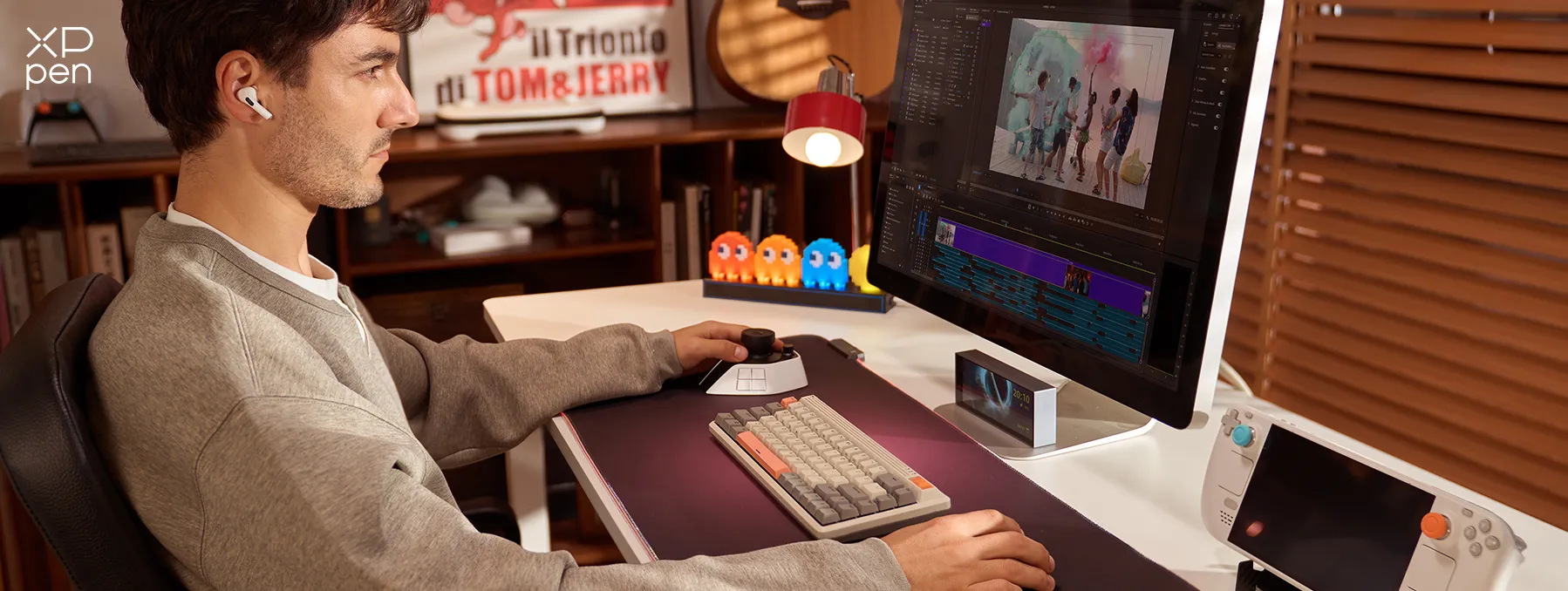
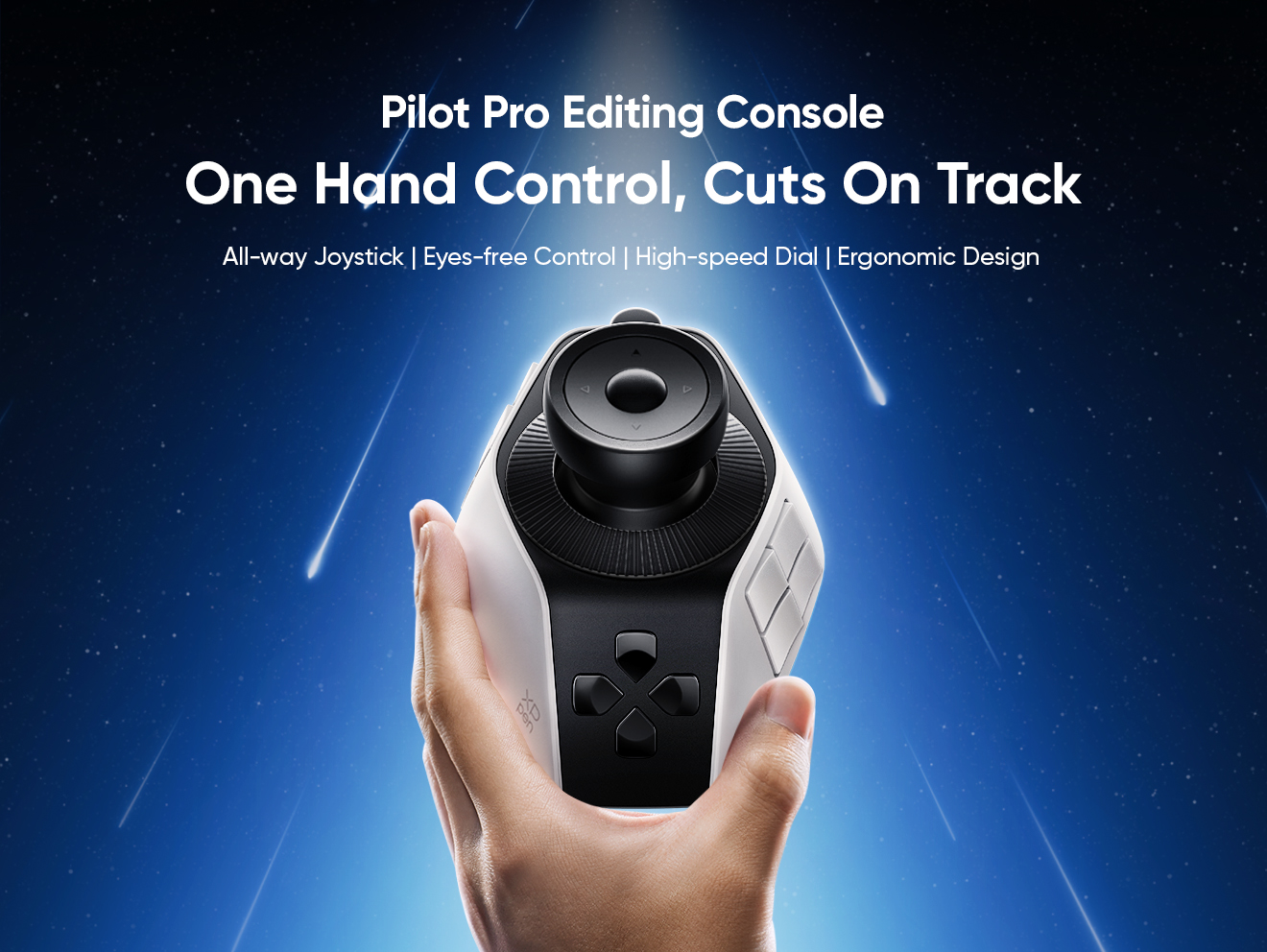
For Windows and Mac users who edit video, photos, or motion graphics, the XPPen Pilot Pro Editing Console turns common actions into one-handed controls. It features buttons, a joystick, and three rotating dials, so you can map frequent commands and stay in flow.
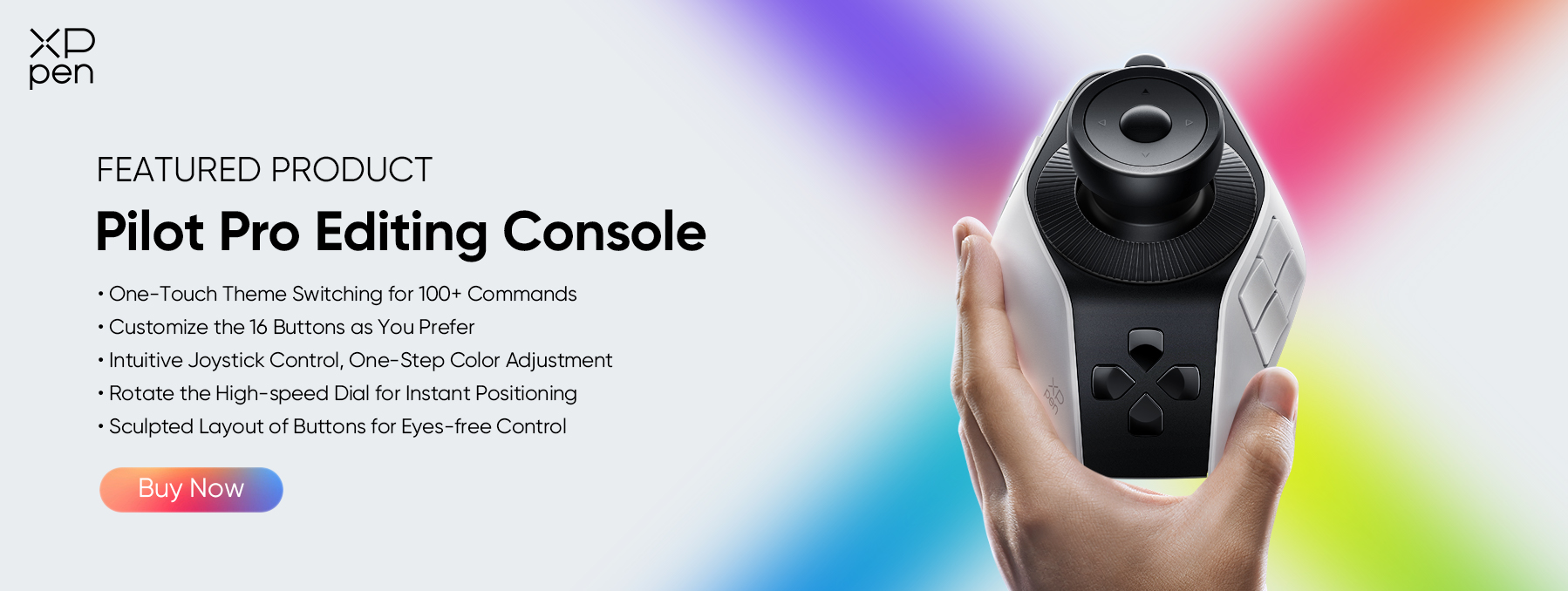
Pilot Pro supports 100+ customizable commands, up to 7 custom themes, and preset profiles for Photoshop, Lightroom, Premiere Pro, DaVinci Resolve, and more.
It connects via USB-C, Bluetooth, or 2.4G dongle, works with Windows 10/11 and Mac, and is built for long sessions. A great choice for faster editing and less mouse-keyboard switching.
FAQs about Windows 11 shortcut keys
Q1: Can you make keyboard shortcuts on Windows 11?
Yes. You can create shortcuts for many apps and files via the Properties > Shortcut key box. Some apps also have their own hotkey settings.
Q2: Windows 11 shortcut keys suddenly not working?
Check Fn Lock, restart Windows Explorer (Task Manager > restart it), disable Sticky/Filter Keys, check conflicting software (PowerToys, gaming apps), or run keyboard troubleshooter.
Q3: Can you make your own shortcuts in Windows 11?
Yes. Right-click an app or file > Properties > Shortcut key box > press your key combo (e.g., Ctrl + Alt + W) > OK. Note: Some apps (browsers, Office) use their own hotkey settings
Q4: I edit video/photo. Any hardware to speed up shortcuts?
Try the XP-Pen Pilot Pro Editing Console. It adds one-handed controls (buttons, joystick, 3 rotary dials) for apps like Photoshop, Premiere Pro, etc. Supports 100+ custom commands and 7 themes. It is great for reducing mouse-keyboard switching.
Conclusion
Start with a few shortcuts first. The best ones to learn are Win + D, Win + E, Win + I, Alt + Tab, and Ctrl + Shift + Esc.
If you do creative work, pair your keyboard shortcuts with a tool like XPPen Pilot Pro Editing Console to control your workflow with one hand. This combo can make your time on Windows 11 much more efficient.
About Us
Founded in 2005, XPPen is a leading global brand in digital art innovation under Hanvon UGEE. XPPen focuses on the needs of consumers by integrating digital art products, content, and services, specifically targeting Gen-Z digital artists. XPPen currently operates in 163 countries and regions worldwide, boasting a fan base of over 1.5 million and serving more than ten million digital art creators.
Learn moreRecommended Articles
KNOWLEDGE Snipping Tool Shortcut Complete Guide for Windows 11/10 KNOWLEDGE How a Shortcut Controller Can Save Time for Artists KNOWLEDGE DaVinci Resolve Shortcuts for Mac & Windows [The Complete Guide] KNOWLEDGE 2026 Lightroom Shortcuts for Windows & Mac FOCUSED 5 Best Video Editing Controller 2026 for Beginners & Pros


Looking for the Best Drawing & Design Apps?
Discover essential drawing techniques, expert tips, and the best app recommendations to boost your creativity and master digital art.
