10 Best Tools for Digital Note-Taking for Students, Work & More
TIPSThe best tools for digital note-taking can help you record ideas, class lectures, meeting points, research, and daily tasks without carrying piles of paper. Today, you can choose from dedicated digital note-taking devices and apps for iPad, Android, Windows, Mac, and the web. Some tools focus on handwriting, while others work better for typed notes, teamwork, PDF annotation, or personal knowledge management.
In this guide, we review the 10 best tools for digital note-taking in 2026, including the best tablet for taking handwritten notes , and popular apps such as Goodnotes, Apple Notes, Google Keep, OneNote, etc.
Part 1. The Best Digital Note-Taking Device Recommended
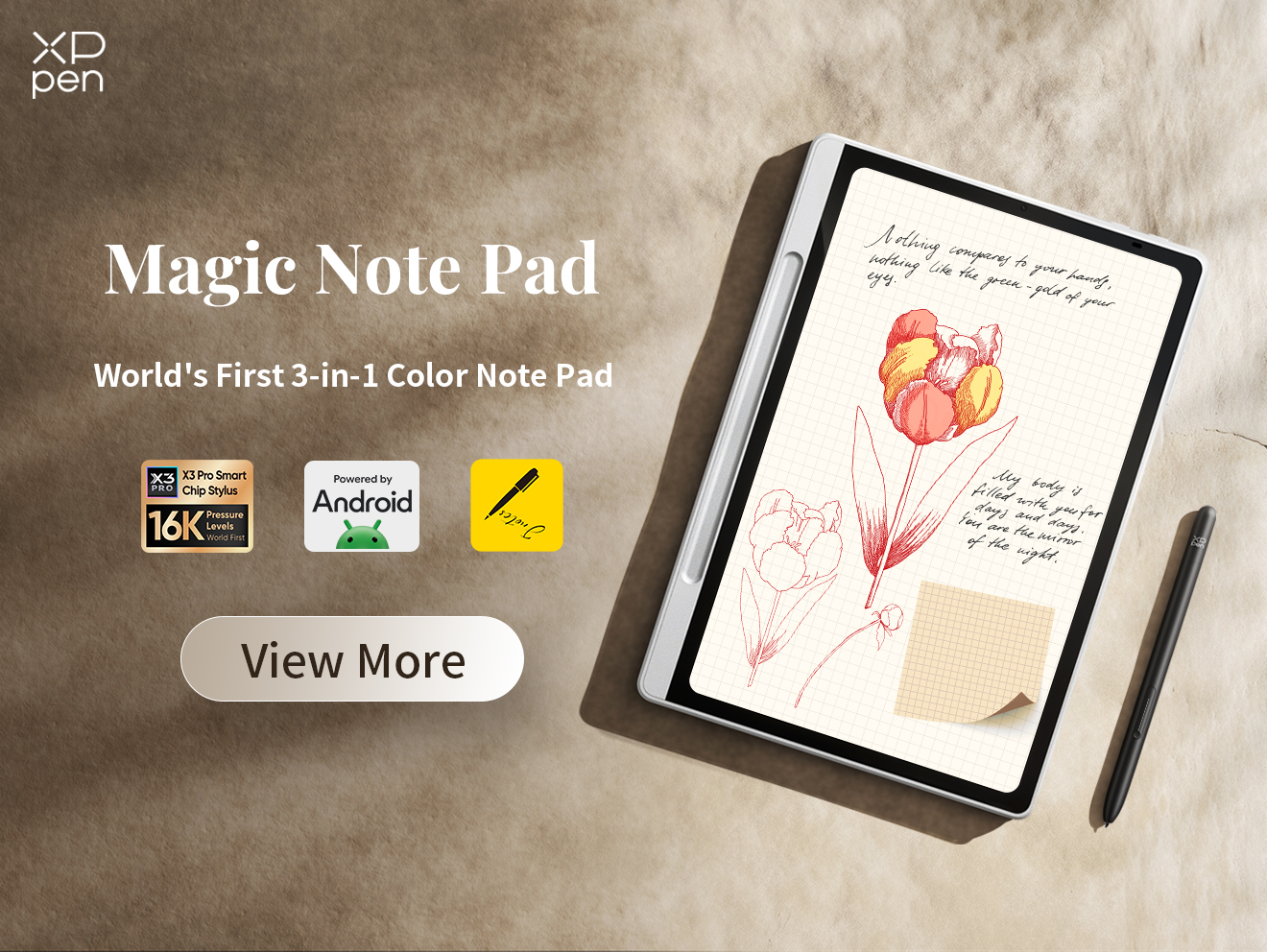
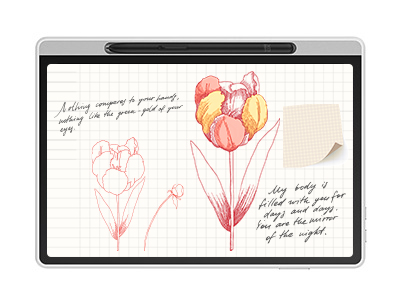
The XPPen Magic Note Pad is a dedicated device for people who prefer writing by hand but want to keep their notes in digital form. It combines a paper-like display with the Android operating system, so you can use it for writing, reading, sketching, and other tasks.
As one of the best tablets for note taking , this device uses a 10.95-inch X-Paper display with three color modes for reading, writing, and sketching. It supports 16,384 pressure levels through the X3 Pro Pencil 2, which gives the pen a natural response when you write or draw.
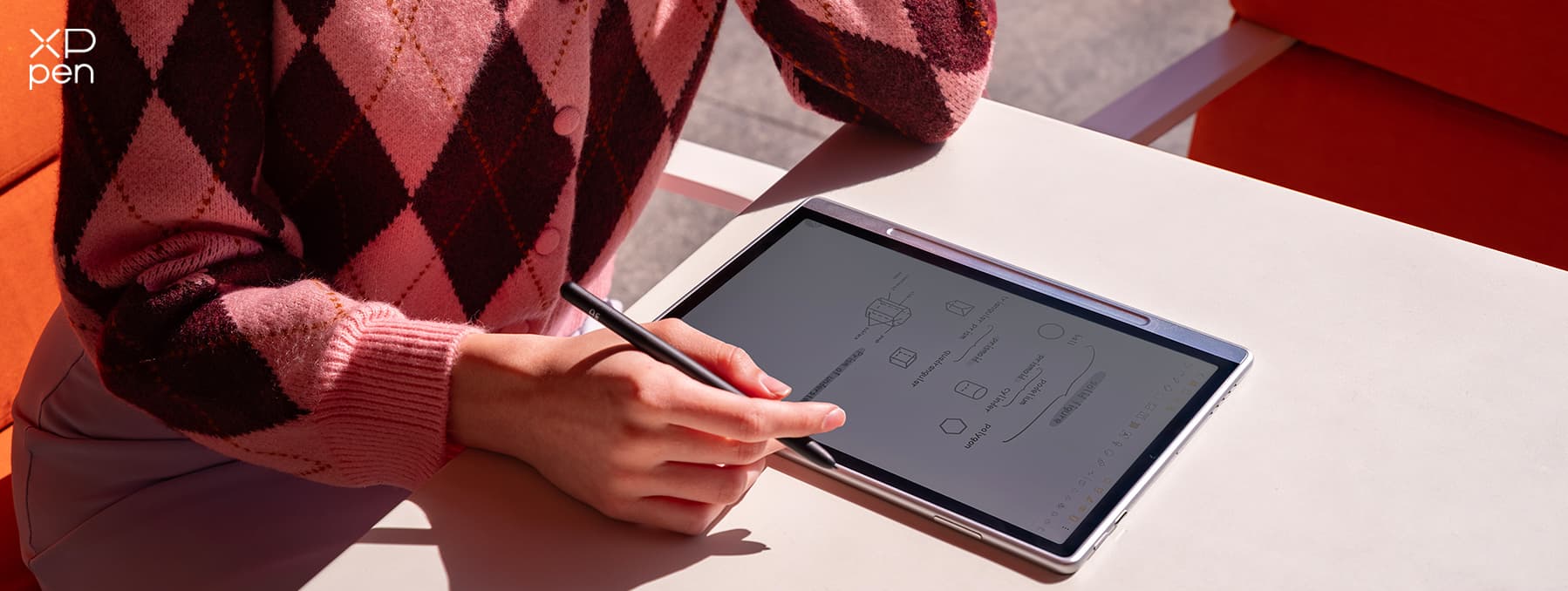
XPPen also includes its XPPen Notes app for digital notebooks. The Magic Note Pad runs Android 14, so users can install compatible Android apps instead of limiting the device to one note-taking application. It also uses a 90Hz refresh rate and a matte anti-glare display.
XPPen lists TÜV SÜD certifications for low blue light and paper-like display performance. The device measures about 7mm in thickness and weighs around 495g, which makes it suitable for carrying to classes, meetings, or work.
Key features of Magic Note Pad:
-
95-inch paper-like color display
-
Three viewing modes
-
16,384 pressure levels
-
X3 Pro Pencil 2
-
Android 14
-
XPPen Notes app
-
90Hz refresh rate
-
Low-blue-light certification
-
Standalone operation
Best for: Students, writers, artists, professionals, and anyone who wants a dedicated handwriting device.
Part 2. Best Apps for Digital Note-Taking
The best digital note-taking app depends on how you like to capture and organize information. Some are built around handwriting and paper-like notebooks, while others focus on quick notes, collaboration, knowledge management, or document organization. The tools below cover different note-taking styles, so you can choose one based on how you study, work, and manage information.
1. Goodnotes: Best for Handwritten Digital Note-Taking
Best for: Students, teachers, and iPad users who prefer writing notes by hand.
Goodnotes is one of the strongest choices for people who want a traditional notebook experience on a digital device. You can create notebooks, write with a compatible stylus, highlight text, draw diagrams, and annotate PDFs without switching between different apps.
It is particularly useful for students who need to combine lecture notes, textbooks, worksheets, and handwritten study materials in one place. Handwriting recognition also makes handwritten content easier to search later, while templates help you create planners, study notes, and other structured documents.
The free plan supports up to three notebooks, text documents, and whiteboards. Goodnotes Essential costs $11.99 per year in the US, while the Pro plan costs $35.99 per year. Pricing can vary by region.
Advantages of Goodnotes:
-
Natural handwriting experience
-
PDF annotation and markup
-
Handwriting recognition and search
-
Audio recording
-
Digital notebooks and templates
-
Supports handwriting and typed text together
-
iPad and cross-platform support on paid plans
2. Samsung Notes: Best for Android Handwritten Notes
Best for: Samsung Galaxy users who want to take handwritten notes with an S Pen.
Samsung Notes is designed around the Samsung Galaxy ecosystem and works especially well on Galaxy phones and tablets with S Pen support. You can write or draw directly on the screen, type text, add images and voice recordings, and annotate PDF files.
For students and professionals using a Galaxy tablet, Samsung Notes provides a straightforward way to turn the device into a digital notebook. Handwritten notes can also be converted into text, making it easier to organize or reuse information after a meeting or class.
Its biggest advantage is the combination of stylus-focused note-taking and Android integration , particularly for users who already own a compatible Samsung device.
Advantages of Samsung Notes:
-
S Pen handwriting support
-
Handwriting-to-text conversion
-
PDF annotation
-
Voice recording
-
Text, images, and handwriting in one note
-
Sync across supported Samsung devices
-
Strong Android integration
3. Apple Notes: Best Note-Taking App for iPad
Best for: iPhone, iPad, and Mac users who want a simple note-taking app without installing another service.
Apple Notes is one of the easiest options for Apple users because it is already built into the Apple ecosystem. You can type notes, write with Apple Pencil on supported iPads, scan documents, add photos and PDFs, create checklists, and organize information with folders and tags.
It works particularly well for everyday note-taking rather than highly specialized digital journaling. You can quickly jot down an idea on an iPhone, expand it on an iPad, and access the same note later on a Mac through iCloud.
Apple Notes also supports handwriting search and can search text inside supported scanned documents and images. Apple lists Notes as a free app.
Advantages of Apple Notes:
-
Free
-
Apple Pencil support
-
Handwritten and typed notes
-
PDF and document scanning
-
Checklists and tables
-
Folders and tags
-
iCloud sync
-
Audio recording and transcription features on supported devices
4. Google Keep: Best Free Note-Taking App for Quick Notes
Best for: Students and everyday users who want a free tool for quick notes, lists, and reminders.
Google Keep takes a simpler approach to digital note-taking. Instead of recreating a full paper notebook, it focuses on capturing small pieces of information quickly. You can create text notes, checklists, drawings, voice notes, and reminders, then organize them with labels, colors, and pinned notes.
This makes Keep particularly useful for assignment reminders, shopping lists, research ideas, meeting takeaways, and other information that does not need a long-form notebook structure. Collaboration also allows multiple people to work on the same note.
Google says Keep syncs notes across supported devices, including phones, computers, and smartwatches.
Advantages of Google Keep:
-
Free for normal personal use
-
Very simple interface
-
Notes, lists, drawings, and audio
-
Reminders
-
Labels and color organization
-
Collaboration
-
Cross-device syncing
-
Useful for quick notes and daily tasks
5. Microsoft OneNote: Best Free Note-Taking App for Handwriting
Best for: Students, professionals, and Windows users who want a flexible digital notebook with stylus support.
Microsoft OneNote provides a more traditional notebook structure than apps such as Google Keep. Notes are organized into notebooks, sections, and pages, making it easier to separate subjects, projects, meetings, or personal information.
You can type notes or write directly on a touchscreen with a compatible pen. OneNote also supports drawing, highlighting, screenshots, handwriting-to-text conversion on supported versions, and other tools that make it useful for both handwritten and typed notes.
Its broad platform support is another advantage. Microsoft offers OneNote for Windows, Mac, web, iPad, iPhone, and Android, so it can work well for users who regularly move between different devices.
Advantages of Microsoft OneNote:
-
Free core app
-
Notebook, section, and page organization
-
Strong Windows support
-
Stylus and handwriting tools
-
Handwriting-to-text conversion
-
Drawing and annotation
-
Integration with Microsoft services
-
Available across major platforms
6. Notion: Best for Collaborative Note-Taking
Best for: Teams, freelancers, students working on group projects, and users who want notes and task management together.
Notion goes beyond traditional note-taking by combining documents, databases, task lists, wikis, and project management tools. Instead of simply storing meeting notes or study materials, you can turn those notes into a larger workspace.
For example, a student can use Notion to combine class notes, assignment deadlines, reading lists, and project plans. Teams can create shared meeting notes, research pages, project documentation, and internal wikis in the same workspace.
Notion offers a free plan for individuals. Its Plus plan currently starts at $10 per member per month when billed annually, while Business starts at $20 per member per month.
Advantages of Notion:
-
Free individual plan
-
Flexible page structure
-
Shared pages and collaboration
-
Databases and task management
-
Project and knowledge organization
-
Templates
-
Desktop and mobile apps
7. Evernote: Best for All-Purpose Note-Taking
Best for: Users who want to keep notes, documents, attachments, and reference information in one place.
Evernote has traditionally focused on turning note-taking into a broader information-management system. Rather than keeping only handwritten or typed notes, you can collect documents, web content, images, attachments, and other reference materials alongside your notes.
This makes it useful for work research, meeting records, personal projects, and information that you may need to find again later. Notebooks and tags provide additional ways to organize larger collections of information, while search tools help locate specific content.
Its current Free plan supports 50 notes, one notebook, 20 tags, 200 attachments, 1GB of storage, and syncing across one device. Paid plans increase those limits and add more features.
Advantages of Evernote:
-
Notes and attachments
-
Notebooks and tags
-
Cross-platform apps
-
Document and information storage
-
Search tools
-
Web and reference content management
-
Useful for both work and personal organization
8. Obsidian: Best for Personal Knowledge Management
Best for: Researchers, writers, developers, students, and anyone who wants to connect ideas across multiple notes.
Obsidian takes a different approach to digital note-taking. Instead of treating each note as a separate document, it lets you connect related ideas using links, creating a network of information that can grow over time.
This makes it particularly useful for research, writing, studying, and long-term knowledge management. You can build links between concepts, organize information into folders, and use graph view to visualize relationships between notes. Because notes are stored locally as Markdown files, users also have more control over their data and file structure.
Obsidian's core app is free without requiring a subscription. Its optional Sync service costs $4 per user per month when billed annually or $5 when billed monthly. The Publish service costs $8 per site per month when billed annually.
Advantages of Obsidian:
-
Free core app
-
Local note storage
-
Linked notes
-
Graph view
-
Full-text search
-
Markdown support
-
Highly customizable
-
Optional cross-device sync
9. Notability: Best for Lecture Notes and PDF Annotation
Best for: College students, teachers, and users who combine handwritten notes, PDFs, and audio recordings.
Notability is designed around a study-focused workflow. You can import lecture slides or PDFs, write directly on them, record audio while taking notes, and organize course materials into subjects.
This makes it particularly useful for lectures where you need to capture information in several formats at once. Instead of taking separate notes and recording a lecture with another app, you can combine handwriting, typed text, documents, and audio in the same workflow.
Notability currently offers a free Starter plan, while paid plans add features such as audio transcription, handwriting search, AI study tools, and other functions. Its Classic one-time purchase is also available in some markets, with the company listing $39.99 on its website and noting that prices can vary.
Advantages of Notability:
-
Handwritten notes
-
PDF annotation
-
Audio recording
-
Lecture-focused workflow
-
Handwriting search
-
Templates
-
Study and AI tools
-
Combines notes and recordings
Part 3. What Makes a Good Digital Note-Taking System?
Choosing the best app is only part of the decision. A good digital note-taking system should fit the way you capture, organize, find, and review information.
1. Fast & Easy Capture
You should be able to start a note quickly. A good system should let you type, write, draw, record audio, or save an image without unnecessary steps. Google Keep works well for quick capture, while Goodnotes, OneNote, and Notability suit longer handwritten notes.
2. Flexible Organization
Your notes can become difficult to manage if you do not organize them from the start. Look for folders, notebooks, tags, labels, sections, or linked pages. For example, OneNote uses notebooks, sections, and pages, while Notion uses pages and databases. Obsidian focuses more on links between notes.
3. Powerful Search & Retrieval
A note-taking tool should help you find old information quickly. Search becomes especially important after you collect hundreds or thousands of notes. Google Keep supports filters based on labels, colors, note types, and other details. Apple Notes can search handwriting and supported scanned content.
4. Review & Knowledge Reuse
Taking notes has little value if you never use them again. Choose a system that makes old information easy to review. Students can reuse lecture notes during exam preparation. Writers can collect research in linked notes. Teams can turn meeting notes into tasks and project updates.
5. Simplicity vs. Complexity
More features do not always mean a better experience. Google Keep may suit someone who only needs quick reminders, while Notion or Obsidian may suit someone who manages large collections of information. Choose the simplest tool that handles your real needs.
6. Hardware & Input Experience
Your device also affects your note-taking experience. A keyboard works well for long typed notes, while a stylus works better for diagrams, formulas, handwritten notes, and PDF marking.
If handwriting matters most, a device such as the XPPen Magic Note Pad can give you a dedicated writing experience.
Key Takeaway: Choose a System, Not Just an App
The best digital note-taking setup may include more than one tool. You might use Google Keep for quick reminders, OneNote for school notes, and Notion for projects. Another user may prefer an iPad with Apple Notes or Goodnotes for everything. Choose based on how you actually take notes instead of choosing an app only because it has a long feature list.
Part 4. FAQs About the Best Tools for Digital Note-Taking
Q1: What is the best free note-taking app for Windows with stylus?
Microsoft OneNote is one of the best options. It supports handwritten notes, drawing, highlighting, and handwriting-to-text conversion on supported Windows devices.
Q2: Goodnotes vs. Notability vs. OneNote—which is best?
Goodnotes works well for handwritten notes and PDFs. Notability suits lecture notes, audio, and document annotation. OneNote offers broader platform support and works especially well for Windows users.
Q3: What is the best note-taking app for students?
Goodnotes, OneNote, and Notability all work well for students. Choose Goodnotes for iPad handwriting, OneNote for Windows and cross-platform use, or Notability for lectures and PDF annotation.
Q4: What is the best note-taking app for college lectures?
Notability is a strong option because it combines handwriting, document annotation, and audio recording. Goodnotes also works well for handwritten lecture notes.
Q5: What is the best note-taking app for both handwritten and typed notes?
OneNote, Goodnotes, Apple Notes, and Notability all support both input types. Your device should guide the final choice.
Q6: What is the best note-taking app for annotating PDFs and PowerPoints?
Goodnotes, Notability, OneNote, and Apple Notes can all handle document markup in different ways. Goodnotes and Notability stand out for students who frequently write directly on study documents.
Conclusion
The best tools for digital note-taking depend on your device, writing style, and daily needs. XPPen Magic Note Pad is a strong choice if you want a dedicated digital note-taking device with a paper-like display and stylus support.
Goodnotes and Notability suit handwritten study notes, Apple Notes works well for Apple users, Google Keep handles quick free notes, and OneNote remains a solid choice for Windows and stylus users. Notion fits team projects, Evernote handles general information storage, and Obsidian suits personal knowledge management.
Before choosing, consider how you capture notes, how you organize them, and how often you need to find them again. The right system should make note-taking easier without making your workflow harder.
About Us
Founded in 2005, XPPen is a leading global brand in digital art innovation under Hanvon UGEE. XPPen focuses on the needs of consumers by integrating digital art products, content, and services, specifically targeting Gen-Z digital artists. XPPen currently operates in 163 countries and regions worldwide, boasting a fan base of over 1.5 million and serving more than ten million digital art creators.
Learn moreRecommended Articles
FOCUSED Best Tablets for Note Taking in 2026: 7 Picks Tested & Compared FOCUSED XPPen Magic Note Pad Review: A 3-in-1 Paper-Like Tablet FOCUSED Best Tablets for Taking Handwritten Notes in 2026 TIPS Notability vs GoodNotes: Which Note-Taking App Is Better?


Looking for the Best Drawing & Design Apps?
Discover essential drawing techniques, expert tips, and the best app recommendations to boost your creativity and master digital art.
